Corrupted Hard Drive: What To Do Now?
A corrupted hard drive? Just the thought of this can lead you to panic!
And what if this really happened?
After all, you keep so much important and useful information on your hard drive. There are photos, videos, and documents of various kinds.
You can count them for a long time. But now, how to get it all back?
How do you recover files from corrupted hard drive?
Do not worry; there is a solution!
Hard drive corruption signs:
Usually, if there is a corrupted hard drive, you can no longer use it. But at the same time, it can be displayed as a disk. Also, you may receive some error messages or the hard disk will not work correctly.
Here are some examples that you may face if the hard disk is damaged:
- The operating system sends you messages like these:
- “The disk is not formatted. Do you want to format now?”
- “Sector not found.”
- “An invalid media type was specified.”
- “Invalid media type reading drive C error.”
- “RAW”
- Files are named with "incomprehensible" characters, that are definitely weren’t set by you.
If you have seen one of these symptoms on your monitor, you need to know: your hard drive is corrupted.
What to do at the beginning?

The first thing you can do is check your hard disk for errors. Any version of Windows has a built-in hard disk recovery mechanism. Sometimes there is an automatic request to scan the disk when the disk is connected to the computer. It depends on the version of Windows. If the request is not followed, try to recover the corrupted hard drive manually.
To do this, click on Start, select the drive, click Properties, and then left-click on Tools. Select Check.
The error checking process starts. In the end, you will need to restart the PC/laptop. However, this method does not always fix the problem. And that also means that, instead of recovering the corrupted hard drive, you can bring its files back.
Recover data from a corrupted hard drive
There is a time-tested way to get any type of files from the hard drive, even if it was corrupted.
A powerful and reliable recovery software, like Partition Recovery™.
DiskInternals Partition Recovery™ is the best tool to recover data from corrupted hard drive.It works on each of the partitions on the hard disk. It restores the file system of the hard disk to give you the opportunity for deep file recovery.
Partition Recovery™ lets you preview the recoverable files even in the trial version. You will be convinced that your files are recovered correctly.
The built-in recovery wizard will accompany you at every step of recovering files from corrupted hard drive. Therefore, you do not need to have any technical knowledge. DiskInternals Partition Recovery™ supports all file systems: NTFS, FAT, ReFS, Ext2/3/4, UFS, HFS, ReiserFS, Reiser4, XFS, etc.
All you need to do is follow the step-by-step instructions that are described below.
How to recover files from a corrupted hard drive
Here is the DiskInternals Partition Recovery™ guide to recover corrupted hard drive:
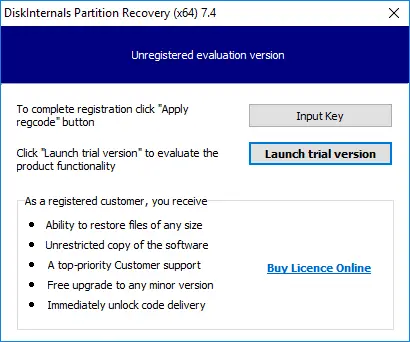
- 1. Download the trial version of DiskInternals Partition Recovery™ and launch the .exe file.
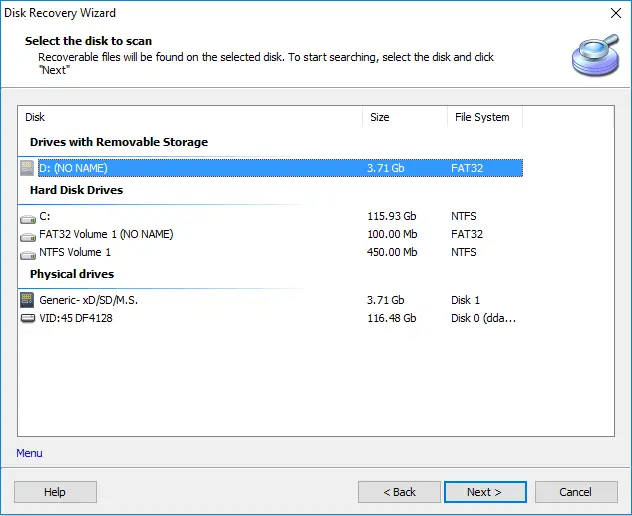
- 2. You will be asked to set the parameters for searching for deleted files: select the drive for scanning and the preferred file type (you can skip this step). The scanning process will starts.
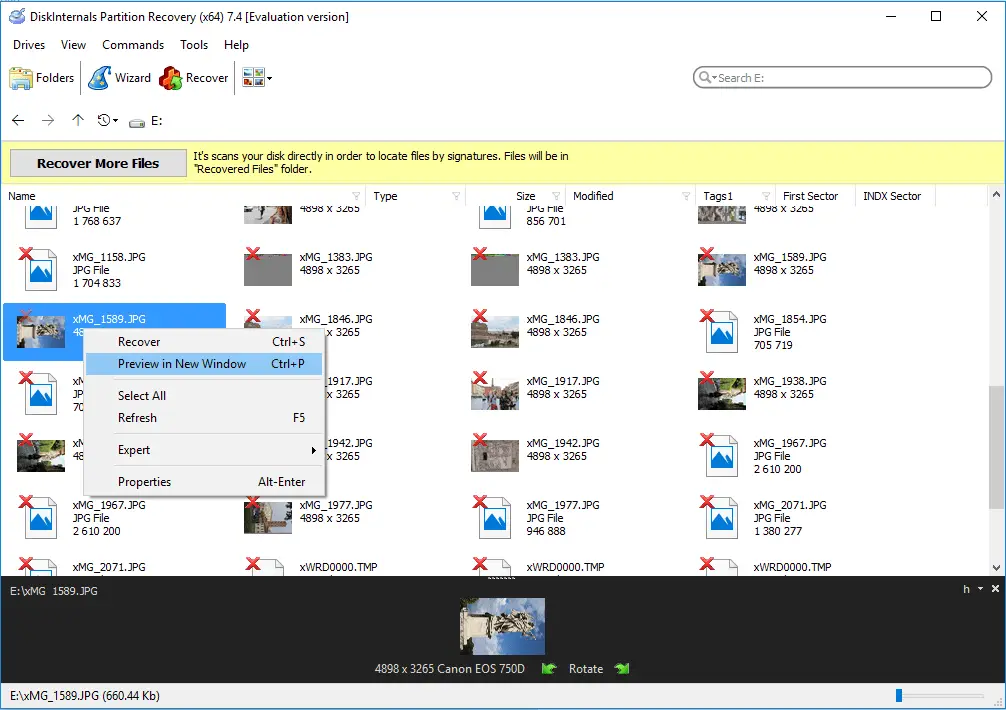
- 3. After scanning is finished, you will see the list of recoverable files. They are all marked with a red cross in the upper left-hand corner. To preview any file’s content, press “Ctrl+P” or right-click on the selected file and choose “Preview in New Window”.
- 4. Save the recovered data in a new, safe place.
To save the recovered files on the computer or upload via FTP, you just need to purchase a license and you can complete the partition recovery process. These simple instructions will help you take advantage of the software and recover your data safe and sound.
DiskInternals Partition Recovery™ is a guarantee of quality and security for your data.
Good luck!
Related articles
- Recover lost.dir files android Device (2026)
- What To Do If You Cannot Extend Volume in 2026
- How to Repair a Damaged Partition with Partition Recovery™
- Having hard drive error code 2000-0142? Fix it!
- [Solved] Wiped vs accidentally erased hard drive
- [Error] The volume does not contain a recognized FS
- How you can initialize disk without losing data
- Why the Hard Drive Clicking Happens and How to Fix It
- ReFS: can you use it for RAID
- Recovering Data from Crashed Hard Drive: Safe
- How to Recover Data from a Dead External Hard Drive and Repair It (2026)
- [Windows] Recover an unallocated partition today
- How to Recover Data from a RAW Hard Drive - Raw Partition Drive Recovery
- External hard drive repair software [2026]
- WD HDD Repair Tool Guide: Western Digital Hard Drive Repair, Recovery & Fix 2026
- OEM Partition and how to delete it safely
- Seagate external HDD not showing up in Windows 10? Solved!
- How to Recover Data from a Formatted Hard Drive in 7 Steps (2025)
- Recover Files from Corrupted External Hard Drive Today!
- New hard drive not showing up in Windows 10
- How to Fix a Corrupted External Hard Drive at Home in 2025
- Hard Disk Recovery | DiskInternals Partition Recovery
- HDD Data Recovery from Unallocated Space
- External hard drive having ‘the parameter is incorrect’
- Solved 2025! Fix a dead external hard drive and restore files
- Convert RAW to NTFS in 2 Steps!
- External hard drive: Access is denied
- Guide: How to Fix a Corrupted Hard Drive Fast
- Repair a Hard Drive with Bad Sectors | Fix HDD Bad Sectors & Recover Data
- How to deal with smart hard disk error 301 on HP laptops?
- Seagate hard drive beeping: your actions
- Primary vs. Logical partition comparison
- Moving hard drive to new computer
- Maxtor Hard Drive Recovery
- LaCie External Hard Drive Recovery
- Step-by-step guide on how to wipe a hard drive
- How to use OneDrive
- How to use a hard drive reader
- Hard Drive Password Recovery: Everything You Need to Know
- Hard Disk 3f0 Boot Device Not Found on HP: Fix it Now!
- Is it worth it to compress this drive to save disk space?
- This is how to combine partitions Windows 10
- How to check hard drive health?
- [Solved] How to get files off a broken laptop safe
- Make Unallocated Space Into Free Space
- How to delete an EFI System Partition
- Converting a dynamic disk to a basic disk
- Partition Recovery Guide in pictures
- Repairing of Corrupted Hard Drive
- Revive Your Laptop Hard Drive With Recovery Tips
- The best, most reliable software to recover files from a corrupted hard drive
- Hard disk detected as RAW? Perform RAW Drive Recovery!
- Hard Drive Repair and Bringing Files Back
- How to Fix a Crashed Hard Drive on Your Own
- How to fix hard drives at home
- How to recover data from a damaged external hard disk
- Disk is Write-Protected? Don't Give Up Yet!
- External hard drive not showing up? Fix it in 2025!
- How to use Windows partition manager correctly
- Seagate external hard disk light blinking but not detecting
- How to Fix: Windows Detected a Hard Disk Problem⠀
- Signs Your Hard Drive Is Failing in 2025
- What causes lead to a hard drive fails?
- How to Unpartition an External or Internal Hard Drive
- Couldn't Create a New Partition or Locate an Existing One
- If Windows 10, 11 doesn't recognize hard drive
- If the Unknown Hard Error message appears
- If you want to remove OneDrive
- If you get hard disk short DST failure
- Initialize a disk before the disk manager can access it
- Internal/external hard drive shows 0 bytes
- If the Hard Drive Disappeared on Windows 10
- [SOLVED] How to Recover Files from a Hard Drive that Won't Boot
- Need to Install Windows 10 on the External HDD?
- Not enough unallocated space on target disk
- Partition a hard drive on Windows 10
- Guide on how to activate partition
- Creating new simple volume: only workable tips
- [Solved!] External hard drive not detected
- What to do in case of External Hard Drive I/O Error?
- How to repair SATA Hard Drive?⠀
- How to Recover a Wiped Hard Drive
- If Hard Drive Short DST Check Failed
- How to fix ASUS motherboard not detecting SATA hard drive issue
- How to Backup in Windows 10, 11?