Fix Win32: Bogent Threat Now!
Here you will find out:
- how to deal with this issue
- how DiskInternals Partition Recovery can help you
About This Issue
When a Win32: Bogent virus software is detected, your antivirus program usually notifies you that the detected virus will be removed.
However, some users reported that they received a message that their third-party antivirus quarantined Win32: Bogent when launching the Steam client. Don't dismiss this warning prematurely, first make sure Win32: Bogent won't harm your system.
Therefore, let's understand what a Win32: Bogent file is and, if it harms your system, how to delete it.
Use System Protection
1. Antivirus
So, first check for false positives.
To do this, start your antivirus and open the Quarantine tab.
Note: the path to the Win32 file is: Bogent
- C:\Program Files\Steam\steamapps\download\236850pdx_browser\32libcef.dll
Next, go to the VirusTotal website, click the Select File button and click the quarantined file.
Once the assessment is complete, you can see if the file is malicious or not.
Several mechanisms will detect any potential threat.
However, keep in mind that if only AVG and Avast find the file, this is most likely a false alert. In this case, remove third-party antivirus software from your system and run a scan with Windows Defender.
Here's how to remove a third-party antivirus:
Press Windows Key + R at the same time and type control into the search bar. Then click OK, in the new window select Uninstall a program. Next, click on AVG / Avast from the list of suggested applications and click "Remove".
After the uninstallation is complete, restart your computer.
2. Windows Defender
You can also launch Windows Defender immediately to check the win32: bogent [susp] file.
To run this inline scan, do the following:
Click the Start button and select the Settings section and go to the Update & Security section. Next, open Windows Security and make sure you have the latest version of Windows Defender installed.
Click the button to select the Virus & Threat Protection. In the options, click the Full Scan option and Scan Now. After the scan is complete and check if Windows Defender detects the Trojan.
If Windows Defender detects a Trojan horse, then the false positive can be ignored.
The best way to recover data if it has disappeared without a trace is to use special software, such as DiskInternals Partition Recovery
This professional software tool can help you recover files of any format quickly and automatically, even if you are new to the business. Use a free trial of this product before purchasing a license for this software.
Thus, before purchasing, you will see all the benefits of DiskInternals Partition Recovery and make sure that it is exactly what you need in your data protection situation.
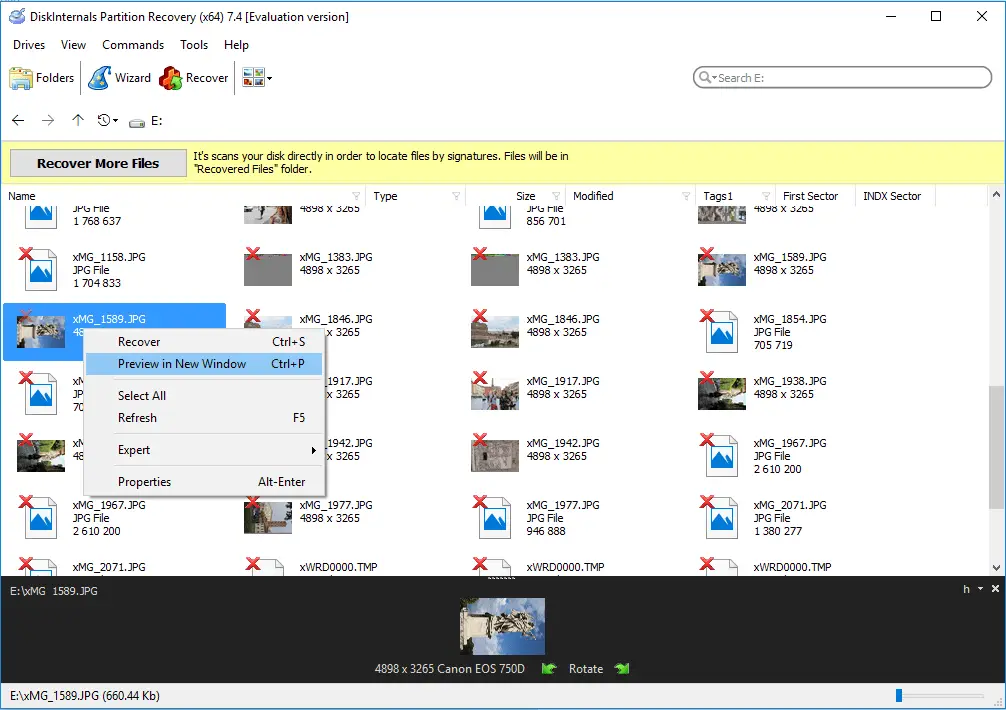
You can also use the preview function and see the data before recovery; and will have amazing recovery quality.

For clarity, use the instructions below:
Step 1. Download and run DiskInternals Partition Recovery (you can use the free version).
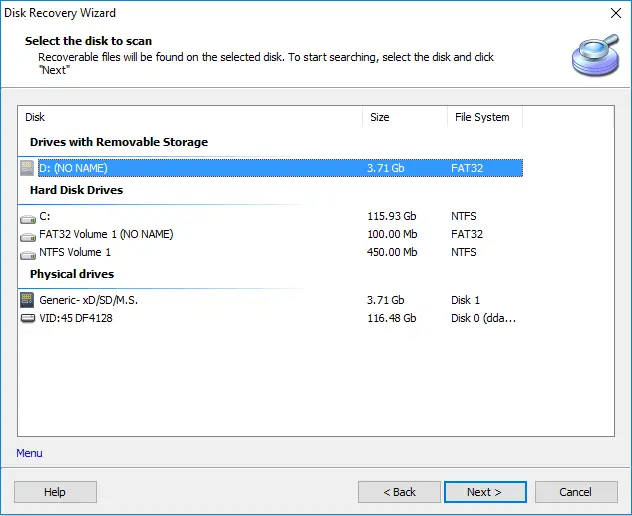
Step 2. In a new window, you will see all storage devices on your computer. Select the drive containing your lost or deleted files, then click Next.
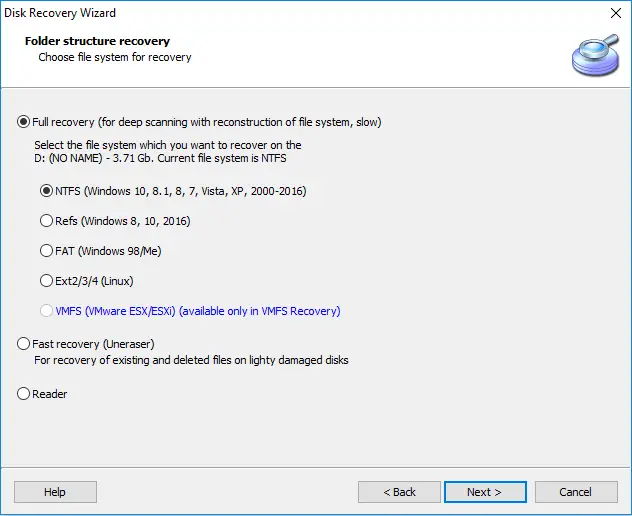
Step 2a. Select the type of files you want to recover and click Next.
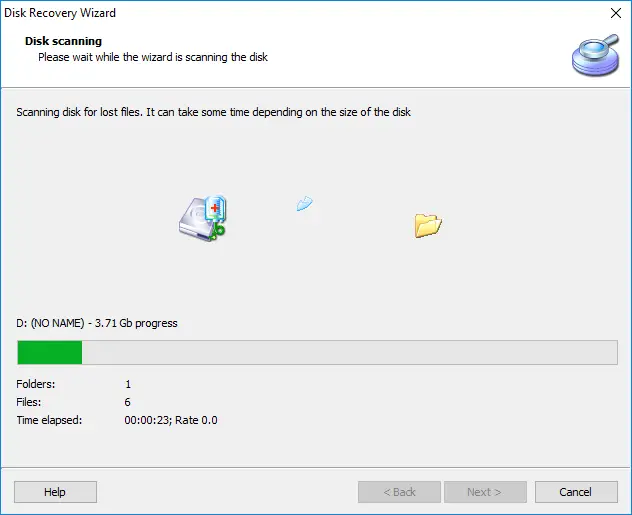
Step 3. Scan. Select the scanning method: fast (shallow) or full (recommended). Wait for the process to complete.
Step 4. Preview and recover lost files. Right-click the file mouse and select Preview in New Window" (you can also just press the hotkey combination "Ctrl + P"). After viewing the files, you can restore them - this process is automatic.
Step 5. Save. You just need to purchase a license and enter the license key in the appropriate window, then select a location to save the recovered files. It is best to keep your data in a secure source to prevent tragic data overwriting.