Bluetooth is Not Working in Windows 10, 11: fix it now!

Here you will find out:
- how to deal with this issue
- how DiskInternals Partition Recovery can help you
You can update device drivers in order to get rid of the Windows 10, 11 Bluetooth Couldn't Connect problem
If this did not happen automatically with Windows Update, you need to manually update the drivers.
To do this, go to Device Manager. In the new window, find and right-click the Bluetooth device. Next, select Properties and go to the Advanced section. You need to write down the number next to the manufacturer ID and enter your manufacturer ID. This is necessary in order to detect the manufacturer of your Bluetooth and automatically redirect you to a website where you can download the latest driver. Alternatively, you can also search the site for a specific compatible driver.
There are specialized programs for updating drivers that help users keep your system up to date and stable.
You can also reinstall the Bluetooth device if the previous method does not work
To do so, click the Start button and go to Search. Now enter devicemgr. When Device Manager opens, find your Bluetooth device. Next, right-click it and click the Delete option. Confirm this action and, after completing the process, restart your computer. Windows will automatically install the new driver. If it doesn't, you should visit the device manufacturer's website and install a new driver for Windows 10, 11.
Examine Service
Check the Bluetooth service, it may not be working as expected.
To get to the Services application, search for services.msc and press Enter. In the new window, find the Bluetooth support service, right-click it, and select Start. If you find that the service is enabled, restart it. To do this, right-click the Bluetooth service and select Restart. Now wait for the completion of the process and restart the computer to get rid of the Bluetooth Stopped Working Windows 10, 11 problem.
Troubleshooting
You can also run a troubleshooter to help diagnose and fix problems with Bluetooth.
Open Settings and go to Updates & Security. Next, click on Troubleshoot, select Bluetooth from the list. Find the Run the Troubleshooter' option and activate it. Follow all the instructions on the monitor screen and let the process complete. Restart your computer after that and check if your problem is resolved.
Adjust Battery Preferences
Certain power saving settings can disable the Bluetooth device. In this case, change the power saving settings so that the Bluetooth Not Working Windows 10, 11 problem does not bother you anymore.
Open Device Manager, find the Bluetooth option and double-click it.
In Properties, go to the Power Management section. Now deactivate the Allow the Computer to Turn Off This Device to Save Power function and click OK to save the changes.
Use Another Connection
Your Bluetooth device may be in good working order and the problem is with a damaged USB port. Sometimes, it may simply not support the peripheral. Either way, try using a different USB port and see if that fixes your situation.
Make Sure Your Data is Safe!
If you notice that some files have been lost, damaged, or become inaccessible, use DiskInternals Partition Recovery to recover your data. This is the only effective way to protect missing or damaged files quickly, efficiently, and professionally.
DiskInternals Partition Recovery will instantly recover absolutely all file types and any data up to 1 PB in size without any help. The recovery wizard (there are several of them, depending on your file system) will guide you from start to finish of data recovery.
The program can handle any selected file system (conversion at the software level is possible), and will also cope with any cause of data corruption. The free preview of the information found is sure to please even the most sensitive users. It will also give you even more confidence that you have chosen the right tool. And as soon as you are ready to export the data, buy a license and upload the recovered files to a safe location.
If you do not need to recover data, you can simply open inaccessible files like in Explorer and view them completely free of charge.
Instructions for DiskInternals Partition Recovery:
1. Download and install according to the provided instructions for DiskInternals Partition Recovery.
2. The Recovery Wizard will automatically ask you to select a disk or partition to scan.
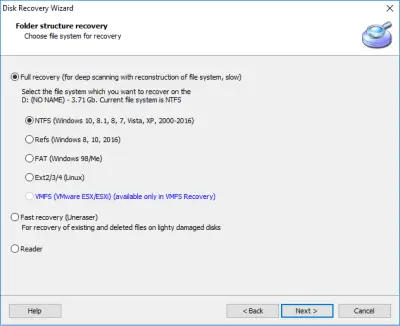
3. Select the recovery mode: full (recommended, will take more time), fast (shallow recovery, will take less time), or reader (to read inaccessible files). In the full recovery mode, you need to select the file system, which will be detected automatically, then the scanning process will begin.
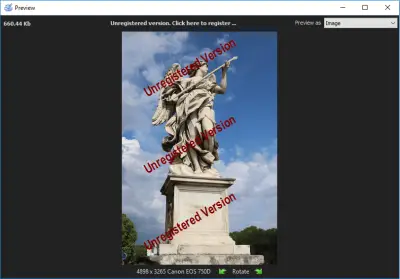
4. The preview is free after the scan is complete. You will see a list of recovered files and folders, right-click the file and select View in New Window.
5. To recover files, after purchasing a license, you need to select the files you need and click on the red cross with the name Recovery.

Related articles
- If explorer.exe class not registered error appears
- 0x80070005 in Windows 10
- Solutions for Faulty Hardware Corrupted Page Error
- If the Computer Freezes When Playing Games
- Error Code 0xc000014c
- Windows stop code 0xc000021a and How to Fix It
- How to Fix Error Code 0xc0000001
- Page fault in nonpaged area Windows 10
- How to Fix Error Code 0xc0000428 BSOD on Windows?⠀
- How to fix unmountable boot volume
- How to Fix the Specified Disk Is Not Convertible
- What should you do if laptop speakers are not working?
- How to fix the 0x0 0x0 Error Code in Windows 10/11
- Solving the DDE Server Window Error during Shutdown on Windows PCs
- How to fix Update Error Code 0x8007001F in Windows 10⠀
- How to Fix Error Code 0x80070422 in Windows 10⠀
- Fix 0x80070002 Windows Update Error in 2025
- Hard Drive Won't Boot in Windows 10/8/7? How to Fix It in 2025
- Start Menu & Taskbar Not Working on Windows 10: A Comprehensive Guide to Fix It
- How to Fix the “Critical Structure Corruption” Error in Windows 10 and Recover Data
- How to Fix DDE Server Window Error Preventing Shutdown on Windows PCs
- Enabling Secure Boot in User Mode: A Step-by-Step Guide to Fix the Issue
- How to Fix 'Download Error 0x80248007' on Windows: A Complete Step-by-Step Guide
- Repair a Partition Table in Windows 10 and Rebuild It
- Fix 0x80080008 Windows Update Error in 2026
- How to Fix the Requested Operation Requires Elevation Error on Windows 10/11
- Here is how to fix Wldcore.dll issues
- How to fix black screen with cursor in Windows 10/11 in 2025?
- How to Use Win32 Priority Separation
- Fix user profile service sign-in failure on Windows10 now!
- The folder is empty but files are still there| Windows10
- Unlock: The drive where Windows is installed is locked
- Partition loss problems on Windows 10?
- Monitor won’t turn on? The best solutions are here!
- Failed to enumerate objects in the container
- Error Code 0xc0000005 in Windows 10? Fix it!
- How To Fix Windows 10 Update Error 0xc1900107?⠀
- Cyclic Redundancy Check Data Error - Solve It In 2025!
- Wireless Mouse is Not Working? Fix it Now!
- Windows won't boot: what should you do in such a case?
- Windows could not perform the requested operation? Fix it!
- What should you do if Windows 10, 11 settings won't open?
- Windows 10 is not detecting a second monitor
- Windows 10 freezing 2025 fix
- [Windows 10, 11] There was a problem resetting your PC error
- What should you do if taskbar won't hide?
- If you get “store data structure corruption” problem
- If you get the Stop Code Memory Management BSOD Error
- Side by side configuration is incorrect
- What should you do if sound is not working in Windows 10, 11?
- Here is how to fix pr_connect_reset_error
- How to deal with the NET HELPMSG 2182 error
- If you get “No Audio Output Device is Installed” error
- If the “NETIO.SYS” error appears
- If you get a non system disk or disk error message
- Here Is How To Fix Net::Err_Cert_Date_Invalid Issue
- Monitor keeps going black
- Mouse scroll wheel jumps
- Mouse Double clicks? Fix it Now!
- MACHINE_CHECK_EXCEPTION error occurs: your actions
- What Should You Do if the Laptop Camera is Not Working?
- What Should You Do if the Laptop Microphone is Not Working?
- If the program isn't closing: how to force quit?
- Best ways to disable startup programs in Windows 10
- How to fix error code 0x80070035?
- Here is how to disable Cortana without any harm to your data
- HKEY_LOCAL_MACHINE. What is that?
- What should you do if headphones are not working in Windows 10?
- FTDISK_INTERNAL_ERROR? Fix it!
- Fix Windows 10 error code 0x800704cf now
- Fix Windows 10 error code 0x8000ffff now
- Fix broken registry items in 2025
- Here is how to fix file system error -805305975
- File Explorer not opening: how to fix it?
- Everything you should know about error code 0xc1900101
- Windows Explorer Keeps Crashing. What to do next?
- Error Code: 224003. Fix it Now!
- 0x80070003 issue
- If you get error 0x80071ac3 code
- Computer randomly restarts
- Computer turns on by itself
- Clear RAM on Windows 10
- What should you do if Chrome keeps crashing Windows 10, 11?
- Can't delete a file
- Audio Services not responding: fix it now!
- Fix 2026: Windows Update Error code 0x80070490
- [Solved!] Error code: 0xc004c003
- How to Fix Windows Update Error 0xc19001e1⠀
- 0xc0000185 error
- 0xa00f4244 error occurs: your actions?
- Fix Windows 10 Update Error 0x8024a105 in 2026
- Error 0x80240034 in Windows Update - How to Fix It (Solved)
- Fix error 0x80131500 now!
- What to Do in Case of 0x803f7001 Windows 10, 11 Error
- How to fix Windows Update Error 0x800703e3⠀
- FIX: Windows Defender error code 0x800704ec⠀
- 0x80070570 error occurs: your actions
- How to get rid of error 0x80042302
- Methods to Fix Stop 0x000000f4 Blue Screen Error [2026]⠀
- FIX: Windows Cannot Install Required Files 0x8007025D⠀
- [Solved!] My computer stopped working. How to fix it?
- My computer will not turn on but has power
- Here is How to Update NVIDIA Drivers in Windows 10, 11
- Can't Restore Mac from Time Machine
- What to Do if Chrome OS is Missing or Damaged?
- What to Do if YouTube Audio is Not Working?
- Windows 10, 11 Start Menu Critical Error
- Windows delayed write failure
- How to fix Kernel32.dll error
- BOOTMGR is compressed
- Partition Recovery replaced Fat Recovery
- Blue screen 0x00000024 error on Windows? Solve it!
- How to fix the Windows 10, 11 that won't shut down
- You need to format the disk in drive X: before you can use it
- Fatal device hardware (0x800701E3) error
- How to disable MS compatibility telemetry on Windows10
- Show hidden files in Windows 10
- If Task Manager won't open on Windows
- If the directory name is invalid
- If Windows 10, 11 stuck before login screen
- The requested resource is in use error in Windows 10
- If a black screen appears after login in Windows 7
- If you get UNEXPECTED KERNEL MODE TRAP error
- Windows could not start because the following file is missing
- Reset to device,\device\raidport0
- Windows error 0xc00000e: how to fix it
- Right-click not working
- Windows 10 file sharing not working
- Code Kmode Exception Not Handled
- If “Windows key not working” issue appears
- How to deal with rgss202j.dll error?
- Runtime error r6025
- Why does wdf01000.sys BSOD error occur on my computer?
- This File Does Not Have A Program Associated With It
- Fix Windows 10 green screen error now!
- When network drive is not showing
- When PC getting stuck in resetting
- If you get an inaccessible boot device error
- The Invalid partition table error on Windows 10, 11
- Remove the dual-boot menu
- Insert your Windows installation or recovery media error
- If you get Path not found C:\boot
- Process1_initialization_failed issue
- “Is it possible to fix the reallocated sector count issue
- What should you do if netwtw06.sys error occurred
- Please login with administrator privileges and try again
- What to do with the kernel power 41 error
- Kernel mode heap corruption occurs: what you can do
- Fix 0xc00000e9 error in Windows! The best solutions
- [Solved!] Folder access denied? 4 best methods!
- Drive is Not Accessible? You Can Fix It!
- The 0x800f0922 error in Windows 10
- A 0x0000009f error in Windows 10
- If you get 0xe0000100 error code
- Fix a corrupted user profile on Windows 10
- If you get Failed to Enumerate Objects in the Container error
- Critical error your Start Menu isn't working
- Issue: disk offline signature collision
- How to deal with error code 0x80070020: workable solutions only
- If “Error Code 0x80004005. Unspecified error” appears in 2026
- Code 45 in 2022
- If you get DISM Error 87
- What does event id 1000 mean?
- Fix Windows Update error 0x80080005⠀
- How to Deal with Error Code 0x80004002 in Windows 10?
- Bad pool header and how you can deal with it in 2026
- 0x80240fff in Windows 10⠀
- If 0xc0000098 error appears
- If you get 0xc0000022 application error
- If A disk read error has occurred in 2026
- Fix Windows 10 Error code 0xc0000034⠀
- If a 0x0000007a error appears
- 6 best ways to fix error code: 80070103
- What should you do when Boot Manager failed to find OS loader
- 0x00000109 Error Blue Screen - 5 Steps to Fix it [2026]⠀
- If you get the error code 0x80080005
- System thread exception not handled (bcmwl63a.sys)
- Learn how to deal with bad pool caller error in Windows 10, 11
- Secure your data while dealing with 2000-0151 error
- FIX: Error 0x8024001 in Windows 10/11 Update⠀
- Windows Update Error 0x80070424
- What should you do if 0xc0000409 error occurs?
- What to do with the Code 19 error
- Fix: Windows Update error code 0x800706ba in Windows 10⠀
- How to Fix Windows Store Error 0x80073cf9?⠀
- Fix error 0xc004f074 in Windows 10⠀
- What should you do in case of 0xc000012f error?
- Everything you need to get rid of 0x80072ee2 error consequences
- 2000-0146 error occurs: your actions?
- 0xc1900223 error occurs: your actions?
- How to fix Windows Store error code: 0x803fb005?⠀
- 0xc0000017 error occurs: your actions
- What should you do in case of 0x80070780 error?
- 0x00000B error occurs: your actions
- What should you do in case of audio renderer error?
- Can't Remove Bluetooth Devices in Windows
- How to Remove a Partition on an External Hard Drive Safely Without Losing Data
- How to Cope with Dell Error Code 2000 0141
- Setup Was Unable to Create a New System Partition Issue
- The NTLDR is missing error
- 0xc0000225 Windows 10 Error Code - How to Fix it
- Fix blue screen stop 0x0000003b [2026]⠀
- Bootmgr Image is Corrupted - What to do next? 2026 fix
- No speakers or headphones are plugged in error message
- If you get NW-31297-2 error
- What to do if the PFN_LIST_CORRUPT error appears
- Application was unable to start correctly (0xc0000005)
- Speakers Failed to Play Test Tone in Windows 10? Fix it Now!
- Controller is Not Working on PC? Fix It Now!
- Pfn_list_corrupt in Windows 10? Fix it now!
- Server Message Block Protocol
- Here is How to Interact with HxTsr.exe
- Control-Alt-Delete combination is not working
- What to do if Chromebook won't turn on?
- What to do if Desktop icons keep moving after OS restart?
- You must enable system protection on this drive
- What to do if the touchpad scroll is not working?
- PS4 database is corrupted? Fix it now!
- Find and Change iTunes Backup Location
- How to Fix a Hard Drive Partition Table