What you need to do to run Windows memory diagnostic safely?

![]()
You need to run a Windows memory diagnostic if your computer is unstable. This built-in system tool will help you identify possible problems with your computer's RAM. Typically, the tool writes data to each sector of the computer's RAM and then reads them in turn. If the instrument reads the wrong value, your RAM is most likely defective and requires treatment.
Here you will find out:
- how to run Windows memory diagnostic
- how DiskInternals Partition Recovery can help you
Are you ready? Let's read!
Use the system features
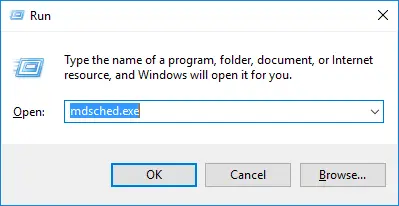
So, to use the services of the Windows Memory Diagnostic Tool Press Win + R keys simultaneously and enter the Run window «mdsched.exe». Next, you need to press Enter or OK and thus run a computer memory check.
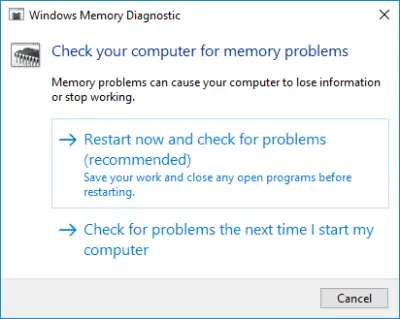
When the message "Restart now and check for problems (recommended)" appears, do it first, saving all unfinished work.
When your computer starts to restart, the Windows Memory Diagnostic Tool screen appears.
You don't have to do anything, just wait and let it run the test. This may take a few minutes, and during this process, you will see a progress bar, so you can follow the progress of the check. As a result, you will receive a "Status" message, which will say whether any problems were found or not.
As a result, your computer will automatically reboot, and after logging in, the test results will appear.
If it does not, the test results can be viewed as follows:
Right-click the start button and select Event Viewer, then go to Windows Logs. In the System section, you will see a list of many events; click "Find" in the right pane and enter "Memory Diagnostic" in the search field. Then click "Find Next", and you will see the result displayed at the bottom of the window.
Thus, you will be aware of the state of your RAM.
If your RAM has any problems, take care of your data
Back up your data as quickly as possible or, if data is already lost, restore it using DiskInternals Partition Recovery.
Be aware that DiskInternals Partition Recovery is one of the best professional tools for both general users and professionals. With it, you can recover any data from a disk or partition, as well as various types of media, such as hard drive, flash drive, the SSD, external hard drive, IDE disk, SATA disk, etc.
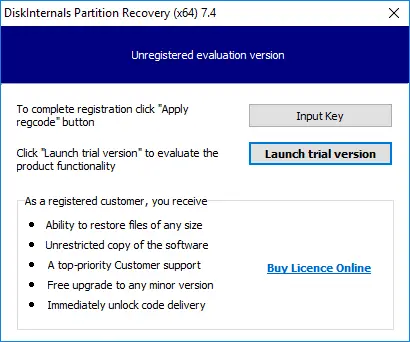
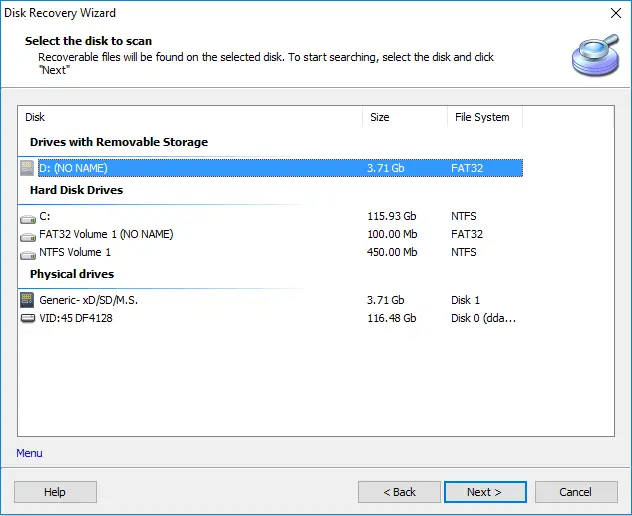
The Partition Recovery Wizard helps you recover deleted or lost partitions instantly and automatically.
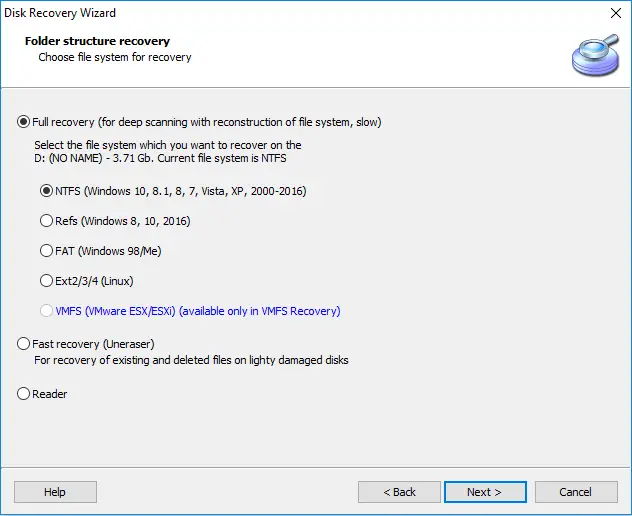
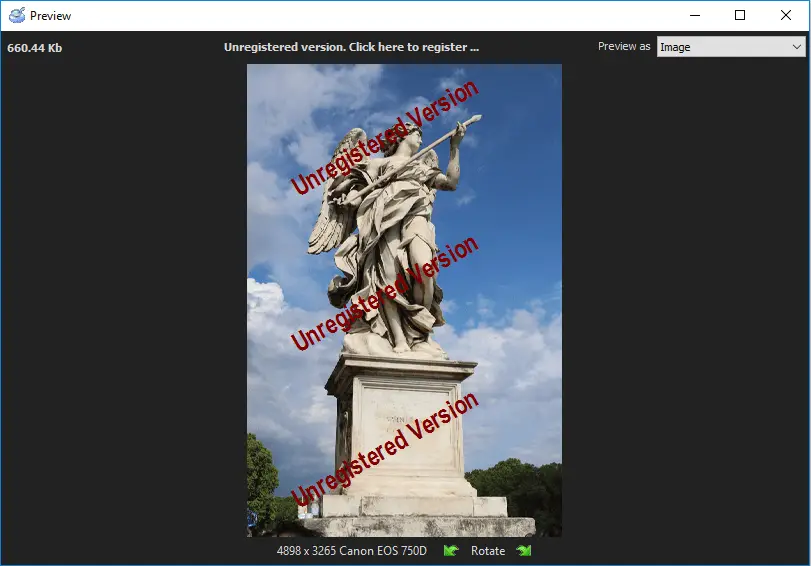
DiskInternals Partition Recovery has three scan modes:
- Quick scan (uneraser),
- Full scan (recovery),
- Reader mode, like in Explorer.
Related articles
- How to Delete Temporary Files on Windows 8
- How to Disable Secure Boot
- How to boot Last Known Good Configuration on Windows 10, 11
- How to fix if it looks like Windows didn't load correctly error
- What are System Recovery Options in Windows
- How to Recover Data from Dead Laptop SSD in 2025
- Top Data Recovery Software for Windows (2026)
- How to Recover Data from a Dead or Failed Hard Drive
- Make your computer faster! Windows 10, 11 refresh
- Western Digital Partition Repair & Partition Recovery Tool
- 9 Best Hard Drive Repair Software for Windows in 2026 (Free & Paid)
- FREE Hard Disk Repair Software for HDD Repair
- How to recover uninstalled programs
- Best Hard Drive Data Recovery Services in 2026
- How to Recover Deleted Files Without Backup in Windows 10/11
- How to Restore Hard Drive Partitions on Windows?
- How to Restore Partition on Windows 10
- Recover Lost or Deleted Partition
- How to Recover Files Deleted by McAfee
- Best Damaged Hard Drive Recovery Software in 2026
- Best Free Partition Recovery Software for Windows (2026)
- How to Recover Ransomware Encrypted or Deleted Files After Attack
- Western Digital External Hard Drive Repair Tool & WD External HDD Repair Guide
- Repair Lost Partition on HDD & Drives - Step-by-Step Partition Recovery Guide
- How to Recover Deleted Folder in Windows 11
- What Is a Lost Partition? Causes, Risks & How to Recover Lost Partitions
- Recover formatted partition free | How to Recover Files after Partition Formatting [2026]
- How to Recover Data from Crashed Hard Drive - FAST in 2026
- Best Free Partition Recovery Software for Windows 7 in 2025
- Windows Memory Diagnostic Tool Stuck? Fix it Now!
- Accidentally Formatted/Deleted Recovery Partition
- Resource Protection could not perform operation
- Here is What to Do if Windows Rollback is Not Working
- Windows Defender won't turn on
- Here are all windows.com/stopcodes and here is how to fix them
- Reset Windows 7 to factory settings
- What should you do if Windows 10, 11 backup is not working
- How secure is OneDrive
- How to restore Windows 10, 11 system: only workable solutions
- Here is how to create and use a restore point in Windows 10, 11
- Diskpart Commands Overview
- How to use dual boot on Windows 7 and 10 safely?
- How to Use Bootsect
- Clean up WinSXS folder on Windows 7, 8
- Partition Table Recover: How to Fix Lost Partition Table & Recover Lost Partition Data
- Differential and incremental backups
- Free damaged partition recovery software
- System Restore failed with an error message
- If System Restore is not working
- Restoring your previous version of Windows error
- Windows 10 preparing automatic repair
- What are Win dump files
- Windows 10 defrag
- If you get “we can't create a recovery drive” issue
- About Windows 10, 11 recovery mode
- Merge partitions in Windows 10
- [Solved!] Offline startup repair cannot repair your PC
- How to edit boot.ini: step-by-step guide
- How to Recover a Hard Drive That Won't Boot
- Error 0x80070570
- Windows 7/8/10 Safe Mode when F8 is not working
- How to use the DIR command correctly?
- If you get the error “Could not find the recovery environment”
- Disable Driver Signature Enforcement in Windows 8, 10
- If you get the “Diskpart has encountered an error” issue
- Deleted Partition Data Recovery Software Free Download
- Change a boot drive in Windows 10
- SFC Commands Review
- Advanced Boot Options
- Bootable Partition Recovery Software
- Free Partition Recovery Tool
- What is a repairing disk errors message
- How to shutdown Windows without updating
- Need to flush DNS cache? Learn how to do it safely
- Change directory in cmd Windows 10, 11
- Create a Windows 10 recovery disk from another computer
- Best command prompt tricks to use in data recovery
- Recover Data from Dead Hard Drive: Methods, Tools, and Recovery Strategies
- How to Fix a Damaged Hard Disk or External Hard Drive Without Losing Data