
VMDK Recovery Tool for Your VMware Data
A missing virtual disk and missing files inside that disk need different starting points. This VMware VMDK recovery tool handles both. Start with what you still have:
- Lost VMDK
- Deleted VMDK
- Corrupt VMDK
- Missing descriptor
- Snapshot chain
- ESXi source
- VMDK file recoveryIf the virtual disk file itself is missing, start with the storage that held it. The VMDK file recovery tool searches that host file system for the container and related files.
- VMDK data recoveryIf you already have the virtual disk, open it in the program to recover data from VMDK file contents: documents, archives, photos, project folders, or database files stored by the guest OS.
- ESXi VMDK recovery through SFTPIn VMDK Recovery, connect through SFTP to the ESXi host, browse its accessible folders, and select the files you need.
Start with the right source
- The VMDK file was lost or deleted.Provide the storage where it was kept, with a supported host file system.
- The VMDK is available, but its files are missing or inaccessible.Provide the VMDK and any related disk files.
- You have an incomplete set of disk files.Provide all available descriptor, flat, snapshot/delta components (including SEsparse), parent files, and any hosted split-disk segments.
- The files are on an ESXi host.Provide SFTP access to the host.
- Engine
- DiskInternals Recovery Engine
- Added format
- SEsparse
- Source access
- Read-only
- VMFS
- Not supported
Built on the DiskInternals Recovery Engine
DiskInternals has developed data-recovery software since 2004. VMDK Recovery is based on Partition Recovery and adds SEsparse support. Its workflow uses read-only source access, virtual file-system reconstruction inside the application, and signature-based content analysis, with local sources or files exposed by an ESXi host through SFTP.
- Source access
- Read-only
- Recovery depths
- 3
- VMDK formats
- SEsparse
- Remote source
- ESXi via SFTP
- Direct VMFS access
- No
Choose the Product for Your Recovery Task
VMDK Recovery is based on Partition Recovery and adds SEsparse support. Choose the product that matches the storage layer and recovery task described below.
- Layer 5VMFS Recovery
Adds VMware datastores: VMFS3 through VMFS6, ESXi storage, VMFS metadata, and VMDK files that are no longer accessible through the host file system.
- Layer 4RAID Recovery
Adds reconstruction of the array itself: unknown parameters, missing member order, a failed controller, unavailable member disks, or an interrupted rebuild.
- Layer 3VMDK RecoveryThis product
Adds the VMware virtual-disk layer: recovers a VMDK file from supported host file systems; opens an available VMDK and scans its supported guest file system; works with available descriptors, flat extents, hosted split-disk sets, and snapshot dependencies including SEsparse redo logs; and reads files exposed by an ESXi host through SFTP. VMDK Recovery does not parse or scan VMFS.
- Layer 2Partition Recovery
Adds the partition layer: lost, deleted, formatted, RAW, inaccessible, corrupted, and damaged partitions; partition-table, MBR, GPT, and boot-sector analysis; supported disk images and remote file access.
- Layer 1Uneraser
Base deleted-file recovery on a file system that the operating system can still read. Available inside VMDK Recovery as the Fast recovery depth.
VMDK Recovery can open an existing VMDK file on a VMFS datastore when the ESXi host exposes it through SFTP, but it does not parse VMFS. VMFS Recovery can use its ESXi connection for sector-level VMFS recovery, including a VMDK the host no longer exposes. Use RAID Recovery when the storage array itself needs reconstruction.
Two Ways to Work With It
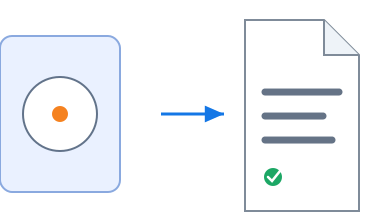 For a deleted container, scan the supported storage where that file was kept.Recover VMDK file
Guest file systemRecover files from VMDK
For a deleted container, scan the supported storage where that file was kept.Recover VMDK file
Guest file systemRecover files from VMDK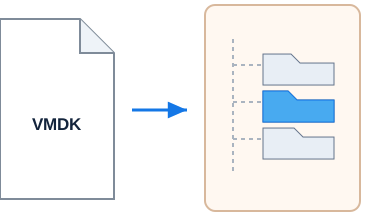 Open the VMDK as a disk inside DiskInternals VMDK Recovery, supply its available dependencies, and scan the guest file system.Recover data inside VMDK
Choose the source by what is missing: the VMDK container itself or the data stored inside it.
VMDK Recovery Scenarios
When comparing VMDK recovery tools, check which of these jobs they cover. Recovering a file deleted from a VMFS datastore, repairing a disk in place, and restoring a bootable VM are different jobs from the recovery paths above.
The VMDK file was lost or deleted
- What to provide
- The storage where it was kept, with a supported host file system
- What the program does
- Searches for the VMDK and recoverable related files
Review the files found. When the scan result and current build permit Mount as Disk, open the found VMDK without saving it and preview supported guest files. This will not work for every candidate. Open the Deleted or Missing VMDK guide.
Available VMDK Data Recovery
- What to provide
- The VMDK and any related disk files
- What the program does
- Opens the virtual disk in the program and scans its guest file system
Look for the folders you need and preview supported files. Recover files from an available VMDK.
You have an incomplete set of disk files
- What to provide
- All available descriptor, flat, snapshot/delta components (including SEsparse), parent files, and any hosted split-disk segments
- What the program does
- Attempts to reconstruct dependencies and find recoverable data
Check whether the results contain the files and versions you need. Recover VMDK Without Descriptor.
The files are on an ESXi host
- What to provide
- SFTP access to the host
- What the program does
- Browses accessible folders and files, then opens the selected VMDK for recovery
Check the contents of the selected virtual disk, not just its presence on the host. Read VMDK files from an ESXi host through SFTP.
Scan and Preview Recoverable Files for Free
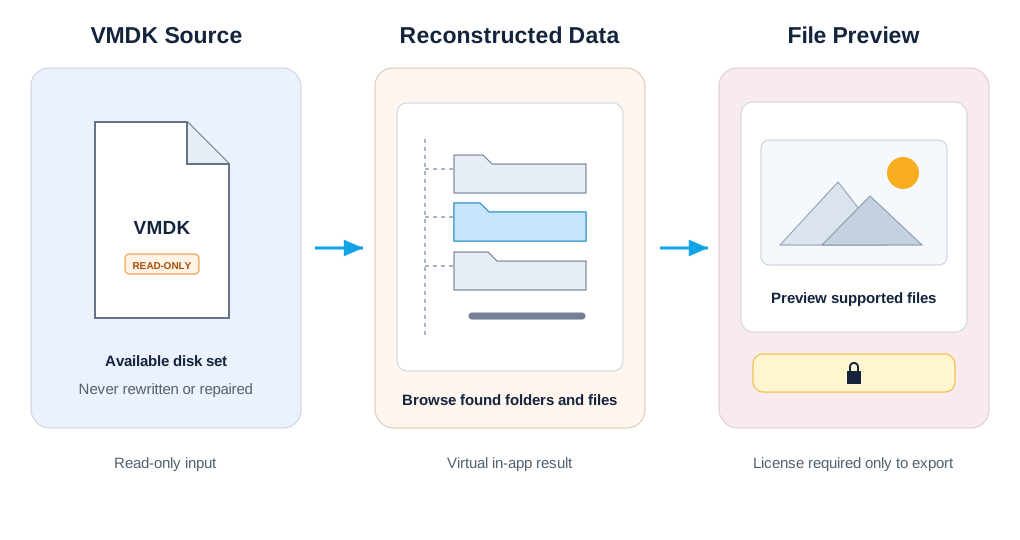
The free evaluation of VMDK Recovery lets you select a source, scan it, review the files and folders found, and preview supported file types. Use it to inspect your results before purchasing a license.
Preview applies to supported file types. It is not a guarantee that a recovered virtual disk is complete, bootable, or contains a consistent database.
Recover VMDK File from Host Storage
A deleted virtual disk, a lost folder of VM files, or a reformatted storage volume calls for recovery from the host medium first. DiskInternals VMDK Recovery searches supported host file systems for the VMDK and accompanying components, including descriptors, flat extents, snapshot/delta dependencies such as SEsparse, and hosted split-disk files.
Provide the affected storage and check its file system against the support table below. Deleted-file search and full file system recovery are separate capabilities; a readable file system does not necessarily support both.
Review the found files as a set. A descriptor without disk data, or one recovered part of a split disk, is not a complete virtual disk. When the scan result and current build permit Mount as Disk, add the found VMDK to the program's disk list without saving it, open it, and preview supported guest files. This will not work for every candidate. Recovering or exporting the VMDK container itself is a separate licensed action to a separate healthy physical destination; reopening the exported set provides another verification path. A plausible name and file size alone do not prove that the disk is complete.
Recover Deleted VMDK File
For a deleted container, scan the supported storage where that file was kept. For a document deleted inside an existing container, scan the guest file system instead. Keeping these two losses separate helps you choose the source that actually held the deleted data.
A VMDK deleted from a VMFS datastore and no longer available through SFTP needs a VMFS-capable recovery path. DiskInternals VMDK Recovery cannot search deleted space on VMFS. See the guide to recovering a deleted VMDK from a datastore for that situation.
Recover Files from VMDK
You do not have to get the virtual machine running just to look for its files. Open the VMDK as a disk inside DiskInternals VMDK Recovery, supply its available dependencies, and scan the guest file system. The program presents the files and folders it finds so you can select the data you need.
This is useful when the guest OS will not start, a volume is inaccessible, or important files have disappeared. Check the contents of supported files in preview. Available VM configuration files can also be recovered as individual files. They do not restore the complete VM configuration or guarantee that the VM will function on a different server. Recovering a VMDK or guest files does not prove that the VM can boot.
Mount as Disk: When the scan result and current build permit Mount as Disk, add the found VMDK to the program's disk list without saving it, open it, and preview supported guest files. This will not work for every candidate. You can also open an existing accessible VMDK this way. Recovering or exporting the VMDK container itself is a separate licensed action to a separate healthy physical destination; reopening the exported set provides another verification path.
Open the VMDK in the Free Evaluation, scan the guest file system, and preview the files you need before licensing.
Recover Files from Corrupt VMDK
A VMware error or an inaccessible guest volume does not tell you exactly what has failed. If your priority is to recover files from damaged VMDK images, provide the available disk files and let the program look for recoverable data.
To recover files from corrupted VMDK disk sets, the program works with available dependencies and the guest file system. It can rebuild file system structures internally and use content analysis when useful records are missing. These methods help recover data from damaged VMDK sources without first making the original virtual disk usable in VMware.
Check more than the number of files found. Look for the project folders, documents, or database files you came for, and inspect supported types in preview. Missing disk components or overwritten content can leave gaps in the results.
Repair VMDK File: Recover Data Without Rewriting the Source
If you searched for repair because you need your files back, data recovery may be the next step. DiskInternals VMDK Recovery reads the source, attempts to reconstruct available dependencies, and saves recovered files elsewhere. It does not repair or rewrite the original VMDK in place.
Reconstructing dependencies can help the program interpret the files you have. It cannot supply missing data blocks. If your goal is a disk that VMware can boot again, see the guide on what to do when VMware says a disk needs repair.
Looking for a VMDK Repair Tool?
Choose by the result you need: recovered files or a working virtual machine. For file recovery, check whether the tool accepts your available disk components, supports the guest file system at the required recovery depth, and lets you inspect results before paying.
DiskInternals VMDK Recovery offers that file-recovery workflow. Repairing a datastore, changing the source disk, or restoring VM startup requires a different approach.
Need the files rather than a bootable VM? Free Evaluation. If VMware reports that the disk needs repair, read the VMDK repair and data-recovery guide.
Recover Data from VMDK Disk Components
Choose the component you have and open the matching detailed guide: Flat VMDK recovery, VMDK snapshot recovery, recover a VMDK without its descriptor, or SEsparse VMDK recovery and split disk files.

Swipe or scroll horizontally to read the diagram. Use arrow keys when focused.
Flat VMDK Recovery
If you have a flat data file, provide it together with any available descriptor and related disk files. The program uses the information in those components to attempt dependency reconstruction and recover data from the virtual disk.
Check whether the recovered folder tree contains the expected data, then preview supported files from the folders you need. A flat file alone may not provide enough information or content for a complete view of the disk.
VMDK Snapshot Recovery and Delta Dependencies
A snapshot or delta file may depend on a parent disk and other files in the disk set. Provide every available component, including the base disk, snapshot or delta files, and descriptors. DiskInternals VMDK Recovery attempts to reconstruct the dependency tree from those files and the information available.
Delta VMDK recovery is about reaching data from that available set. A dependent file should not be treated as a complete, independent virtual disk.
Inspect the files you need, including their contents where preview is supported. Do not assume that a familiar folder name proves you have the required version of its data. Missing parent or delta content can limit the result. This process does not promise recovery of an arbitrary snapshot point or merge snapshots on the ESXi host.
Recover VMDK Without Descriptor
A missing descriptor does not automatically rule out data recovery. Provide the remaining disk components and any information about how they belong together. The program attempts to reconstruct dependencies from what is available.
Also check whether the descriptor itself can be recovered as a lost file on supported host storage. Include any recovered descriptor with the other components; do not discard a useful part of the disk set just because it is small.
Review the resulting folders and preview supported files. The test is whether the data you need can be read, not whether the program can list a disk. Missing metadata or disk content can limit how much of the disk can be reconstructed.
SEsparse VMDK Recovery and Split Disk Files
DiskInternals VMDK Recovery is based on Partition Recovery and adds SEsparse support. Provide the SEsparse file with its available parent and related components so the program can attempt recovery from the disk set.
Split disks need their available parts too. Gather the extent files, descriptor, and any other related components together. The program attempts to reconstruct their dependencies from the parts you provide.
On ESXi, SEsparse is a space-efficient snapshot redo-log format within a snapshot chain. Its redo-log data is stored in a single -sesparse.vmdk file for that snapshot disk; a descriptor may be a separate companion, and the snapshot can depend on its parent. This is not a numbered split-disk set. A hosted split VMDK is a different layout stored in numbered extents. Do not treat SEsparse and split extents as interchangeable components. Supply every available file that belongs to the identified layout, then check the folders and supported file contents you need. The program cannot replace blocks that are absent from the supplied files.
ESXi VMDK Recovery Through SFTP
VMware vSphere is the virtualization platform, while ESXi is the hypervisor installed on an individual server. In VMDK Recovery, choose the SFTP connection, connect to the ESXi host, browse its accessible folders, and select the files you need. The connection can read any file the server makes accessible, not just VMDKs. That includes available descriptors, snapshot files, and other components needed for recovery.
Open the selected VMDK as a disk in the program, then scan its guest file system. This gives you a way to work with data inside a virtual disk on the host without first restoring the guest VM.

Swipe or scroll horizontally to read the diagram. Use arrow keys when focused.
The access path is VMDK Recovery → SFTP → ESXi host → accessible VMDK files → selected VMDK opened as a disk in the program → guest file system. VMDK Recovery opens files the host exposes; it does not parse VMFS or scan deleted datastore space. VMFS Recovery uses its ESXi connection for sector-level VMFS recovery when a VMDK is no longer exposed by the host.
Plan a separate healthy destination for recovered data. Depending on the situation, you may also need a local copy of the source files.
Supported Host and Guest File Systems
Check the file system at the level where you are recovering data:
The same support table applies to both. Each column describes a different capability.
| File system | Full file system recovery | Find deleted files | Read available files |
|---|---|---|---|
| NTFS | Yes | Yes | Yes |
| FAT | Yes | Yes | Yes |
| Ext2 / Ext3 / Ext4 | Yes | Yes | Yes |
| ReFS | Yes (v2+) | Yes | Yes |
| exFAT | No | Yes | Yes |
| UFS, HFS, ReiserFS, Reiser4 | No | Yes | Yes |
| XFS, ZFS | No | Yes | Yes |
| RomFS | No | No | Yes |
| APFS, Btrfs | No | No | Yes |
| VMFS | No | No | No |
Full recovery reconstructs file system structures inside the program. Deleted-file search looks for files removed from the file system. Reader access opens available content; it is not deleted-file recovery.
For example, an exFAT source supports deleted-file search and reading, but not full file system recovery. An APFS source supports reading available files only. SFTP access to files served by ESXi does not change the VMFS row.
Recover NTFS Files from VMDK
NTFS supports reading, deleted-file search, and full file system recovery. Open the virtual disk and choose the depth that matches the loss: read accessible folders, search for deleted files, or use full recovery when the file system needs reconstruction.
Review the found tree and inspect supported files before saving them.
Recover Ext4 Files from VMDK
Ext4 supports the same three modes, as do Ext2 and Ext3. You can work with the guest files without getting the Linux installation to start.
Other file systems have different limits. XFS and ZFS support deleted-file search and reading, but not full recovery. APFS and Btrfs support reading only. Use the table for the file system actually inside your VMDK.
Open the virtual disk in the Free Evaluation, choose the recovery depth supported by its file system, and follow the VMDK recovery steps to preview the files you need before licensing.
VMDK Deep Scan Recovery
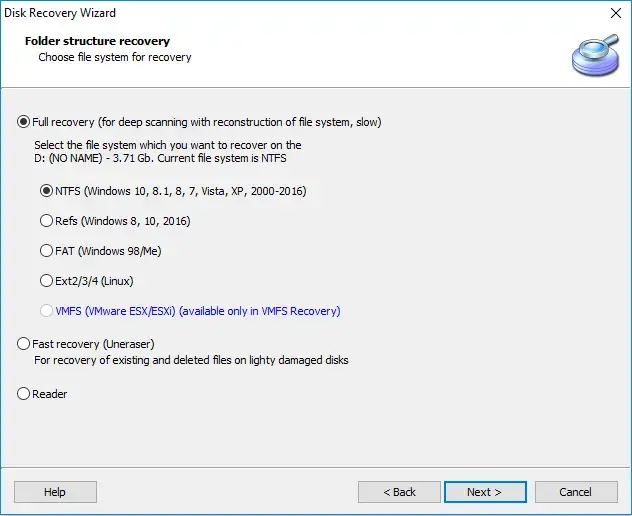
A readable directory may show only part of what remains on a damaged virtual disk. The DiskInternals Recovery Engine provides three recovery depths so you can match the search to the condition of the source:
- Reader
- Opens available files and folders directly. The file system is readable and you need its existing files.
- Fast recovery
- Searches for deleted files. Files were deleted and the file system supports deleted-file search.
- Full recovery
- Reconstructs the file system inside the program. A supported file system is damaged or its structure needs rebuilding to locate data.
Full recovery builds a working view inside the application; it does not write the reconstructed structure back to the source. Signature-based content analysis can help find files when useful file system records are missing.
VMDK Signature Recovery
Signature analysis looks for recognizable file content instead of relying only on directory records. It can help locate files when their file system entries are damaged or absent.
Files found this way may lack their original names and folder paths. Inspect supported types in preview and identify the content you need, rather than judging results by names alone.
VMDK RAW File Recovery
RAW file recovery uses content-based searching where usable file system structures are unavailable. It can help find recognizable file data within a damaged virtual disk, but a RAW label alone does not establish what caused the problem.
The available recovery modes still depend on file system support. Check the table above, then examine the files found by the scan.
VMDK Recovery Without Repair
The source is read-only. DiskInternals VMDK Recovery reads the affected storage or VMDK, reconstructs information inside the application, and saves selected recovered files to a separate healthy destination.
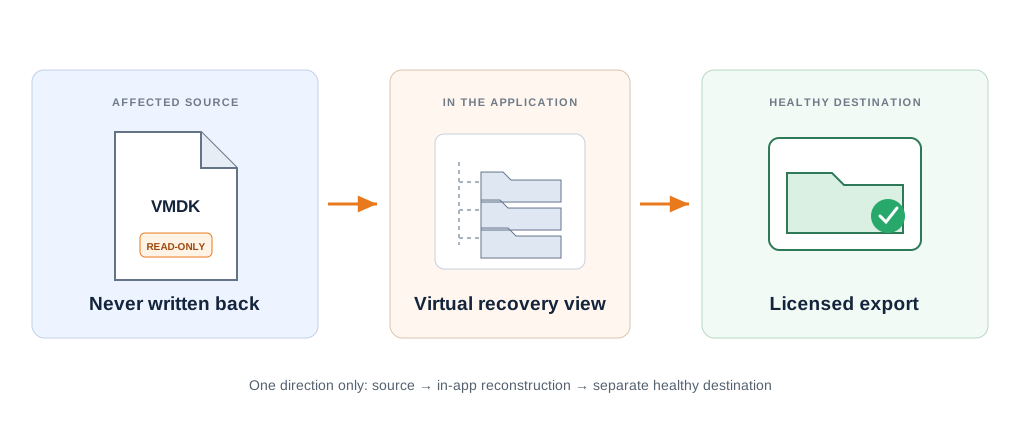
This includes recovering the VMDK file itself. Saving that file elsewhere is not the same as rewriting the original disk in place. Dependency reconstruction and file system reconstruction help the program find data; neither is a promise that the recovered virtual disk will boot.
Opening a VMDK as a disk inside the application is different from attaching the original VMDK as a Windows drive. The program works with the source internally; you do not need to mount the original as a Windows drive first.
Supplies data for the scan; the program reads it without writing back.
Reconstruction happens inside the application for browsing and preview.
Receives the files you choose to keep.
Do not save recovered files to the affected physical disk. Save them to a separate healthy physical device; another partition on the affected disk is not a separate recovery destination.
Browse Recovery Results in Windows Explorer
With a paid license, present the recovered files and folders as a read-only drive letter in Windows Explorer. Browse the results there and copy the files you need to a separate healthy destination.
Keep these three locations distinct:
| Location | Its role |
|---|---|
| Source VMDK or affected storage | Supplies data for the scan; the program reads it without writing back |
| Recovery-result drive | Shows the found files in Explorer; you cannot add, edit, or delete files on this drive |
| Destination | Receives the files you choose to keep |
You can also save recovered files directly to a file destination or transfer them to FTP. SFTP is used to read files from an ESXi source; FTP is an output option for recovered files. They serve different parts of the workflow.
How to Recover VMDK File
Identify the loss.
Decide whether the VMDK file is missing, files inside it are missing, or you have an incomplete set of disk dependencies.
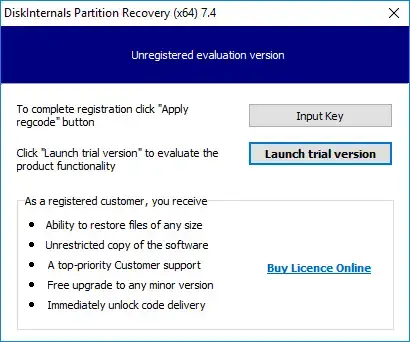
Prepare the source.
For a missing VMDK, use its supported host storage. For an available disk, gather the local files or connect to an ESXi host through SFTP. Include all available related components.
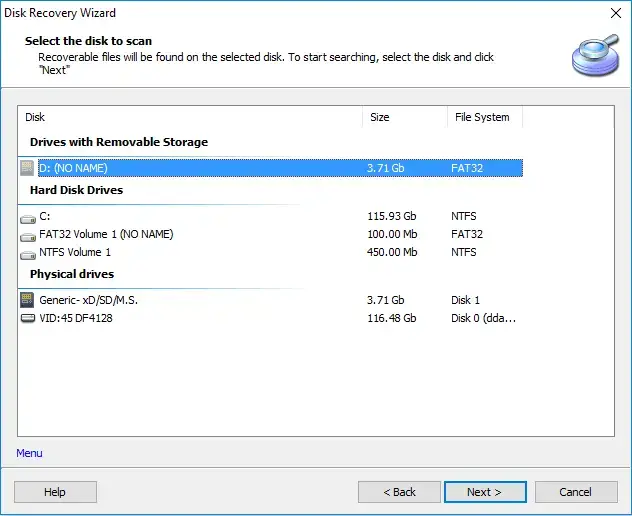
Select the source and scan.
Use the recovery depth supported by the relevant host or guest file system. Dependency reconstruction uses the disk files and information you provide.
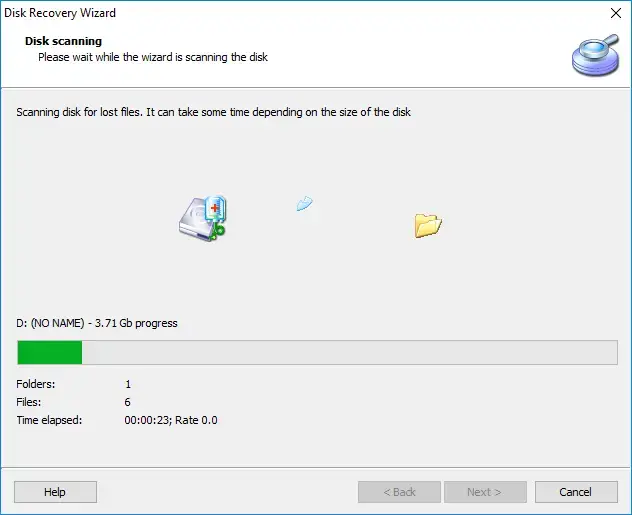
Review the results.
Look for the folders and files you need. Preview supported types to inspect their content; finding a name alone is not enough.
Select an output.
With a license, save recovered files to a file destination, transfer them to FTP, or browse the results as a read-only Windows drive and copy them elsewhere.
Verify the container's guest data.
When the scan result and current build permit Mount as Disk, add the found VMDK to the program's disk list without saving it, open it, and preview supported guest files. This will not work for every candidate. Recovering or exporting the container is a separate licensed action to a separate healthy physical destination; reopening the exported set provides another verification path.
Before saving, check that the selected results are the ones you need, the output method fits your workflow, and the destination has enough space and is physically separate from the affected disk.
VMDK Recovery Tool Download
The free evaluation of VMDK Recovery lets you select a source, scan it, review the files and folders found, and preview supported file types. Use it to inspect your results before purchasing a license.
| Feature | Free Evaluation | Licensed |
|---|---|---|
| Select a source and scan | Yes | Yes |
| Review found files and folders | Yes | Yes |
| Preview supported file types | Yes | Yes |
| Save recovered files | No | Yes |
| Transfer recovered files to FTP | No | Yes |
| Browse results as a read-only Windows drive | No | Yes |
Preview applies to supported file types. It is not a guarantee that a recovered virtual disk is complete, bootable, or contains a consistent database.
Download Free EvaluationVer 1.0, Win Check PricesFrom $139.95
VMDK Recovery Pricing
Scan and preview for free. Purchase a license to save recovered files or use the read-only Windows recovery-result drive. All prices below are in USD.
- Select a source and scan
- Review found files and folders
- Preview supported file types
- Save recovered files
- Transfer recovered files to FTP
- Browse results as a read-only Windows drive
| Edition | Price |
|---|---|
| Free Evaluation | $0 |
| Personal | $139.95 |
| Business | $219.95 |
| Professional | Contact us |
For Professional licensing, contact us at hello@diskinternals.com. Tell us how you plan to use VMDK Recovery so we can discuss your requirements.
VMDK Recovery Guides
These five VMDK topic pages own the narrower semantic clusters. Each link leads to a separate page rather than forcing every detailed intent into the product hub.
Related VMware troubleshooting guides
Need to troubleshoot a specific VMware error or work on the virtual machine itself? These guides cover the next steps:
Disk-repair and diagnostic options.
Working toward a usable virtual machine from an existing disk.
The datastore-level deletion scenario.
Help with this VMware read error.
Examining disk problems before choosing a recovery path.
Guidance for a damaged virtual disk.
VMDK Recovery Questions
-
Yes, from host storage that supports the required recovery mode. Scan for the VMDK and its related files. When the scan result and current build permit Mount as Disk, add the found VMDK to the program's disk list without saving it, open it, and preview supported guest files. This will not work for every candidate. Exporting the container requires a license and a separate healthy physical destination; reopening the exported set provides another verification path. This is not a way to undelete files from VMFS through SFTP.
-
Yes. The program works with the available VMDK and its dependencies without booting the guest OS. You can look for the files you need even when the VM is unavailable. Recovering a VMDK or files from inside it does not restore the complete VM configuration or prove that the VM can boot.
-
Provide all available components and information about the disk set. The program attempts to reconstruct dependencies and recover the data it can reach. Missing components can leave gaps; a partial set does not guarantee a complete disk.
-
Yes. In VMDK Recovery, connect through SFTP to the ESXi host and browse the folders and files it makes available, including VMDKs and their dependencies. Select a VMDK and open it as a disk in the program to work with its guest file system.
-
No, not even in Reader mode. Reading an existing file served by an ESXi host over SFTP is different from scanning the VMFS datastore directly. Deleted datastore files that are no longer accessible through SFTP require a VMFS-capable recovery method.
-
Yes, for supported file types. Scanning and reviewing the found files are also free. Saving, FTP export, and the read-only Windows recovery-result drive require a license.
-
No. Names and paths depend on the file system records that remain. Signature-based results may have no original name or folder path, so use supported preview to identify the files you need.