
Inspect before you export
The evaluation lets you scan and review the result. A license is needed to save recovered content to a separate healthy destination.
Recover the container itself or files from inside it when:
What this recovers: a deleted or missing VHD/VHDX container when its source data remains readable and has not been overwritten; a corrupted or damaged container when recoverable data remains; or selected guest files from a scanned container.
The software scans the affected source and builds a result you can inspect in the application. A visible result does not guarantee that every file is intact.
You then choose what to export to a separate healthy destination.
DiskInternals VHDX Recovery brings together the DiskInternals recovery engine, VHD and VHDX container handling, and a guided disk recovery wizard. The wizard takes you through source selection, scanning, result inspection, and export.
The recovery products are layered rather than parallel. A higher-level product includes the complete functionality of every product beneath it and adds one further class of problem on top. Choosing a product means choosing the highest layer your case actually requires — nothing from the lower layers is lost.
Adds VMware datastores: VMFS3 through VMFS6, ESX/ESXi storage, VMFS metadata, VMDK descriptor and snapshot-chain problems.
Adds reconstruction of the array itself: unknown parameters, missing member order, a failed controller, unavailable member disks, an interrupted rebuild.
Adds the partition layer: lost, deleted, formatted, RAW, inaccessible, corrupted, and damaged partitions; partition-table, MBR, GPT, and boot-sector analysis; ReFS and Ext2/3/4 sources; disk images; remote Ext2/3/4 over SFTP.
Adds VHD/VHDX container recovery and recovery of files inside those containers.
Base deleted-file recovery on a file system that Windows can still read. Available inside Partition Recovery as the Fast recovery depth.
For physical-disk or partition problems, choose the broader Partition Recovery product. If the affected volume lives inside a failed array or a VMware datastore, choose RAID Recovery or VMFS Recovery for those storage layers.
First identify what you need back. Both paths begin with source protection, before any scan.
| Source condition | Recovery object | Safe next step | Output and boundary |
|---|---|---|---|
| VHD/VHDX container is deleted, missing, corrupted, or damaged | The container itself | Protect the source, then scan and inspect the container result | Recovery depends on readable, non-overwritten data. Export only to a separate healthy destination. This does not repair the original or promise a bootable VM. |
| You need selected files inside a VHD/VHDX container | Guest files and folders | Protect the source, scan the container, then browse the guest file tree | Select recoverable files for export to a separate healthy destination. This does not restore a complete VM. |
If the physical source is unstable, stop software attempts. A container that does not open may still be worth evaluating; it is not proof that its data is readable.
If an existing VHD or VHDX will not attach or open, use the VHDX repair guide to identify the affected object and choose a safe next step.
If the container was deleted, protect the physical drive that held it from new writes before scanning. The recovered file is a result, not an in-place repair.
If the container is accessible, select it as the source, then browse the guest tree to choose individual files or folders.
Use the free evaluation to scan a supported VHD/VHDX source, inspect the scanned container result or browse the recovered guest tree, and preview supported results. Inspection helps you judge what was found; a preview applies only to the item shown and does not prove every result is complete or will export successfully. Saving or exporting recovered data requires a license. See pricing before export.
A license is required to save or export recovered data. The read-only result drive in Windows Explorer is available after licensing. A preview confirms only the item shown; it does not guarantee that every file is complete or that export will succeed.
A successful preview confirms only the condition of the specific file opened. It does not prove that every file is complete or recoverable.
The recovery workflow separates the affected VHD/VHDX container and the physical host drive that may hold it, the virtual recovery result, and the export destination. The software reads its selected source without writing changes or repairing the original in place.
The selected source may be the VHD/VHDX container or the physical host drive that holds a deleted container. The scan reads that source without formatting, initializing, repartitioning, or using write-capable repairs. A reconstructed result appears inside the application; the original container and its guest file system are not rewritten in place.
Install the software on a healthy drive, never on the affected source. A healthy USB drive is an option for installation when needed. Prepare a physically separate healthy destination with enough free space for the data you select. Administrator rights are required when the workflow needs raw physical-drive access.
The VHD/VHDX container, or the physical drive that held a deleted one, is scanned without formatting, repairing, or writing changes.
Readable container or guest-file structures are reconstructed for inspection inside DiskInternals VHDX Recovery. The original source is unchanged.
Selected files are saved to a healthy, physically separate device with enough free space, after licensing.
The software uses structures and data that remain readable to build a browsable guest-file result inside the application, without changing the original container or host file system. A visible result does not guarantee that every file is intact or that a complete virtual machine can be restored.
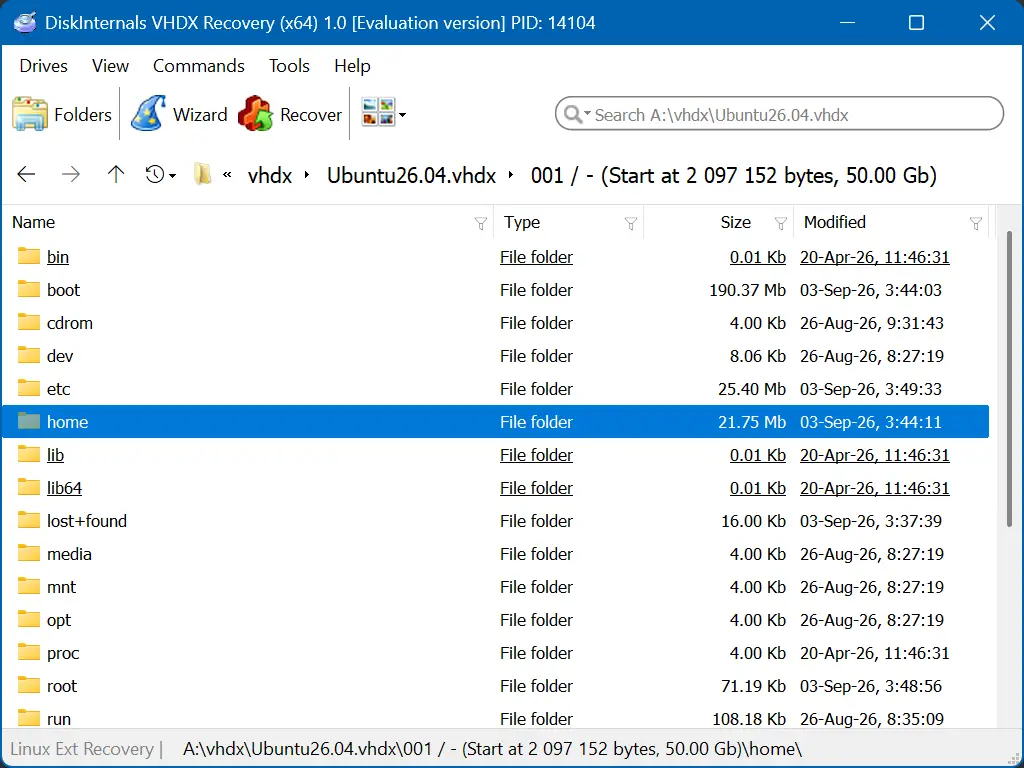
After licensing, browse available recovery results through the read-only virtual drive in Windows Explorer and copy selected files to another healthy, physically separate destination. This is the application's recovery result; mounting the original VHD/VHDX in Windows is a separate task.
Start only after completing the source checks. Follow the screens from source selection through inspection and separate output.
Choose the workflow for the recovery object you need:
Recover the VHD/VHDX as an ordinary file from the storage that held it. A deleted container cannot be selected in the Mount Image dialog. Complete the source checks before scanning.
Run the evaluation from a healthy drive. Select the storage that held the missing VHD/VHDX file and use Open as Uneraser or Open as Recovery for ordinary-file recovery. Keep installation files and recovered output off that source. Stop if the physical source becomes unstable.
Scan the selected host storage and locate the VHD/VHDX file in the recovery results. Here, the recovery object is the container file itself, not files inside the virtual disk. Recovery depends on readable data that has not been overwritten.
Review the found file entry and select the container you need. Finding an entry does not prove that the whole container is intact or that its virtual machine will start. This step does not require mounting a deleted container.
Use Export to save the selected VHD/VHDX file to healthy, physically separate storage with enough free space. A paid license is required. Do not save to the affected source or another partition on the same physical drive. The output is the recovered container file; its completeness and usability need a separate check before use.
This route requires an accessible VHD/VHDX container. It covers files inside the virtual disk, not recovery of a deleted host container file.
Launch the evaluation from a healthy drive, keeping installation files and output off the affected source. Select an accessible, existing VHD/VHDX container in the mount dialog. Confirm what you selected before scanning.


After mounting the existing VHD/VHDX container, confirm that it appears as a disk in the main window before continuing with guest-file recovery.

Start the Disk Recovery Wizard and select the intended disk to scan.


Review the wizard's file-system selection screen before the scan starts.

Run the scan and stop if the physical source develops any of the warning signs described in source protection. When scanning finishes, continue to the recovered result.


Inspect the recovered guest tree and the files you need before you pay, then select the guest files or folders you want to export. This step is for contents inside the existing container, not recovery of the container file itself.

Choose Save Files, set a folder on a separate healthy drive, then review the selected guest-file list. Never save to the source or another partition on the same affected drive. A license is required to complete the guest-file export; the registration screen marks that transition and does not guarantee a successful export.


The evaluation lets you scan and review the result. A license is needed to save recovered content to a separate healthy destination.
VHD and VHDX containers are the scope of this product page. It does not promise recovery for other virtual-disk formats.
A physical drive holds the container file; the container holds the guest file tree. For a deleted container, scanning may start at the host drive. If a readable working copy exists on healthy media, use it to spare the affected source. The application builds a browsable result without writing guest structures back to the container.
DiskInternals VHDX Recovery runs on Windows. Raw physical-drive access may require administrator rights. Recovery depends on source data that remains readable and has not been overwritten.
The product does not repair a VHD/VHDX container or guest structure in place. It does not rewrite the source or a partition table, convert or resize the container, merge checkpoints, or restore a complete bootable virtual machine. BitLocker and EFS recovery are outside this product's scope.
For a damaged or unreadable container, see how to assess a damaged VHDX safely. The guide separates data recovery from repair of the original and restoration of a bootable VM.
| Situation | Check | Next safe action |
|---|---|---|
| A scan is slow or seems stalled | Is the source still detected consistently? | If the physical source is stable, allow the scan to continue. Otherwise, follow source protection. |
| Expected files are missing | Did you select the intended source and recovery object? | Review the scanned result. Data that is unreadable or overwritten may not be recoverable. |
| An inspected item differs from its export | Did you select the intended items and destination? | Check the specific result again. Inspection is useful evidence, not a guarantee that every exported item is intact. |
| The physical source becomes unstable | Does it show any of the physical stop signals? | Stop software attempts and seek a hardware-safe specialist. |
Scan and inspect the container result or selected guest files for free. Purchase a license to save or export recovered data. All prices below are in USD.
| License | Price |
|---|---|
| Free Evaluation | $0 |
| Personal | $99.95 |
| Business | $149.95 |
| Professional | Contact us |
For Professional licensing, tell us how you plan to use VHDX Recovery so we can discuss your requirements.
Download the evaluation version to a healthy drive. Scan the affected source in read-only mode, inspect the container result and guest folders, and preview supported files you need.
Purchase a license to save the container or selected guest files. Enter the license key without reinstalling the software or repeating the scan.
Stop scanning if the physical host drive clicks, disconnects, overheats severely, disappears, or develops rapidly increasing read errors — contact a data-recovery specialist when the device is physically unstable or the data is irreplaceable.
Install on a healthy drive. Export only to a healthy, physically separate destination with enough free space.