If the Hard Drive Disappeared on Windows 10
Here you will find out:
- why internal or external hard drive disappeared on Windows 10
- methods of how to fix it
- how DiskInternals can help you
Are you ready? Let's read!
Hard drive disappeared on Windows 10
"Internal hard drive disappeared on Windows 10" is a completely unexpected problem, as it usually happens after updating the OS. And the latter, in turn, is almost always updated automatically, so it is impossible to predict the outcome of events. You might think that the updated computer should work more efficiently and freeze less, but it is not there.
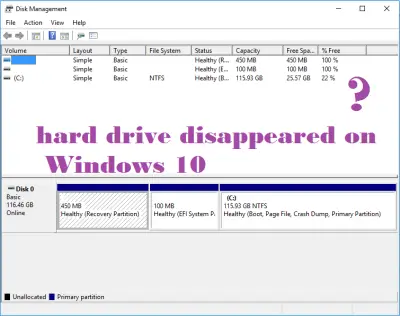
Then you have to think about how to make the hard drive reappear because otherwise, you will not be able to read a single file from this drive.
Method 1. Check the HDD connection
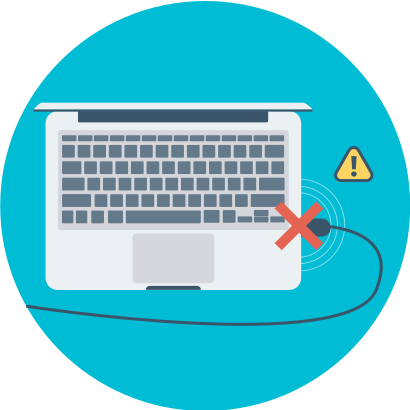
Sometimes, the cable can simply stop working, which is why the hard drive keeps disappearing on Windows 10. It is also worth trying to disconnect the hard drive and connect it to another computer with another cable. If this helps, then change the cable, as it is probably already worn out or damaged mechanically.
If these actions have yielded nothing and the problem still persists, then you should try other effective methods outlined below.
Method 2. Update the HDD drivers
If you clearly know the manufacturer of the hard drive, then it will be easier for you to go to the official website of this company, find the latest updates that you need to download and install them on your computer.
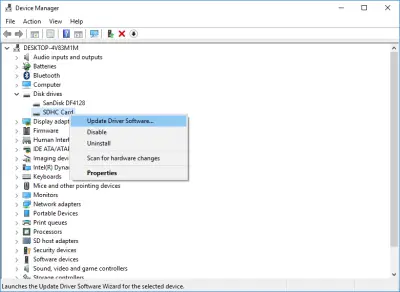
The same can be done through an automatic search for updates in the Device Manager. To do this, right-click on the desired drive and select "Update drivers". After this procedure, you must restart the computer to fully install the innovations.
Method 3. Troubleshooting the issue
This tool will help you perfectly fix the “Windows 10 hard drive disappeared” effortlessly.
Click on Start and type "troubleshooting" in the search bar, then click on Enter. Then you just need to run this tool and wait for it to do its job. Be sure to restart the computer, so the system will be fully configured and ready to go.
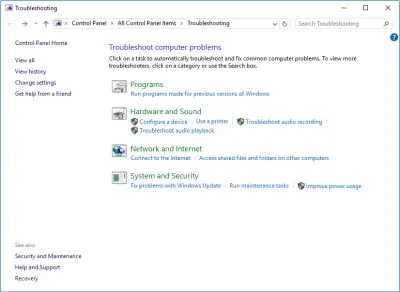
If the problem has not disappeared, then the problem is a little more complicated than expected and you can’t get by with such simple methods. Therefore, carefully read the next paragraph and do everything exactly according to the instructions.
Method 4. Initialize the problematic drive
Before initializing a disk, use DiskInternals Partition Recovery to create a disk image and save your data or open it (read mode) or restore it.
So, your actions will look like this:
First, download the free version of the program and launch it. The Recovery Wizard will immediately appear: it will be your assistant. Select a disk for scanning and search for all types of files (these can be photos, music, documents, etc.). Also, the program can work in reader mode; this is necessary so that you can view and read any file like an explorer. Also, as an option, you can even use the disk image creation function in this free version; you won’t need a wizard for this. It should be noted that this tool works with all versions of Windows 7, 8, 10, etc.
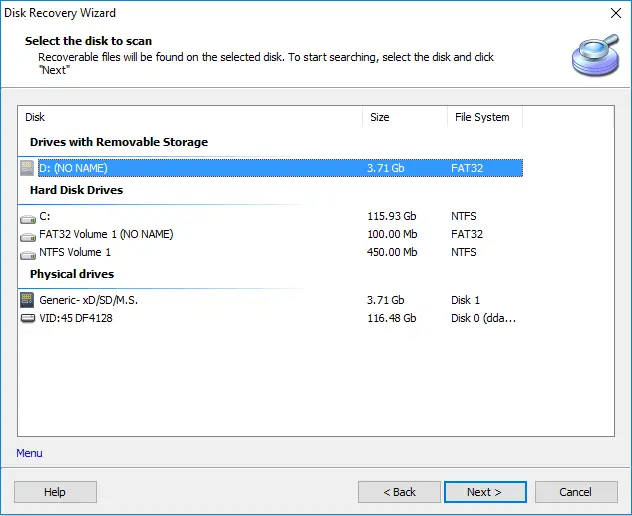
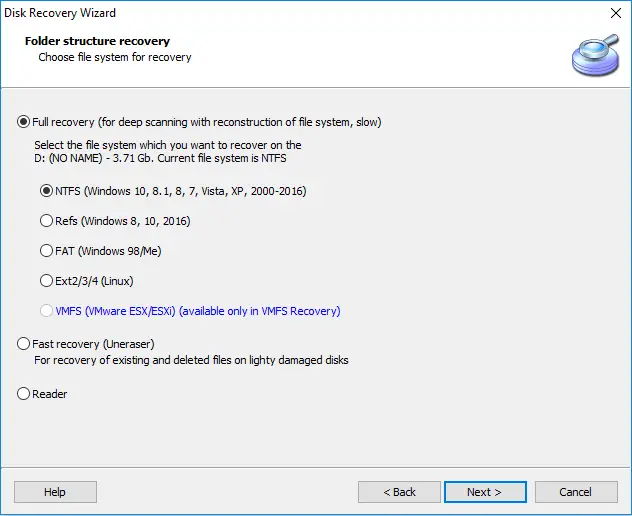
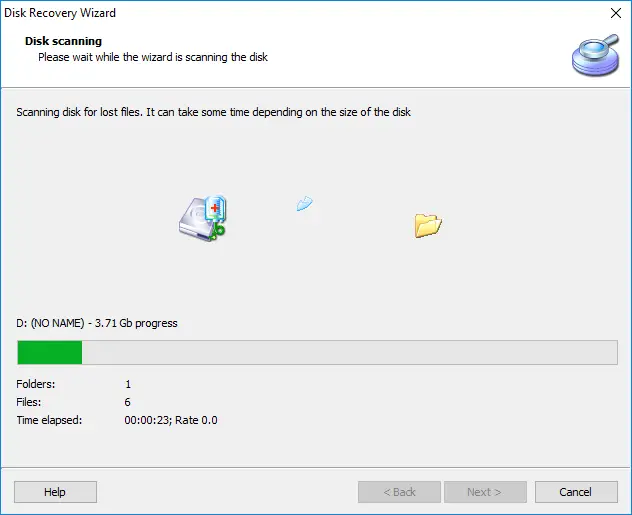
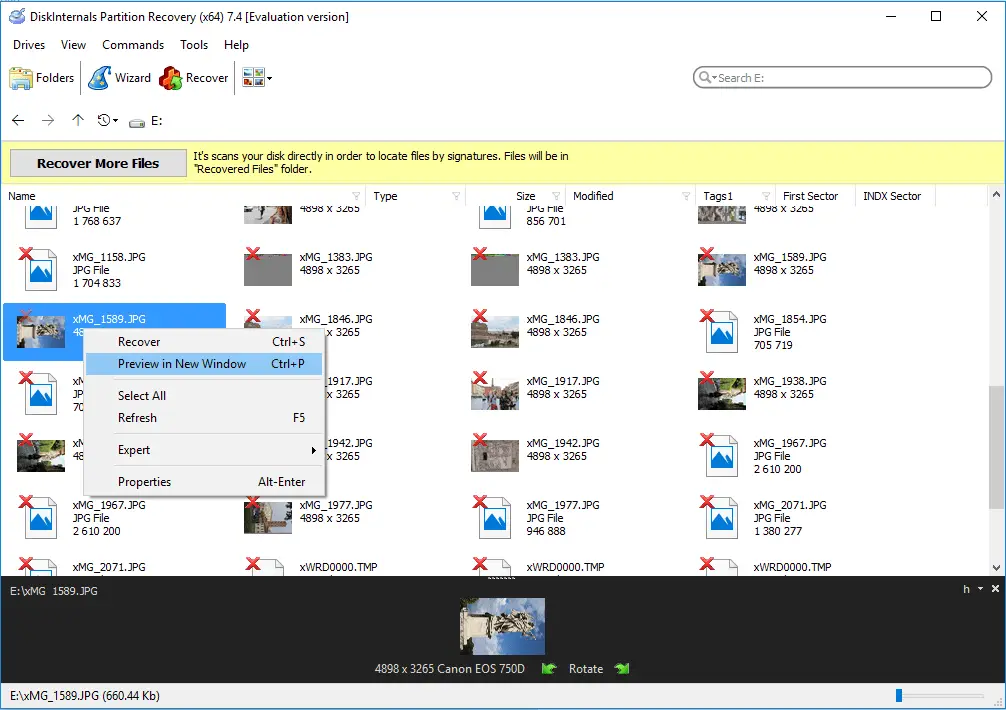
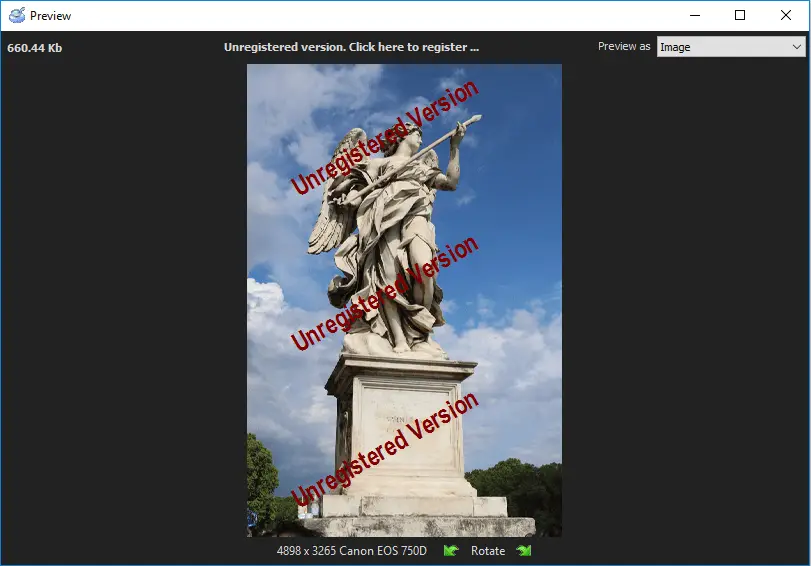
In addition, the Wizard works separately with each file system: Ext2/3/4, UFS, HFS, NTFS, XFS, ReiserFS, FAT12, ReFS, Reiser4, and others. Each disk partition is checked for data separately, and you can even find long-deleted files. After scanning, you look at the found files and only then you will be asked to buy a license to export data. It is absolutely reliable and does not cost a lot of money, but with a license, you have more options and constant technical support throughout the year. Therefore, this attractive application should become a priority for you and the data accumulated over many years.
After exporting to a safe place, you can proceed to the next step: initialization.
Start by opening Disk Management. Then right-click the desired drive and select Initialize and follow these recommendations.
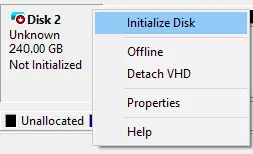
Assign a new drive letter, and then complete everything with formatting. After the reboot, the disk will be detected and will become available for use.
Related articles
- What To Do If You Cannot Extend Volume in 2026
- Convert RAW to NTFS in 2 Steps!
- Сorrupted Hard Drive - What To Do Now?
- External hard drive repair software [2026]
- Guide: How to Fix a Corrupted Hard Drive Fast
- Hard disk detected as RAW? Perform RAW Drive Recovery!
- Hard Disk Recovery | DiskInternals Partition Recovery
- Hard Drive Repair and Bringing Files Back
- How to Fix a Corrupted External Hard Drive at Home in 2025
- How to Fix a Crashed Hard Drive on Your Own
- How to fix hard drives at home
- How to recover data from a damaged external hard disk
- How to Repair a Damaged Partition with Partition Recovery™
- How to Recover Data from a Formatted Hard Drive in 7 Steps (2025)
- Recover Files from Corrupted External Hard Drive Today!
- Recovering Data from Crashed Hard Drive: Safe
- Repairing of Corrupted Hard Drive
- Revive Your Laptop Hard Drive With Recovery Tips
- How to Recover Data from a RAW Hard Drive - Raw Partition Drive Recovery
- The best, most reliable software to recover files from a corrupted hard drive
- Repair a Hard Drive with Bad Sectors | Fix HDD Bad Sectors & Recover Data
- Disk is Write-Protected? Don't Give Up Yet!
- External hard drive not showing up? Fix it in 2025!
- New hard drive not showing up in Windows 10
- Seagate external HDD not showing up in Windows 10? Solved!
- External hard drive: Access is denied
- External hard drive having ‘the parameter is incorrect’
- Seagate external hard disk light blinking but not detecting
- WD HDD Repair Tool Guide: Western Digital Hard Drive Repair, Recovery & Fix 2026
- How to Fix: Windows Detected a Hard Disk Problem⠀
- OEM Partition and how to delete it safely
- Having hard drive error code 2000-0142? Fix it!
- Signs Your Hard Drive Is Failing in 2025
- How to repair SATA Hard Drive?⠀
- What causes lead to a hard drive fails?
- How to Recover Data from a Dead External Hard Drive and Repair It (2026)
- Solved 2025! Fix a dead external hard drive and restore files
- [Solved] How to get files off a broken laptop safe
- [Solved] Wiped vs accidentally erased hard drive
- [Solved!] External hard drive not detected
- Initialize a disk before the disk manager can access it
- [Error] The volume does not contain a recognized FS
- How you can initialize disk without losing data
- Internal/external hard drive shows 0 bytes
- HDD Data Recovery from Unallocated Space
- [Windows] Recover an unallocated partition today
- Make Unallocated Space Into Free Space
- How to Unpartition an External or Internal Hard Drive
- [SOLVED] How to Recover Files from a Hard Drive that Won't Boot
- Why the Hard Drive Clicking Happens and How to Fix It
- Couldn't Create a New Partition or Locate an Existing One
- Need to Install Windows 10 on the External HDD?
- If Hard Drive Short DST Check Failed
- How to fix ASUS motherboard not detecting SATA hard drive issue
- ReFS: can you use it for RAID
- If Windows 10, 11 doesn't recognize hard drive
- Recover lost.dir files android Device (2026)
- Not enough unallocated space on target disk
- How to delete an EFI System Partition
- Converting a dynamic disk to a basic disk
- How to use OneDrive
- Partition a hard drive on Windows 10
- Guide on how to activate partition
- How to check hard drive health?
- How to deal with smart hard disk error 301 on HP laptops?
- How to use Windows partition manager correctly
- Is it worth it to compress this drive to save disk space?
- Step-by-step guide on how to wipe a hard drive
- Moving hard drive to new computer
- Seagate hard drive beeping: your actions
- If the Unknown Hard Error message appears
- If you want to remove OneDrive
- If you get hard disk short DST failure
- Creating new simple volume: only workable tips
- How to use a hard drive reader
- This is how to combine partitions Windows 10
- Primary vs. Logical partition comparison
- How to Backup in Windows 10, 11?
- What to do in case of External Hard Drive I/O Error?
- Maxtor Hard Drive Recovery
- LaCie External Hard Drive Recovery
- Hard Drive Password Recovery: Everything You Need to Know
- Hard Disk 3f0 Boot Device Not Found on HP: Fix it Now!
- How to Recover a Wiped Hard Drive
- Partition Recovery Guide in pictures