Why disk may demand initialization and how to not lose data after it
Here you will find out:
- what is disk initialization
- why disk may need it
- how DiskInternals can help you
Are you ready? Let's read!
What does initialize disk mean?
When buying a new hard drive, not every user imagines that after installing it in the system unit, it will be impossible to work with it right away. Some believe that it is enough to insert it and screw it in, and the system itself will recognize the device. But the hard drive should be initialized manually immediately since Windows will not do this automatically.
Also, disks that were in use and with a bunch of data sometimes need to be initialized. This is due to a number of system errors. In this case, the question arises, what about the accumulated data? You will find out about all this here!
GPT partition style vs MBR
These two styles are good in their way and at certain times.
MBR was developed in the 1980s, and at that time and for several decades, it satisfied all customer needs. But with the growth of computing power, the need for large amounts of disk memory has grown. This led to a problem: MBR technology supports the operation of drives up to only 2 TB. In addition, MBR cannot support more than 4 primary partitions on a single disk.

Since these are rather significant shortcomings, another, more suitable partition style was invented: GPT. It is designed by Intel and allows you to create disk partitions up to 9.4 ZB in size, or approximately 900 million disks of 10 TB each! Theoretically, there are no restrictions on how many sections there can be. Also, GPT does not limit sector sizes. Sections can be grouped into folders and named in any language. However, GPT technology is not perfect; for example, protection from bad sectors is not provided. This means that partitions can be damaged. In addition, MBR works with BIOS and UEFI firmware, and GPT only supports UEFI.
Therefore, whether to choose GPT or MBR is up to you. However, it should be kept in mind that if you are going to buy a hard drive now, all motherboards are printed with UEFI firmware, while BIOS is slowly becoming a thing of the past.
Why disk may need initialization?
Initializing a hard drive may need to occur in the following cases:
- You have a new hard drive. As mentioned above, it is not yet ready for use. Before that, you need to initialize the new disk. Then you will have to format it in order to fully prepare for its use and storing information on it.
- The initialized drive is already in use, but because of system errors, your disk is unusable. This raises the question of how to initialize a hard drive without losing data.
Let's talk about each of these cases separately.
If the disk is brand new
In this case, there is no data on it and you can initialize it immediately after purchase. For example, this can be done using Disk Management.
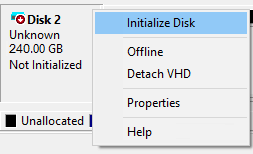
Go to Start with the right mouse button. Select Disk Management. In a new window, click on the new hard drive; if it is “Offline”, then change the status to “Online”. Then right-click on it and select “initialize new disk”. Then you need to click on your preferred GPT or MBR style if this is not done automatically. Then press Enter and wait for the end of the process.
If the disk has been used before
Before starting to initialize the drive on Windows 10, use DiskInternals Partition Recovery to open the disk, restore its data or create a disk image. Then you can safely do initialization.
DiskInternals Partition Recovery offers several options in this situation: you can simply restore all inaccessible data to the disk and save it on new media (for example, an external hard drive) or create a disk image. This software works on each of the sections on the hard drive.

It will restore files of any type, in addition, there are no restrictions on the volume of documents that can be restored. All recovered files can be saved on any disks visible to the operating system (including network disks). Partition Recovery allows you to recover and view all your recovered documents for free before saving. The convenient Recovery Wizard will help both confident PC users and not so much. You can download both the trial and licensed versions of the software.
The first option will demonstrate all the functions and innovations of the program, and the second option will make it possible to export the restored data to any location.