
Guide: how to use OneDrive
In this article you will find out:
- advantages and versions of OneDrive
- how to work with OneDrive on your PC and smartphone
- how to protect your data
Are you ready? Let's read!
OneDrive: advantages and versions
OneDrive is one of the cloud storage options offered by Microsoft. Using OneDrive, you can access your data anytime, on any device with an internet connection. Also, this cloud storage is used to send files between devices and to back up data.
There are a few other OneDrive advantages worth noting:
- Ability to sync data between the cloud and a local folder.
- Access files from multiple devices through the client software.
- Ability to restore previous saved versions from the cloud after hacking incidents.
How to work with OneDrive on your PC
This can be done as follows.
1. Install OneDrive

Windows 10 comes pre-installed with OneDrive. That is, if you use a Microsoft account on Windows, you don't even need to sign in to OneDrive; it does this automatically too.
Click on the Up icon on the right side of the Taskbar and select the cloud icon from the list. In a new window, you will see all recently synced files. If you do not see this window, then you are not logged in. In this case, OneDrive prompts you to do this with detailed instructions.
2. Decide which folders will be synchronized
Once in OneDrive, right-click on the notification area. Select the Settings section and click on the "Account" tab. Now click on "Select folders" and make the appropriate choice. Now open File Explorer (right-click on Start and select File Explorer). Then select the OneDrive section in the sidebar and you'll see the corresponding folders you've recently selected. Now, all changes made to files in File Explorer will sync with OneDrive.
3. Set up files
You can set up files so that you can browse your entire collection of OneDrive files using File Explorer. Right-click on any file or folder and select "Always save on this device from the list". To disable this feature, right-click the file or folder again and select "Free up space from the list". The data then remains available in the cloud and on demand.
4. Synchronize all the components
This is a unique opportunity to redirect your Desktop, Documents or Pictures folders to the cloud. To do this, in OneDrive Settings, go to the AutoSave tab. Here you need to select one, several, or all folders and synchronize these system folders with the cloud. This is one of the most effective ways to back up critical system data.
5. Share your files with anyone
Of course, you can give view access to your files and folders in OneDrive to specific users. To do this, right-click the file or folder and select the "Share OneDrive link" line. The copied link will be stored on the clipboard; you can paste it into a web page and share it that way. If you want the user to be able to not only view the file, but also edit it, then change this in the option "Advanced Sharing Options OneDrive" (select the "Allow Editing" option and copy the link again).
How to use OneDrive on your smartphone
Install the application
First, install the OneDrive app through the official OneDrive website, the Google Play Store, or the Apple App Store. After downloading the program, install it following the instructions of the Installation Wizard.
Apply online / offline sharing
You can access folders from the OneDrive app by clicking the three-dot button and selecting Share. There are several modes here: viewing and editing. Then you can simply copy the link to the clipboard, create an email invitation to multiple people, or send files directly to specific users.
To save a folder or file offline and access it offline, click the button with three dots and select "Do not disconnect" or download the current version of the file to your device using the "Save" button.
Protect your photos
You can sync your camera with OneDrive so you always have an up-to-date backup of your photos. Just click on "Photos", then select "Enable". You can manage these actions; for example, you can sort photos by album or by date, and also choose which network to synchronize data over.
Protect your data! Use Partition Recovery
If cloud storage for some reason did not work as a backup option, or you simply did not know how to use OneDrive before, then this excellent method will help you recover the files. The best professional software for all kinds of disk problems is DiskInternals Partition Recovery. This program supports the following file systems: NTFS, ReiserFS, FAT12, ReFS, UFS, HFS, Reiser4, XFS, Ext3/4, etc.
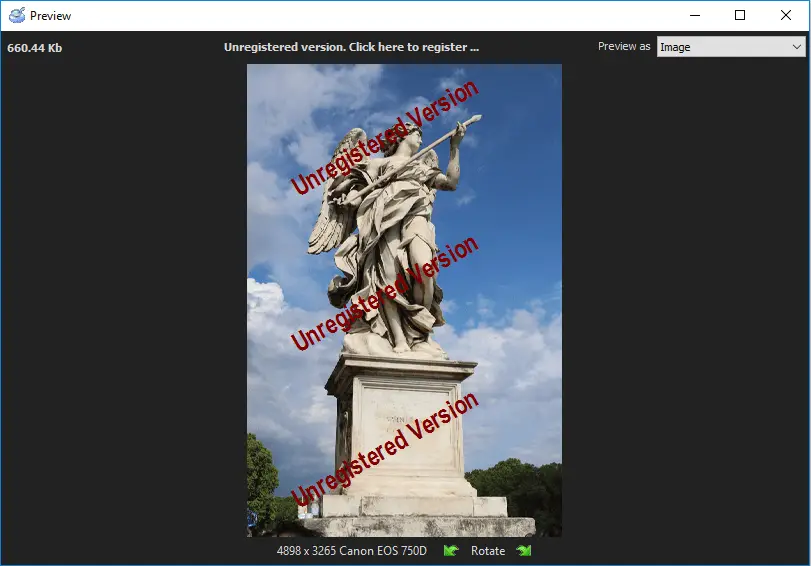
DiskInternals Partition Recovery works under Windows 7, 8, 8.1, 10, Vista and other versions and lets you preview files before restoring them (and it's also free!). This way, you can be sure that your data can be recovered completely and efficiently. Only if you want to save the recovered files will you need to purchase a license for this product and enter the license key.
There is a free trial version of DiskInternals Partition Recovery. Below, for clarity and convenience, there are step-by-step instructions for recovering files (the instructions are suitable for both the licensed version and the trial version).
1. Download and install DiskInternals Partition Recovery on your device.
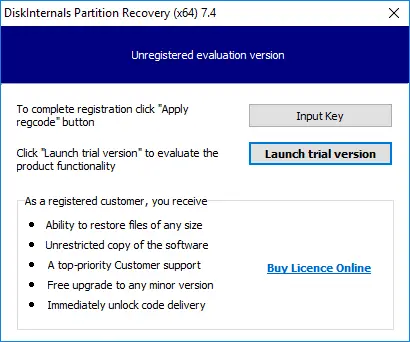
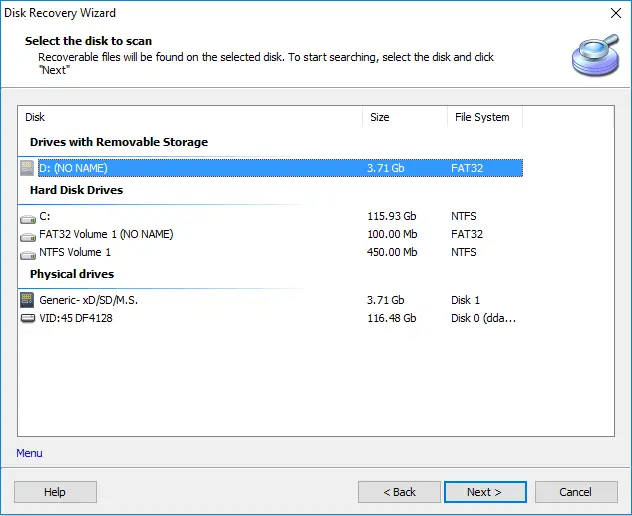
2. The Recovery Wizard (an automatic function) will ask you to select a disk or partition for further work.
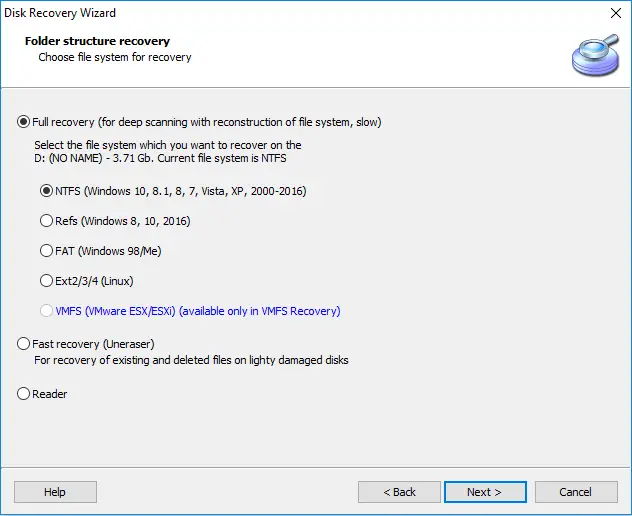
3. Select a recovery mode: full (recommended), fast, or read.
4. Next, the scanning process will begin; the time depends on the size of the logical disk.
5. After the scan is complete, you will see a list of recovered files and folders. Right-click the file and select "Preview in new window".
6. Buy a license. Enter the license key and save the files using the Export Wizard.

Do not hesitate in choosing this software: it is recommended by most IT professionals as a high-quality, and most importantly, a reliable tool for information recovery. DiskInternals Partition Recovery will find a way out in situations where related programs could not do anything!