How to Recover Lost Dir Files from SD Card on Your Android Device
If you use Android, you may have seen a folder on your SD card with the name LOST.DIR. It is not advised to delete the folder based on the false belief that it contains meaningless numerical files that won't open. LOST.DIR, a system-generated directory, is actually useful for holding files that couldn't be saved properly and can aid in their recovery. Inquiring as to how? Find out by reading on.
What is Lost.Dir on Android?
SD cards are not fixed components of your phone; they can be easily removed, and the phone’s operating system must adapt to this. This is where the LOST.DIR folder comes in handy.
Whenever an SD card is abruptly removed or the phone shuts down improperly, some files may not be saved correctly. When the Android system boots up the next time, it will attempt to recover these files, which are then stored in a dedicated folder named LOST.DIR, enabling the user to recover them.
However, recovering these files is not a simple task. There is no direct method to retrieve the files or an easy button to convert them instantly. In this article, we will discuss other methods of recovering these files.
Main Reasons for Data Loss from lost.dir Folder
1. Corruption: Continuously removing the SD card without properly ejecting it can cause data corruption and other issues. In some cases, the LOST.DIR folder may become corrupted, resulting in all of the files it contains becoming inaccessible.
2. Deletion: The majority of individuals are unaware of the purpose of the LOST.DIR folder. As a result, they may assume that it is a virus or an unnecessary folder taking up valuable space, and proceed to delete it intentionally in order to free up space on their SD cards.
3. Formatting: It is common to accidentally delete the LOST.DIR folder when formatting an SD card. While individuals may make a point of copying over their important files before formatting, they often forget to check this folder.
How to Recover LOST.DIR files
DiskInternals Partition Recovery Software

At some point, after you have tried all the methods explained above and none worked for you, the best reliable option is to use a third-party data recovery solution like the DiskInternals Partition Recovery app. This data recovery solution works on all Windows OS computers and features an intuitive interface – integrating a Wizard interface – that makes it easy for virtually any computer literate to use the software.
DiskInternals Partition Recovery can recover LOST.DIR files and folders from any storage device, drive, disk, or media. It comes with three recovery modes, so you can easily choose the one that is best for you. Also, this software is more advanced than the DiskInternals Uneraser software, which also works good for system-wide data recovery on any disk. Furthermore, the Partition Recovery software can read any of the known file system formats for Windows, macOS, and Linus OSes.
With DiskInternals Partition Recovery, you can recover lost folders and LOST.DIR files, regardless of how they were deleted from the computer. More so, you won’t have to pay for the PRO version until you confirm that your lost files have been recovered. There’s a built-in File Preview engine that lets you preview the recovered files for confirmation before upgrading your software to get them saved on your PC or remote storage. Here’s a guide to using DiskInternals Partition Recovery.
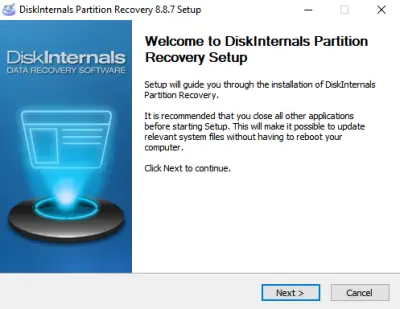
- Step One: Install the Partition Recovery software on your computer system and launch it to recover your lost LOST.DIR files. If the folder was lost from an external drive, connect the drive to the computer where the DiskInternals software is installed.
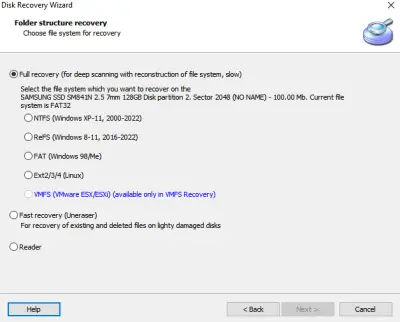
- Step Two: Select the drive where the lost LOST.DIR file was previously located and choose a data recovery mode: Fast Recovery or Full Recovery.
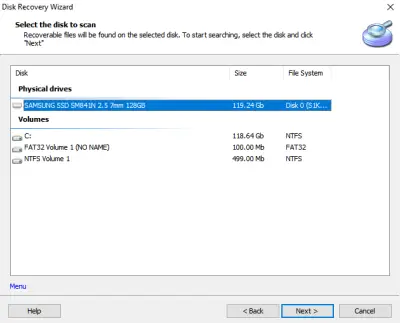
- Third Step: Full recovery takes more time but recovers deeply because it goes deeper into the drive to find lost files. When the scanning is complete, you’d see the deleted files appear with a red asterisk to indicate they are the files you need to recover.
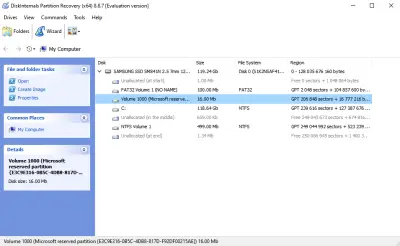
- Fourth Step: Preview the recovered files to confirm they are the ones you want to get back. Simply select the file(s) and click on the “Preview” option.
- Fifth Step: The recovered LOST.DIR files must be saved to a new storage location and not the same drive where they got lost from. Interestingly, you can export the files to remote storage via FTP.
Note: DiskInternals Partition Recovery uses an advanced recovery algorithm trusted by IT experts for more than 15 years.
Recover files using LOST.DIR (Adding Filename Extension)
This approach is somewhat experimental. The concept is simple: every file in the LOST.DIR is a provisional backup of data that failed to save correctly. If you use the appropriate application, it's conceivable that some of these files may be opened correctly.
To do this, you must navigate to the directory and rename each file with various file extensions (e.g., .jpg, .txt). This may enable you to open and view the file's contents and save it to a secure location. Typically, these files are photos, so renaming them to .jpg usually works.
However, this technique is only practical if there are few files in the LOST.DIR because manually renaming each file can be time-consuming.
1. To begin, find the File Manager application on your Android phone. This app displays the contents of your phone's storage, both internal and external, when opened. You can switch between them using a drop-down menu on the left. To locate the LOST.DIR folder, switch to the SD card and scroll down.
2. Inside the LOST.DIR folder, you will find a collection of files named with serial numbers but without any file extensions. Since these files cannot be opened directly by any app, they must be renamed. To begin, select one of these files and choose the Rename option.
3. There's no need to change the filename entirely; simply add ".jpg" to the end. While you could experiment with other extensions, images generally have a better chance of being restored. A message will pop up warning that altering the file extension could render the file unreadable. This is not an issue with these files, so select OK to proceed. If the process was successful, the file will now appear as a viewable image that you can open with your standard photo application.
Repeat this procedure for each file in the LOST.DIR folder to convert them into viewable images. If your folder has numerous such files, it might be preferable to use a data recovery tool. Changing the file extensions is only practical when there are just a few files, as shown in the example above.
Is It Safe to Delete LOST.DIR Files?
The LOST.DIR files on your Android device are harmless and can be safely kept. In fact, they can be useful in recovering lost files due to system errors. If you're comfortable with having the files on your device, there's no need to delete them. However, if the folder and its contents are causing inconvenience, you can delete it. Just ensure that there are no important files stored in the folder before doing so. If there's nothing important in the folder, you can go ahead and delete it without any concerns.
How to Prevent LOST.DIR From Getting Deleted in Android Phone
Instead of waiting for the LOST.DIR folder to get deleted and trying to recover it later, it's better to take preventative steps. Here are a few measures you can take:
1. Save Frequently: This advice is typically given to PC users, but it's still applicable to mobile devices. LOST.DIR files are created when an application fails to create a save and shuts down unexpectedly. Saving often can help prevent data loss.
2. Backup Your Important Files: It's advisable to back up critical data such as your photos and important documents to the cloud. SD cards are known to be unreliable and may become corrupted due to a variety of reasons.
3. Eject Your SD Card Properly: The most common reason for losing the LOST.DIR folder on your SD card is due to improper ejection of the storage medium. Therefore, always ensure to properly unmount the SD card before removing it from your phone.
FAQ
-
Is the LOST.DIR a virus?
No, the LOST.DIR is not a virus. It is a directory that is automatically created by the Android operating system when the system encounters an error while saving a file to the SD card. It is a normal system function and not a virus.
-
Can the LOST.DIR files be deleted?
Yes, the LOST.DIR folder and its files can be safely deleted as they are not necessary for the proper functioning of the Android operating system or the SD card. However, it is important to check the contents of the folder before deleting it, as it may contain some important files that were not properly saved or backed up. If there are no important files, you can go ahead and delete the LOST.DIR folder without any issues.
-
How do I prevent LOST.DIR on Android Phone?
1. Save Frequently.
2. Backup Your Important Files.
3. Eject Your SD Card Properly.
-
How to recover LOST.DIR files?
The LOST.DIR folder is created by the Android operating system when it detects that there are files on your device that may be recoverable after an unexpected shutdown or system crash. The LOST.DIR folder contains files that the system has found to be damaged or incomplete and are thus renamed with a generic name.
To recover files from the LOST.DIR folder, you can follow these steps:
- Connect your Android device to your computer using a USB cable.
- Browse to the LOST.DIR folder on your device using your computer's file explorer.
- Open the LOST.DIR folder and look for files with generic names (e.g., file0000.chk).
- Identify the files you wish to recover and copy them to a safe location on your computer.
- Rename the files to their original names and file extensions if possible.
If you cannot find the files you are looking for in the LOST.DIR folder, it is possible that they have been permanently deleted. In this case, you may need to use specialized data recovery software to attempt to recover the lost files.
-
Is it safe to delete LOST.DIR files?
It is generally safe to delete the LOST.DIR folder and its contents, as they are simply temporary files that have been renamed by the Android operating system. However, before you delete anything, it is important to make sure that you do not need any of the files in the folder.
If you have recently experienced a system crash or unexpected shutdown and have not yet checked the contents of the LOST.DIR folder, it may be worth taking a look to see if there are any important files that can be recovered.
If you do not find any files that you need to recover, you can safely delete the LOST.DIR folder and its contents. The Android operating system will recreate the folder if it detects any future file system errors that need to be addressed.
-
Is Lost DIR a virus?
No, the LOST.DIR folder is not a virus. It is a system folder created by the Android operating system that serves as a temporary storage location for files that have been recovered after a system crash, unexpected shutdown or other file system errors.
-
What files are stored in Lost DIR?
The LOST.DIR folder on an Android device typically contains recovered files that have been damaged or incomplete due to a system crash or unexpected shutdown.
When the Android operating system detects that a file system error has occurred, it tries to recover any damaged files and moves them to the LOST.DIR folder. The recovered files in the LOST.DIR folder are usually renamed with generic names like file0000.chk, and their original file names and extensions are lost.
The types of files that may be stored in the LOST.DIR folder include images, videos, audio files, documents, and other types of data. However, the specific files that are stored in the LOST.DIR folder can vary depending on the device and the cause of the file system error.
It's important to note that not all files that are stored in the LOST.DIR folder can be recovered, and some may be corrupt or incomplete. It's always a good practice to regularly backup your important files to avoid data loss.
-
What is the lost DIR on my Mac?
On a Mac, the LOST.DIR folder does not exist by default as it is a folder created by the Android operating system on Android devices. However, on a Mac, there may be a similar folder called "lost+found" in the root directory of a mounted file system, which serves a similar purpose.
-
What does lost dir mean on my SD card?
On an SD card, the LOST.DIR folder is a system folder created by the Android operating system that serves as a temporary storage location for files that have been recovered after a system crash, unexpected shutdown or other file system errors.
When the Android operating system detects that a file system error has occurred, it tries to recover any damaged files and moves them to the LOST.DIR folder on the SD card. The recovered files in the LOST.DIR folder are usually renamed with generic names like file0000.chk, and their original file names and extensions are lost.
The types of files that may be stored in the LOST.DIR folder on an SD card include images, videos, audio files, documents, and other types of data. However, the specific files that are stored in the LOST.DIR folder can vary depending on the device and the cause of the file system error.
-
How do I recover lost dir files on my SD card?
- Step One: Install the Partition Recovery software on your computer system and launch it to recover your lost LOST.DIR files. If the folder was lost from an external drive, connect the drive to the computer where the DiskInternals software is installed.
- Step Two: Select the drive where the lost LOST.DIR file was previously located and choose a data recovery mode: Fast Recovery or Full Recovery.
- Third Step: Full recovery takes more time but recovers deeply because it goes deeper into the drive to find lost files. When the scanning is complete, you’d see the deleted files appear with a red asterisk to indicate they are the files you need to recover.
- Fourth Step: Preview the recovered files to confirm they are the ones you want to get back. Simply select the file(s) and click on the “Preview” option.
- Fifth Step: The recovered LOST.DIR files must be saved to a new storage location and not the same drive where they got lost from. Interestingly, you can export the files to remote storage via FTP.
-
Can I delete lost dir on SD card?
It is not recommended to delete the "lost.dir" folder on your SD card as it serves as a system folder that contains files that have been recovered after a system error or a sudden shutdown. This folder is created by the Android operating system to store files that have been recovered from the SD card during the boot process.
If you delete this folder, you may lose important files that were recovered during the boot process. If you are experiencing issues with the "lost.dir" folder taking up too much space, you can try transferring the files to another location or deleting unnecessary files from your SD card.