External Hard Drive I/O Error Occurs: Your Actions
In this article you will find out:
- how to deal with this issue
- how to protect your data
Are you ready? Let's read!
About this error
An I/O device error prevents Windows from reading or writing to its contents. This can apply to both HDD or SSD, an external hard drive, SD card, USB storage, CD/DVD, etc. You cannot transfer computer data to and from an external device and also at the same time on the monitor screen when the error "The request cannot be executed due to an I/O device error" appears, error code 105. The reasons for this problem are quite serious, such as:
- mechanical or logical damage to the hard drive,
- damage to the file system or its incompatibility with the computer,
- outdated computer device drivers,
- incompatibility of the Windows transfer mode with the hard disk.
However, this problem can still be corrected if you know the appropriate solutions. Therefore, carefully study this article and you will be armed and more likely to get rid of the i/o device error.
External Hard Drive I/O Error: fix
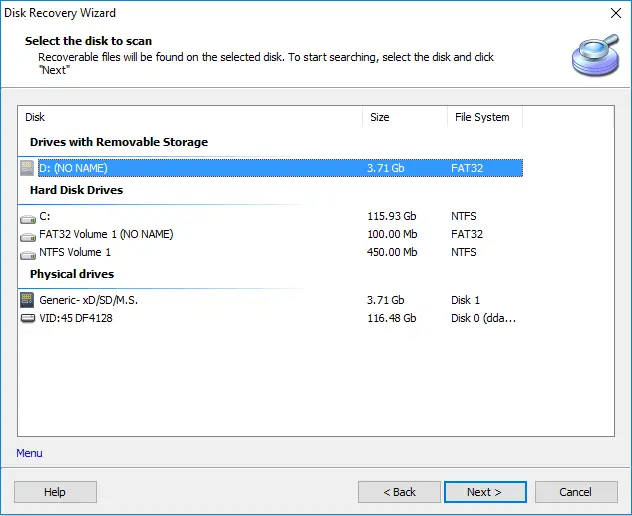
It is most practical if you will be recovering damaged or lost files using good professional software. It's safe and secure with DiskInternals Partition Recovery
The program that has been helping users for over 15 years to recover photos, images, music, videos, documents, etc. that have disappeared for any reason.
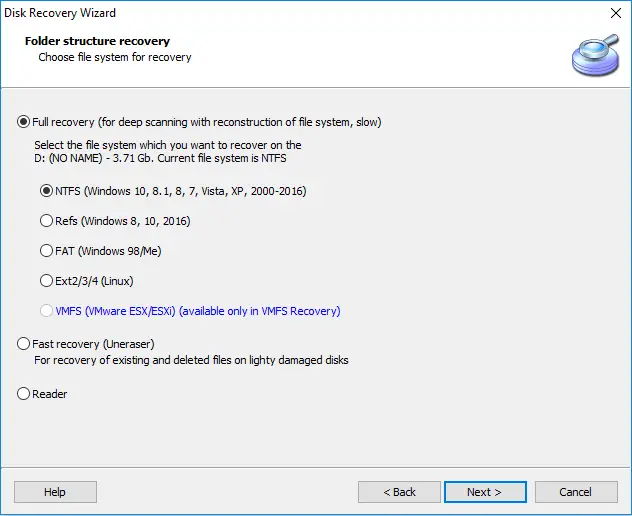
DiskInternals Partition Recovery has two types of scans - fast and full; it all depends on your preferences. In addition, there is a mode for reading inaccessible files. You can also use the free option - create a disk image and be 100% protected from any unforeseen situations.
This application is equipped with a convenient, professional and simple built-in recovery wizard. If you are doing it for the first time and it seems that you will not be able to cope with this task, you simply activate the wizard and think about nothing else.
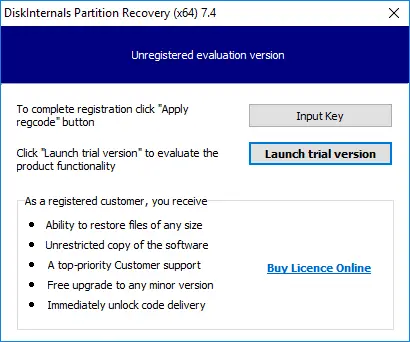
Before spending money and buying a license, download and use the free, fully functional trial version of DiskInternals Partition Recovery. Only after you have made sure that all the information has been recovered with high quality and accuracy, you can purchase a license agreement and export absolutely all recovered files to another medium.
In addition, the license includes 24/7 customer support throughout the year - so when you lose data, you will always have someone to rely on!
Check connections
First of all, check the cable that is used to connect the external hard drive to the PC. It must be free of any damage and properly connected. Otherwise, use a spare cable and test it with a different USB port.
If that doesn't fix the hard drive i/o error, then move on to another method.
Clean boot OS
To check if a driver or program conflicts with your external hard drive, you need to clean boot your PC. If this helps, then an incompatible driver or program is installed on your system.
So, type "MSConfig" in the search box and press Enter. In the System Configuration window, click the Services tab and select the Hide all Microsoft services check box and click Disable all. On the Startup tab, click Open Task Manager, select all startup items and click Disable. Close Task Manager, go back to System Configuration, select Startup and click OK. Now, just restart your Windows 10 computer to perform a clean boot.
Change system preferences
Windows will not be able to transfer data between the PC and the external drive if the drive transfer mode is not correct. You can fix this as follows:
In the search box, enter "Computer Management", then click "Device Manager" in the left pane. Expand IDE ATA / ATAPI Controllers to see the IDE ATA / ATAPI channels for your PC. Select the channel to which the external drive is connected. Right-click and click on the "Properties" button. Next, on the "Advanced Settings" tab, select the "PIO Only" option in the "Transfer Mode" field. Save changes and check external hard drives with I/O error.
You should now restart your computer so that the system can detect the changes that have been made. After that, your external hard drive will start working properly.
Related articles
- Recover lost.dir files android Device (2026)
- What To Do If You Cannot Extend Volume in 2026
- How to Repair a Damaged Partition with Partition Recovery™
- Having hard drive error code 2000-0142? Fix it!
- [Solved] Wiped vs accidentally erased hard drive
- [Error] The volume does not contain a recognized FS
- How you can initialize disk without losing data
- Why the Hard Drive Clicking Happens and How to Fix It
- ReFS: can you use it for RAID
- Recovering Data from Crashed Hard Drive: Safe
- How to Recover Data from a Dead External Hard Drive and Repair It (2026)
- [Windows] Recover an unallocated partition today
- How to Recover Data from a RAW Hard Drive - Raw Partition Drive Recovery
- External hard drive repair software [2026]
- WD HDD Repair Tool Guide: Western Digital Hard Drive Repair, Recovery & Fix 2026
- OEM Partition and how to delete it safely
- Seagate external HDD not showing up in Windows 10? Solved!
- How to Recover Data from a Formatted Hard Drive in 7 Steps (2025)
- Recover Files from Corrupted External Hard Drive Today!
- New hard drive not showing up in Windows 10
- How to Fix a Corrupted External Hard Drive at Home in 2025
- Hard Disk Recovery | DiskInternals Partition Recovery
- HDD Data Recovery from Unallocated Space
- External hard drive having ‘the parameter is incorrect’
- Solved 2025! Fix a dead external hard drive and restore files
- Convert RAW to NTFS in 2 Steps!
- External hard drive: Access is denied
- Guide: How to Fix a Corrupted Hard Drive Fast
- Repair a Hard Drive with Bad Sectors | Fix HDD Bad Sectors & Recover Data
- How to deal with smart hard disk error 301 on HP laptops?
- Seagate hard drive beeping: your actions
- Primary vs. Logical partition comparison
- Moving hard drive to new computer
- Maxtor Hard Drive Recovery
- LaCie External Hard Drive Recovery
- Step-by-step guide on how to wipe a hard drive
- How to use OneDrive
- How to use a hard drive reader
- Hard Drive Password Recovery: Everything You Need to Know
- Hard Disk 3f0 Boot Device Not Found on HP: Fix it Now!
- Is it worth it to compress this drive to save disk space?
- This is how to combine partitions Windows 10
- How to check hard drive health?
- [Solved] How to get files off a broken laptop safe
- Make Unallocated Space Into Free Space
- How to delete an EFI System Partition
- Converting a dynamic disk to a basic disk
- Partition Recovery Guide in pictures
- Repairing of Corrupted Hard Drive
- Revive Your Laptop Hard Drive With Recovery Tips
- The best, most reliable software to recover files from a corrupted hard drive
- Сorrupted Hard Drive - What To Do Now?
- Hard disk detected as RAW? Perform RAW Drive Recovery!
- Hard Drive Repair and Bringing Files Back
- How to Fix a Crashed Hard Drive on Your Own
- How to fix hard drives at home
- How to recover data from a damaged external hard disk
- Disk is Write-Protected? Don't Give Up Yet!
- External hard drive not showing up? Fix it in 2025!
- How to use Windows partition manager correctly
- Seagate external hard disk light blinking but not detecting
- How to Fix: Windows Detected a Hard Disk Problem⠀
- Signs Your Hard Drive Is Failing in 2025
- What causes lead to a hard drive fails?
- How to Unpartition an External or Internal Hard Drive
- Couldn't Create a New Partition or Locate an Existing One
- If Windows 10, 11 doesn't recognize hard drive
- If the Unknown Hard Error message appears
- If you want to remove OneDrive
- If you get hard disk short DST failure
- Initialize a disk before the disk manager can access it
- Internal/external hard drive shows 0 bytes
- If the Hard Drive Disappeared on Windows 10
- [SOLVED] How to Recover Files from a Hard Drive that Won't Boot
- Need to Install Windows 10 on the External HDD?
- Not enough unallocated space on target disk
- Partition a hard drive on Windows 10
- Guide on how to activate partition
- Creating new simple volume: only workable tips
- [Solved!] External hard drive not detected
- How to repair SATA Hard Drive?⠀
- How to Recover a Wiped Hard Drive
- If Hard Drive Short DST Check Failed
- How to fix ASUS motherboard not detecting SATA hard drive issue
- How to Backup in Windows 10, 11?