
External hard drive having ‘the parameter is incorrect’ error? You can fix it!
Here you will find out:
- why "the parameter is incorrect" error on Windows 10 happens
- methods, how to fix the 0x80070057 error
- how Partition Recovery can help you
Are you ready? Let's read!
Reasons for “the parameter is incorrect” error
The “The parameter is incorrect” error may occur for the following reasons:
- 1. Removing the disk in an unsafe way
- 2. Problems with the cable or USB port3. Hard disk problems: bad sectors, damaged file system, disk write errors, etc.
- 3. The hard disk is damaged by a virus or worm
- 4. The Windows operating system has not been updated for a long time, or the OS version is outdated
The question naturally arises, but what to do with the error of “the parameter is incorrect” in Windows 10? Is there any way to fix it? Of course!
Main problems associated with this error
As a result of the error “the parameter is incorrect”, two outcomes are possible:
- 1. Disk access is open, but it is impossible to work with data; i.e., files cannot be transferred, copied, saved, etc. on this hard drive.
- 2. There is no access to both data and the hard disk. Outwardly, it seems that the disk is broken. But this is not true. It is quite possible to recover the files.
Signs of error 0x80070057: “The parameter is incorrect”
The main sign that you are dealing with this error is the inability to access data on your hard disk. It will happen like this: you turn on the computer, go to My Computer / This PC. Everything seems to be in order, the disk is determined, and you click on it with the left mouse button to open it.
But in a couple of seconds, you get the message 'G: \ is not accessible. The parameter is incorrect. \'
Do not panic; you are lucky that you are reading this article. Very soon you will forget about this problem.
Method 1. Use dot as decimal symbol
The decimal character may not be set to “.” (Point). If you are not from the USA, then it can easily happen to you.
In order to correct the setting of the decimal symbol, follow these steps:
Go to the Control Panel and click on the tab "Clock, language and region" -> "Region and language."
Now left-click on “Formats” and then “Additional Setting”.

In the Decimal character field, enter “.” (Dot). Click OK.
It is recommended to restart the computer after this. If this method did not help fix the error “drive is not accessible: the parameter is incorrect”, then proceed to the next method.
Method 2. Use SFC to fix “the parameter is incorrect” error
First, you need to open the command line. Right-click on Start and select “Command Prompt (administrator)”.
In the new Command Prompt window, type the following: “sfc /scannow” and press Enter.

After the process is completed, restart the computer and check if the hard disk is available.
If not? Then start using method 3.
Method 3. Use Partition Recovery tool
You can access the disk using special software like DiskInternals Partition Recovery. This is a great application that can be used both for data recovery (“uneraser” or “recovery” mode) and for viewing them (“reading” mode). It all depends on your preferences. This software supports all popular file systems: UFS, HFS, NTFS, XFS, Ext2 / 3/4, ReiserFS, FAT12, ReFS, and Reiser4.

Partition Recovery allows you to use the free full-featured promotional version, and only after you understand that this software suits you completely, do you need to purchase a license and save the data at any place convenient for you. A reliable Recovery Wizard will assist you in any unfamiliar situations. Therefore, this software can be used by both a beginner and a professional.
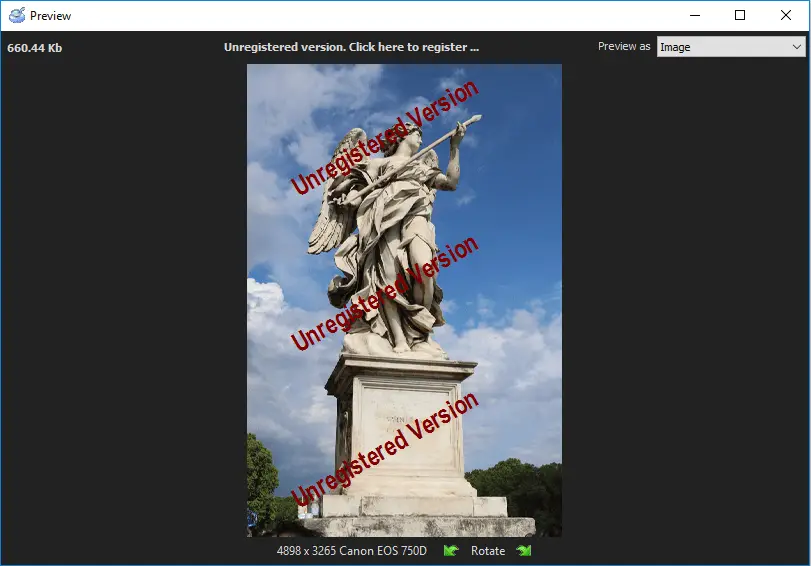
DiskInternals Partition Recovery has been used for more than 15 years in recovering any data from any storage media, while not limiting you to the size of recoverable files.
Method 4. Run CHKDSK to fix “the parameter is incorrect” in Windows 10
CHKDSK does a good job with fixing the error “drive is not accessible: the parameter is incorrect”. But pay attention; this method is harmful to your recoverable data(only recoverable!), because it cuts all of the drive’s files down to 512 kb, damaging anything bigger than that size.
To do this, right-click the "Start" button and enter "cmd". Click Enter. Then you will see a new cmd.exe dialog that you need to click on. As a result, you will see a line similar to this: "C: \ Windows \ system32> _". Type “chkdsk [drive letter]: /f” or “/r” and press Enter. But remember: there is a space between "[drive letter]:" and "/".
- * Parameter /r - corrects the sector on the disk.
- * Parameter /f - corrects errors on the disk. (This option is preferred in this case.)
After the process is completed, it is recommended to restart the computer, and only after that, check if the error disappeared.
If this method did not help, there is one more option.
Method 5. Formatting as the last option
You need to format the hard disk and get rid of errors and data.
Follow the instructions:

Select the “This Computer” icon and right-click on it. Then select “Manage” -> “Disk Management” from the list. Find and select an unavailable hard disk. Select "Format", then click OK. Select the basic formatting option and click OK. Wait for the formatting to be completed, as it will take some time (it all depends on the size of the disk). Restart the computer and start working with the disk.
Hopefully, you found the solution to the problem. Good luck!