Primary vs. Logical partition comparison: here is everything you need to know
In this article you will find out:
- Primary vs. Logical partition comparison
- how to protect your data
Are you ready? Let's read!
About primary partition
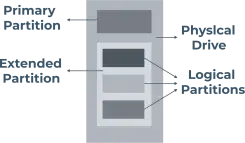
Primary partition - this can be said to be the main partition of the hard disk on which your Windows OS is installed. Other data can also be stored here, but this is the only partition that can be made active. In other words, the BIOS can only detect this partition, and you can only boot from this primary partition. Your hard drive can contain up to 4 main partitions or 3 main partitions, and 1 extended partition.
About logical partition
A logical disk or partition (also called LPAR) is no different in its use and functions from the primary partition: both contain information. However, it is impossible to start the Windows operating system from logical partitions of the disk. In general, a logical partition is a logical segmentation of mainframe memory and other resources. This allows you to run your own copy of the operating system and related applications and programs. You can create an unlimited number of logical partitions.
Comparison
Let's try to compare logical vs. primary partition based on the main factors:
- 1. Priorities.
The Old MBR bootloader can only boot from the main partition. Therefore, the main partition is strategically important, and it will be impossible to boot the operating system without it.
- 2. Limitations.
There is no logical partition at all on a GPT disk, and you can create more than four primary partitions. Theoretically, the number of primary partitions on one GPT disk can reach up to 138.
As for an MBR disk, there can be:
- no more than 4 primary partitions and no logical partitions;
- 3 main sections and one extended section.
The extended partition can be divided into several logical partitions depending on your goals.
It happens that you need to create more than four partitions for separate data storage. In this case, you can divide your MBR disk into three primary partitions and one extended partition. Then you can create as many logical partitions as you need.
As you can see, the comparison of these partitions is a bit relative. You won't be able to choose the best option, as you must create one primary partition on your disk anyway. If you don't, you won't be able to simply boot your computer.
In general, you can store data on the logical and on the primary partition; there is no difference here. Well, if you need more than four partitions on an MBR disk, give priority to creating logical partitions on your disk.
This is perhaps the most important thing that you should know about these two types of disk partitions.
Comparison
If necessary, you can check how many primary and logical partitions you have on your computer. This is easily done using the utility Windows Disk Management.
So, right-click "This PC" and select the "Manage" line. Then go to the "Disk Management" section. Here, you will find all information about the number and status of primary and logical partitions, define your file system, disk type, and other important parameters.
Protect your data
Any files can be lost, both from the primary disk partition and from the logical partition. This can be preceded by various events: a virus attack on the system, accidental deletion, system errors, and so on. DiskInternals Partition Recovery is suitable for recovering all types of files of any size, for creating a disk image, for reading inaccessible data - you will not find a better or more practical option to protect your data. The program deeply scans all partitions and does it one by one, even on an inaccessible disk. The utility retrieves up to 100% of the data that was lost. The application works in all new versions of Windows and supports all available and popular file systems, even if they are damaged.
The Recovery Wizard allows even a beginner to understand the recovery process without assistance; it's just amazing! This assistant is available not only in a licensed version but also in a free trial - you will be given a choice between three assistant options. Then preview the data found during the scan with the free Preview feature in a new window. After that, all actions can be summarized by exporting the recovered data to an external hard drive, USB stick, memory card, etc.
Export requires a DiskInternals Partition Recovery license and a unique key, which can be purchased from the DiskInternals website for a small online fee. After that, you will have additional functions and privileges.
Don't waste your time! Rather, install the free version of DiskInternals Partition Recovery and start exploring the application and recovering your lost data.

Related articles
- Recover lost.dir files android Device (2026)
- What To Do If You Cannot Extend Volume in 2026
- How to Repair a Damaged Partition with Partition Recovery™
- Having hard drive error code 2000-0142? Fix it!
- [Solved] Wiped vs accidentally erased hard drive
- [Error] The volume does not contain a recognized FS
- How you can initialize disk without losing data
- Why the Hard Drive Clicking Happens and How to Fix It
- ReFS: can you use it for RAID
- Recovering Data from Crashed Hard Drive: Safe
- How to Recover Data from a Dead External Hard Drive and Repair It (2026)
- [Windows] Recover an unallocated partition today
- How to Recover Data from a RAW Hard Drive - Raw Partition Drive Recovery
- External hard drive repair software [2026]
- WD HDD Repair Tool Guide: Western Digital Hard Drive Repair, Recovery & Fix 2026
- OEM Partition and how to delete it safely
- Seagate external HDD not showing up in Windows 10? Solved!
- How to Recover Data from a Formatted Hard Drive in 7 Steps (2025)
- Recover Files from Corrupted External Hard Drive Today!
- New hard drive not showing up in Windows 10
- How to Fix a Corrupted External Hard Drive at Home in 2025
- Hard Disk Recovery | DiskInternals Partition Recovery
- HDD Data Recovery from Unallocated Space
- External hard drive having ‘the parameter is incorrect’
- Solved 2025! Fix a dead external hard drive and restore files
- Convert RAW to NTFS in 2 Steps!
- External hard drive: Access is denied
- Guide: How to Fix a Corrupted Hard Drive Fast
- Repair a Hard Drive with Bad Sectors | Fix HDD Bad Sectors & Recover Data
- How to deal with smart hard disk error 301 on HP laptops?
- Seagate hard drive beeping: your actions
- Moving hard drive to new computer
- Maxtor Hard Drive Recovery
- LaCie External Hard Drive Recovery
- Step-by-step guide on how to wipe a hard drive
- How to use OneDrive
- How to use a hard drive reader
- Hard Drive Password Recovery: Everything You Need to Know
- Hard Disk 3f0 Boot Device Not Found on HP: Fix it Now!
- Is it worth it to compress this drive to save disk space?
- This is how to combine partitions Windows 10
- How to check hard drive health?
- [Solved] How to get files off a broken laptop safe
- Make Unallocated Space Into Free Space
- How to delete an EFI System Partition
- Converting a dynamic disk to a basic disk
- Partition Recovery Guide in pictures
- Repairing of Corrupted Hard Drive
- Revive Your Laptop Hard Drive With Recovery Tips
- The best, most reliable software to recover files from a corrupted hard drive
- Сorrupted Hard Drive - What To Do Now?
- Hard disk detected as RAW? Perform RAW Drive Recovery!
- Hard Drive Repair and Bringing Files Back
- How to Fix a Crashed Hard Drive on Your Own
- How to fix hard drives at home
- How to recover data from a damaged external hard disk
- Disk is Write-Protected? Don't Give Up Yet!
- External hard drive not showing up? Fix it in 2025!
- How to use Windows partition manager correctly
- Seagate external hard disk light blinking but not detecting
- How to Fix: Windows Detected a Hard Disk Problem⠀
- Signs Your Hard Drive Is Failing in 2025
- What causes lead to a hard drive fails?
- How to Unpartition an External or Internal Hard Drive
- Couldn't Create a New Partition or Locate an Existing One
- If Windows 10, 11 doesn't recognize hard drive
- If the Unknown Hard Error message appears
- If you want to remove OneDrive
- If you get hard disk short DST failure
- Initialize a disk before the disk manager can access it
- Internal/external hard drive shows 0 bytes
- If the Hard Drive Disappeared on Windows 10
- [SOLVED] How to Recover Files from a Hard Drive that Won't Boot
- Need to Install Windows 10 on the External HDD?
- Not enough unallocated space on target disk
- Partition a hard drive on Windows 10
- Guide on how to activate partition
- Creating new simple volume: only workable tips
- [Solved!] External hard drive not detected
- What to do in case of External Hard Drive I/O Error?
- How to repair SATA Hard Drive?⠀
- How to Recover a Wiped Hard Drive
- If Hard Drive Short DST Check Failed
- How to fix ASUS motherboard not detecting SATA hard drive issue
- How to Backup in Windows 10, 11?