
Issues with Windows 10 preparing automatic repair
In this article you will find out:
- why does this issue occur
- how to deal with problem
- how to protect your data
Are you ready? Let's read!
Windows Automatic Repair: why does this issue occur?
Automatic Repair is a built-in feature that allows you to fix errors and crashes that occur during system boot.
Sometimes, this function does not work properly and you can get into a difficult situation. For example:
- Windows automatic recovery gets stuck on a black screen. In this case, you will see an error message "Preparing for automatic recovery" or "Diagnosing your computer", but nothing further happens.
- Windows Auto Repair gets stuck on the “blue screen of death”. At the same time, you see the error message "Your computer does not start correctly" or "Automatic Repair could not restore your computer."
This may occur because of the following factors:
- A damaged Windows registry.
- BOOTMGR file corruption.
- Damaged system files.
- Faulty or outdated driver (the motherboard drivers, hard disk drive, graphics card driver).
Dealing with Windows Automatic Repair issues
Black Screen Case
In this case, you will not be able to move past the "Preparing for automatic recovery / Diagnosing your PC" screen. Here are two ways to solve this problem.
Initiate a forced shutdown of the computer by pressing the power button and holding it until the computer is completely shut down. Then, after a few minutes, press the Power button again and boot in the usual way. It should work and the download will go smoothly.
2nd way: Refresh PC
As soon as the black screen appears, press and hold the power button three times. This will help you to force a shutdown of your computer. After several such reboots, you will be taken to the boot recovery page. Here, select the "Troubleshoot" section, and go to the "Update your computer" option. As soon as the computer is updated, the system will automatically reboot. If no active updates are found for the computer, this method will be useless.
3rd way: Use safe mode
Take your Windows installation media and connect it to your computer. Once you boot from it, click on the "Repair your computer" section. Next, click the "Troubleshoot" option, and in the "Advanced options" section, select "Startup options". Here, activate Safe Mode and boot into this mode. Now, try to manually find the system startup problem: launch an antivirus application, update drivers, clear memory, etc.
4th way: Use SFC
Use Windows installation media here as well. Connect it to your computer, select boot from the installation media on the screen, and wait for the installation files to load. In the "Repair your computer" section, select "Troubleshoot", then click on "Advanced options". Click on the "Command Prompt" option and, in the new window, type “sfc / scannow” and press Enter. Now await the results of the verification; it should work. If not, try another method.
5th way: Rebuild BCD
You can restore the master boot record with your Windows installation disk. Go to the Command Prompt, as described in the previous method, and enter (or copy) the following commands:
bootrec / fixboot
bootrec / scanos
bootrec / fixmbr
bootrec / rebuildbcd
Exit
Now rebooting should not cause you any problems.
6th way: Turn off Automatic Repair
Oddly enough, automatic recovery is sometimes the cause of system boot problems. Disable this function at least for a while and then try to boot the system. To do this, go to the command line using the installation disk and enter just one command: “bcdedit / set {current} recoveryEnabled No”. Now press Enter.
7th way: Extend the system partition
If your system partition contains little free space, then you first need to increase it. The lack of free space could be the cause of the black screen.
Blue Screen Case
If you have a “blue screen of death”, then fortunately you will not need an installation drive, since additional options are available here. They can help you solve your problem.
1st way: Use the registry
Under Advanced Options on the blue screen, go to Troubleshoot. Next, open Command Prompt as an administrator and paste the commands:
C:
CD Windows \ System32
CD config
DIR
CD regback
DIR
CD
REN default default1
ren sam sam1
ren security1
ren software software1
ren system to system1
CD regback
copy * c: \ windows \ system32 \ config
Therefore, you can use a backup to restore the Windows registry to a working version.
2nd way: Try to restore the system
This method can be useful if you have previously created restore points. In "Advanced options" on the blue screen, select "Troubleshoot" and click on "System Restore". Next, the available restore points will appear; select the appropriate one and perform a system restore.
3rd way: Image recovery
This method is also good if you have previously created a system image. Now is the time to use it in the troubleshooting section. Select the "System Image Recovery" option and follow the step-by-step recommendations of the Wizard.
As soon as the system is restored, the system reboots successfully.
4th way: Turn off early launch protection
You can also try disabling early launch malware protection in the Troubleshooting section. Next, select "Advanced Options" and click on "Startup Options". Now click on the option "Disable early start of anti-malware protection" and successfully restart your computer.
Protect your data with Partition Recovery
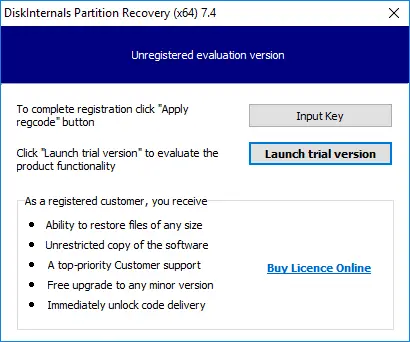
DiskInternals Partition Recovery is a professional application, with very few analogues, and why? You can safely download a free trial version of the product right now, try it out, and only then buy a license to export data. This utility works with all later versions of Windows and recovers files of absolutely any type and size. The Recovery Wizard makes working with the application a pleasure: you don't need any expertise, even if you are new to data recovery. For even more convenience, use this detailed guide:
1. Download and run DiskInternals Partition Recovery. The Recovery Wizard will start automatically.
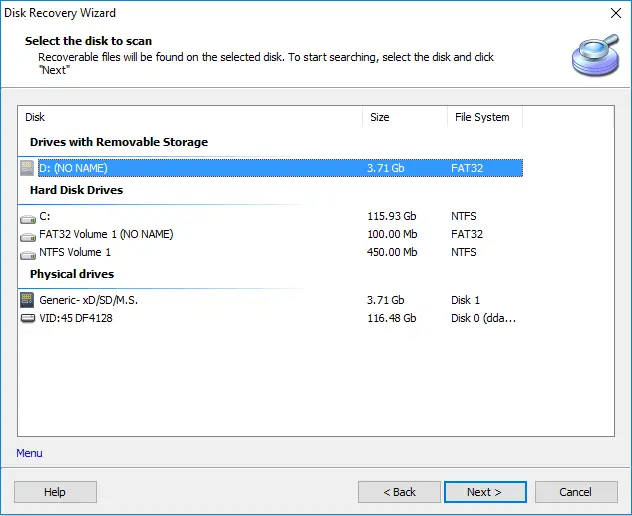
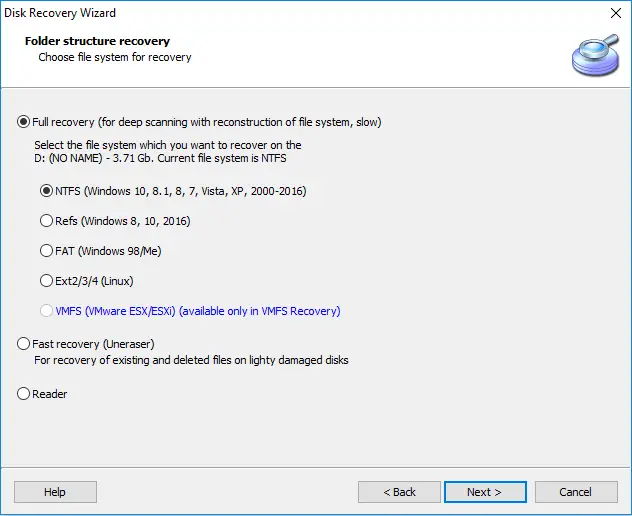
2. Select the required disk or partition to scan from the list of disks and select the recovery mode: Reader, Fast Recovery or Full Recovery (the latter is recommended).
3. The next step is to select the type of files that you want to recover (this can also be done easily after scanning).
4. Scanning may take a while, so don't worry.
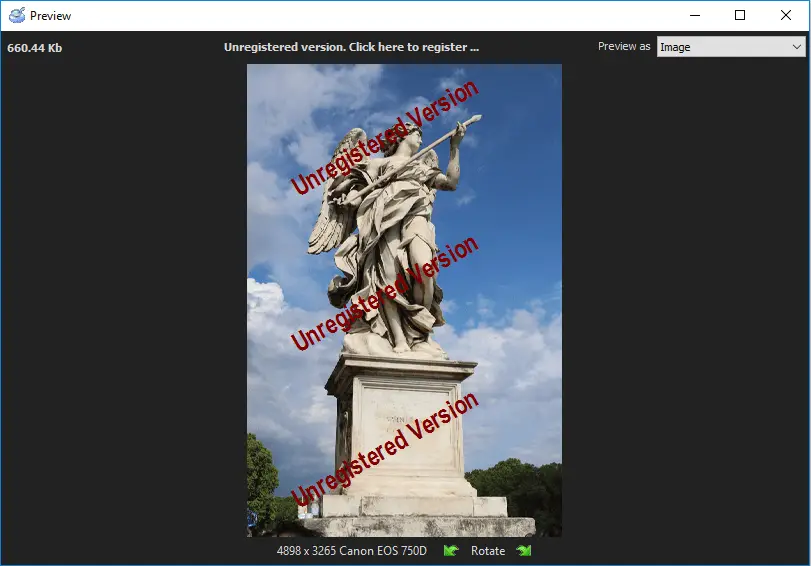
5. Preview: this feature is completely free for you.
6. Saving recovery results is available after purchasing a license on the company's website. The export will be available in full on any accumulated data.

Related articles
- Recover Data from Dead Hard Drive: Methods, Tools, and Recovery Strategies
- Best Free Partition Recovery Software for Windows (2026)
- Free damaged partition recovery software
- Recover Lost or Deleted Partition
- Accidentally Formatted/Deleted Recovery Partition
- Error 0x80070570
- System Restore failed with an error message
- Merge partitions in Windows 10
- What is a repairing disk errors message
- Change a boot drive in Windows 10
- How to recover uninstalled programs
- How to shutdown Windows without updating
- If System Restore is not working
- Restoring your previous version of Windows error
- Reset Windows 7 to factory settings
- How to Delete Temporary Files on Windows 8
- How to Disable Secure Boot
- How to boot Last Known Good Configuration on Windows 10, 11
- How to fix if it looks like Windows didn't load correctly error
- What are System Recovery Options in Windows
- Resource Protection could not perform operation
- SFC Commands Review
- Windows 7/8/10 Safe Mode when F8 is not working
- Windows Defender won't turn on
- How to Use Bootsect
- Diskpart Commands Overview
- [Solved!] Offline startup repair cannot repair your PC
- Advanced Boot Options
- How secure is OneDrive
- How to edit boot.ini: step-by-step guide
- How to use the DIR command correctly?
- What are Win dump files
- Need to flush DNS cache? Learn how to do it safely
- If you get the error “Could not find the recovery environment”
- Clean up WinSXS folder on Windows 7, 8
- Windows 10 defrag
- How to restore Windows 10, 11 system: only workable solutions
- How to use dual boot on Windows 7 and 10 safely?
- Make your computer faster! Windows 10, 11 refresh
- What should you do if Windows 10, 11 backup is not working
- How to run Windows memory diagnostic?
- Change directory in cmd Windows 10, 11
- Disable Driver Signature Enforcement in Windows 8, 10
- If you get the “Diskpart has encountered an error” issue
- If you get “we can't create a recovery drive” issue
- Differential and incremental backups
- About Windows 10, 11 recovery mode
- Here are all windows.com/stopcodes and here is how to fix them
- Windows Memory Diagnostic Tool Stuck? Fix it Now!
- Here is What to Do if Windows Rollback is Not Working
- Here is how to create and use a restore point in Windows 10, 11
- Create a Windows 10 recovery disk from another computer
- Best command prompt tricks to use in data recovery
- Recover formatted partition free | How to Recover Files after Partition Formatting [2026]
- Bootable Partition Recovery Software
- How to Restore Hard Drive Partitions on Windows?
- Deleted Partition Data Recovery Software Free Download
- How to Recover a Hard Drive That Won't Boot
- How to Recover Data from Dead Laptop SSD in 2025
- How to Recover Ransomware Encrypted or Deleted Files After Attack
- Western Digital Partition Repair & Partition Recovery Tool
- Top Data Recovery Software for Windows (2026)
- Best Hard Drive Data Recovery Services in 2026
- FREE Hard Disk Repair Software for HDD Repair
- 9 Best Hard Drive Repair Software for Windows in 2026 (Free & Paid)
- How to Recover Deleted Files Without Backup in Windows 10/11
- How to Recover Files Deleted by McAfee
- How to Recover Data from Crashed Hard Drive - FAST in 2026
- Best Damaged Hard Drive Recovery Software in 2026
- How to Recover Data from a Dead or Failed Hard Drive
- Partition Table Recover: How to Fix Lost Partition Table & Recover Lost Partition Data
- How to Recover Deleted Folder in Windows 11
- What Is a Lost Partition? Causes, Risks & How to Recover Lost Partitions
- How to Restore Partition on Windows 10
- Western Digital External Hard Drive Repair Tool & WD External HDD Repair Guide
- How to Fix a Damaged Hard Disk or External Hard Drive Without Losing Data
- Repair Lost Partition on HDD & Drives - Step-by-Step Partition Recovery Guide
- Best Free Partition Recovery Software for Windows 7 in 2025
- Free Partition Recovery Tool