Is it worth to delete Win dump files? Let's find out!
In this article you will find out:
- windows dump files classification
- should you delete these files or not
- how to protect your data
Are you ready? Let's read!
Windows dump files classification
The parameter memory dump can be found through the Control Panel. From here, select the System and Security section and then System, then click the Advanced System Settings tab and click Options under Startup and Recovery. Usually, the parameter "Write debug information" is set to "Automatic memory dump". Windows can create different types of memory dumps:
- 1. A complete memory dump contains a copy of all data used by Windows in physical memory. For example, if you have 20 GB of RAM and Windows is using 10 GB during a system crash, the memory dump will be 10 GB.
- 2. A kernel memory dump is smaller than a full memory dump and typically accounts for about one-third of the physical memory installed on the system. This memory dump option includes only memory allocated to the Windows kernel, hardware abstraction layer (HAL), and memory allocated to kernel-mode drivers and other kernel-mode programs.
- 3. The small memory dump (256KB) contains only blue-screen information, a list of loaded drivers, process information, and some kernel information.
- 4. An automatic memory dump (usually the default) includes the same information as a kernel memory dump.
Then, what about Minidumps?
Minidump files contain basic information, such as the blue screen of death error messages, so they can be a useful tool for you to fix disk crashes. Minidump files are by default stored in the C: \ Windows \ Minidump folder and have the .dmp extension.
Even if your system is configured to generate an automatic memory dump, you will receive both a minidump and a larger MEMORY.DMP file.
In general, there are special tools (such as Blue Screen View) that can display the information contained in these minidump files so that you can see the exact driver files that caused the system to crash. These files do not take up much space and, therefore, setting this parameter will only be beneficial.
Should you delete these files?
Quite often, the memory.dmp file takes up a significant amount of space on your computer, so you can delete these .dmp files. If your computer is a blue screen, you might have a 900MB or larger MEMORY.DMP file taking up space on your system drive, and removing it might help you.
Windows can delete memory.dmp automatically. You can simply run the built-in disk cleaner and tell it to clean up system files. Then you will see that all types of memory dumps will appear in the list. After that, the tool can automatically delete memory dumps. You don't have to frantically flip the Windows folder and manually delete the files you need.
To summarize, larger memory dump files are not useful for the average user because they take up too much space. However, if you plan to send them to Microsoft or a service center to fix the blue screen occurring on your system, it is better to create and save memory dump files. Minidump files are considered more useful because they are smaller and contain important basic information about system crashes.
Protect your data!
If something goes wrong and your Windows has many errors, a blue screen of death, and so on, you can use the memory dump files to find out what the problem is. If you don't want to bother, you can simply use the DiskInternals Partition Recovery software application to recover data or create a disk image.
This program copes with tasks of any complexity, whether it is a disk failure, formatting, deletion, etc.
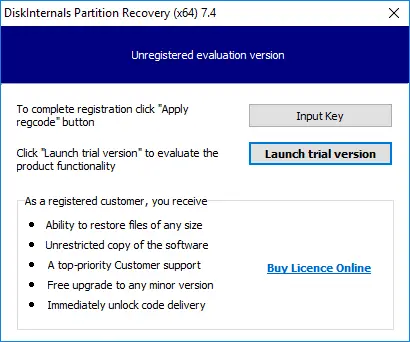
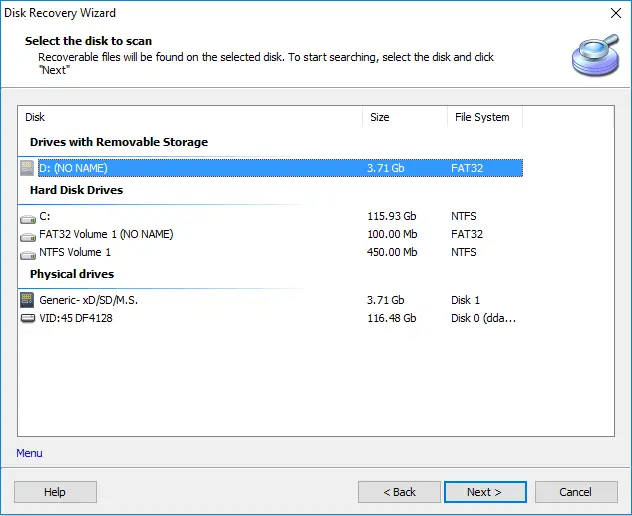
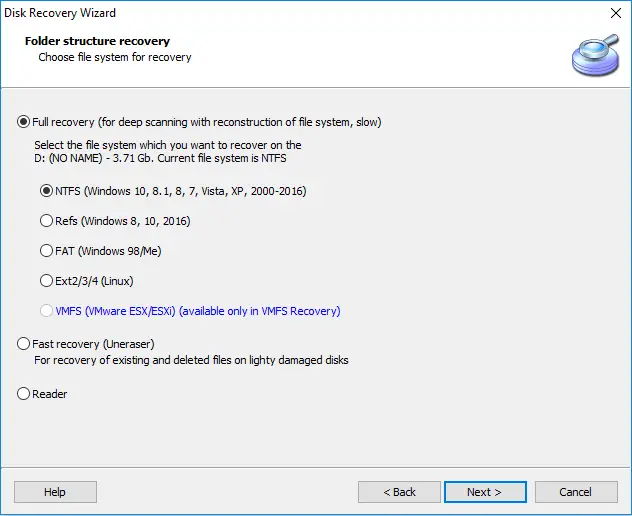
DiskInternals Partition Recovery has high potential and provides a deep scan of every partition of the disk so as not to miss a single file. It is also possible to convert any selected file system for a detailed analysis of the contents of disk partitions - this is done in case of damaged file systems or when they cannot be read. Don't worry about recovery limitations - here, you can recover up to 1 PB of any type of data.
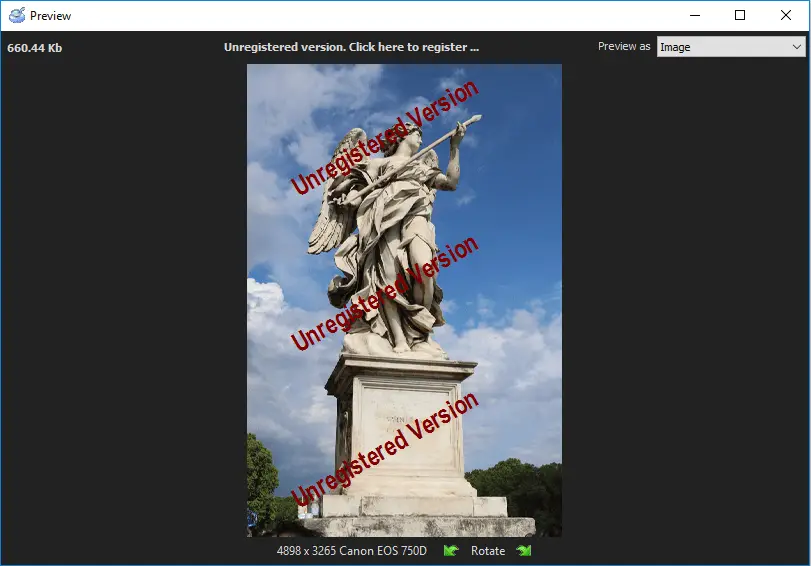
Also, after any scan (fast or full), you can see each found file in Reader mode for free and only then buy a license directly here, on the company's website. Thus, the next and final step is to save the data in the right place at any convenient time.
