
How to boot into recovery mode
Recovery mode, better known as the Advanced Startup Options menu, requires access to a number of system diagnostic and recovery utilities. This recovery mode also eliminates errors when starting the OS and appears automatically after startup errors. In other cases, users can manually enter the recovery mode and use the necessary utilities to fix the system errors that have occurred.
In this article you will find out:
- how to boot into recovery mode
- how to protect your data
Are you ready? Let's read!
Method 1: Use the Start menu's Restart option
The easiest and most reliable way to enter recovery mode is to use the Restart option in the Start menu.
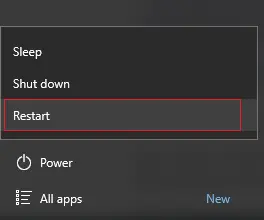
To do this, simply click the Windows 10, 11 Start button, then press the power button.
Now Press and hold the Shift key and at the same time press Restart. You will be taken to the blue Advanced Options menu; select the section Troubleshoot.
Method 2: Press F11 key after turning the PC
To do this, press the Power button on the computer and after a couple of seconds press the F11 key. This will help you switch Windows 10, 11 into recovery mode. However, in some computers the key may differ: it may be the keys F9 or F12, so check with your PC manufacturer for this information.
Method 3: Use a bootable USB drive
First, you need to configure a bootable USB drive with Rufus software and a Windows 10, 11 image file.
You will also need to configure your computer to boot from USB drives; that is, configure BIOS or UEFI settings.
Now insert the bootable USB drive into the computer slot and turn on the desktop computer.
In the Windows setup window that appears, click “Next” and select “Repair your computer”.
Next, click on "Troubleshoot" and click "Advanced options". This will take you to the Advanced Startup Options menu.
Method 4: Use a Restart now option
This method can be used as follows:
Open the Start menu and enter the keyword "restore" in the search box. Find the "Recovery" option in the search results. Open it and in a new window click the "Restart now" button in the "Advanced Startup" section.
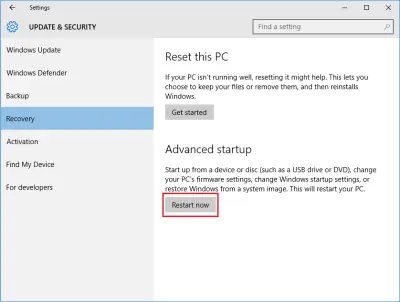
After restarting your computer, the “Select an option” menu appears. Here you should select "Troubleshoot" and then click on the "Advanced options" section to get into recovery mode.
What can help you to recover deleted partitions?
If something goes wrong and you lose data from an entire disk partition, you need to be calm, since there is a way out of this situation and it is unique! To recover this lost data, you can and should use the professional DiskInternals Partition Recovery tool.
With it, you can not only recover data from a partition or disk, but also create a disk image. The program has a high potential and provides a deep scan of every partition of the disk so as not to miss a single precious file and overwhelm you with the result.
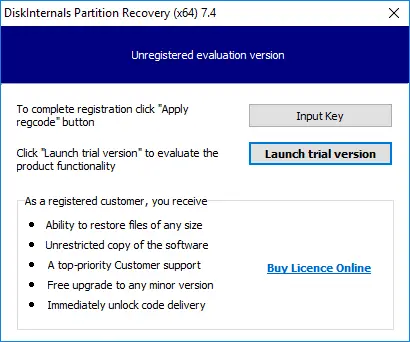
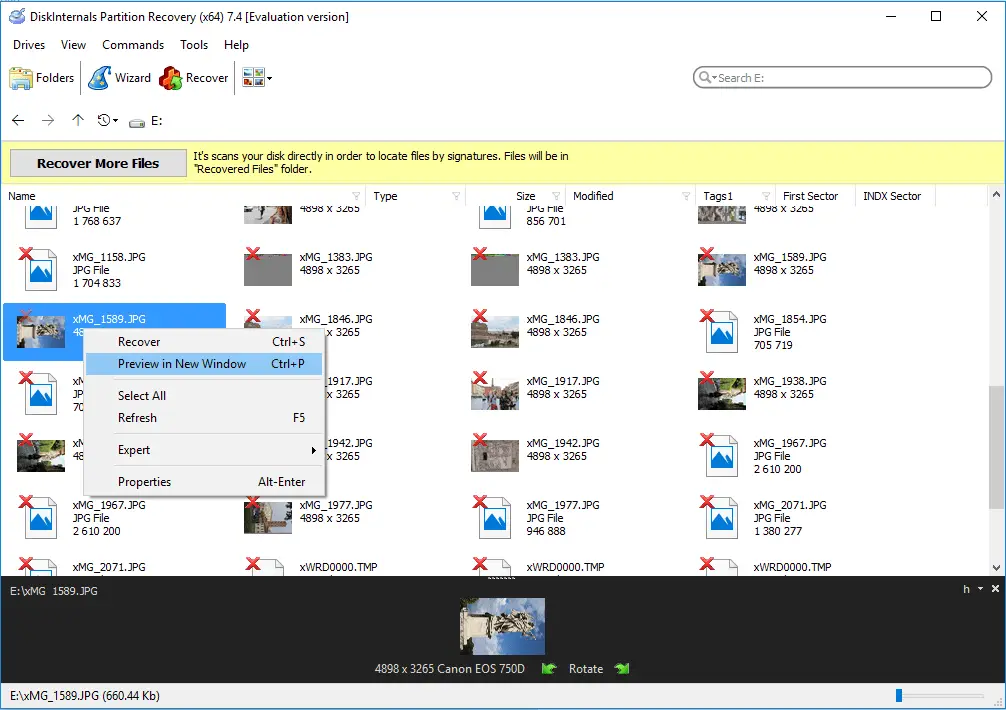
It is also possible to convert any selected file system when it is damaged for a detailed analysis of the contents of the disk partitions. Don't worry about recovery limits: you can recover data of different formats, up to 1 PB of data, which is almost endless.
Also, after any scan (fast or deep), you can preview each file found in reader mode for free. You can buy a license directly on the DiskInternals website, and then export the data to the desired location at any convenient time and enjoy technical support for a year after this useful purchase.
Related articles
- How to Delete Temporary Files on Windows 8
- How to Disable Secure Boot
- How to boot Last Known Good Configuration on Windows 10, 11
- How to fix if it looks like Windows didn't load correctly error
- What are System Recovery Options in Windows
- How to Recover Data from Dead Laptop SSD in 2025
- Top Data Recovery Software for Windows (2026)
- How to Recover Data from a Dead or Failed Hard Drive
- Make your computer faster! Windows 10, 11 refresh
- Western Digital Partition Repair & Partition Recovery Tool
- 9 Best Hard Drive Repair Software for Windows in 2026 (Free & Paid)
- FREE Hard Disk Repair Software for HDD Repair
- How to recover uninstalled programs
- Best Hard Drive Data Recovery Services in 2026
- How to Recover Deleted Files Without Backup in Windows 10/11
- How to Restore Hard Drive Partitions on Windows?
- How to Restore Partition on Windows 10
- Recover Lost or Deleted Partition
- How to Recover Files Deleted by McAfee
- Best Damaged Hard Drive Recovery Software in 2026
- Best Free Partition Recovery Software for Windows (2026)
- How to Recover Ransomware Encrypted or Deleted Files After Attack
- Western Digital External Hard Drive Repair Tool & WD External HDD Repair Guide
- Repair Lost Partition on HDD & Drives - Step-by-Step Partition Recovery Guide
- How to Recover Deleted Folder in Windows 11
- What Is a Lost Partition? Causes, Risks & How to Recover Lost Partitions
- Recover formatted partition free | How to Recover Files after Partition Formatting [2026]
- How to Recover Data from Crashed Hard Drive - FAST in 2026
- Best Free Partition Recovery Software for Windows 7 in 2025
- Windows Memory Diagnostic Tool Stuck? Fix it Now!
- Accidentally Formatted/Deleted Recovery Partition
- Resource Protection could not perform operation
- Here is What to Do if Windows Rollback is Not Working
- Windows Defender won't turn on
- Here are all windows.com/stopcodes and here is how to fix them
- Reset Windows 7 to factory settings
- What should you do if Windows 10, 11 backup is not working
- How secure is OneDrive
- How to restore Windows 10, 11 system: only workable solutions
- How to run Windows memory diagnostic?
- Here is how to create and use a restore point in Windows 10, 11
- Diskpart Commands Overview
- How to use dual boot on Windows 7 and 10 safely?
- How to Use Bootsect
- Clean up WinSXS folder on Windows 7, 8
- Partition Table Recover: How to Fix Lost Partition Table & Recover Lost Partition Data
- Differential and incremental backups
- Free damaged partition recovery software
- System Restore failed with an error message
- If System Restore is not working
- Restoring your previous version of Windows error
- Windows 10 preparing automatic repair
- What are Win dump files
- Windows 10 defrag
- If you get “we can't create a recovery drive” issue
- Merge partitions in Windows 10
- [Solved!] Offline startup repair cannot repair your PC
- How to edit boot.ini: step-by-step guide
- How to Recover a Hard Drive That Won't Boot
- Error 0x80070570
- Windows 7/8/10 Safe Mode when F8 is not working
- How to use the DIR command correctly?
- If you get the error “Could not find the recovery environment”
- Disable Driver Signature Enforcement in Windows 8, 10
- If you get the “Diskpart has encountered an error” issue
- Deleted Partition Data Recovery Software Free Download
- Change a boot drive in Windows 10
- SFC Commands Review
- Advanced Boot Options
- Bootable Partition Recovery Software
- Free Partition Recovery Tool
- What is a repairing disk errors message
- How to shutdown Windows without updating
- Need to flush DNS cache? Learn how to do it safely
- Change directory in cmd Windows 10, 11
- Create a Windows 10 recovery disk from another computer
- Best command prompt tricks to use in data recovery
- Recover Data from Dead Hard Drive: Methods, Tools, and Recovery Strategies
- How to Fix a Damaged Hard Disk or External Hard Drive Without Losing Data

