Cursor disappears: your actions

Here you will find out:
- when can the cursor disappear?
- how to return the cursor to the screen
- when DiskInternals can help you
Are you ready? Let's read!
When can the cursor disappear?
The mouse pointer in Windows 10 can disappear in different situations:
- after logging in,
- after unlocking the screen,
- after waking up from sleep mode,
- when you start Chrome but remains visible in other browsers,
- after updating Windows.
In most cases, a simple reboot of the system is sufficient to fix the cursor disappearing error.
Use the following methods; one of them will definitely help solve your problem
Here are few methods that can be helpful and any of them can be your solution.
1. Use F keys
During the installation of Windows 10, the mouse pointer function is sometimes automatically disabled.
In this case, it will help you by pressing the function keys on the keyboard.
Depending on your keyboard, mouse models’ function keys may vary. Most often, it is a combination of the following: Fn + F3, Fn + F9.
If the “mouse cursor disappears Windows 10” problem is still not resolved, try the following methods.
2. Check the driver
Device drivers can cause many problems in Windows 10, and the disappearance of the mouse pointer is no exception.
In this case, you should try to update the driver; it may be outdated. However, since the latest version of the mouse driver may simply be incompatible with Windows 10, how to update the driver, as well as how to roll it back to an older version will be described here.
A. Updating the device driver.
First, press the Win key and type devicemgr into the Search field, then press Enter.
Navigate to the list of devices and use the arrow keys to navigate to the desired device (in this case, the mouse) and expand it.
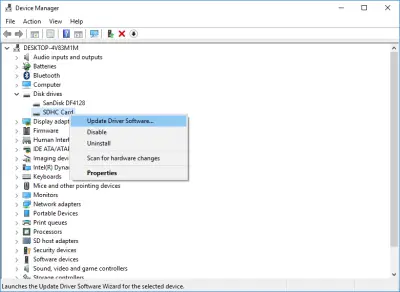
Now, press Shift + F10 (this is an imitation of clicking the right mouse button), and this way, you will be taken to the context menu. Here, select Update driver and press Enter. Wait for the device update process to complete.
B. To roll back the mouse driver:
Press the Win key and type devicemgr into the Search field, then press Enter.
Navigate to the list of devices and use the arrow keys to get to the desired device (in this case, the mouse). Expand it and press Shift + F10; this will take you to the context menu. Now, select the General option and press Tab a couple more times until the Rollback driver option is selected. Then press Enter and follow the further instructions on the screen to complete the driver rollback.
3. Troubleshooting
To open this utility, press the Windows key, and from the Start menu, open the Settings section. In the new window, select "Troubleshoot" and go to the "Find and fix other problems" section. Then select "Troubleshoot hardware and devices".
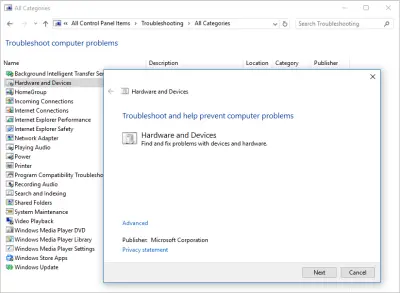
Follow the directions on the monitor screen to properly complete the process of troubleshooting. Then check your mouse and restart your computer.
4. Disable assistant
Sometimes Cortana interferes with the normal operation of the cursor; try disabling this assistant to see if this is the case.
Press the Windows key and type Cortana. From the results, select Cortana & Search Settings and turn off "Hey Cortana." Also, Disable all other Cortana options and see if the problem persists.
5. Change graphics preferences
Some audio drivers can sometimes cause the mouse pointer to disappear. The most common complaint from users is NVIDIA High Definition Audio, in which case, try disabling it temporarily to see if it works.
Open the Start menu and type "programs", then select the "Add or remove programs" option.
Open the Start menu again and go to the Device Manager. Here, find NVIDIA High Definition Audio and disable it.
If you have any other audio driver, try disabling it as well. If that doesn't work, try uninstalling those drivers.
6. Disconnect other external devices
Disconnect all peripheral devices connected to the computer, including the mouse.
Then shut down and restart your computer. Reconnect your mouse and see if there is any interruption. Then connect all the necessary external devices one by one to check the compatibility of the devices. This way, you can quickly identify the culprit.
7. Delete new apps
Any new applications and software may affect the mouse, so try uninstalling them. To do this:
- Press the Win key to go to the Start menu and enter the search Control Panel bar.
- Open the desired result, and in this new window, select Programs.
- Select the recently added programs and click the "Remove" button.
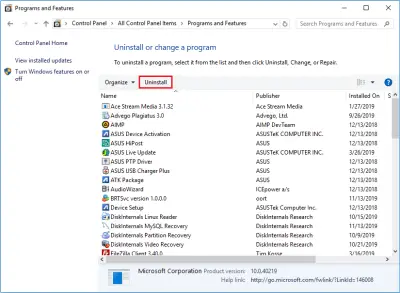
Then be sure to restart your computer and see if your problem is resolved.
8. Scan the system
A virus or malicious application may have damaged your device, so be sure to scan your computer. Windows built-in antivirus, Windows Defender, or any good third-party antivirus software is used for this purpose.
To start Windows Defender, type “defender” in the search bar on the Start menu and press Enter. Use the Tab key and go to the left panel. Here, select the shield icon. For more accurate results, use the Advanced Scan option.
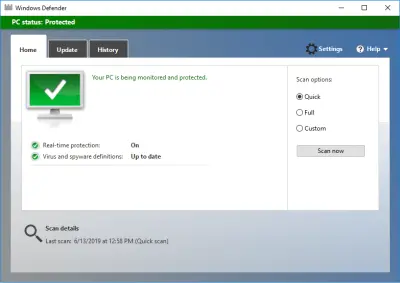
Wait for the scan to complete and fix the detected threats.
Now, you will forget about the “cursor not showing” problem.
9. Check battery settings
Sometimes, you can get rid of this problem by changing the power settings. To do this:
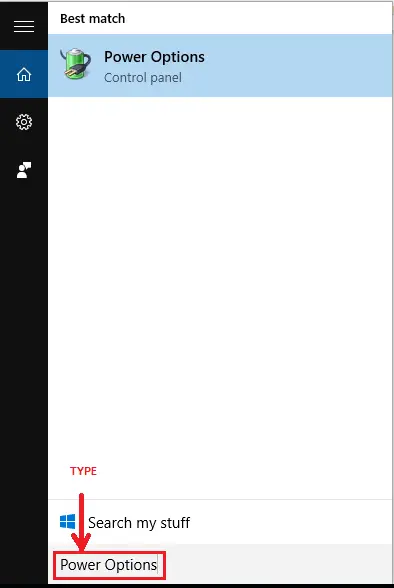
- Press the Windows Key + S simultaneously and enter "Power".
- From the results, select Power Options and find your current power plan.
- Select Change plan settings, then click on Change advanced power settings.
- Find the lines “When I close the lid” and “Connected” - set them to “Do nothing”.
- Save your changes and close the dialog.
10. Examine registry
The easiest and most reliable way to restore the registry is to use a special tool. However, before doing that, make a backup copy of the registry in case, there is always a chance to do something wrong.
11. Update OS
Microsoft continually releases Windows updates to improve system stability and fix various common errors, etc. Therefore, you should always make sure that your system has the latest updates installed.
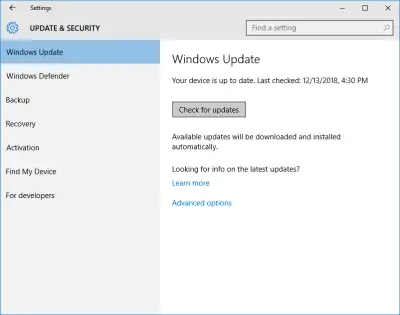
To do this, you can simply press the Windows key and enter "update" in the search box. Then go to Windows Update and check for updates. If updates are present, install them immediately. Once this process is complete, restart your computer and check if the mouse pointer is now available.
12. Clear cache
To implement this method, you should use the Disk Cleanup function. Your computer accumulates various junk files over time, which can affect your computer's processing speed, causing applications and devices to respond slowly.
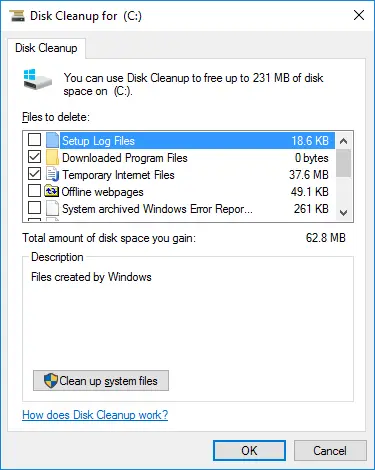
So, press the Windows key, type Disk Cleanup in the search bar, and run the tool. Next, select the drive you want to clean up. The tool will analyze this space and tell you how much space you can free up. After that, click "Clean up system files" and wait for the process to complete.
Hard disk data recovery and information protection can be done with better professional software
DiskInternals Partition Recovery tool is designed specifically to recover both an entire disk (external or internal) and its individual partitions. The program works with many, even damaged, file systems: HFS, NTFS, FAT, ReFS, UFS, EXT2/3/4, ReiserFS, etc.
It works on each of the hard disk partitions and performs a thorough search for more than 99% of all contents. Partition Recovery can easily cope with the recovery of any type of data in the event of formatting, accidental or deliberate deletion, virus attack, or operating system errors in various situations. To use this software smoothly, you only need to download and open it on your computer, and the built-in recovery wizard will do the rest for you.
Also, for convenience and clarity, DiskInternals has developed a free trial that you can use right now, and you will see your inaccessible and deleted files very soon.
Related articles
- Error 15 on Windows and how to fix it in 2025
- Scanning and Repairing Drive is Stuck | Windows10
- Operating System Not Found or Missing? Fix it!
- [SOLVED 2026] Attempted to Write to Read-Only Memory Issue
- Bootmgr is Missing
- Windows Server 2016 Essentials vs Standard
- Windows Server 2016 Standard vs Datacenter
- Should you delete hiberfil.sys file?
- If your PC ran into a problem and needs to restart
- The operating system is not presently configured to run this application
- Video TDR failure
- How to Partition A Hard Drive in Windows 10/11
- How to Recover a Deleted Folder in Windows 10
- A Step-by-Step Guide to Starting Windows 11 in Safe Mode
- You Need Permission to Perform This Action
- Whea_uncorrectable_error windows 10 - Fix it⠀
- Windows 10 stuck at getting ready
- The code execution cannot proceed
- How to uninstall Microsoft Edge and keep your data safe
- PC randomly freezes? The 2026 solutions for Windows!
- Here is How to Deal With CLOCK_WATCHDOG_TIMEOUT Issue
- Here is Everything You Need to Know About CLI
- Your location is currently in use: how to fix this issue?
- Your Folder Can't Be Shared: Fix it Now!
- What is WMI Provider Host, and how should you interact with it?
- What to do if wireless capability is turned off
- Here is everything you need to know about Windows Terminal
- Step-by-step guide on how to work with Windows ink
- Windows can't find one of the files in this theme
- Here’s everything you need to know about $ windows. bt folder
- Windows 10, 11 Start button is not working
- Here is how to rollback Windows 11 to Windows 10
- Windows 10 quick access is not working
- Windows 10 does not have a digital output device
- If Windows 10, 11 Installation is Stuck
- Windows 10, 11 Action Center is missing: your actions?
- What to Do if the Wi-Fi Network is Not Showing Up
- How to find out why Windows 10 crashed: crash log
- What should you do if white screen of death appears?
- How to get help in Windows 10
- Unable to reset the PC: a partition is missing
- Unexpected Store Exception issue occurs: your actions
- What if You are Unable to Access Jar File?
- Here is How to Deal with Typical File System Errors
- Razer Synapse is Not Opening? Fix it now!
- How to reset PS4 properly
- What to Do in Case of an Orange Screen Issue in Windows 10?
- Msvcp100.dll problem: fix it now!
- The program can't start because msvcr71.dll is missing
- Idp.generic virus
- How to use registry editor?
- Here is How to Refresh Your Browser
- How to disable igfxtray with no harm to your data?
- If you need to delete backup files in Windows
- How to delete files from OneDrive, but not computer?
- Fix Windows Connection Error 651 Now!
- Fix Windows 10, 11 dwm.exe Error Now
- Here is how to interact with dllhost.exe
- Here is how to clean Registry in Windows 10, 11
- DirectX encountered an unrecoverable error? Fix it now!
- OneDrive is not syncing? Fix it now!
- Here is How to Fix Error 1603
- Fix dpc_watchdog_violation Windows 10, 11 Error Now!
- How to use Windows 10, 11 compatibility tester properly
- Here is how to stop OneDrive from syncing
- How to interact with SysWOW64
- Here is how to reformat Windows 10 safely
- How to provide a memory test in Windows 10
- Here is how to restart Windows Explorer
- How to Use a Duplicate File Finder in Windows 10
- File Association Helper in Windows 10, 11
- How to create and use guest account in Windows 10: guide
- Folder keeps reverting to read only
- Here is How to Deal with System Error 5
- Fix the Red Screen error now!
- 'Driver overran stack buffer' error occurs. Your actions?
- An algorithm, if file record segment is unreadable
- What should you do in case of 'err_cache_miss'?
- What should you do in case of ‘err_empty_response’?
- Fix dxgmms2.sys error now!
- What should you do if the Epic Games launcher is not working in 2026?
- The disk does not have enough space to replace bad clusters
- What should you do in case of the ‘Device not migrated’ issue?
- How to get rid of dev error 6068
- Here is How to Deal with the logilda.dll Error in Windows 10
- How to Fix Confirm Form Resubmission on Refresh?
- Computer won't wake up from sleep Windows 10
- Code Execution Cannot Proceed Because of Msvcp140.dll
- What to do when a CLASSPNP.SYS error occurs
- What should you do if you can't reset your Windows 10, 11 OS?
- Change Drive Letter in Windows 10, 11
- Best Wii Emulators For Windows in 2026
- Use Dreamcast Emulators with no threat
- Antimalware Service Executable isn’t working correctly
- What to Do if Alt-Tab is Not Working in Windows 10, 11
- Black Screen of Death and How to Fight It
- What to Do if a Folder with a Question Mark Appears on Mac?
- This PC Can't Run Windows 11. Fix it Now!
- If you want to fix the Windows Search not working problem
- What should you do if you forgot your Windows 10, 11 password
- Step-by-step guide on how to auto login Windows 10, 11
- Discord screen share and audio are not working
- Make sure your data is safe while using IOS emulators for PC
- What to do if Windows 10, 11 Remote Desktop is not working?
- Here is how to change administrator on Windows 10, 11 safely
- Let's deal with 'Exception Access Violation' error
- Windows was unable to complete the formatting? Cope with the problem!
- Error: irql_not_less_or_equal on Windows 10? Not a problem!
- You do not have permission to save files to this location
- Windows resource protection could not start the repair service
- Windows service registration is missing or corrupt
- Windows resource protection couldn't perform requested operation
- Don't have permission to save in this location in Windows 10
- Stop Windows 10, 11 from Restarting: The Best Methods!
- [Error] WD Passport Not Recognized
- If your user profile is corrupted
- Thumbnails are not showing in Windows 10
- We couldn't complete the updates undoing changes
- The default gateway is not available: what can you do?
- Thread stuck in device driver issue occurs: your actions?
- Windows could not automatically detect this network's proxy settings
- Windows Media Player server execution failed in Windows 10, 11
- What is NES emulator and how to use it right?
- Here is how to disable Software Reporter Tool
- How to Fix Windows 10 Unidentified Network Issue
- This App Can't Run on Your PC? Fix it now!
- How to Fix There are Currently No Power Options Available Error
- Windows Defender Blocked by Group Policy: Fix it Now!
- Second Monitor is Not Detected in Windows
- If you want to remove junk files on Windows
- Nvlddmkm.sys error: what should you do?
- Here is how to reset Windows 10, 11 with no harm to your data
- The remote device won't accept the connection? Fix it now!
- Here is How to Deal With System Requires SMB2 or Higher Issue
- Photoshop Scratch Disk is Full? Fix it Now!
- Localbridge.exe error in Windows 10
- If you cannot login to Windows 10, 11
- Don't have permission to save changes to this file
- Java is not recognized
- Intel Optane Memory Pinning Error Occurs: Your Options
- What To Do If You Get a Microsoft Account Problem Notification
- File explorer is running slow? Fix it now!
- Taskbar icons are missing in Windows 10: Fix it now!
- The computer has rebooted from a bug-check: what does it mean?
- Guide on how to get rid of bloatware in Windows 10
- Fix file system error 65535 on Windows fast&safe!
- Get rid off error loading operating system
- The File System Type Is RAW
- If the folder has disappeared in Windows 10, 11
- [Windows 10, 11] Critical process died? Fix it!
- You Don't Currently Have Permission to Access this Folder
- If you want to delete Delivery Optimization Files
- When you need to format the Windows 10, 11
- HAL initialization failed
- Dxgkrnl.sys error occurs: your actions?
- Distributedcom 10016 error occurs: your actions
- Everything you need to know about CRC SHA
- Fix 'Driver power state failure in Windows 10' now!
- ‘Dns_probe_finished_bad_config’ issue occurs: your actions?
- D3dx9_43.dll error
- Solved: computer is sending captcha automated queries
- Fix Windows 10, 11 video scheduler internal error
- How to Fix WerFault.exe Application Error in Windows 10
- How to Fix Windows 10, 11 Explorer.exe Errors
- What to do if Discord won't stop updating?
- JavaScript error occurred in the main process
- Here is what to do if Driver Verifier has detected a violation
- How to Fix Bad System Config Info Error
- Fix the Issue: Can't Read from the Source File or Disk
- Bootrec.exe commands
- Bootrec /fixboot access is denied error occurs: your actions
- Application has been blocked from accessing graphics hardware
- What should you do in case of the atikmdag.sys error?
- Bluetooth audio stuttering in Windows 10
- Vulkan Runtime Libraries
- Perform a Clean Boot on Windows 10, 11
- What to Do if APC Index Mismatch Stop Code Appears
- The Active Directory Domain Services are Currently Unavailable
- What to Do if You Can't Type in Windows Search
- What if Chrome didn't shut down correctly in Windows 10, 11?
- The action cannot be completed because the file is open in system
- [SOLVED] Install an Operating System on Your Hard Disk Issue
- Failed to transfer logged messages to the event log with status 50
- Create or remove Administrator Account in Windows
- Guide on How to Repair Windows 10, 11 Without Harming Your Data
- This file doesn't have associated program
- Here is How to Deal With Windows 10, 11 Yellow Screen Issue
- DISM Restore Health Tool
- Here is How to Uninstall Segurazo in 2025
- What if Windows Security asks to enter network credentials?
- What if you can't copy and paste?
- What to Do if You Get a wudfrd Failed to Load Error 219?
- How to uninstall McAfee? What to do if it won't?
- How to enable hosted network support in Windows 10?
- Fix Searchprotocolhost.exe issues now
- How to interact with Removable Storage Devices Folder?
- How to work with Windows 10, 11 on ARM
- Here is how to factory reset Surface Pro
FREE DOWNLOADVer 8.20, WinBUY NOWFrom $39.95 139.95