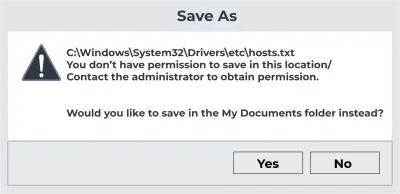
You do not have permission to save files to this location occurs: your actions?
In this article you will find out:
- what should you know about "You do not have permission to save..." error
- how to deal with this issue
- how to protect your data
Are you ready? Let's read!
Here are few methods that can be helpful and any of them can be your solution
1. Use administrator control
The error message “You do not have permission to save to this location” occurs when you try to save files to a specific location. In this case, you can give full access to the Administrators group on the computer. However, if this error occurs with a system file, then you should consider it, as this is a complex procedure and can cause many other problems.
So, to change the security settings and give full access to the Administrators group, do the following:
Right-click the error file and select Properties. In the new window go to the Security tab and click Edit. Next, click on "Administrators" and check the box "Full Control", click "Apply" and "OK" to save the changes.
Next, click on "Users" in the "Security" section and also provide Full Control. The problem should now be completely resolved and you should be able to save the files to the desired location.
You can also give full control to your user profile to get rid of the “you do not have permission to save in this location” problem. To do this, also right-click the file and select Properties, then go to the Security tab and click the Edit button. Now click "Add" and in the "Enter the object names to select" field, enter your username. Next, click the Check Names button, and if everything is in order, click OK to save the changes. Now activate the Full Control function and save the changes.
2. Turn off user control
Windows 10 has a security feature called “User Account Control”. Thanks to it, you will receive notifications when you try to perform an action that requires administrator rights.
Sometimes this function is so intrusive that it causes errors related to the lack of permissions to save data in this place.
All you can do is turn off “User Account Control” and continue working.
Press Windows Key + S and enter the user account in the search bar.
Next, select “Change User Account Control Settings”, now select “Never notify”, and click OK. You have now disabled this security feature and should check if the error has been completely resolved.
3. Open a program as admin
Try to run the problematic application as administrator. To do this, right-click it and select “Run as administrator” from the menu. Now that you have privileged rights to this application, you can save files without any problems.
To avoid having to do this procedure every time you open the application, you can configure the application to be persistent with administrator rights.
To do this, also right-click the application and select Properties.
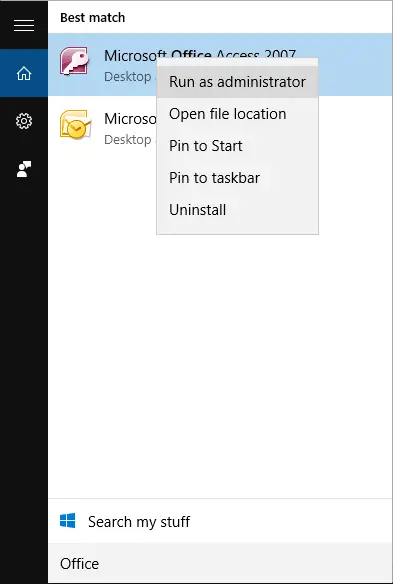
Next, in the "Compatibility" tab, select the "Run this program as administrator" checkbox and save the changes.
4. Try to disable antivirus
Some antivirus programs block system folders to prevent malicious files from accessing them.
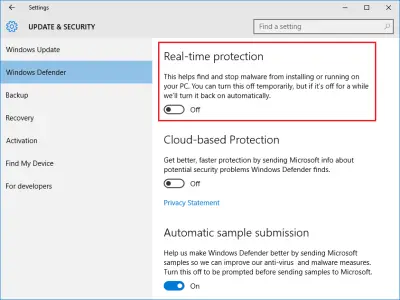
Perhaps this is your case, then check your antivirus settings and disable the function that prevents you from accessing the folder. Otherwise, you can also try to temporarily disable your antivirus and check if that solves the “you don't have permission to save in this location Windows 7” problem.
5. Turn off protected mode
If an error occurs when using a web browser, you need to turn off Protected Mode:
Press Windows Key + R at the same time and type inetcpl.cpl, then press Enter.
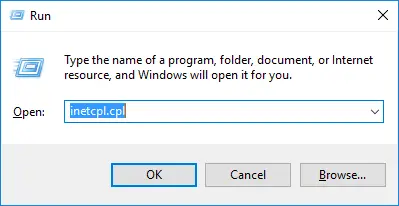
In the new window, in the "Security" tab, uncheck "Enable Protected Mode" and uncheck the changes. Now restart your browser and check if the problem is still there.
6. Move files
You can also fix your problem by using this workaround.
So find the problematic folder like folder 0 and go to its parent directory where create a new folder and name it Folder 1.
Go to folder 0, copy all the files and paste them into folder 1.
If you can save files in folder 1, you need to delete folder 0 from your computer and then rename folder 1 to folder 0. This method works well, but you can also save the file elsewhere and move it later. This should work as well.
7. Do not share these files
The “you don't have permission to save in this location” problem often concerns shared folders. In this case, you need to stop sharing and you can do this as follows:
Right-click the desired directory and select "Share using". Then just click on "Stop Sharing" and now you can save files without any problems.
You can also turn off the sharing function for your homegroup:
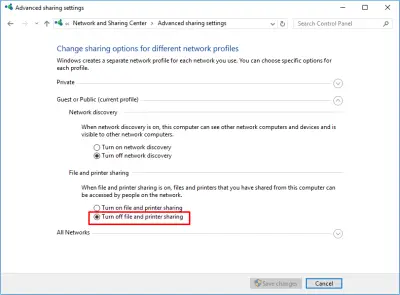
To do this, press Windows Key + S, enter “HomeGroup” and select the desired result. In the new window, click on "Change advanced sharing settings" and select "Turn off file and printer sharing." In the last step, save all changes and check if the error has been fixed.
8. Change ownership
You can also try changing the ownership of a directory as follows:
Find the desired directory and select it with the right mouse button. Open the directory Properties menu and go to the Security tab. Next, click "Advanced", as soon as you see the owner of the directory, click the "Change" button. After making the changes, go to Administrators and click “Check Names”, then select “Replace owner for sub-containers and objects checkboxes” and “Replace all permission settings for child objects” and save the changes.
You can also change the owner using the command line: open the Win + X menu, and select “Command Prompt (administrator)”.
Next enter icacls "C: path_to_problematic_directory" / setowner "Administrators" / T / C. After executing this command, you become the owner of the directory.
Alternatively, you can fix this problem simply by sharing the directory with the Administrators group as follows:
Right-click the problem folder and select Properties.
On the Share tab, click the Share button.
Next, open "Administrators" and click "Add". The group of administrators will be added to the list and then click the "Share" button.
9. Administrator groups
Your problem can occur if the user account is not a member of the Administrators group. In this case, you need to add your account to the Administrators group:
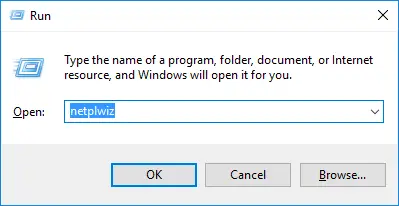
Press Windows Key + R at the same time and type netplwiz and press Enter.
Now activate the function Users must enter a username and password to use this computer option.
Then open the Properties of your user profile and go to the "Group Membership" tab and select "Administrator". Save your changes and check if the problem is resolved.
10. Formatting
You should understand that formatting a disk will delete all files from it. Therefore, the data backup will be very useful for you.
So, everyone knows that FAT32 is an older file system with some limitations. The NTFS file system is more functional and in most cases, it is better to use it. Therefore, try to format the disk with NTFS to get rid of the error.
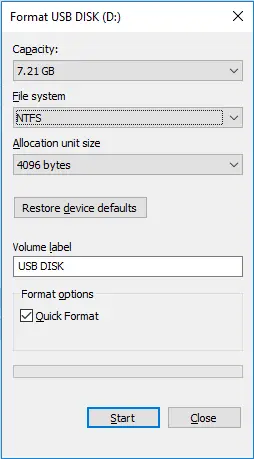
So, open this PC folder and find the problem drive. Next, right-click it and select "Format" from the menu, then select NTFS as the desired file system. Now select Quick Format and click Start, wait for the formatting to finish.
11. Disable OneDrive sharing
OneDrive is a built-in feature of Windows 10, but it can also cause the error "You do not have permission to save in this location". To completely disable OneDrive in Windows Pro or Windows Enterprise, follow these steps:
Press Windows Key + R and type gpedit.msc and then press Enter or OK.
In a new window of the Local Group Policy Editor, go to the Computer Configuration section.
Next, select Administrative Templates, open Windows Components, and finally, click on OneDrive in the left pane.
Click “Stop using OneDrive for file storage” on the right pane. Save changes and check your problem again.
12. Turn on inheritance
Sometimes, if subfolders cannot have the same security settings as their parent folder, then there is your problem.
In this case, you need to enable inheritance for the problematic folder:
Go to the parent directory of your folder and right-click it. Select "Properties" and go to the "Security" tab. Now click on "Advanced" and click on "Enable Inheritance". It is also recommended that you give full control to your user account and the Administrators group.
After that, click OK and Apply and all security permissions from the parent folder will be inherited by the subfolders.
13. Safe Mode
In Safe Mode, you will most likely be able to save this or that directory, since in this case, Windows works with the default settings.
To do this, open the Start menu and press the Power button. Now simultaneously press the Shift key and the Restart button.
In the new window, select Troubleshoot, then click Advanced options. In Startup Options, click Restart.
After restarting your computer, select any version of Safe Mode, which will bring you into Safe Mode.
Now try saving the file in Safe Mode again and check if the problem is still there.
14. Maybe, you need a new user
Your profile may be corrupted. Then you must create a new user profile.
To do this, press Windows Key + I. In the Settings app, go to the Accounts section. In the left pane, under “Family & Other People”, click “Add Someone to This PC”. Now select “I don't have this person's login information” and click “Add user without a Microsoft account”.
Now create a new account and switch to it. Be sure to move all your personal files to the new account for convenience.
DiskInternals Partition Recovery is not only easy but also fun
This application works with all known file systems, even if they are damaged. The application will deal with any task, a statement based on many years of experience and feedback from regular grateful customers. Mail, photos, documents, music, videos, etc. are recovered with equal accuracy. You can recover up to 1 PB of data at no additional cost, and the Recovery Wizard chooses the order of actions by analyzing the specified search criteria. The program is available free of charge with all options except data export (this requires a license).
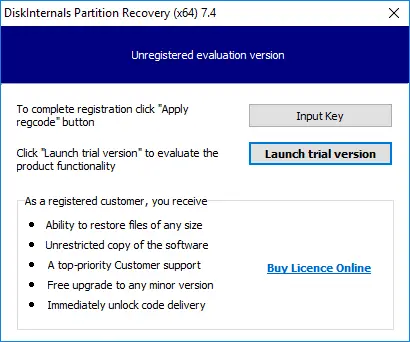
Now start downloading DiskInternals Partition Recovery and the Wizard will start working. Just in case, keep this guide with you:
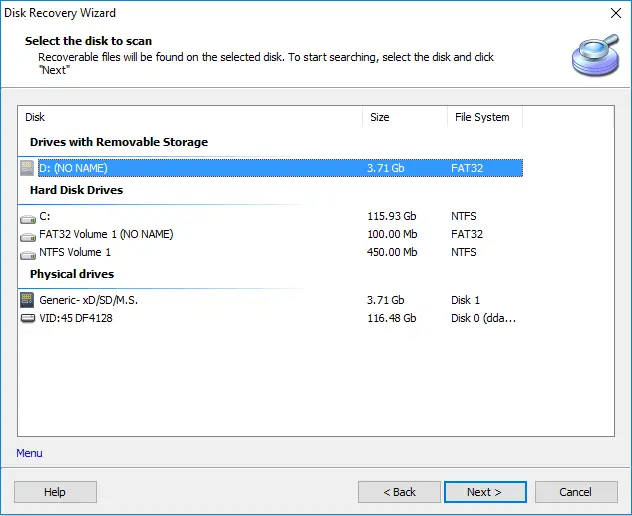
- Click the disk that will be scanned.
- Select the type of file you want to search for. If this is not so important, click the Skip button; in this case, the search range will be as wide as possible.
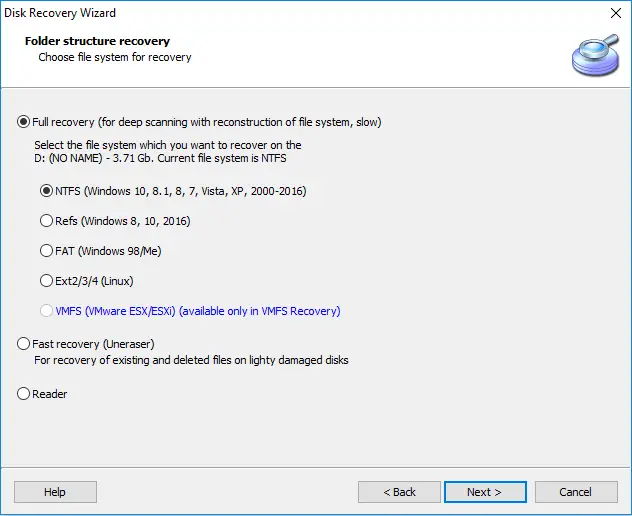
- Click the Next button. You can choose from several modes.
- See the found files marked with a red cross; this feature is free, quite smart and useful.
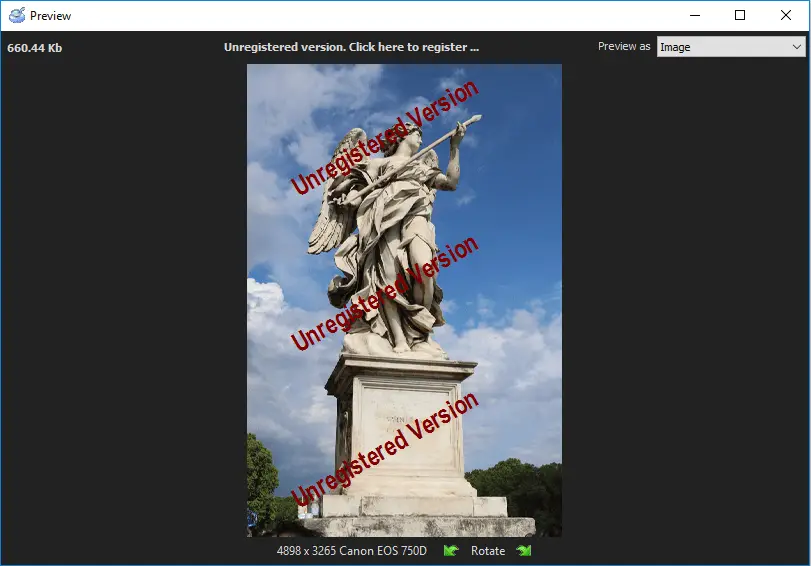
A license is required for the subsequent export of data; then the Wizard will help you complete the session.
