
Windows Modules Installer Worker High CPU Issues: Fix Them Now!
In this article you will find out:
- how to deal with these issues
- how to protect your data
Are you ready? Let's read!
About The Issue
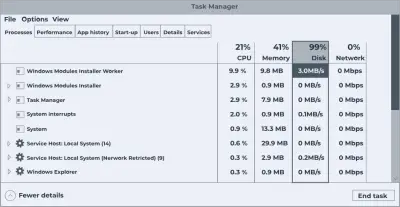
Using a computer that runs Windows 10 OS is more like a gateway to facing several error messages. But the Windows Modules Installer Worker High CPU usage” issue is not a formidable situation. You can work it around following the tips below.
Windows Modules Installer Worker high CPU issues fix
1. Get Rid of SoftwareDistribution
To get rid of the SoftwareDistrbution folder, you have to first stop the Windows Update service.
How to Stop Windows Update Service:
- Right-click on Start and click Run.
- Enter services.msc into the box and click Run.
- Look out for Windows Update service on the Services page.
- Right-click on it when you find it and select Stop.
- Close the page.
How to Delete the SoftwareDistribution Folder:
- Launch File Explorer and click on This PC on the left pane.
- Navigate to Local Disk (C:) >>> Windows >>> SoftwareDistribution.
- Right-click on the folder and choose Delete.
- Restart your PC.
2. Troubleshooting
You could troubleshoot this error and have it fixed automatically. Follow these steps to do that:
- Press Windows Key + I to open Settings.
- Click on Update & Security.
- Go to the Troubleshoot tab, get in and look out for Windows Update under the Troubleshoot section.
- Launch the troubleshooter and let it run completely.
3. Change Update Preferences
Here’s how to change Windows Update preferences:
- Open the Settings page and go to Network and Internet.
- Open the WiFi and select your current network (the one you’re using to browse).
- Scroll down to Metered connection and toggle it on.
- Once your connection is set as metered connection, Windows Update won’t run.
When no other solution seems to work, the last resort is to roll back OS updates
If you just updated your Windows 10 OS, you will need to take it back to its previous version (before the update). However, this action can cause you to lose your important files and documents.
In order to be on the safe side, you need to create a backup of your files (or your storage disk entirely). There are many ways to create disk backups, but it is best to create disk images. A disk image is a new backup method that simply clones the selected disk or storage media. Disk Images are more reliable than regular backups and you can create them freely using DiskInternals Partition Recovery software.

How To Create A Disk Image
- Download the software and install it on your Windows PC.
- Launch the app after installation and cancel the Wizard box that launches automatically.
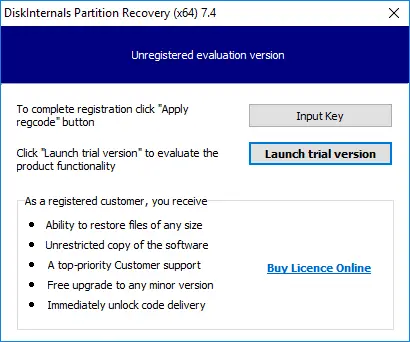
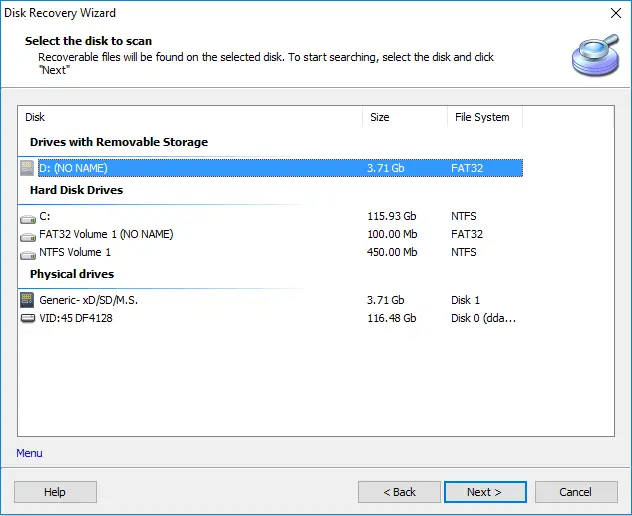
- Select the disk you want to backup, right-click and choose Create Disk Image. You can also click on Drives on the menu bar and select Create Image.
- Now, choose where to save the disk image - it has to be saved in an external location since you're planning to roll back updates on your PC.
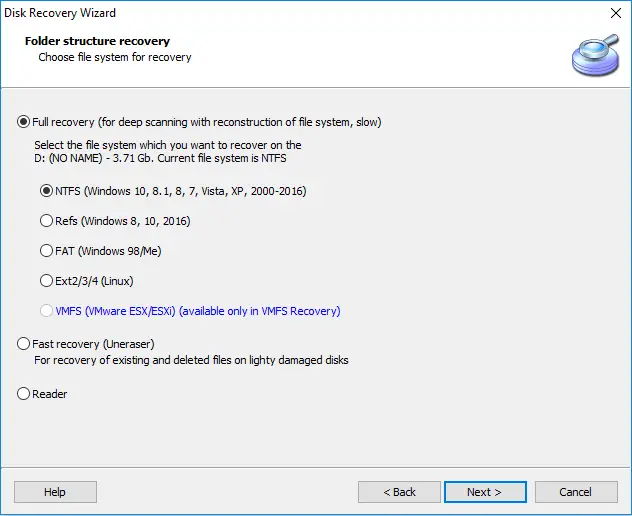
With DiskInternals Partition Recovery, you can backup your disks and also recover your lost files easily following the Wizard.
Related articles
- Fix Issue when CPU at 100% all the time on Windows 10
- Fix 100% Disk Usage in Windows 10 in 2026
- Service Host Sysmain
- Pagefile.sys: what is Windows paging file?
- What is unsecapp.exe, and how should you interact with it?
- Here is everything you should know about Runtime Broker
- Here is how to deal with igfxem module high disk usage
- Sedlauncher.exe: What is it and How to Fix High CPU Issue?
- Win32: Bogent Threat
- Fix Tiworker.exe high CPU now!
- Here is everything you need to know about twinui in Windows 10
- Instup.exe leads to high CPU usage? Fix it now!
- Client Server Runtime processes high CPU usage issues
- Here is everything you need to know about AppVShNotify.exe
- What to do in case of Desktop Window Manager high memory usage?
- How do I interact with the crdownload file in 2026
- IAStorDataSvc in Windows 10
- What is CompatTelRunner.exe and How to Interact With It
- Mmc.exe: what is it and how to fix high CPU issue?
- Service Host Superfetch lead to High CPU Usage?
- [Task Scheduler] System and Compressed Memory
- Trustedinstaller.exe - how should you interact with this file?
- Searchui.exe still running even after you disable it
- Host Process for Windows Services
- Ntuser.dat - how should you interact with this file?
- What is MOM.exe and How Do I Interact with it?
- How to disable UAC in Windows 10, 11?
- What is WaasMedic.exe?
- SVCHOST.EXE process: how to make it work properly