If You Facing the Problem of Ejecting USB Mass Storage Device
Here you will find out:
- about "This device is currently in use” issue
- how to fix it
- when DiskInternals can help you
Are you ready? Let's read!
About the “This device is currently in use” issue
You are one of those individuals who appropriately removes their portable devices while also taking care of the state of the computer, flash drive, and the data on them if you see a message like this on the monitor. However, the "trouble ejecting USB mass storage device since this device is now in use" problem prevents you from putting all of these concepts into practice.
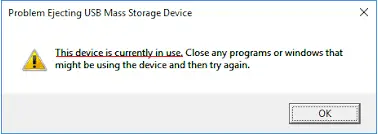
And in order to figure this out and fix it, read this article, where everything is laid out and is easily explained.
Learn more about partitions recovery!Reasons behind the “This device is currently in use” issue
Most often, this error, based on its name, appears when one of its files is open and in use.
Therefore, you first need to close all the tabs on the computer, make sure that the flash drive is not being used at the moment, and then try to remove it again correctly.
It’s possible, though, that viruses that usually infect applications and drain resources in the background can create this situation.
You also need to check which file system your media has. NTFS may prevent the safe extraction of an object. If so, then you will have to start formatting the flash drive in exFAT and the problem will be solved.
The error “this device is currently in use” may pop up when deleting a USB flash drive on the taskbar or on This PC, or it may occur in both cases.
Step 1. Re-eject the device with the taskbar
So, if you didn’t manage to safely remove the USB flash drive through the notification in the taskbar, then try to do this through the This Computer shortcut and vice versa.
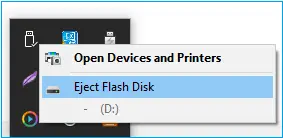
By double-clicking on this PC in the pop-up window, select the external device with the right mouse button. You will see the line “Safely remove the device”; click on it. If there was no warning message, feel free to remove the USB flash drive from the computer slot.
If this does not help, do not worry; just proceed to another step.
Step 2. Re-eject the device with Disk Management
So, simultaneously press Win + X, and select Disk Management from the menu. A new pop-up window displays all the drives on the computer. Naturally, you only need to select the USB flash drive with the right mouse button and click on Eject. Now there is no reason for concern; feel free to remove the device.
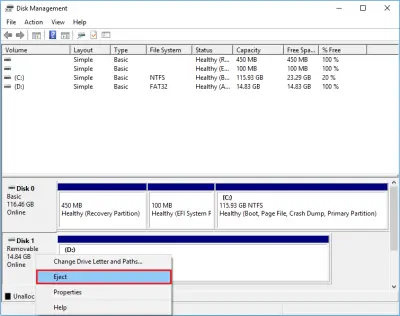
It should be remembered that the next time this device is recognized by the system, after reconnecting it to the computer, put it in the Online state. This is also easy to do through Disk Management.
Step 3. Run antivirus software
Everyone knows that viruses have the unique ability to spoil everything and everywhere, with the subsequent failure of some computer functions. And the normal removal of devices is no exception, so checking your computer for viruses always, at the slightest deviation from the norm, is good practice and justified. Before starting the antivirus, make sure that it is updated.
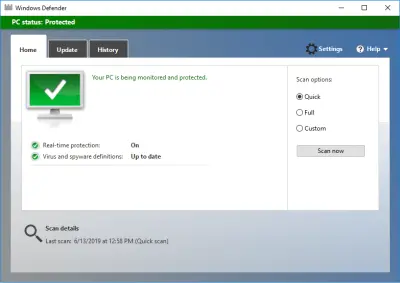
If this is not the case, correct this situation, because otherwise there is no guarantee that all viruses will be removed.
Step 4. Formation may help
Formatting the device in exFAT is the most optimal version of the file system, which has all the characteristics suitable for modern flash drives. In general, you will have less problems with this file system than with the rest. However, before formatting, you need to worry about your files - pictures, documents, music, videos, etc., which are stored on a USB flash drive. After all, it is known that after formatting they will be lost.
DiskInternals Partition Recovery will save all the information and restore all types of files without exception.

This application works with any file systems of external devices. You can use one of the three disk partition recovery modes:
- reader mode to open and view the contents of files.
- recovery mode (deep scanning) for direct data recovery from each disk partition.
- uneraser mode (fast scanning)
Also, there is a disk image creation mode. This feature is unique and few programs boast it. If you have a disk image, you can restore the system anytime, anywhere. What does it have to do with it! Therefore, hurry to use the software.
Now you can format the flash drive in exFAT. In This PC, right-click the USB flash drive. Then you need to select the desired action - at the moment this is formatting. There is nothing complicated here, you just need to be guided by tips and wait a bit for the process to complete. Now you should no longer have questions about safe data retrieval.
Related articles
- Recover a Formatted USB Drive - Full Algorithm of Your Deeds
- USB Flash Drive Unreadable? Solutions exist!
- Recover a Flash Drive that has turned RAW Effortless!
- Detailed guide on how to format a write-protected USB drive
- Please insert a disk into USB drive
- USB device not recognized? The solutions are here!
- [Windows 10] Format flash drive to FAT32
- Recovery Unformatted Partition | Unformatted External Hard drive
- The request not performed due to the device error
- USB Drive Unallocated? Fix it!
- If the USB thinks it's a CD drive
- Windows cannot access the specified device? Fix it!
- If You Cannot Access USB Drive on Windows 10
- If your computer doesn't recognize USB devices
- How to Remove a Partition on a USB Drive and Unpartition or Clean Flash Drives
- A required device isn't connected or can't be accessed error
- USB device connected to computer is malfunctioned
- If a USB port is not working
- If your computer won't boot from USB
- Windows 10 Recovery USB Drive for Another PC
- [Solved!] USB drive not recognized. Only workable solutions
- If you get This Device Cannot Start (Code 10) Error
- Your device is missing important security and quality fixes
- Windows doesn't have a network profile for device
- What to Do if USB Ports Are Not Working in Windows 10?
- How to Recover Data from USB Partitions 2025
- I Accidentally Formatted My Flash Drive | Recover Data from Formatted USB
- Dead USB Flash Drive Data Recovery: Recover Files from Dead or Unreadable USB Drives