
SCONFIG Hyper-V Server Core vs GUI Installation
In this article you will find out:
- what is SCONFIG
- how to configure Hyper-V Server Core with SCONFIG
- how to protect your data
Are you ready? Let's read!
With Windows Server 2008, Hyper-V has been accessible as a standalone Hyper-V Server as well as a Windows Server role. There are three different configurations for Hyper-V installations: Hyper-V Server, Server Core on Windows Server, and GUI on Windows Server. Why would you choose the GUI installation over the Server Core installation? is addressed in this blog article, which contrasts the two Hyper-V installation techniques.
The following are the primary reasons why you should pick the GUI installation over the Server Core option:
- Windows Server is installed in its entirety, suggesting that all server responsibilities and functions are supported.
- The GUI is now available for easier Hyper-V management.
- Licensing for guest OSs running Windows is provided for free.
- Multiple administration and setup tools make it simple to use.
- Support for both hardware and software.
- Small and medium-sized enterprises will find this a viable choice.
When comparing Server Core versus GUI installation, it becomes evident that each of these installation choices has its own set of benefits and drawbacks, which we will go over in depth below. In addition, you'll discover how to safeguard Hyper-V environments with DiskInternals RAID Recovery in this blog article.
What Is Hyper-V?
Hyper-V is a native hypervisor from Microsoft that allows you to construct and manage virtual machines (VMs) and their resources. Each virtual machine (VM) functions as its own computer, allowing you to run numerous guest operating systems (OSs) in isolation. You may virtualize servers and workloads and consolidate them on a single physical server using Hyper-V. Hyper-V may help you make better use of resources, create development and testing environments, and assure business continuity.
Microsoft Hyper-V is available in the following versions: a standalone Hyper-V Server is an optional feature of Windows Server 2008 and later, as well as Windows 8, Windows 8.1, and Windows 10.
Hyper-V Installation Options
As mentioned earlier, the Hyper-V role can be installed on Windows Server to establish and manage a comprehensive virtual environment. Windows Server offers the following installation options for the Hyper-V role:
- 1. Server Core Option: This is a minimal installation that provides just enough functionality to run essential server roles and applications, omitting any unnecessary features and services.
- 2. GUI Installation Option (also known as Server with Desktop Experience): This is a full installation that includes all server roles and capabilities.
Additionally, Hyper-V Server is available as a standalone product. This package includes only the Windows hypervisor, a Windows Server driver model, and virtualization components, making its installation quite similar to that of Windows Server Core.
A key difference between these options is the presence of a traditional graphical user interface (GUI). The Server Core option lacks a standard GUI, while the full GUI installation provides a complete graphical interface. Hyper-V Server does not include a standard GUI, but Windows Server allows toggling between GUI and Core modes during the installation process. It's important to note that the hypervisor technology in Hyper-V Server is the same as that in the Hyper-V role on Windows Server.
Server Core Installation vs GUI: Best Hyper-V Installation Practices
Before you begin the Hyper-V installation procedure, be sure that your machine fulfills the Hyper-V system requirements. Then, from the Evaluation Center, download the Hyper-V Server or Windows Server ISO file and install it. Now you may install the Hyper-V role and choose which installation method (Server Core versus GUI) is better for you.
Note: more about repair software RAID!GUI installation on Windows Server
In this installation scenario, you will first install Windows Server and then use Server Manager to enable the Hyper-V function. Server Manager is a management console for managing and deploying Hyper-V hosts and VMs both locally and remotely, as well as activating and customizing various server roles.
Follow these instructions to install the Hyper-V GUI:
- 1. Launch the Server Manager application.
- 2. Select Add roles and Features from the Manage menu in the top menu bar.
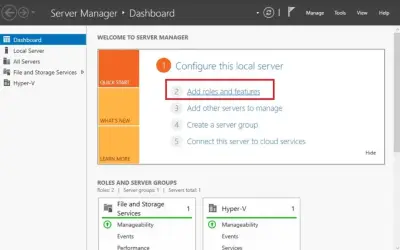
- 3. Go to the Before You Begin page and read the instructions and criteria.
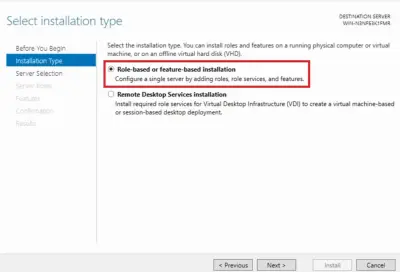
- 4. Choose Role-based or feature-based installation on the following screen, which allows you to assign roles, role services, and features to a server.
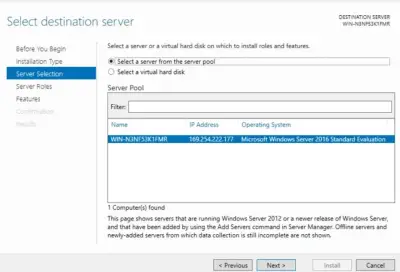
- 5. Choose a server from the server pool on which to install the Hyper-V role.
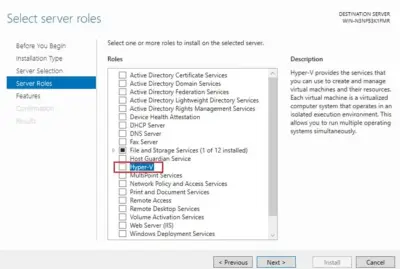
- 6. To install the role on the server, check the Hyper-V box.
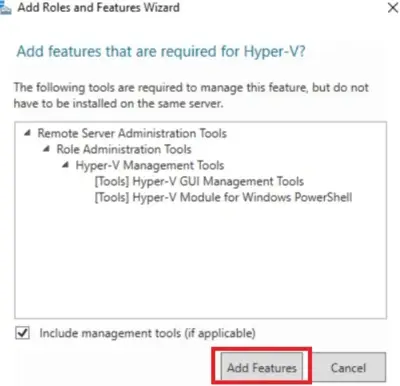
- 7. The wizard for adding roles and features will appear. Choose the tools you'll need to manage this feature. Select Add Features from the drop-down menu.
- 8. On the Hyper-V website, you'll get an overview of essential Hyper-V information as well as installation requirements.
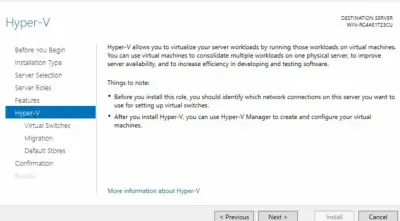
- 9. Set virtual switches to enable connections between hosts and VMs before installing the Hyper-V role, choose the authentication protocol for performing VM live migrations, and assign default locations for virtual hard drive files and VM configuration files. On the respective pages, select the applicable options.
- 10. You may review all of the features you selected on the following page and confirm the adjustments you want to make. Check the box to automatically restart the target server if necessary, then click Install.
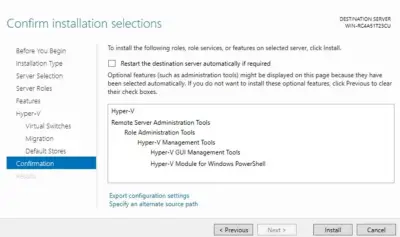
- 11. The automated reboot will begin when the installation is completed.
Server Core installation on Windows Server
In this installation situation, you must first install Windows Server Core and then use the command-line interface to enable the Hyper-V role. PowerShell or Command Prompt may be used to accomplish this. Both Windows Server Core and Windows Server with Desktop Experience support this Hyper-V installation option.
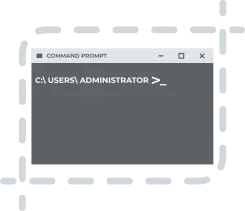
When you start Windows Server Core, the first thing you see is the Command Prompt, which is a tool for running commands or scripts to execute various activities and operations. We advocate enabling PowerShell since it is simple to use and offers a variety of setup choices.
Follow these steps to perform the Hyper-V Server Core installation:
1. Type PowerShell into the Command Prompt and hit Enter.
2. Run the following command to install Hyper-V on a server:
Install-WindowsFeature -Name Hyper-V -IncludeManagementTools -Restart
3. The server will then restart automatically to incorporate all of the modifications.
After you've completed the installation, you may use Hyper-V to create and administer your Hyper-V environment. Microsoft offers you with a variety of PowerShell commands that you may use to create scripts. You may simplify and automate the Hyper-V management process with their assistance.
Run the following cmdlet to see all of the possible options:
Get-Command -Module Hyper-V
The entire list of cmdlets that may be used to conduct various operations and activities should appear on your screen.
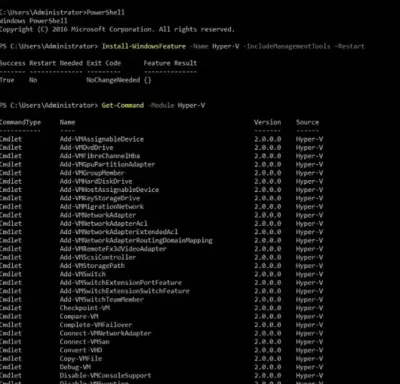
On your PC, the Hyper-V Server Core installation option only installs the Hyper-V Module for Windows PowerShell. Hyper-V Manager (the GUI program) on another computer may be used to manage and configure a Hyper-V host remotely.
Hyper-V Server installation
The standalone version, which simply comprises the Hyper-V role, a Windows Server driver model, and virtualization components, will be installed on your machine if you choose this installation option. As a result, Hyper-V Server can only be used for virtualization and cannot be utilized to add additional server roles.
You must follow the same steps for installing Hyper-V Server as you did for installing Windows Server Core. To set up Hyper-V Server, follow these steps:
- 1. The ISO file may be downloaded from the Microsoft Evaluation Center.
- 2. Make a DVD or USB installation media out of the file and boot from it.
- 3. Language, time and currency format, and keyboard or input method should all be selected. Click Next.
- 4. Click Install now.
- 5. Read the license terms and then check the box I accept the license terms.
- 6. Select Custom: Install the newer version of Hyper-V only (advanced).
- 7. Choose the disk where you wish to install Hyper-V Server.
- 8. The installation operation should start.
- 9. After the system reboot, you will be asked to enter a new password and confirm it before signing in. Press Enter.
- 10. The Command Prompt as well as the Sconfig tool should automatically open. Thus, the hypervisor is ready to work without additional configuration.
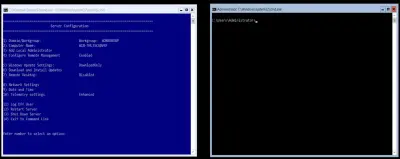
If you find controlling a virtual environment through the command line interface difficult, you may use Remote Server Administration Tools to manage the machine running Hyper-V Server remotely (RSAT).
Why Would You Choose the GUI Installation vs the Server Core?
When deciding between Server Core Installation and GUI, you need to consider each of their benefits and drawbacks. Here are a few reasons why you might choose to go with the GUI installation rather than the Server Core:
- Hyper-V management and setup are simplified because to the availability of a uniform graphical user interface.
- Not all IT administrators are equipped to administer a system without a graphical user interface. As a result, training would be necessary.
- If any problems arise, the GUI makes it easy to recognize and resolve them.
- Because of their efficient resource usage, decreased attack surface, improved security, and minimal server maintenance, both Windows Server Core and Hyper-V Server are excellent choices for production server settings.
- Small and medium-sized enterprises can use Windows Server in GUI mode to execute activities and processes.
- When comparing the Server Core Installation versus GUI, it's evident that the GUI-based server offers more server roles and functions, all of which may be activated utilizing a variety of Hyper-V administration tools.
Recover Lost Data Using DiskInternals RAID Recovery
DiskInternals RAID Recovery is a professional software application that allows you to recover lost files and partitions from all kinds of RAID arrays. It is the favorite RAID backup & recovery tool of many IT experts; this software program has been regularly updated for more than 15 years.
More interestingly, DiskInternals RAID Recovery comes with a suite of useful features, as well as support various file systems. With the software, you would definitely get back your lost data from both software and hardware RAIDs; it works for macOS, Linux, and Windows OS. There are three (3) recovery modes supported by this program; there is also a built-in Recovery Wizard to guide users.
DiskInternals RAID Recovery is reliable and works only on Windows PCs. It supports all file types and works pretty very fast.
First Step:
Firstly, you need to turn off your computer/network server and disconnect the RAID drives in the array.
Second Step:
Remove the drives and connect them to a computer system via USB or any other supported means of connectivity.
Third Step:
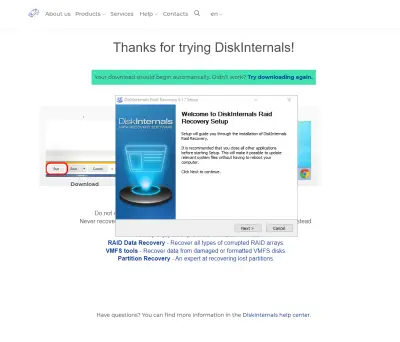
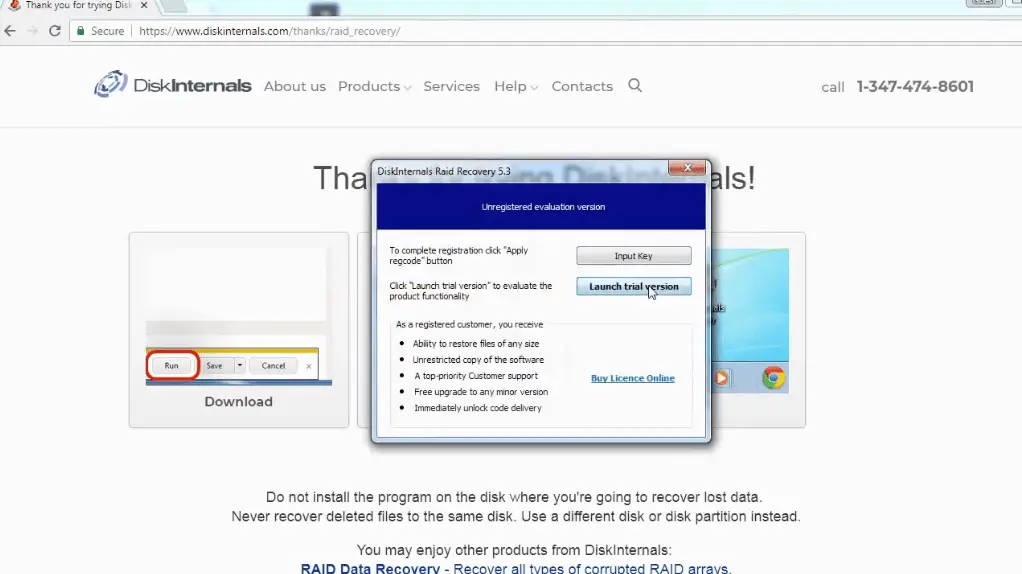
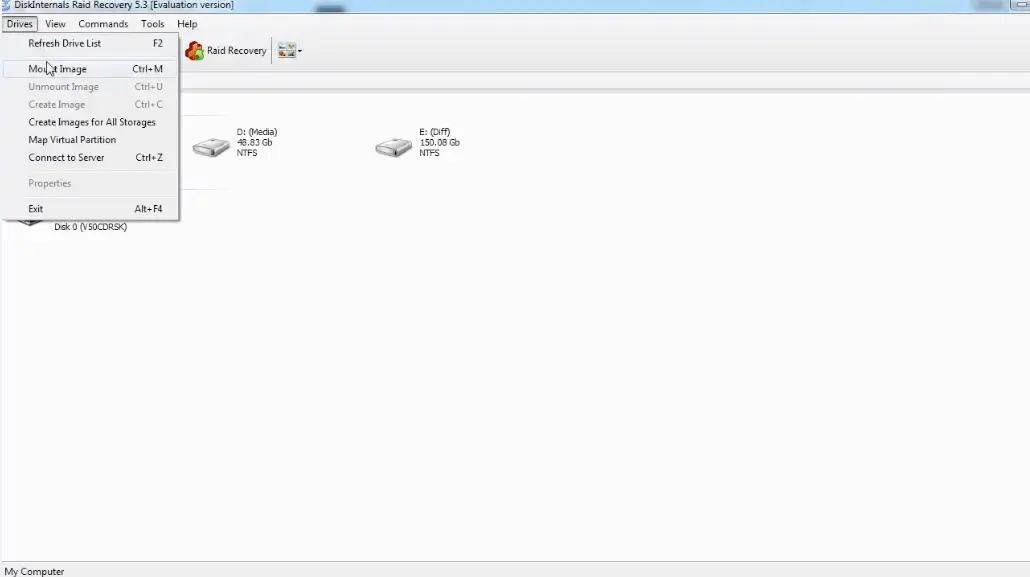
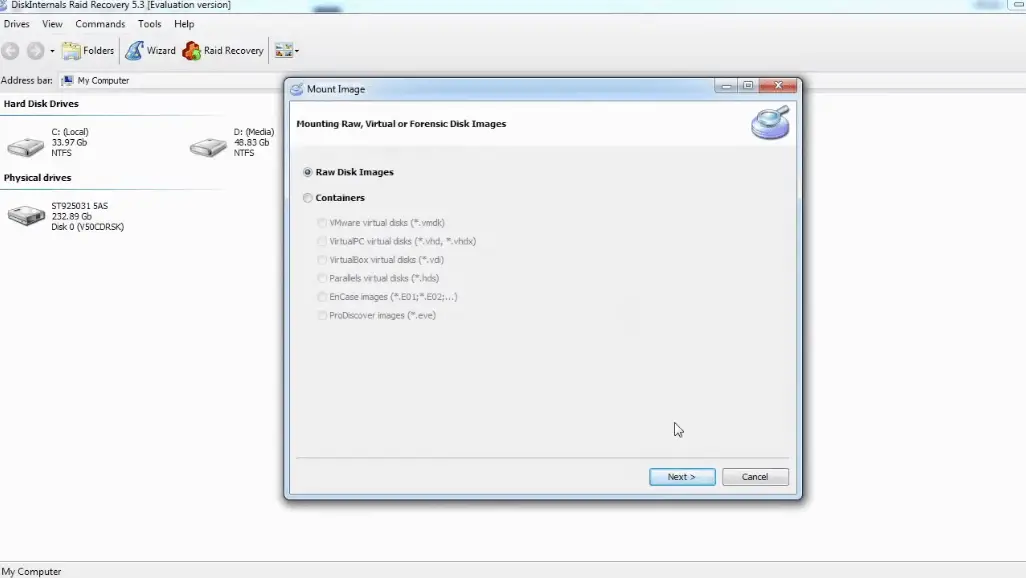
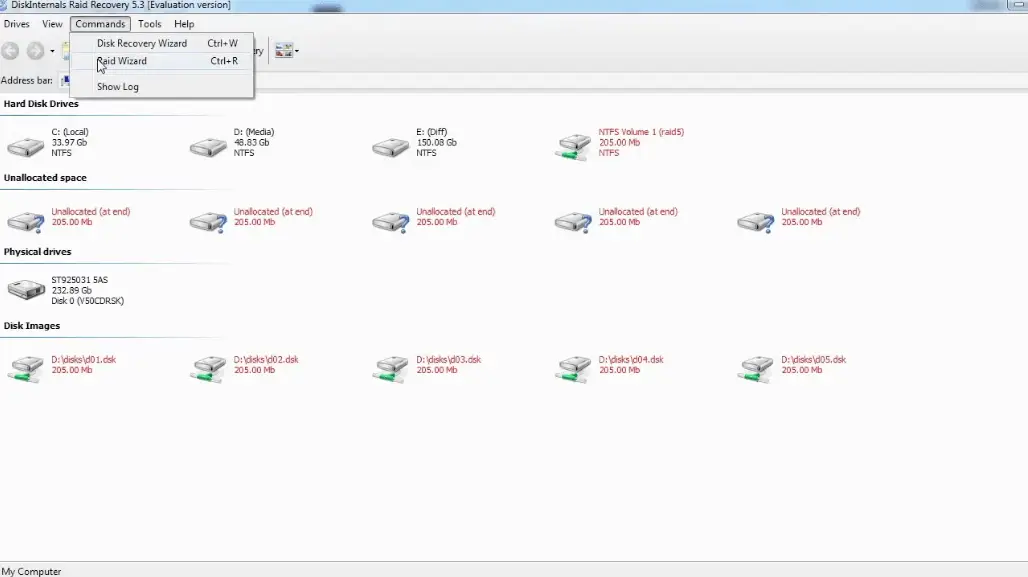
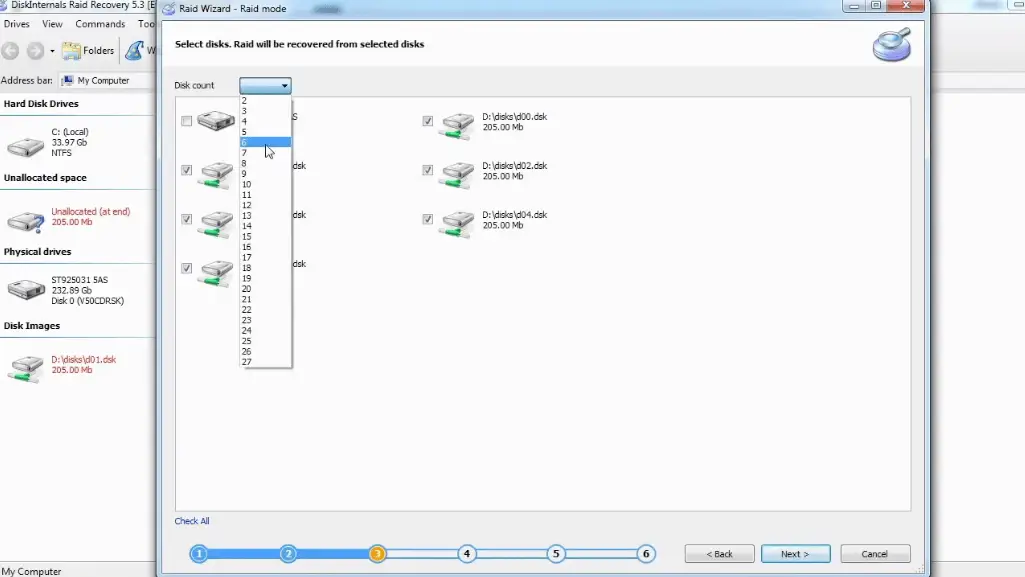
Boot the computer where the hard drives are connected and install DiskInternals RAID Recovery software. After the installation, launch the program and follow the Recovery Wizard prompts to recover your lost files from each of the connected drives, one after another.
Recovery Tips
These are tips you should have at the back of your mind when attempting to recover files using DiskInternals RAID Recovery.
- Don’t rush the process - allow each step to run completely and successfully before proceeding to the next. Else, you may not recover all your lost files.
- Verify that you chose the exact disk drive that had the lost files you want to recover. If you select the wrong drive, you won’t get back any of the lost files.
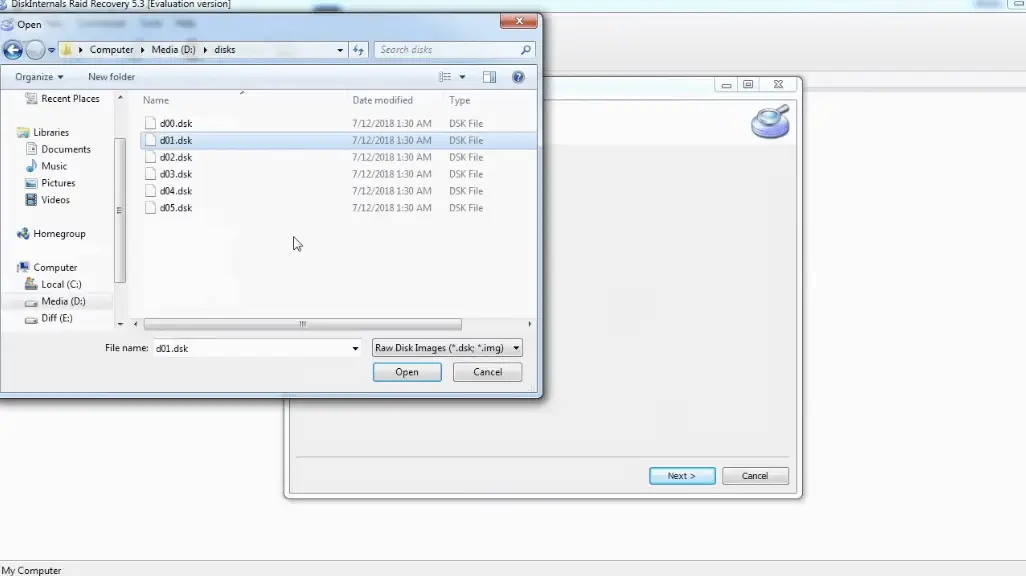
- DiskInternals RAID Recovery comes with a previewing engine, so you can preview the recovered files before saving them back to your local or remote storage.
Important Note: Don’t save the recovered files on the same drive where they were previously saved - from where they got lost. RAID Server failure recovery here!
Why Choose DiskInternals RAID Recovery?
Yeah, there are pretty many RAID Recovery tools out there, but DiskInternals RAID Recovery is much-advanced and backed by IT experts. It works very fast too, and there are three recovery modes you can choose from. Hereunder are other reasons to choose this recovery software:
- Retrieves lost files from software and hardware RAIDs
- Supports manual and automated recovery (Recovery Wizard) options
- Can save recover files from remote directories or local drive
- Supports Unicode filenames and multi-level folders
- Allows you to create backups for free (disk images)
- Automatically fixes pool and filesystem parameters, including disk order
- Recovers previous versions of files if available
- Verifies checksums to validate data credibility.
RAID Failure Prevention Tips
To prevent RAID array failure, there are some handy tips you need to know. It's simply knowing the common reasons why RAID arrays fail and then implementing safety measures that would curb those "reasons."
- Firstly, you should always monitor the RAID disk drives’ critical SMART parameters, health status, and temperature routinely. This will help you identify RAID array failure signs earlier and fix them before it escalates.
- Secondly, always back up your data regularly because no one can be too sure when data loss could occur.
- Don’t perform CHKDSK or SFC scans in a bid to fix and repair RAID array errors.
- Don’t ever use the “beta” version of a RAID firmware, OS, or system file. However, ensure to keep your OS and critical software apps updated to their latest stable versions regularly.
- Retain at least two new or empty drives, which would be used to replace failed drives in the array.
Related articles
- Configure RAID on Ubuntu – Step-by-Step Guide for RAID 0, 1, 5, and 10
- RAID 10 with 8 Disks — Configuration, Performance, Rebuilds & Best Practices
- Encrypting RAID Arrays — RAID with Full Disk Encryption & Secure Setup
- Effective Btrfs File Recovery: Complete Guide to Btrfs Data Recovery
- Best RAID Data Recovery Software for Linux
- Recover Data from RAID 5 on mdadm (Linux)
- ZFS RAID Setup Guide: Configuration, Management & Expansion
- A Comprehensive Review of RAID Recovery Software: Choosing the Right Tool
- DiskInternals RAID Recovery vs ReclaiMe: Comprehensive RAID Recovery Solutions Compared
- DiskInternals RAID Recovery vs EaseUS Data Recovery Wizard | Comprehensive Comparison
- How to Rebuild RAID 5 Without Losing Your Data
- RAID 1 Recovery: all you can do yourself
- RAID 10 Recovery
- RAID 5 Data Recovery Step by Step
- RAID 6 Data Recovery
- RAID 0, 1, 3, 5, 10 data recovery software for Windows 10
- RAID Recovery Services
- The Truth about Recovering RAID 5 with 2 Failed Disks
- RAID 4 Data Recovery: How to Perform It⠀
- RAID 0 vs RAID 1: Performance, Redundancy & Use Cases
- RAID 5 vs RAID 10 comparison: Which one is better for you?⠀
- SSD benefits for RAID array
- How to set up RAID in Windows 10 in 2025
- RAID 5 VS RAID 6 - advantages and disadvantages
- RAID 0 failure - How to Fix Failed Raid 0 Array
- The best NAS RAID: how to choose⠀
- HDD Raid Vs SSD Raid Storage Systems - How to move⠀
- Benefits of RAID arrays - what are the advantages of RAID?⠀
- NAS vs External Hard Drive: Comprehensive Guide to Choosing the Best Data Storage Solution
- RAID-1 vs RAID-5: Performance, Cost, and Data Protection Compared
- RAID 3 vs RAID 5: which one would you prefer?
- RAID 10 vs RAID 01: Is There Any Difference?
- RAID vs JBOD: performance and cost comparison⠀
- What are RAID 01, RAID 1+0 and RAID 0+1⠀
- Mdadm RAID 1 not activating a spare disk Linux⠀
- NAS vs SAN storage - Detailed Comparison⠀
- Perform RAID 50 Data Recovery Today!
- Basic Disks vs Dynamic: What is the Difference
- What to do if RAID array doesn't reassemble after reboot
- RAID levels 0, 1, 5, 6, and 10
- Minimum disks for RAID 10⠀
- RAID Consistency Check: Ensure Data Integrity & Recover Lost Data
- What Is a Hot Spare? Peculiarities of Usage
- Global Hot Spare vs Dedicated Hot Spare: Find the Difference
- Differences Between Software RAID and Hardware RAID
- What Are Some Common Symptoms of RAID Array Failures?⠀
- RAID status degraded - fix it⠀
- How to check RAID status? 4 different methods!
- RAID 50 vs RAID 10 - What is the difference
- RAID Array Growing: How to Perform It
- How to downsize hardware RAID partition and protect data
- How To Create RAID Arrays with mdadm on Ubuntu (22.04)
- How About RAID 1 Reliability?
- What is RAID-Z? Its Difference Between RAID-Z2 vs RAID-Z3
- Can RAID array have snapshots?
- RAID Array Metadata: What Is Inside?
- RAID 6: Replace Two Dead Drives
- Do You Need to Defragment RAID?
- How to Recover RAID partition - step by step guide⠀
- RAID 5: How Big Should an Array Be?
- Does chunk size influence the speed of RAID?
- RAID 0, 5, 6, 10 Performance
- How Does RAID 5 on Windows 10 Work?
- RAID Configuration Explained: Types, Setup, and Best Practices
- What is FakeRAID?
- Which RAID is Better to Use for 4 Drives
- What Is RAID Redundancy? | RAID Redundancy Explained for Data Protection
- RAID Array for Video Editing: How to Choose
- Perform Hyper-V Data Recovery Today
- How to Install Hyper-V in Your Environment in 2025
- Hyper-V Manager - what is it?⠀
- Hyper-V: Generation 1 vs Generation 2
- Hyper-V Live Migration - what is it?⠀
- Hyper-V Snapshot Merge
- Hyper-V Virtual Machine Replication⠀
- About Hyper-V clusters
- Difference Between Type 1 and Type 2 Hypervisor?⠀
- How to Run Linux on a Hyper-V VM in 2025
- Back up Active Directory Guide - Step-by-step Instructions⠀
- What is nutanix ahv?⠀
- What is System Center Virtual Machine Manager⠀
- Make Sure Your Data is Safe While Using Microsoft Storage
- What is Microsoft SQL Server and How Can You Use it Safely?
- Set Up and Use Microsoft SQL Server Management Studio
- Microsoft SQL Server Express Guide
- Use Microsoft Windows Server Safely
- What to do if you get Microsoft SQL Server error 18456?
- Microsoft Storage Spaces
- Xserve RAID data safety
- Apple RAID Card Data Recovery
- Guide: Linux Raid and Disk Data Safety
- Here is Everything You Need to Know About RAID-Z Technology
- What is JBOD?
- Btrfs vs. EXT4: A Comprehensive Comparison of File Systems in Linux (2025)
- RAID Redundancy - best performance solutions⠀
- Is it worth using RAID 5E/5EE?
- Let's compare: Synology vs QNAP
- Here is How to Backup RAID in 2025
- No hard drive detected or disk controller not supported in RAID
- Issue with the RAID after the BIOS update
- Using SSD in RAID Array
- Synology RAID Set That Is Broken or Crashed? RAID data recovery
- Here is How to add drive to RAID 5 in 2025
- ZFS Recovery software - How to recover deleted ZFS files
- Raid Recovery Qnap⠀
- RAID recovery software for Mac⠀
- Best FREE RAID Data Recovery Software (2026)
- Best NAS hard drive recovery in 2026 | Top RAID network-attached storage Hard Drives
- SQL Server Database in Recovery Pending - How to fix it (2025)
- RAID Hard Disk Data Recovery Software (2025)
- How to Recover RAID Array Configuration
- How to Rebuild RAID Without Losing Data
- How to rebuild RAID 1 without losing data
- How to Rebuild RAID 0 Without Losing Data
- Difference and Comparison - RAID 1 and RAID 2
- Difference between RAID 2 and RAID 3
- Difference between RAID 3 and RAID 4
- Difference between RAID 4 and RAID 5
- Buffalo Data Recovery
- Rapid RAID Recovery Software
- What is Synology Hybrid RAID (SHR). How to Recover Data from Synology Hybrid RAID
- RAID Server Data Recovery
- Recover Data from RAID on Linux
- RAID Foreign Disk: Causes, Solutions, and Best Practices
- How to Recover RAID Crash Data
- Forensic RAID Recovery
- RAID Data Recovery evaluation. What is RAID data recovery?
- Raid Drive Array Recovery
- How to Setup Raid 0 Windows 10 (11)?
- How to set up RAID 1 on Windows 10 and Linux
- How Many Disks Can Fail in RAID 5?
- What is RAID 5? Overview and Key Functions
- What Is a RAID Controller and What Are the Benefits of It?
- Recover Data from Broken/Failed RAID Set
- How to Clone RAID 0, 1, 5 Disk
- How to Remove software RAID device using mdadm
- Raid Rebuild Vs. Raid Recovery
- RAID vs. backup - differences and benefits (RAID is not a Backup)
- How to Rebuild RAID array
- What is Synology Hybrid RAID? What is the difference between SHR and RAID Drives?
- AHCI vs. RAID: Pros, Cons & Differences
- Recover Data from RAID 1 on mdadm (Linux)
- Difference & Comparison: RAID vs. non-RAID System
- Ultimate Guide to RAID Data Recovery: Tips & Techniques
- RAID Rebuild Time: What is and How to Optimize It?
- RAID Disaster Data Recovery: Techniques and Strategies for Handling Catastrophic Events
- How to Repair a Failed RAID?
- How to Set Up RAID in Windows 11: A Step-by-Step Guide
- RAID 50 vs. RAID 60 – Key Differences
- Guide to Recovering a Failed RAID Array | Step-by-Step Recovery Process
- HDD RAID vs SSD RAID and Combining Both: Everything You Need to Know
- How to Set Up and Configure RAID 10: Step-by-Step Guide
- What Is RAID 6? Definition, function
- RAID 10 vs RAID 6: Which Better?
- RAID 0: How Many Drives Are Needed?
- RAID 10: How Many Disks Are Needed and How to Set It Up
- How to recover data from a corrupted RAID?
- What is RAID 1? RAID Mirroring
- Recovering RAID 5 After Controller Failure
- NTFS RAID Recovery: Comprehensive Guide to Data Retrieval
- What is Xserve RAID? Comprehensive Guide and Overview
- Comprehensive Guide to RAID in Cyber Security: Levels, Recovery, and Best Practices
- Complete Guide to RAID Controller Failure and Recovery: Expert Tips
- Understanding Hardware RAID: Comprehensive Guide to RAID Levels and Benefits
- What is software RAID? - Comprehensive Guide
- Understanding RAID 0: Benefits, Risks, and Applications
- RAID 3 Explained: Benefits, Limitations, and Data Recovery Guide
- How Many Drives Are Needed for RAID 5? Minimum & Maximum Explained
- Understanding RAID 60: Architecture, Advantages, and Data Recovery
- Understanding RAID Striping: A Comprehensive Guide to Disk Striping and Its Variants
- RAID 10: How Many Drives Can Fail? | Comprehensive Guide to Failure Tolerance
- ZFS vs Btrfs vs RAID: Comprehensive Storage Comparison for Performance, Reliability, and Scalability
- How to Resize RAID Partitions: Step-by-Step Guide for RAID 1, 5, 6 & 10
- Comprehensive Guide to ZFS RAID Levels, Types, and Configurations
- ZFS vs RAID: Comprehensive Comparison of Performance, Reliability, and Features
- RAID 1 Minimum Drive Requirement: How Many Drives Do You Need?
- Bootable RAID Recovery Software: Complete Guide for RAID 0, 1, 5, 10 Recovery
- RAID Hard Drives Explained: What Is RAID for HDDs and External Drives
- RAID 5 Rebuild Failure Probability: Risks, Factors, and Solutions in 2025
- Understanding RAID 6 Performance: A Comprehensive Guide
- RAID Drives Explained: Learn How RAID Storage Enhances Performance
- HP RAID Recovery Tool | How to Recover Data with DiskInternals RAID Recovery Software
- Recovering Data from RAID Drives: Step-by-Step Guide to RAID Recovery
- Recover Striped RAID: Professional RAID 0 Data Recovery with DiskInternals RAID Recovery™
- BTRFS Restore File: How to Undelete Files and Restore Deleted Data Easily
- Recover Data from a RAID Array: Effective Solutions for Fast and Secure Data Retrieval
- Windows 7 RAID Recovery: How to Recover Data from RAID 1, RAID 5, and RAID 10 Arrays
- Adaptec RAID Recovery: Restore Data from Failed Arrays with DiskInternals RAID Recovery™
- What is RAID Data Recovery? | Recover RAID Arrays with RAID Recovery Software
- SAN RAID Data Recovery: Recover RAID Arrays with Professional SAN Recovery Solutions
- What is a RAID Volume? Understanding RAID Volumes and Recovery Solutions
- What is a RAID? RAID Systems Explained & How to Recover RAID Arrays with Professional Tools
- Best RAID Software for Mac | Top Free & Paid RAID Tools for macOS 2026
- Top 10 RAID Recovery Services: Best Solutions for Data Recovery
- RAID Server Data Recovery: Recover and Restore RAID Arrays Fast with Professional Tools
- RAID System Recovery: Essential Steps & Best Software for Safe Data and File Restoration
- RAID Recovery Volume: Effective RAID Array Recovery Solutions for Data Loss Prevention
- What is RAID Connectivity? Essential Guide to RAID Array Setup
- Intel RAID 0 Recovery & RAID 1 Recovery: Solutions for Data Loss & Recovery Tools
- How Many Drives for RAID 6?
- Optimize RAID for Redundancy and Performance - Expert Guide
- How to Read RAID Drives & Recover RAID Arrays on Windows: A Guide
- RAID 0 vs RAID 5: Speed, Performance & Key Differences (2026)
- Synology RAID 5 Recovery: Recover Your RAID Array with Expert Tools and Tips
- Synology RAID 1 Recovery: Recover RAID Array with Trusted Tools and Expert Solutions
- X-RAID Recovery: Expert Guide to Netgear X-RAID and ReadyNAS Data Recovery
- Interim Recovery RAID 5: Expert Guide to Data Recovery and RAID Array Repair
- MDADM RAID 0 Recovery: Expert Guide to Fix and Recover Your RAID Array
- SCSI RAID Recovery Software: Effective Solutions for SCSI RAID Data Recovery
- RAID Data Recovery for Deleted Arrays: Recover RAID Array Safely & Effectively
- What is RAID in Linux? Learn About Software RAID & Recover RAID Arrays Easily
- Change log for RAID Recovery™
- Intel Matrix RAID Recovery: Restore RAID 0, 1, 5, 10 with Reliable Solutions
- RAID Level 4: What Is RAID 4, How It Works
- RAID Restorer – Recover Data from Failed RAID Arrays with Reliable Software
- ZFS RAID with Different Size Drives – Setup, Limitations, and Best Practices
- RAID 0, 1, 5, 10 Explained: Performance, Redundancy & Best RAID Configurations
- How to Recover Data from a Broken RAID 1 Set – Step-by-Step Guide
- ZFS RAID Expansion: How to Expand RAIDZ and ZFS Pools Safely
- RAID 6 Drive Failure Tolerance: How Many Drives Can Fail?
- RAID 50: Drive Failure Tolerance and Data Recovery Solutions
- Windows Storage Spaces vs RAID: Performance, Speed, and Data Protection Comparison
- RAID 2 Array Explained: What Is RAID Level 2, Setup, and Performance Comparison
- RAID 5 RAID 6 RAID 10 - Key Differences and Performance Comparison
- RAID 5 with 3 Disks: Configuration, Benefits, and Performance Insights
- How to Create RAID 5 with 6 Disks: Complete Setup Guide and Performance Tips
- RAID 6 Double Parity Calculation Explained – Data Protection Insights
- How to Add a Disk to mdadm RAID 5: Step-by-Step Guide
- RAID 0 vs RAID 10 and RAID 10 vs RAID 0 Performance Comparison
- How to Fix Degraded RAID 1: Step-by-Step Guide to Restore RAID 1 Degraded Arrays
- RAID 5 vs RAID 0+1: Key Differences Explained
- Why RAID 1 Is Not a Good Substitute for a Backup
- How to Check Which RAID Is Configured: A Complete Guide for Windows and Linux
- RAID 50 vs. RAID 5 – Performance, Speed, and Data Protection Comparison
- RAID 50 vs. RAID 6 – Key Differences
- Configuring RAID 5: Step-by-Step Guide on How to Configure RAID 5 for Performance
- Cannot Format Old RAID Drive? Effective RAID Data Recovery Solutions
- RAID 6 with 5 Drives: Configuration, Performance, and Data Protection
- Best RAID for 6 Disks: Compare RAID 0, 5, 6, 10, 50 & 60 for Performance & Redundancy
- RAID 6 with 8 Drives: Configuration, Failures, and Performance Explained
- RAID 6 with 6 Drives: Performance, Redundancy, and Best Use Cases
- RAID 0 vs. JBOD – Key Differences, Performance, and Speed Comparison
- RAID Array Rebuild: How to Rebuild a RAID Array Safely and Recover Lost Data
- Recover Data from Old RAID Drives | Best Methods & Software for RAID Recovery
- RAID 5 with 5 Drives: Configuration, Performance & Recovery | RAID 5 5 Drives Guide
- 15 Best External Hard Drives for RAID in 2026
- Dell RAID 1 Recovery: How to Recover Data from RAID 1 on Dell Servers Safely
- Dell RAID 5 Recovery - Safely and Fast
- RAID 1E vs RAID 10: Performance, Capacity, Cost & Failure Risk Guide
- What Is RAID 1E? Performance RAID 10 1E vs RAID-1E Guide for Power Users
- RAID 1E vs RAID 5: Performance, Capacity and Failure Risk Compared
- RAID 1 Speeds: Read, Write & Disk Performance | Speed Up RAID 1 Guide
- Ext3 RAID Recovery Guide - Data Recovery RAID Ext3
- XFS RAID Recovery Guide & Best XFS RAID Recovery Software
- ASUS RAID Recovery Guide - Fix Failed ASUS RAID
- RAID Data Recovery Cost: Affordable Solutions for RAID 0, RAID 1, RAID 5, and RAID 10 Failures
- NAS as a File Server: NAS vs. File Server Comparison for Storage and Sharing
- QNAP RAID 5 Recovery Failed? Safe Data Recovery Steps for NAS Users
- ReiserFS RAID Recovery: How to Restore Data from Failed RAID Arrays
- RAID 0 vs RAID 1 vs RAID 5 vs RAID 10 — Performance, Capacity & Recovery
- ZFS Recovery Tools — Data Recovery ZFS Guide & Best Software
- RAID 1 vs RAID 5 vs RAID 10 Performance Management, Speed & Capacity Guide
- RAIDZ1 vs RAID 5 — Performance, Integrity & Recovery Comparison
- ZFS Mirror vs RAIDZ — Performance, Capacity & Recovery Guide
- ZFS Minimum Drives — How Many Disks You Need for RAIDZ1, RAIDZ2, RAIDZ3
- RAID Degraded — What to Do | Warning Fixes & Rebuild Failed Steps
- RAID 7 — What It Is? Origins, Risks & Recovery Options
- ZFS vs mdadm RAID — Why choose ZFS instead of RAID
- RAID in Cloud Storage Systems — SDS, Virtual RAID & Erasure Coding Guide
- Best RAID for OLTP: RAID Configuration for OLTP Workloads & Transactional Databases
- Best RAID for MySQL: RAID Configuration & RAID Setup for MySQL Databases
- Best RAID for NVMeoF: NVMe RAID Configuration & NVMe over Fabrics RAID Setup
- Is RAID 0 Worth It in 2026? Risk, Performance, SSD & NVMe Guidance
- Fault Tolerance in NVMe-oF RAID — Rebuild Time, Data Protection & Redundancy
- Best Practices for RAID over NVMe-oF — Tuning, Monitoring & DR
- RAID 0 vs Single Drive — SSD, NVMe & HDD Comparison (Performance vs Risk)
- RAID 0 vs Single Drive Reliability — Failure Risk, SSD Comparison & Recovery
- RAID 0 for Gaming — Is RAID 0 Good for Gaming? Performance & Risk Guide
- RAID 0 for 4K Editing — Is RAID 0 Good for 4K Video Editing?
- RAID 0 for Large File Workloads: Scratch Disks, NVMe, When It Makes Sense
- Is RAID 0 Obsolete? RAID 0 with SSD and NVMe — Still Worth It?
- RAID 0 vs. SSD Performance: PCIe 4.0, PCIe 5.0 Speed Compared
- RAID 0 Redundancy vs No Redundancy — Does RAID 0 Have Redundancy?
- Does RAID 0 Increase FPS? — RAID 0 vs Single Drive FPS Guide
- RAID 5 Interrupted Rebuild Recovery: Fix Stopped or Aborted Rebuilds
- RAID 0 Failure Probability with N Disks Explained
- RAID 5 Two-Disk Failure Recovery: Parity Recovery Beyond Tolerance
- RAID 1 Corrupted Mirror Recovery: How to Recover a Damaged RAID 1 Mirror
- When RAID 0 Is Acceptable: Use Cases, Risks, and When You Should Use RAID 0
- RAID Best Practices for VMware: Best RAID Configuration for VMware ESXi
- RAID 0 Backed by Versioned Backup: Is RAID 0 Safe with Versioned Backups?
- RAID 10 Best for VMware: Why RAID 10 Is the Recommended RAID for ESXi
- Best RAID Controller Guide: Hardware RAID Cards Compared for Servers and SSDs
- Best PCIe RAID Controller: Top Hardware PCI Express RAID Cards Compared
- RAID Controller for ESXi: VMware ESXi RAID Controller Recommendations
- RAID Controller for Linux: Best Linux-Compatible Hardware RAID Controllers
- SATA RAID Controller for ESXi: VMware ESXi Compatible SATA RAID Options
- SAS RAID Controller for VMware ESXi: Best Hardware RAID Options
- NAS Data Recovery Software & Tools for RAID Recovery
- Features
- RAID 0 Data Recovery
- RAID Reconstructor on Broken RAID Arrays
- RAID Recovery Software
- Hyper-V network adapters⠀
- Open Source RAID Recovery Software Explained and Comparison
- RAID 1: How Many Drives Are Needed for Data Redundancy?
- RAID 1 with 3 Drives: Everything You Need to Know
- RAID Calculator For Geeks – Estimate Usable Space & Drive Size
- RAID Calculator Online – Usable Space & Disk Size Calculator for RAID