
How to Clone RAID Disk (Hardware & Software)
RAID (Redundant Array of Independent Disks) has become very popular in recent times, thanks to its unique data storage and protection features. There are, of course, many types of RAID setups for data storage, and each setup offers distinctive benefits – and requires a specific setup procedure.
Most RAID levels can be set up with at least two (2) hard drives, but some RAID levels require a minimum of three (3) or four (4) disks to set up. This article explains all you should know about RAID setups and how you can clone RAID drives. Cloning RAID drives could be a way of backing up the data content on the drive(s) for data loss scenarios.
What is a RAID Array?
What is a RAID? In simple understanding, a RAID array is the systematic arrangement of two or more hard drives to achieve a RAID level. What distinguishes between RAID levels and arrays is how the member drives are set up using a RAID controller (could be software or hardware controller); it is the RAID controller that determines the actual RAID level or array you’re building.
Common RAID levels are RAID 0, RAID 1, RAID 5, RAID 6, RAID 10, RAID 01, RAID 50, and other configurations. A RAID array could offer striping, mirroring, parity distribution, or any two of these data storage techniques. While some RAID levels may offer high data redundancy and resilience in critical hard drive conditions, they are still not a full substitute for data backups.

Setting up RAID can significantly improve read and write performance, as well as foster business continuity in case of drive failure. Most RAID levels will continue to function even when there’s a failed drive in the array and will automatically rebuild when you replace the failed drive with a new one.
There are complexities among RAID levels, but the fact remains that RAID is better than single-storage, especially in data centers or business environments where drive failure could affect a whole lot if there are redundancy solutions set up for such scenarios.
How to clone RAID?
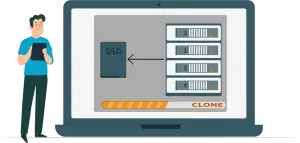
Some RAID arrays like RAID 1 do not offer “more space,” regardless of how many drives you use in the array – you will only get the space of the “smallest” drive as your total space. Cloning a RAID array is possible; you can either clone the individual drives or clone RAID. Well, to clone the entire RAID to a new single drive, the new drive must have enough space relative to the total storage offered by the RAID array.
For example, if the total storage offered by a RAID is 2TB, you need a single 2TB drive to clone RAID. There are several reasons why one may want to clone RAID storage, and this can be linked to data backup considerations. Also, RAID levels can be complicated in how they read and process data, so at some point, you may just want to switch to a single-drive storage. But regardless of what your reasons are, cloning a RAID storage is possible.
Why Should You Clone RAID to a Single Drive?
- RAID rebuilding
- RAID array decommissioning
- System migration
- Data backup
Different data environments call for specific data storage needs. Moreover, RAID is not foolproof for data loss – and is more difficult to manage compared to single-drive storage. NAS systems and DAS setups all use RAID technologies for data storage – allowing you to access your data from different systems simultaneously without sacrificing data transfer speed and upholding redundancy.
But then, most RAID levels can’t reconstruct data when one or two drives fail in the array, which makes regular backups the only reliable foolproof solution to data loss cases. Backing up and restoring RAID data can be a bit challenging, but much easier with a single drive. You can clone RAID to a single drive, so when a drive fails in the array and the RAID won’t rebuild automatically, you can retrieve the lost files/data from the single drive.
Also, if you’re about to run system migration, cloning your RAID to a single drive to run the migration from the single drive would be a lot easier. But, cloning RAID to a single drive to subsequently use the single drive as your preferred storage is quite risky, if the single drive fails, all your data will be instantly inaccessible and lost, probably.
How to Clone RAID Array to Single Drive/SSD in Windows?
First things first, you need a professional software tool to clone RAID. Most RAID cloning software programs are premium apps, you have to pay to use them.
- Step One: Download and install RAID cloning software like Wondershare UBackit, and launch the program.
- Step Two: From the program’s main screen, click on the “Clone” tab and select the RAID drives/volumes as the “Source” drive(s). Click “Next.”
- Step Three: Select the single drive storage device as your “Destination Disk,” and click next. In the pop-up prompt, confirm the cloning process and wait for the cloning process to run completely. Your RAID data will now be available on the selected single-drive storage.
Note: Before you can clone RAID drive with this program, the clone destination disk must offer sufficient space equivalent to the total data size from your select source “RAID drives.” The cloning process may take a long time depending on the data size and disk speed.
Clone Hardware RAID
Hardware RAID is when you use an external RAID controller hardware for your RAID setup. This type of RAID setup is proven to offer faster performance and flexibility than software RAID, but at a cost – hardware RAID is more expensive to set up because of the additional hardware (the controller). Cloning hardware RAID is no different from cloning any other type of RAID setup and hereunder are the steps.
- Step One: Download and install MiniTool Partition Wizard and launch the program on your Windows PC
- Step Two: On the program’s main page, right-click on the RAID drive and select “Copy.”
- Step Three: Choose the single drive to where you want to save the RAID data. (Note: any previously saved data on the single drive will be overwritten).
- Step Four: Confirm the operation following the on-screen prompts and wait for the cloning to be complete.
Clone Software RAID
Most home users prefer the software RAID because it is more affordable and also flexible to a great extent. While software RAID might not offer the best performance compared to hardware RAID, it does offer reasonable performance speeds – based off the host PC’s specs and capabilities. Cloning software RAID is the same as cloning hardware RAID, the only difference, in software RAID, you’re choosing “volumes” and not drives per se.
- Step One: Download and install MiniTool Partition Wizard and launch the program on your Windows PC
- Step Two: On the program’s main page, right-click on the stripped or mirrored RAID volume and select “Copy Volume.”
- Step Three: Choose the single drive to where you want to save the RAID data to. (Note: you can’t copy the RAID volume to another partition on the same disk).
- Step Four: Set partition size and other configurations and confirm the cloning; you should leave everything at the default values and settings if you’re unsure what they imply.
How To Recover RAID Data
Need to recover data from RAID drive? If you discover that some files or important data are missing from your RAID volume after trying to clone RAID, you can retrieve the files and data using DiskInternals RAID Recovery for data recovery on RAID. This software supports all RAID levels and types (hardware or software RAID); it also supports all known Windows and Linux OS filesystems.
DiskInternals RAID Recovery is the professional go-to solution tool for system admins and IT experts when they face a RAID recovery situation. The software comes with a built-in Wizard to help users navigate the RAID recovery process swiftly. DiskInternals RAID Recovery runs on all Windows OS versions and editions; it can recover multiple RAID data formats with high efficiency.
Conclusion
When cloning a RAID disk, it is important to note that any existing data on the drive you’re cloning to will be erased. RAID technology offers data resilience and redundancy to a great extent, but still doesn’t come in as a complete alternative to native backups. Cloning a RAID disk can be for different reasons and there are many intuitive PC programs to help you achieve that. If you’re ever faced with a RAID recovery scenario, DiskInternals RAID Recovery is a reliable tool to use.
FAQ
-
Yes, you can clone a RAID 1 drive. RAID 1 is a mirrored set, meaning data is duplicated across two or more disks. Cloning a RAID 1 drive involves creating an exact copy of one of these mirrored drives. This process is typically straightforward since RAID 1's redundancy ensures that each disk contains a complete copy of all data. You can use disk cloning software that supports RAID configurations to perform this task. It's important to ensure the destination drive has equal or larger capacity than the source drive in the RAID 1 array.
-
Cloning a RAID 0 drive is more complex than cloning a RAID 1 drive. RAID 0 splits data across multiple disks (striping) without redundancy, aiming to increase performance. To clone a RAID 0 array, you must clone all drives in the array simultaneously because the data is distributed across each disk. This requires cloning software capable of recognizing and handling RAID 0 configurations. The process involves creating an exact copy of the striped set of disks onto another set of disks or a single large disk. Ensure the destination storage can accommodate the total data from the RAID 0 array.
-
- Select Cloning Software: Choose software that supports RAID configurations and can clone to a single drive.
- Prepare the Destination Drive: Ensure the destination drive has enough capacity to hold all the data from the RAID 1 array. It should be equal to or larger than the RAID 1 drives.
- Start the Cloning Process: Using your chosen software, select one of the RAID 1 drives as the source and the single drive as the destination. Follow the software prompts to start the cloning process.
- Complete the Cloning: Wait for the process to finish. Once done, your single drive should have an exact copy of the RAID 1 data.
-
- Select Cloning Software: Use cloning software capable of recognizing RAID 0 arrays and cloning them to a single drive. The software should be able to interpret the striped data arrangement.
- Prepare the Destination Drive: The destination drive must be large enough to store the combined data of all drives in the RAID 0 array. Ensure it has sufficient capacity before proceeding.
- Start the Cloning Process: In the cloning software, select the RAID 0 array as the source and your single drive as the destination. Initiate the cloning process according to the software’s instructions.
- Monitor the Cloning: The software will reconstruct the striped data onto the single drive. This process might take some time, depending on the amount of data and the speed of your drives.
- Completion: Once the cloning is complete, the single drive will contain all the data from the RAID 0 array, effectively consolidating your data onto one drive.
-
Step 1: Choose Cloning Software
- Select Compatible Software: Ensure the cloning software you choose is compatible with Windows 11 and supports RAID configurations.
Step 2: Prepare Your Destination Disk
- Capacity: The destination disk or array should have equal or greater capacity than the source RAID array.
- Connection: Ensure the destination disk is properly connected to your computer and recognized by Windows 11.
Step 3: Backup Important Data
- Safety Precaution: Back up important files and data from both your RAID array and the destination disk to avoid accidental data loss.
Step 4: Initialize Cloning Software
- Install and Launch: Install your chosen cloning software and open it.
- Select Source and Destination: Choose the RAID disk/array as the source and the destination disk/array as the target for cloning.
Step 5: Start the Cloning Process
- Configure Options: Some software may offer options like resizing partitions or excluding certain files. Configure these settings according to your needs.
- Begin Cloning: Start the cloning process. The duration will depend on the size of your RAID array and the speed of your disks.
Step 6: Monitor the Cloning Operation
- Progress: Keep an eye on the cloning progress through the software's interface. Some applications provide a time estimate for the cloning process.
Step 7: Completion and Verification
- Verify the Clone: Once cloning is complete, verify that the data on the destination disk matches the source RAID array. You can do this by browsing the cloned data or using a disk verification tool provided by the cloning software.
- Boot from the New Disk (if applicable): If you cloned a bootable RAID array, adjust your BIOS/UEFI settings to boot from the new cloned disk to ensure everything works as expected.
Step 8: Post-Cloning Steps
- Backup: Consider keeping the original RAID disk/array as an additional backup for some time.
- Update Your Backup Plan: If the cloned disk will be used regularly, ensure it's included in your ongoing backup strategy.
-
Step 1: Choose the Right Cloning Software
- Compatibility: Ensure the cloning software supports RAID 10 arrays and is compatible with your operating system.
Step 2: Prepare the Destination Disk or Array
- Capacity: The destination storage should have at least the same capacity as the used space on your RAID 10 array to ensure all data can be cloned.
- Connectivity: Verify that the destination disk or array is properly connected to your system and recognized by the operating system.
Step 3: Backup Your Data
- Safety Measure: Although cloning is generally safe, backing up important files to another location is recommended to prevent any potential data loss.
Step 4: Launch the Cloning Software
- Installation: Install and open your chosen cloning software on your computer.
- Source and Destination Selection: Select the RAID 10 array as the source and the destination disk or array as the target within the software.
Step 5: Configure Cloning Options
- Settings: Some software might offer additional options such as resizing partitions, excluding certain files, or optimizing for SSDs. Configure these according to your needs.
- Start Cloning: Initiate the cloning process. The time required will depend on the amount of data and the performance of your drives.
Step 6: Monitor the Process
- Progress: Keep an eye on the software's progress bar or indicator to monitor the cloning operation. Some applications provide an estimated time to completion.
Step 7: Finalize and Verify
- Completion: Once the cloning is complete, the software may prompt you with a success message.
- Verification: It's important to verify that the clone was successful by checking the data on the destination disk or array. Ensure that all files are accessible and intact.
Step 8: Post-Cloning Actions
- Boot Test (if applicable): If the RAID 10 array contained a bootable system, you might want to test booting from the cloned disk or array to ensure everything operates correctly.
- Backup Strategy: Consider integrating the new clone into your ongoing backup and data protection strategies.
-
Step 1: Verify RAID Controller Compatibility
- Hardware RAID: If your RAID array is managed by a hardware RAID controller, ensure the new computer has a compatible controller. Ideally, use the same model or one from the same manufacturer that supports your RAID configuration.
- Software RAID: For software RAID configurations (managed by the operating system), ensure the new system supports the same software RAID setup.
Step 2: Backup Your Data
- Before moving the RAID array, back up all data to another location. This precaution protects against data loss due to unforeseen issues during the transfer process.
Step 3: Document RAID Configuration
- Note down the RAID type (e.g., RAID 0, RAID 1, RAID 5, RAID 10), stripe size, disk order, and any other configuration details. This information is crucial for reconfiguring the RAID array on the new system.
Step 4: Prepare the New Computer
- Ensure the new computer can physically accommodate the RAID disks (enough drive bays, compatible interfaces).
- Install any necessary RAID controller drivers or software on the new system before installing the RAID disks.
Step 5: Shut Down and Disconnect
- Safely shut down the old computer and disconnect the RAID disks, noting their order and configuration.
Step 6: Install the RAID Disks in the New Computer
- Install the RAID disks in the new computer, maintaining their original order. If using a hardware RAID controller, install the controller in the new system (if not already compatible or integrated).
Step 7: Reconfigure RAID Setup
- Hardware RAID: Access the RAID controller’s BIOS or management software to reconfigure the RAID array as it was on the old system, using the documentation from Step 3.
- Software RAID: Boot the new system and use the operating system’s RAID management tools to reconfigure the RAID setup.
Step 8: Verify and Boot
- Once the RAID array is reconfigured, boot the new system and verify that the RAID array is recognized and functioning correctly. Check data integrity and accessibility.
Step 9: Perform a Final Data Backup
- After ensuring the RAID array is operating as expected in the new environment, perform another data backup to safeguard against future data loss.
Related articles
- Configure RAID on Ubuntu – Step-by-Step Guide for RAID 0, 1, 5, and 10
- RAID 10 with 8 Disks — Configuration, Performance, Rebuilds & Best Practices
- Encrypting RAID Arrays — RAID with Full Disk Encryption & Secure Setup
- Effective Btrfs File Recovery: Complete Guide to Btrfs Data Recovery
- Best RAID Data Recovery Software for Linux
- Recover Data from RAID 5 on mdadm (Linux)
- ZFS RAID Setup Guide: Configuration, Management & Expansion
- A Comprehensive Review of RAID Recovery Software: Choosing the Right Tool
- DiskInternals RAID Recovery vs ReclaiMe: Comprehensive RAID Recovery Solutions Compared
- DiskInternals RAID Recovery vs EaseUS Data Recovery Wizard | Comprehensive Comparison
- How to Rebuild RAID 5 Without Losing Your Data
- RAID 1 Recovery: all you can do yourself
- RAID 10 Recovery
- RAID 5 Data Recovery Step by Step
- RAID 6 Data Recovery
- RAID 0, 1, 3, 5, 10 data recovery software for Windows 10
- RAID Recovery Services
- The Truth about Recovering RAID 5 with 2 Failed Disks
- RAID 4 Data Recovery: How to Perform It⠀
- RAID 0 vs RAID 1: Performance, Redundancy & Use Cases
- RAID 5 vs RAID 10 comparison: Which one is better for you?⠀
- SSD benefits for RAID array
- How to set up RAID in Windows 10 in 2025
- RAID 5 VS RAID 6 - advantages and disadvantages
- RAID 0 failure - How to Fix Failed Raid 0 Array
- The best NAS RAID: how to choose⠀
- HDD Raid Vs SSD Raid Storage Systems - How to move⠀
- Benefits of RAID arrays - what are the advantages of RAID?⠀
- NAS vs External Hard Drive: Comprehensive Guide to Choosing the Best Data Storage Solution
- RAID-1 vs RAID-5: Performance, Cost, and Data Protection Compared
- RAID 3 vs RAID 5: which one would you prefer?
- RAID 10 vs RAID 01: Is There Any Difference?
- RAID vs JBOD: performance and cost comparison⠀
- What are RAID 01, RAID 1+0 and RAID 0+1⠀
- Mdadm RAID 1 not activating a spare disk Linux⠀
- NAS vs SAN storage - Detailed Comparison⠀
- Perform RAID 50 Data Recovery Today!
- Basic Disks vs Dynamic: What is the Difference
- What to do if RAID array doesn't reassemble after reboot
- RAID levels 0, 1, 5, 6, and 10
- Minimum disks for RAID 10⠀
- RAID Consistency Check: Ensure Data Integrity & Recover Lost Data
- What Is a Hot Spare? Peculiarities of Usage
- Global Hot Spare vs Dedicated Hot Spare: Find the Difference
- Differences Between Software RAID and Hardware RAID
- What Are Some Common Symptoms of RAID Array Failures?⠀
- RAID status degraded - fix it⠀
- How to check RAID status? 4 different methods!
- RAID 50 vs RAID 10 - What is the difference
- RAID Array Growing: How to Perform It
- How to downsize hardware RAID partition and protect data
- How To Create RAID Arrays with mdadm on Ubuntu (22.04)
- How About RAID 1 Reliability?
- What is RAID-Z? Its Difference Between RAID-Z2 vs RAID-Z3
- Can RAID array have snapshots?
- RAID Array Metadata: What Is Inside?
- RAID 6: Replace Two Dead Drives
- Do You Need to Defragment RAID?
- How to Recover RAID partition - step by step guide⠀
- RAID 5: How Big Should an Array Be?
- Does chunk size influence the speed of RAID?
- RAID 0, 5, 6, 10 Performance
- How Does RAID 5 on Windows 10 Work?
- RAID Configuration Explained: Types, Setup, and Best Practices
- What is FakeRAID?
- Which RAID is Better to Use for 4 Drives
- What Is RAID Redundancy? | RAID Redundancy Explained for Data Protection
- RAID Array for Video Editing: How to Choose
- Perform Hyper-V Data Recovery Today
- How to Install Hyper-V in Your Environment in 2025
- Hyper-V Manager - what is it?⠀
- Hyper-V: Generation 1 vs Generation 2
- Hyper-V Live Migration - what is it?⠀
- Hyper-V Snapshot Merge
- Hyper-V Virtual Machine Replication⠀
- About Hyper-V clusters
- Difference Between Type 1 and Type 2 Hypervisor?⠀
- Hyper-V Server Core installation vs GUI - let's compare⠀
- How to Run Linux on a Hyper-V VM in 2025
- Back up Active Directory Guide - Step-by-step Instructions⠀
- What is nutanix ahv?⠀
- What is System Center Virtual Machine Manager⠀
- Make Sure Your Data is Safe While Using Microsoft Storage
- What is Microsoft SQL Server and How Can You Use it Safely?
- Set Up and Use Microsoft SQL Server Management Studio
- Microsoft SQL Server Express Guide
- Use Microsoft Windows Server Safely
- What to do if you get Microsoft SQL Server error 18456?
- Microsoft Storage Spaces
- Xserve RAID data safety
- Apple RAID Card Data Recovery
- Guide: Linux Raid and Disk Data Safety
- Here is Everything You Need to Know About RAID-Z Technology
- What is JBOD?
- Btrfs vs. EXT4: A Comprehensive Comparison of File Systems in Linux (2025)
- RAID Redundancy - best performance solutions⠀
- Is it worth using RAID 5E/5EE?
- Let's compare: Synology vs QNAP
- Here is How to Backup RAID in 2025
- No hard drive detected or disk controller not supported in RAID
- Issue with the RAID after the BIOS update
- Using SSD in RAID Array
- Synology RAID Set That Is Broken or Crashed? RAID data recovery
- Here is How to add drive to RAID 5 in 2025
- ZFS Recovery software - How to recover deleted ZFS files
- Raid Recovery Qnap⠀
- RAID recovery software for Mac⠀
- Best FREE RAID Data Recovery Software (2026)
- Best NAS hard drive recovery in 2026 | Top RAID network-attached storage Hard Drives
- SQL Server Database in Recovery Pending - How to fix it (2025)
- RAID Hard Disk Data Recovery Software (2025)
- How to Recover RAID Array Configuration
- How to Rebuild RAID Without Losing Data
- How to rebuild RAID 1 without losing data
- How to Rebuild RAID 0 Without Losing Data
- Difference and Comparison - RAID 1 and RAID 2
- Difference between RAID 2 and RAID 3
- Difference between RAID 3 and RAID 4
- Difference between RAID 4 and RAID 5
- Buffalo Data Recovery
- Rapid RAID Recovery Software
- What is Synology Hybrid RAID (SHR). How to Recover Data from Synology Hybrid RAID
- RAID Server Data Recovery
- Recover Data from RAID on Linux
- RAID Foreign Disk: Causes, Solutions, and Best Practices
- How to Recover RAID Crash Data
- Forensic RAID Recovery
- RAID Data Recovery evaluation. What is RAID data recovery?
- Raid Drive Array Recovery
- How to Setup Raid 0 Windows 10 (11)?
- How to set up RAID 1 on Windows 10 and Linux
- How Many Disks Can Fail in RAID 5?
- What is RAID 5? Overview and Key Functions
- What Is a RAID Controller and What Are the Benefits of It?
- Recover Data from Broken/Failed RAID Set
- How to Remove software RAID device using mdadm
- Raid Rebuild Vs. Raid Recovery
- RAID vs. backup - differences and benefits (RAID is not a Backup)
- How to Rebuild RAID array
- What is Synology Hybrid RAID? What is the difference between SHR and RAID Drives?
- AHCI vs. RAID: Pros, Cons & Differences
- Recover Data from RAID 1 on mdadm (Linux)
- Difference & Comparison: RAID vs. non-RAID System
- Ultimate Guide to RAID Data Recovery: Tips & Techniques
- RAID Rebuild Time: What is and How to Optimize It?
- RAID Disaster Data Recovery: Techniques and Strategies for Handling Catastrophic Events
- How to Repair a Failed RAID?
- How to Set Up RAID in Windows 11: A Step-by-Step Guide
- RAID 50 vs. RAID 60 – Key Differences
- Guide to Recovering a Failed RAID Array | Step-by-Step Recovery Process
- HDD RAID vs SSD RAID and Combining Both: Everything You Need to Know
- How to Set Up and Configure RAID 10: Step-by-Step Guide
- What Is RAID 6? Definition, function
- RAID 10 vs RAID 6: Which Better?
- RAID 0: How Many Drives Are Needed?
- RAID 10: How Many Disks Are Needed and How to Set It Up
- How to recover data from a corrupted RAID?
- What is RAID 1? RAID Mirroring
- Recovering RAID 5 After Controller Failure
- NTFS RAID Recovery: Comprehensive Guide to Data Retrieval
- What is Xserve RAID? Comprehensive Guide and Overview
- Comprehensive Guide to RAID in Cyber Security: Levels, Recovery, and Best Practices
- Complete Guide to RAID Controller Failure and Recovery: Expert Tips
- Understanding Hardware RAID: Comprehensive Guide to RAID Levels and Benefits
- What is software RAID? - Comprehensive Guide
- Understanding RAID 0: Benefits, Risks, and Applications
- RAID 3 Explained: Benefits, Limitations, and Data Recovery Guide
- How Many Drives Are Needed for RAID 5? Minimum & Maximum Explained
- Understanding RAID 60: Architecture, Advantages, and Data Recovery
- Understanding RAID Striping: A Comprehensive Guide to Disk Striping and Its Variants
- RAID 10: How Many Drives Can Fail? | Comprehensive Guide to Failure Tolerance
- ZFS vs Btrfs vs RAID: Comprehensive Storage Comparison for Performance, Reliability, and Scalability
- How to Resize RAID Partitions: Step-by-Step Guide for RAID 1, 5, 6 & 10
- Comprehensive Guide to ZFS RAID Levels, Types, and Configurations
- ZFS vs RAID: Comprehensive Comparison of Performance, Reliability, and Features
- RAID 1 Minimum Drive Requirement: How Many Drives Do You Need?
- Bootable RAID Recovery Software: Complete Guide for RAID 0, 1, 5, 10 Recovery
- RAID Hard Drives Explained: What Is RAID for HDDs and External Drives
- RAID 5 Rebuild Failure Probability: Risks, Factors, and Solutions in 2025
- Understanding RAID 6 Performance: A Comprehensive Guide
- RAID Drives Explained: Learn How RAID Storage Enhances Performance
- HP RAID Recovery Tool | How to Recover Data with DiskInternals RAID Recovery Software
- Recovering Data from RAID Drives: Step-by-Step Guide to RAID Recovery
- Recover Striped RAID: Professional RAID 0 Data Recovery with DiskInternals RAID Recovery™
- BTRFS Restore File: How to Undelete Files and Restore Deleted Data Easily
- Recover Data from a RAID Array: Effective Solutions for Fast and Secure Data Retrieval
- Windows 7 RAID Recovery: How to Recover Data from RAID 1, RAID 5, and RAID 10 Arrays
- Adaptec RAID Recovery: Restore Data from Failed Arrays with DiskInternals RAID Recovery™
- What is RAID Data Recovery? | Recover RAID Arrays with RAID Recovery Software
- SAN RAID Data Recovery: Recover RAID Arrays with Professional SAN Recovery Solutions
- What is a RAID Volume? Understanding RAID Volumes and Recovery Solutions
- What is a RAID? RAID Systems Explained & How to Recover RAID Arrays with Professional Tools
- Best RAID Software for Mac | Top Free & Paid RAID Tools for macOS 2026
- Top 10 RAID Recovery Services: Best Solutions for Data Recovery
- RAID Server Data Recovery: Recover and Restore RAID Arrays Fast with Professional Tools
- RAID System Recovery: Essential Steps & Best Software for Safe Data and File Restoration
- RAID Recovery Volume: Effective RAID Array Recovery Solutions for Data Loss Prevention
- What is RAID Connectivity? Essential Guide to RAID Array Setup
- Intel RAID 0 Recovery & RAID 1 Recovery: Solutions for Data Loss & Recovery Tools
- How Many Drives for RAID 6?
- Optimize RAID for Redundancy and Performance - Expert Guide
- How to Read RAID Drives & Recover RAID Arrays on Windows: A Guide
- RAID 0 vs RAID 5: Speed, Performance & Key Differences (2026)
- Synology RAID 5 Recovery: Recover Your RAID Array with Expert Tools and Tips
- Synology RAID 1 Recovery: Recover RAID Array with Trusted Tools and Expert Solutions
- X-RAID Recovery: Expert Guide to Netgear X-RAID and ReadyNAS Data Recovery
- Interim Recovery RAID 5: Expert Guide to Data Recovery and RAID Array Repair
- MDADM RAID 0 Recovery: Expert Guide to Fix and Recover Your RAID Array
- SCSI RAID Recovery Software: Effective Solutions for SCSI RAID Data Recovery
- RAID Data Recovery for Deleted Arrays: Recover RAID Array Safely & Effectively
- What is RAID in Linux? Learn About Software RAID & Recover RAID Arrays Easily
- Change log for RAID Recovery™
- Intel Matrix RAID Recovery: Restore RAID 0, 1, 5, 10 with Reliable Solutions
- RAID Level 4: What Is RAID 4, How It Works
- RAID Restorer – Recover Data from Failed RAID Arrays with Reliable Software
- ZFS RAID with Different Size Drives – Setup, Limitations, and Best Practices
- RAID 0, 1, 5, 10 Explained: Performance, Redundancy & Best RAID Configurations
- How to Recover Data from a Broken RAID 1 Set – Step-by-Step Guide
- ZFS RAID Expansion: How to Expand RAIDZ and ZFS Pools Safely
- RAID 6 Drive Failure Tolerance: How Many Drives Can Fail?
- RAID 50: Drive Failure Tolerance and Data Recovery Solutions
- Windows Storage Spaces vs RAID: Performance, Speed, and Data Protection Comparison
- RAID 2 Array Explained: What Is RAID Level 2, Setup, and Performance Comparison
- RAID 5 RAID 6 RAID 10 - Key Differences and Performance Comparison
- RAID 5 with 3 Disks: Configuration, Benefits, and Performance Insights
- How to Create RAID 5 with 6 Disks: Complete Setup Guide and Performance Tips
- RAID 6 Double Parity Calculation Explained – Data Protection Insights
- How to Add a Disk to mdadm RAID 5: Step-by-Step Guide
- RAID 0 vs RAID 10 and RAID 10 vs RAID 0 Performance Comparison
- How to Fix Degraded RAID 1: Step-by-Step Guide to Restore RAID 1 Degraded Arrays
- RAID 5 vs RAID 0+1: Key Differences Explained
- Why RAID 1 Is Not a Good Substitute for a Backup
- How to Check Which RAID Is Configured: A Complete Guide for Windows and Linux
- RAID 50 vs. RAID 5 – Performance, Speed, and Data Protection Comparison
- RAID 50 vs. RAID 6 – Key Differences
- Configuring RAID 5: Step-by-Step Guide on How to Configure RAID 5 for Performance
- Cannot Format Old RAID Drive? Effective RAID Data Recovery Solutions
- RAID 6 with 5 Drives: Configuration, Performance, and Data Protection
- Best RAID for 6 Disks: Compare RAID 0, 5, 6, 10, 50 & 60 for Performance & Redundancy
- RAID 6 with 8 Drives: Configuration, Failures, and Performance Explained
- RAID 6 with 6 Drives: Performance, Redundancy, and Best Use Cases
- RAID 0 vs. JBOD – Key Differences, Performance, and Speed Comparison
- RAID Array Rebuild: How to Rebuild a RAID Array Safely and Recover Lost Data
- Recover Data from Old RAID Drives | Best Methods & Software for RAID Recovery
- RAID 5 with 5 Drives: Configuration, Performance & Recovery | RAID 5 5 Drives Guide
- 15 Best External Hard Drives for RAID in 2026
- Dell RAID 1 Recovery: How to Recover Data from RAID 1 on Dell Servers Safely
- Dell RAID 5 Recovery - Safely and Fast
- RAID 1E vs RAID 10: Performance, Capacity, Cost & Failure Risk Guide
- What Is RAID 1E? Performance RAID 10 1E vs RAID-1E Guide for Power Users
- RAID 1E vs RAID 5: Performance, Capacity and Failure Risk Compared
- RAID 1 Speeds: Read, Write & Disk Performance | Speed Up RAID 1 Guide
- Ext3 RAID Recovery Guide - Data Recovery RAID Ext3
- XFS RAID Recovery Guide & Best XFS RAID Recovery Software
- ASUS RAID Recovery Guide - Fix Failed ASUS RAID
- RAID Data Recovery Cost: Affordable Solutions for RAID 0, RAID 1, RAID 5, and RAID 10 Failures
- NAS as a File Server: NAS vs. File Server Comparison for Storage and Sharing
- QNAP RAID 5 Recovery Failed? Safe Data Recovery Steps for NAS Users
- ReiserFS RAID Recovery: How to Restore Data from Failed RAID Arrays
- RAID 0 vs RAID 1 vs RAID 5 vs RAID 10 — Performance, Capacity & Recovery
- ZFS Recovery Tools — Data Recovery ZFS Guide & Best Software
- RAID 1 vs RAID 5 vs RAID 10 Performance Management, Speed & Capacity Guide
- RAIDZ1 vs RAID 5 — Performance, Integrity & Recovery Comparison
- ZFS Mirror vs RAIDZ — Performance, Capacity & Recovery Guide
- ZFS Minimum Drives — How Many Disks You Need for RAIDZ1, RAIDZ2, RAIDZ3
- RAID Degraded — What to Do | Warning Fixes & Rebuild Failed Steps
- RAID 7 — What It Is? Origins, Risks & Recovery Options
- ZFS vs mdadm RAID — Why choose ZFS instead of RAID
- RAID in Cloud Storage Systems — SDS, Virtual RAID & Erasure Coding Guide
- Best RAID for OLTP: RAID Configuration for OLTP Workloads & Transactional Databases
- Best RAID for MySQL: RAID Configuration & RAID Setup for MySQL Databases
- Best RAID for NVMeoF: NVMe RAID Configuration & NVMe over Fabrics RAID Setup
- Is RAID 0 Worth It in 2026? Risk, Performance, SSD & NVMe Guidance
- Fault Tolerance in NVMe-oF RAID — Rebuild Time, Data Protection & Redundancy
- Best Practices for RAID over NVMe-oF — Tuning, Monitoring & DR
- RAID 0 vs Single Drive — SSD, NVMe & HDD Comparison (Performance vs Risk)
- RAID 0 vs Single Drive Reliability — Failure Risk, SSD Comparison & Recovery
- RAID 0 for Gaming — Is RAID 0 Good for Gaming? Performance & Risk Guide
- RAID 0 for 4K Editing — Is RAID 0 Good for 4K Video Editing?
- RAID 0 for Large File Workloads: Scratch Disks, NVMe, When It Makes Sense
- Is RAID 0 Obsolete? RAID 0 with SSD and NVMe — Still Worth It?
- RAID 0 vs. SSD Performance: PCIe 4.0, PCIe 5.0 Speed Compared
- RAID 0 Redundancy vs No Redundancy — Does RAID 0 Have Redundancy?
- Does RAID 0 Increase FPS? — RAID 0 vs Single Drive FPS Guide
- RAID 5 Interrupted Rebuild Recovery: Fix Stopped or Aborted Rebuilds
- RAID 0 Failure Probability with N Disks Explained
- RAID 5 Two-Disk Failure Recovery: Parity Recovery Beyond Tolerance
- RAID 1 Corrupted Mirror Recovery: How to Recover a Damaged RAID 1 Mirror
- When RAID 0 Is Acceptable: Use Cases, Risks, and When You Should Use RAID 0
- RAID Best Practices for VMware: Best RAID Configuration for VMware ESXi
- RAID 0 Backed by Versioned Backup: Is RAID 0 Safe with Versioned Backups?
- RAID 10 Best for VMware: Why RAID 10 Is the Recommended RAID for ESXi
- Best RAID Controller Guide: Hardware RAID Cards Compared for Servers and SSDs
- Best PCIe RAID Controller: Top Hardware PCI Express RAID Cards Compared
- RAID Controller for ESXi: VMware ESXi RAID Controller Recommendations
- RAID Controller for Linux: Best Linux-Compatible Hardware RAID Controllers
- SATA RAID Controller for ESXi: VMware ESXi Compatible SATA RAID Options
- SAS RAID Controller for VMware ESXi: Best Hardware RAID Options
- NAS Data Recovery Software & Tools for RAID Recovery
- Features
- RAID 0 Data Recovery
- RAID Reconstructor on Broken RAID Arrays
- RAID Recovery Software
- Hyper-V network adapters⠀
- Open Source RAID Recovery Software Explained and Comparison
- RAID 1: How Many Drives Are Needed for Data Redundancy?
- RAID 1 with 3 Drives: Everything You Need to Know
- RAID Calculator For Geeks – Estimate Usable Space & Drive Size
- RAID Calculator Online – Usable Space & Disk Size Calculator for RAID