
How to Recover Deleted Files in Windows
File recovery is an important issue. Anyone might experience file loss or deletion due to a computer error. You can use various techniques to get these files for your own needs. One of the best methods for recovering deleted files is to use Uneraser by DiskInternals. If you recover your files using the appropriate tactics, strategy, and tools, your endeavor will be successful.
Article content:
- 8 Ways to Recover Deleted Files in Windows 10/11 without Third-Party Software
- Recover Deleted Files Using Data Recovery Software
- How to Recover Permanently Deleted Files from Google Drive
Ready? Let's read!
How to Recover Deleted Files in Windows
Deleting files on a Windows computer is as easy as clicking a button. Thankfully, Windows has a recycle bin that holds the file for a while to make sure you have the option to recycle it. While this is usually helpful, you can permanently delete data accidentally. In this case, your deletion action includes you hitting the Shift key. This action bypasses the recycle bin leaving you without the opportunity to restore your files.
Interestingly, there are other scenarios where your computer's recycle bin might not provide the redeeming feature you thought you will have. Fortunately, some tools and techniques are helpful for recovering deleted files in Windows.
8 Ways to Recover Deleted Files in Windows 10/11 without Third-Party Software
File recovery on a Windows computer is time-dependent. This means that you are on the clock once you notice your deletion action. This is to make sure your chances of getting these files back do not shrink to zero before they get overwritten.
It is advisable that you close all applications and processes that are not relevant for files recovery.
The recovery techniques below are some of the top methods that guarantee file recovery on your Windows machine.
1. Restore Deleted Files From the Windows 10/11 Recycle Bin
The recycle bin on the Windows 10/11 computer is a super useful program that preserves mistakenly deleted files.
The following steps show how to recover files from your Windows 10/11 recycle bin:
- Navigate to your recycle bin folder.
- To restore a deleted file, select them from your recycle bin folder and choose the restore option.
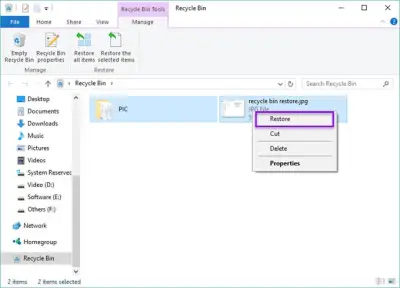
- You can also right-click on your file selection and pick the restore option to restore deleted files.
2. Quickly Auto-Recover Deleted Files from Windows 10/11 Recycle Bin with CTRL+Z
Retrieving deleted files using this option is an easier option. To proceed, follow the steps below:
- Remain on the same page where you just performed the deletion to make sure that deleted files can be recovered.
- Hit CTRL+Z which triggers retrieving deleted files.
- This brings the deleted file back to your current folder.
3. Recover Files using Undo Delete
Recovering lost files is easy if you know how to go about it. You can recover deleted files on desktop by simply using the undo delete option. To proceed, follow the steps below:
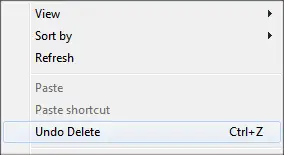
- Right-click on the folder in which the deletion occurred. This is important to bring out the prompt where windows retrieve deleted files.
- In the options, you should click on Undo Delete to retrieve the files that were deleted.
- This option may not be able to recover old deleted files.
4. Bring Back Hidden Files and Fix Garbled File systems on Windows 10/11
Virus infection, a corrupt filesystem, or some other reason may make your PC inaccessible, finding recently deleted files may become a problem.
In this case, you have two tools that can return access to these files: attrib and chkdsk.
1) Attrib
Attrib is a useful tool for changing the tag on files that you want to retrieve.
To proceed with this fix, start by running your command prompt or PowerShell as an administrator. From here, you will have to enter some attrib command prompts:
For lost or deleted files, you want to flag your files as not hidden, not archive, or not read-only. To proceed with this action to get deleted files back, enter the prompt below
- attrib –h –r –a –s FILENAME
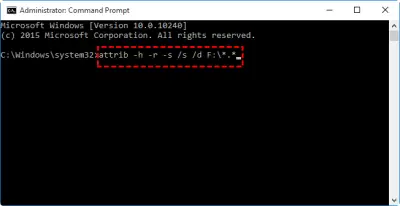
If you wish to remove some flags in order to find deleted files, you should run attrib with the /s and /d parameter instead before entering the FILENAME.
2. Chkdsk
Chkdsk is a useful option for a filesystem that is corrupted in result of an unexpected system restart or abrupt power failure. Chkdsk can restore your computer back to its former settings. This option can also help Windows 10/11 to retrieve deleted files. Finding deleted files using this option is quite straightforward. Nonetheless, chkdsk is a great tool. To commence recovery:
- Run PowerShell from your start menu as administrator. You can also use the command line if you prefer that option and run as administrator.
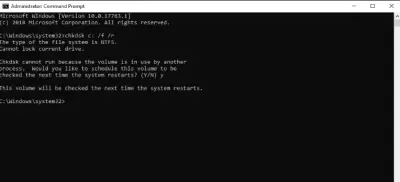
- Type chkdsk /f to check if there is an error in the file system.
- Type chkdsk /r to check for physical disk error.
5. Windows File Recovery: Microsoft’s Official Windows 10/11 File Recovery Solution
Wondering how to recover deleted files in Windows 10/11? Do it with Windows file recovery tool. This guide shows how to proceed:
- From your Start menu, search and launch your Microsoft store.
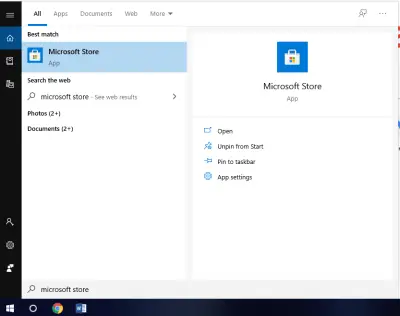
- Search for Windows File Recovery and install this tool to your computer.
- Launch PowerShell or Command Prompt as an administrator.
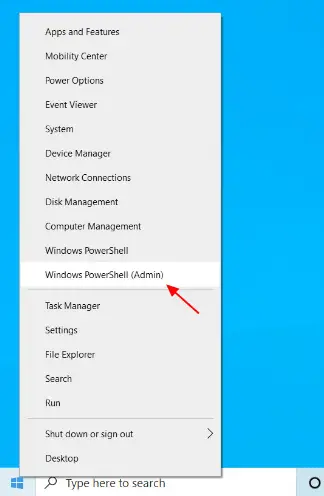
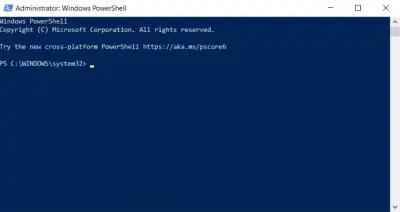
- un the command winfr SOURCE_DRIVE DESTINATION_DRIVE /regular
- Add /n *.FILE_EXTENSION at the end of the command above.
6. Undelete Files on Windows 10/11 Using Third-Party Data Recovery Software
Uneraser by DiskInternals is one of the tools you can trust to easily undelete files on Windows 10/11. Just follow the steps below:
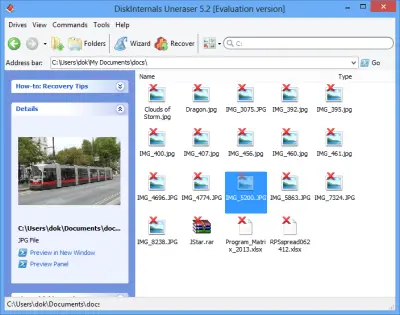
Firstly, DiskInternals Uneraser from the official web page and install it on a working Windows PC. This software utility can run on any Windows OS system running version 7.0 up to the newest version 11.0.
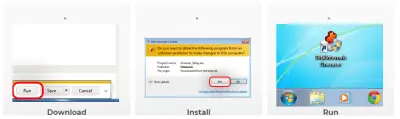
Step One:
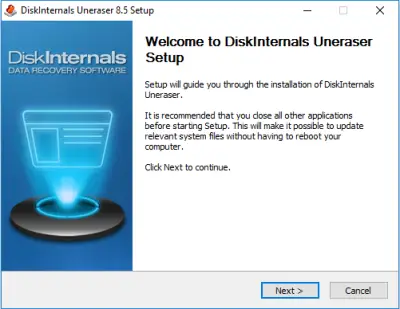
Connect the drive where the shift-deleted files were previously saved. If it's your primary disk, there is no need to connect any drive - proceed with launching the Uneraser software.
Step two:
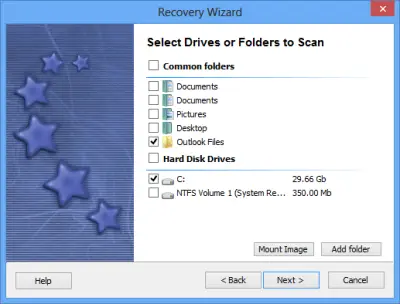
The Recovery Wizard would launch automatically to guide you through the process; select the disk you want to recover from and select the file format you want to recover (you can mark all the file types available). On the next screen, choose between Quick Scan and Deep Scan; choose deep scan if you want a wholesome recovery.
Step three:
Allow DiskInternals Uneraser to scan the disk and discover all the files you have ever saved on it. At the end of the scan, you’d be presented with all the files you’ve ever saved on the drive, with the deleted/lost ones indicated with a RED asterisk.
Step four:
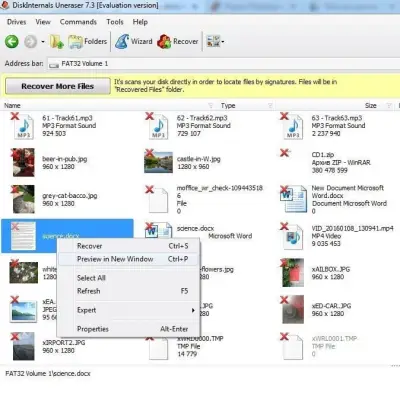
You can preview the recovered files, but to save them back to another storage, you must upgrade to the DiskInternals Uneraser Pro version.
Video guide on lost data recovery

7. Restore Deleted Files from a Previous System Restore Point
To recover deleted files from a previous system snapshot, proceed with the steps below:
- From the start menu, search for "create a restore point" and hit the return button
- Select the "System Restore" option.
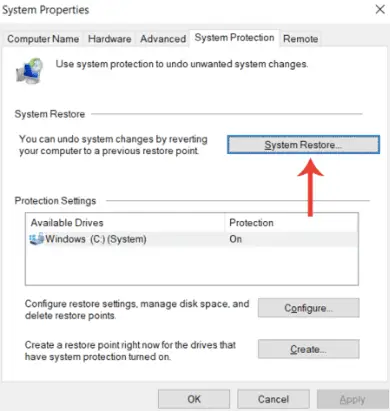
- Click on "System restore point" to proceed
- Pick a system restore point and select Finish
8. Recover Lost Files on Windows 10/11 with Backup and Restore (Windows 7)
Follow the steps below:
- Navigate to your Windows 10/11 control panel. Select Backup and Restore option under System and Security.
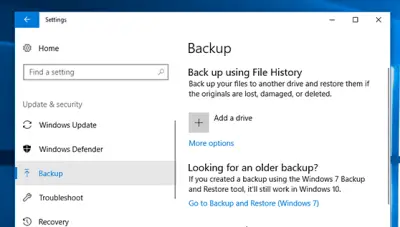
- Select the ‘Set up backup’ option to the right of the screen.
- Pick the drive on which you would like to save the backup. Select next to proceed. Depending on the size of the backup, this can take a while to complete.
- Return to the Backup and restore page. Select Restore my files from the bottom of your screen.
- From the next screen, you can select which of the backups you want to restore.
Recover Deleted Files Using Data Recovery Software
Recovering files in Windows 10/11 with DiskInternals Uneraser is easy and straightforward. Use following specific steps to succeed.
1. Download and Install DiskInternals Uneraser on your Windows 10/11 PC
The first and most important step is to download DiskInternals Uneraser on your Windows 10/11 PC. The executable tool is your key for attempting to recover recently deleted files.
2. Click “Search for Lost Data” to start the scan
After launching the software, select the folder or storage directory you wish to scan for lost data. Click on “Search for lost data” to kickstart this step. You can either choose to perform a quick search or a deep search. A quick search takes a shorter time in comparison to a deep search.
3. Preview & Select the Lost File and Click Recover
After searching and detecting deleted files, the program marks every deleted file with a red mark on the upper left-hand corner of the file. Select the files you wish to recover and preview. On preview, you can click on Recover to save the deleted files to the folder that you prefer.
4. Choose A Safe Recovery Destination and Confirm
On selecting the files you wish to recover make sure you specify the output location for the files you wish to recover.
To Recover Deleted Files on Windows 10/11 For Free
This is a swap for Backup and restore features that are found in older operating system of Windows computers. To proceed with recovering deleted files on Windows 10/11 for free:
- From the start menu, search for restore files and hit the enter key.
- Select the folder where you deleted the file.
- Click on the restore button in the middle of your screen to restore your files back to their original folder.
Restore Permanently Deleted Files from Google Drive
Using Google Drive as your backup storage location is a smart idea. You can synchronize your files with Google servers. In the situation where you lose your file from your local directory, you can simply recover them from where you store them on Google Drive. This is possible by recovering from "restore from trash" in the Google Drive option.
Conclusion
Data recovery is serious business. Anybody can lose his or her essential files by accidental deletion. The different options above provide different techniques you can use for recovering your import files. Most importantly, use DiskInternals Uneraser to make data recovery seamless and easy.
FAQ
Right-clicking the Recycle Bin's icon will open it. In the menu, choose Open to see deleted files. The box next to the filename you wish to restore is checked. When using Windows 10, right-click on a chosen file and select "Restore" to return it to its original place.
DiskInternals Uneraser is a 100% free preview data recovery software. You can use Uneraser to undelete files from hard drive, recycle bin, digital camera card, and USB flash drive.
1. Click the Start button.
2. Hit Enter after typing "restore files" on the keyboard.
3. Search for the folder containing the deleted files.
4. To restore deleted Windows 10 files to their original location, use the "Restore" button in the center.
When files are transferred to the Trash or Recycle Bin (depending on the operating system), they remain there until the user removes them. If the proper software is used, they can still be recovered after being removed from those directories since they are still on the hard disk.
1. Double-clicking on the Recycle Bin's icon will open it.
2. Find the things you wish to retrieve.
3. The files or folders you want to retrieve should have a checkmark next to them.
4. Restoring the objects to their previous positions requires a right-click and the Restore option.
Related articles
- The semaphore timeout period has expired error
- Accidentally formatted SD card
- Can you fix a corrupted micro SD card?
- CF Card Recovery - All That You Wanted to Know
- Damaged SD Card Recovery
- Deleted photos? Recovery is possible!
- File recovery from SSDs
- Guide: How to recover deleted files in Windows 7
- Guide: How to Recover Permanently Deleted Files in Windows 8
- Hard drive file recovery process
- How to fix a corrupted SD card
- How to fix a damaged SD card
- How to make Cr2 File Recovery by yourself
- How to read a corrupted SD card
- How to recover a deleted file
- How to recover deleted files from a memory card
- How to recover deleted files from external hard drive
- How to recover deleted files on SD cards
- How to recover files from a corrupted micro SD card
- How to recover permanently deleted files in Windows 10
- How to recover photos from a formatted SD card
- How to Repair a Damaged SD Card without Formatting
- How to save a damaged SD card effortless?
- Make SDHC Card Recovery Today!
- Photo Recovery From SD Card
- Provide flash Drive Recovery Today!
- Recover Formatted SD Card
- Recover a USB Stick That Wants to be Formatted
- Recover Deleted Files from the Recycle Bin
- Recover deleted photos from SD card
- Recover deleted photos on Windows 7 today
- Recover Hidden Files in USB Drive - 4 Great Methods!
- Recover Lost Photos Right Now!
- Recover memory card
- SD card corrupted? Recover it!
- SD card deleted file recovery
- SD Card Recovery
- Solution to recover deleted photos on Windows 10
- 8 Best USB Flash Drive Repair Tools in 2025 | Pen Drive Repair Tools
- Undelete files in Windows 10, 11: fast and effortless
- [Solved!] Undelete files and how you can do it
- Unformat SD Cards at Home: how to do it safe
- Windows 8: recover deleted photos
- Deleted or lost PNG image? Recover it today!
- Desktop icons missing? Recover them and your files!
- Invalid value for registry on JPG/JPEG/PNG files? Fix it!
- Need to Recover deleted TIFF files? It's easy!
- PDF Recovery: how to restore a corrupted PDF file
- Recover Deleted PDF Files: A Step-by-Step Guide
- JPEG Recovery - Restore or Repair corrupted JPEG Photos and Images
- Recover Unsaved or Deleted PSD Files Today!
- Recover USB Files Without Formatting
- [Solved] The system cannot find the file specified
- Windows 10, 11 slow? Solve the problem!
- Recover Illustrator files today!
- USB error code 43? You can easily solve it!
- Unsupported SD card and how to fix it
- Windows 10 can't open JPG file? 5 Methods to fix it!
- 'Class not registered' Issue on Windows 10
- USB drive keeps disconnecting and reconnecting
- Desktop location is not available
- Recover photos from SD card on Android
- Best methods on how to fix JPEG error #53 are here
- Deleted MP3 file: a recovery guide
- If external hard drive not working or responding
- Perform GIF recovery: all you need is here!
- [Solved] How to get pictures off a broken phone
- BMP file recovery: restore deleted .bmp files now!
- The file is too big for the destination file system
- For what Windows old folder needs? How to delete it?
- An application was unable to start? Fix the 0xc000007b error!
- The computer is low on memory? You can fix it!
- What are EPS files and how to restore them
- [Solved!]What to do if File Explorer keeps opening
- Best way to backup photos
- [Solved] Command Prompt keeps popping up? Stop it!
- Recycle Bin is corrupted in Windows? Fix it!
- SVG file recovery with Uneraser
- How to free up disk space? Find out it today!
- What is ORF file and how to recover it
- Perform WebP file recovery today!
- Testimonials for Uneraser
- 6 Ways of How to Transfer Files from PC to PC
- Recover NEF files: perform it fast and easy!
- Recover an SD card files using CMD
- How to perform 3DS SD card formation
- SD Card Music Recovery: All You Need to Know
- [Windows7] How to Free Up My Disk Space
- Device Descriptor Request Failed? Fix It!
- If You Cannot Delete the Folder
- Wsappx lead to high CPU usage? Fix the issue!
- [Win] Failed to Transfer Logged Messages with Status 50 Issue
- Defrag SSD: Is it worth it?
- Do You Need to Defragment a Hard Drive in Windows10?
- Recover an InDesign File - All You Wanted to Know
- OGG File Recovery - All You Need is Here
- [Error] HP Laptop Has a Black Screen
- Fix the Issue: Windows Installer Service Could Not Be Accessed
- Cannot open volume for direct access
- How to Upgrade Windows10 From 32-Bit to 64-Bit Safely
- How to Speed Up Windows 10? Find the Solution!
- Having Bad Image Error on Windows 10, 11? Fix It!
- If Windows resource protection found corrupt files
- Windows 10, 11 Sticky Notes Missing
- Fix the Issue: Recovery D Drive is Almost Full on Windows 10
- How to Defrag(Optimize) an External Hard Drive
- Windows 10, 11: Optimization for SSD
- An Issue: Windows could not complete the installation
- How to Fix Windows kb4023057 Update Issue
- The program can't start because msvcr110.dll is missing
- Hard Disk Full But No Files
- How to Recover Files Deleted by Avast Antivirus | Avast Restore (2025)
- If the external hard drive keeps disconnecting in Windows 10
- How to recover deleted Skype messages
- If your hard drive shows up in Disk Management
- Incremental vs differential backup - what is the difference
- Retrieve lost game data on Steam
- If you get an audio lag issue in Windows 10
- How to get back old photos
- Recover an orphaned file
- Windows Audio Device Graph Isolation
- What if Windows 10, 11 Keyboard is Not Working
- Windows 10 mouse lag
- If you have problems with Windows 10 Bluetooth drivers
- Fix no audio output device is installed Windows 10
- How to recover / retrieve a screenshot
- When Alt-Tab is not working
- When screensavers don’t work
- Format a USB drive to a new file system
- Set up allocation unit size while formatting SD card
- The difference between SDHC and SDXC
- How to clear cache in Windows 10?
- Recover overwritten files
- Recover shift deleted files
- How to recover deleted music files? Only workable solutions
- How to access Device Manager in Windows 10, 11?
- What if Windows 10, 11 apps won't open?
- ‘The device is not ready’ error occurs: your actions
- Change the file extension in Windows 11, 10, 8, 7
- exFAT vs NTFS comparison
- Let’s fix ‘SD card won't format’ issue
- Here is everything you need to know about TF Card
- File system error (-2147219196) occurs: your actions?
- The Device is Unreachable? Fix 0x80070141 Error Now!
- How to Convert PDF to JPG in Windows 10
- Here is How to Convert a PDF to a Microsoft Word Document
- How to Restore Deleted/Lost Files from Seagate Drive?
- What to do if Photoshop says it is not a PNG file?
- What to Do if SD Card Needs to Be Formatted?
- What to do if Gimp eraser is not working?
- Top Free Photo Editing Software for Windows 10
- Here is how to convert M4A to WAV safely
- Here is how to resize an image in Gimp safely
- What to do if the Process System isn't responding?
- Guide: convert AVI to GIF
- Guide: Convert M4B to MP3
- How to convert DDS to PNG
- Here is how to convert MOV to GIF
- Here is how to convert AIFF to MP3
- A device attached to the system is not functioning: fix
- What to do if iPhone photos disappeared?
- What OTG connection is? How to use it?
- Here is How to Protect Your SKP Format Files
- 3 Tips on How to Find Deleted iMessages
- Here is How to Recover Deleted Files on Android Phone
- Here is How to Use Word to JPG Converter Safely
- Here is How to Convert Excel to CSV Files Online
- What to Do if the iPhone is Not Showing Up on the PC?
- Why won't pictures import to the computer?
- Here is how to convert ICO to PNG
- Convert HEIC to JPG
- Here is how to convert Tiff to PDF on Windows 10, macOS or online
- Here is how to convert ePUB to PDF
- Here is how to convert PDF to Publisher
- Here is how to lower disk usage
- Here is how to convert FLV files to MP4 safely
- Need to convert MTS files to MP4? Let's do it!
- Let's convert ODT files to PDF format
- How to Recover Files From a Corrupted USB Flash Drive (2025)
- How to Recover Data from Dead SSD (FIX Dead or Crashed SSD)
- SD Card Recovery: How to Recover Deleted Files From an SD Card (2025)
- How To Recover Deleted Files After Emptying Recycle Bin
- How to Restore Permanently Deleted Files from Recycle Bin? (2025)
- Laptop Data Recovery: How to Recover Files from Dead Laptop Hard Drive in 2025
- Best Free SD Card Recovery Tools in 2025
- How to Recover Permanently Deleted Videos From Your Computer
- Best Free USB Format Tool in 2025 - Format a usb flash drive
- How to restore deleted Instagram posts - Instagram Photo Recovery 2025
- How to Format an SD Card for GoPro Camera (2025)
- SanDisk Data Recovery Software - Recover Deleted & Lost Files from SanDisk [2026]
- How to Retrieve a Deleted Voicemail on Android - Methods and Tips (2025)
- How to Recover Deleted Myspace Photos [2026]
- Fix: USB drive says no media in Disk Management
- Best VMware Backup and Recovery Tools - How to Backup VMware Data
- How to Recover Deleted History on Google Chrome on Windows
- How to Recover Virus infected/attacked Files from USB Dirve and Pen Drive (2025)
- How to Fix/Repair Corrupted USB Drives Without Formatting 2026
- How to Recover Permanently Deleted Videos on Your Android Device
- How to Recover Deleted Videos on Android Phone (2025)
- Best Data Recovery Software for Windows (2025)
- How to Recover Permanently Deleted Photos from PC in 2025
- How to Find Deleted Videos from YouTube - 2026 Guide
- A Step-by-Step Guide to Fixing OBS Lag
- How to Recover Deleted Videos from Your Ring Doorbell Camera
- How to Recover Deleted DNG File
- How to Repair DNG Files (Corrupt/Damaged)
- How To Recover Files Deleted From Recycle Bin? - Best Metods in 2026
- Best Data Recovery Software for Windows 10 (2025)
- How to fix corrupted memory card
- How to undelete files in Windows 7/8/10
- How to undelete files on Mac file system
- Recover permanently deleted files from a PC
- Recovering Permanently Deleted Files: Possible or Not?
- DiskInternals unique technology
- Recover Deleted Audio, Video and movies
- Recover Deleted Word documents
- Recover digital photographs and graphics, Undelete pictures
- Undelete files. Undelete zip. Unerase rar. Restore CAB files