Convert VMDK to VDI VirtualBox: VirtualBox Convert VMDK to VDI Step-by-Step
Running virtual machines across different platforms often requires converting disk formats. VMware uses VMDK (Virtual Machine Disk) files, while Oracle VirtualBox prefers VDI (Virtual Disk Image) for optimal performance and integration. If you want to migrate a VM from VMware to VirtualBox, converting the disk format is a critical step to ensure compatibility and stability.
This guide walks you through the process of converting VMDK to VDI, explains why the conversion matters, and highlights best practices to avoid data loss. By the end, you’ll have a clear path to seamlessly run your VMware‑based VMs inside VirtualBox.
Why Convert VMDK and VDI Virtual Disks
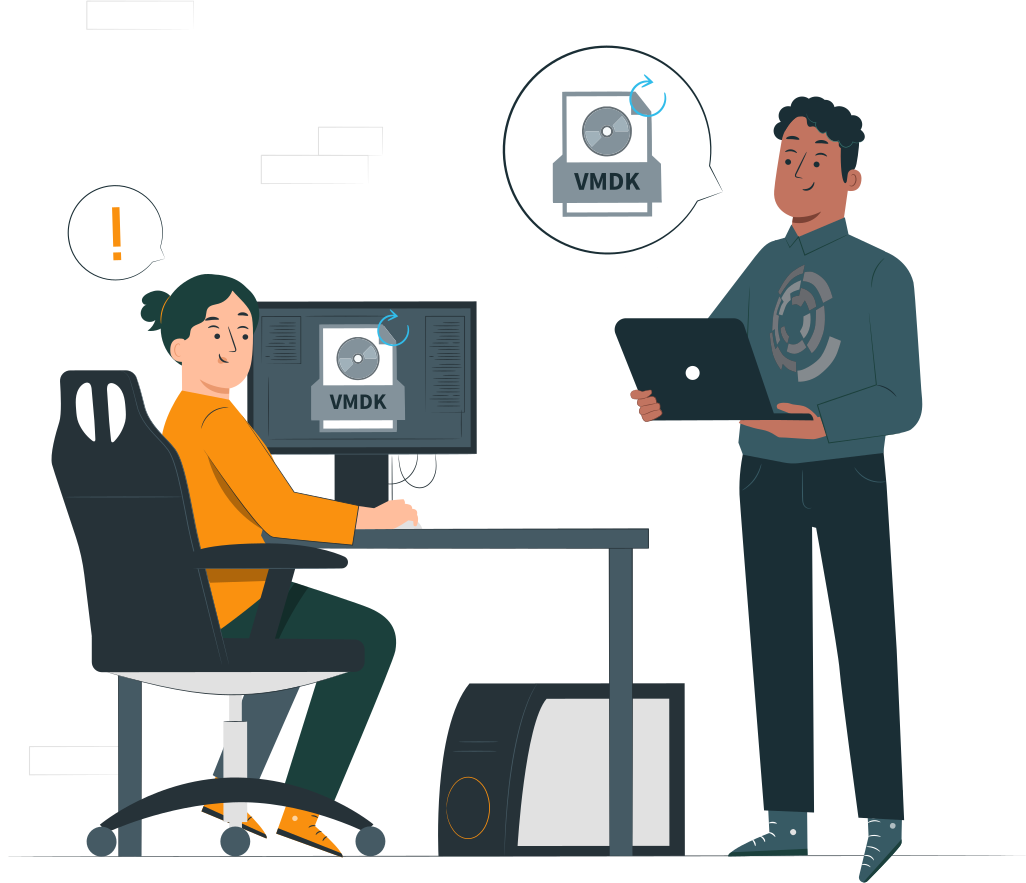
Virtual disk conversion is often necessary when moving workloads between different virtualization platforms.
- Migrating VMware VM to VirtualBox. VMware uses VMDK files, while VirtualBox prefers VDI. Converting ensures smooth operation and compatibility when moving a VM from VMware to VirtualBox.
- Moving VirtualBox VM to VMware. In reverse scenarios, converting VDI back to VMDK allows VirtualBox‑based VMs to run inside VMware environments.
- Disk format compatibility. Each hypervisor has its own optimized disk format. Conversion ensures the virtual disk is recognized and performs correctly in the target platform.
- Recovery and virtualization portability. Converting disks can help recover VMs from damaged environments or enable portability across different hypervisors, making disaster recovery and migration strategies more flexible.
VMDK vs VDI — Key Differences Before Conversion
| Feature | VMDK (VMware) | VDI (VirtualBox) |
|---|---|---|
| Native platform | VMware | VirtualBox |
| Snapshot handling | Advanced | Basic |
| Compatibility | Broad | Limited |
| Performance | Enterprise optimized | Desktop optimized |
| Use case | vSphere, ESXi | Local virtualization |
How to Convert VMDK to VDI Using VBoxManage (Primary Method)
The most reliable way to convert VMDK to VDI VirtualBox is by using the built‑in VBoxManage command‑line tool. This ensures compatibility and avoids third‑party risks.
- 1. Locate the VMDK file: Identify the VMware disk file (
.vmdk) you want to convert. - 2. Open Command Prompt / Terminal: Navigate to the VirtualBox installation directory where
VBoxManageis available. - 3. Run the conversion command. Use the following syntax:
VBoxManage clonehd "source.vmdk" "target.vdi" --format vdiReplace source.vmdk with the path to your VMware disk and target.vdi with the desired output file name.
- 4. Verify the new VDI file: After conversion, check that the
.vdifile exists and is recognized by VirtualBox. - 5. Attach the VDI to a VirtualBox VM: In VirtualBox Manager, edit the VM’s storage settings and attach the new VDI disk.
VBoxManage Command Syntax
The core command to convert VMDK to VDI VirtualBox is:
VBoxManage clonehd "source.vmdk" "target.vdi" --format vdiclonehdtells VirtualBox to clone the disk."source.vmdk"is the VMware disk file path."target.vdi"is the output VirtualBox disk file.--format vdiensures the new disk is created in VDI format.
Step‑by‑Step Conversion Process
- 1. Locate the
.vmdkfile you want to convert. - 2. Open Command Prompt (Windows) or Terminal (Linux/macOS).
- 3. Navigate to the VirtualBox installation directory (where
VBoxManageresides). - 4. Run the
clonehdcommand with correct paths. - 5. Wait for the process to complete — progress is shown in the terminal.
- 6. Attach the new
.vdifile to your VirtualBox VM via Storage Settings.
Choosing Disk Type: Dynamic vs Fixed
- Dynamic (default): The VDI file grows as data is added, saving space on the host system.
- Fixed: Allocates the full disk size immediately, offering slightly better performance.
- Best practice: Use dynamic disks for general workloads, fixed disks for performance‑sensitive or production VMs.
Verify Converted VDI Disk
- Open VirtualBox Manager and check the VM’s Storage settings.
- Ensure the new VDI file is listed under the VM’s controller (IDE/SATA).
- Boot the VM to confirm it recognizes the disk and loads the OS.
- Optionally, run a disk integrity check inside the guest OS to validate conversion success.
How to Convert VDI to VMDK for VMware
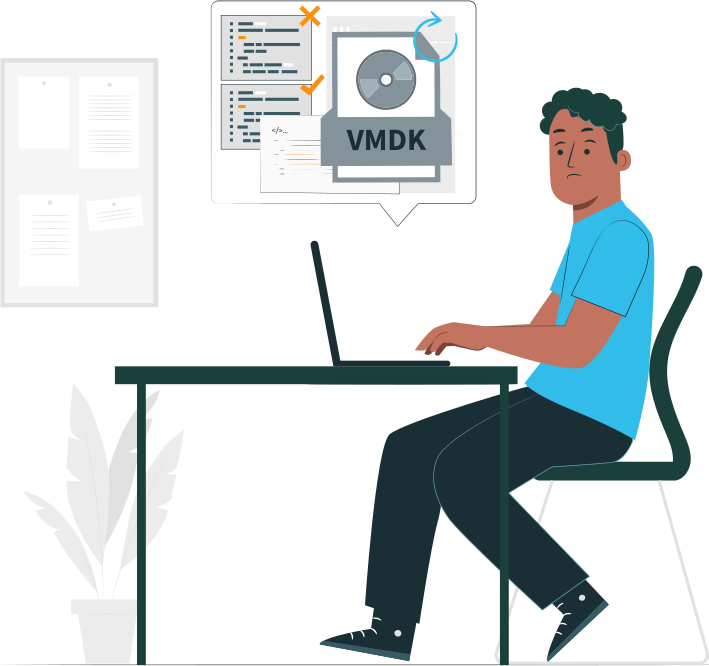
Every so often you need to move a VM from VirtualBox into VMware. Since VirtualBox uses VDI and VMware prefers VMDK, conversion ensures compatibility and smooth operation. The built‑in VBoxManage tool makes this process straightforward.
VBoxManage Clonehd Conversion Command
Use the following syntax to convert a VirtualBox VDI disk into a VMware‑compatible VMDK:
VBoxManage clonehd "source.vdi" "target.vmdk" --format vmdk"source.vdi"→ path to your VirtualBox disk"target.vmdk"→ desired VMware disk file name--format vmdk→ ensures the output is in VMware’s format
Preparing Converted Disk for VMware
- After conversion, move the new
.vmdkfile into the VMware datastore or local storage. - Create a new VM in VMware and attach the converted disk as the primary virtual hard drive.
- Ensure the VM’s hardware compatibility (CPU, memory, controllers) matches the guest OS requirements.
Controller and Boot Compatibility Fix
- VMware defaults to SCSI controllers, while VirtualBox often uses IDE/SATA.
- If the VM fails to boot, adjust the VMware VM settings to match the original controller type.
- For Linux guests, verify that the correct drivers are installed; for Windows guests, ensure the HAL and storage drivers support the new controller.
- Once aligned, the VM should boot normally with the converted VMDK.
Common Conversion Problems and How to Fix Them
Disk format conversion between VMware and VirtualBox can sometimes fail or produce unusable results. Below are the most frequent issues and their solutions.
Unsupported or Split VMDK Files
- Problem: VMware often creates split VMDK files (multiple 2GB chunks). VirtualBox’s
VBoxManagemay not handle these directly. - Fix: Use VMware’s
vmware-vdiskmanagerto consolidate split VMDKs into a single monolithic file before conversion.
Descriptor File Missing or Corrupted
- Problem: A VMDK requires a descriptor file that defines disk geometry. If missing or corrupted, conversion fails.
- Fix: Recreate the descriptor file manually or restore it from backup. Tools like
vmware-vdiskmanagercan rebuild descriptors.
Disk Geometry / UUID Errors
- Problem: Conversion may produce UUID conflicts or incorrect disk geometry, preventing VirtualBox or VMware from recognizing the disk.
- Fix: Use
VBoxManage internalcommands sethduuidto assign a new UUID. For geometry issues, recreate the disk with correct parameters and re‑attach.
VM Not Booting After Conversion
- Problem: Even after successful conversion, the VM may fail to boot due to driver or controller mismatches.
- Fix: Boot into recovery mode, ensure correct drivers are installed, and adjust VM settings to match the original environment (IDE/SATA/SCSI).
Controller Type Mismatch (IDE / SATA / SCSI)
- Problem: VirtualBox often uses IDE/SATA, while VMware defaults to SCSI. A mismatch can cause “inaccessible boot device” errors.
- Fix: In VMware, change the VM’s controller type to IDE/SATA if that matches the original VirtualBox setup. Alternatively, install SCSI drivers in the guest OS before conversion.
Advanced Conversion Scenarios
Beyond basic disk format changes, some environments require more complex conversions to handle enterprise workloads or cross‑platform migrations.
Convert Split or Snapshot VMDK Chains
- Challenge: VMware often creates split VMDKs (multiple 2GB chunks) or snapshot chains. These are not directly convertible by VirtualBox.
- Solution: Use VMware’s
vmware-vdiskmanagerto consolidate split or snapshot disks into a single monolithic VMDK before runningVBoxManage clonehd.
Convert Large Enterprise Disks
- Challenge: Enterprise VMs may use very large disks (hundreds of GBs or more), which can cause performance issues during conversion.
- Solution: Ensure sufficient free space on the host, use fixed‑size disks for predictable performance, and consider cloning to a secondary storage device to avoid bottlenecks.
Cross‑Hypervisor Migration Strategy
- Challenge: Moving workloads between VMware, VirtualBox, Hyper‑V, or other hypervisors requires careful planning.
- Solution: Standardize on intermediate formats (like VMDK or VDI), validate controller compatibility (IDE/SATA/SCSI), and test boot behavior before production rollout. For mission‑critical systems, always back up VM configuration files and virtual disks prior to conversion.
Performance and Disk Format Optimization After Conversion
Once you’ve converted virtual disks between VMware and VirtualBox, it’s important to optimize them for performance and storage efficiency.
Thin vs Thick Disk Behavior
- Thin disks grow as data is added, saving host storage space but potentially fragmenting over time.
- Thick disks allocate full size immediately, offering more predictable performance.
- Recommendation: Use thin disks for testing or flexible environments, thick disks for production workloads where performance consistency matters.
Resize and Compact Disk
- After conversion, disks may contain unused space.
- Use
VBoxManage modifyhd --resizeto expand capacity if needed. - Use
VBoxManage modifymedium --compactto reclaim unused space and shrink the disk footprint.
Optimize Controller Type
- Match the controller type (IDE, SATA, SCSI) to the guest OS and hypervisor defaults.
- VMware often prefers SCSI, while VirtualBox defaults to SATA.
- Correct controller choice reduces boot errors and improves I/O performance.
Align Partitions for Performance
- Misaligned partitions can cause inefficient disk reads/writes.
- Use OS‑level tools (like
diskpartin Windows orfdiskin Linux) to align partitions to 1MB boundaries. - Proper alignment ensures optimal performance, especially on SSDs and large enterprise disks.
Conversion vs Disk Clone vs Export — Critical Differences
| Method | Purpose | Output | Risk Level |
|---|---|---|---|
| Convert | Change disk format | VDI/VMDK | Low |
| Clone | Duplicate disk | Same format | Very low |
| Export VM | Move full VM | OVF/OVA | Medium |
Recovering Virtual Machine Files After Failed Disk Conversion
Disk conversions between VMware and VirtualBox don’t always go smoothly. When the process is interrupted or misconfigured, virtual machine files can become corrupted, deleted, or unreadable — putting critical workloads at risk.
- Conversion interrupted → damaged VMDK/VDI. An incomplete conversion may leave the disk file partially written, making it unusable in either hypervisor.
- Descriptor loss → VM disk unreadable. Missing or corrupted descriptor files prevent VMware from recognizing the disk geometry, leaving the VM inaccessible.
- Datastore corruption during migration. Network or storage instability during conversion can damage the VMFS datastore, affecting multiple VMs at once.
- Deleted VM after failed conversion. In some cases, administrators may accidentally delete VM files while attempting recovery, compounding the problem.
Professional Recovery Approach
When standard tools fail, professional recovery software is required to restore VM data before attempting disk reconstruction or VM rebuild.
DiskInternals VMFS Recovery™ restores:
- Corrupted or deleted VMDK virtual disks
- VM configuration files (VMX)
- Entire virtual machines from damaged VMFS datastores
- Data before disk reconstruction or networking rebuild
Ready to get your data back?
To start recovering your data, documents, databases, images, videos, and other files, press the FREE DOWNLOAD button below to get the latest version of DiskInternals VMFS Recovery® and begin the step-by-step recovery process. You can preview all recovered files absolutely for FREE. To check the current prices, please press the Get Prices button. If you need any assistance, please feel free to contact Technical Support. The team is here to help you get your data back!
Best Practices for Safe VMDK ↔ VDI Conversion
Virtual disk conversion is powerful but risky if not handled carefully. Following these best practices helps ensure data integrity and smooth VM operation.
Always Backup Disk Before Conversion
- Create a full backup of the source VMDK or VDI file.
- Store the backup on separate storage to protect against corruption or accidental deletion.
Consolidate Snapshots Before Converting
- VMware snapshot chains can complicate conversion.
- Use VMware tools to consolidate snapshots into a single disk before running
VBoxManage.
Verify Disk Integrity After Conversion
- Check the converted disk with VirtualBox or VMware tools.
- Boot the VM and run OS‑level disk checks to confirm no corruption.
Match Disk Controller Type
- Ensure the VM’s controller type (IDE, SATA, SCSI) matches the original environment.
- Mismatched controllers often cause boot errors or degraded performance.
Test Boot in Isolated VM
- Attach the converted disk to a test VM before production use.
- Validate boot, drivers, and application performance in a safe environment.
Conclusion — Reliable Cross‑Platform Disk Conversion Strategy
- Use VBoxManage for precise disk conversion. The built‑in VirtualBox tool ensures accurate and safe conversion between VMDK and VDI formats without relying on third‑party utilities.
- Validate disk before production use. Always test the converted disk in an isolated VM environment to confirm boot success, controller compatibility, and data integrity before deploying in production.
- Recover VM files first if disk becomes unreadable. If conversion fails or corrupts the virtual disk, use professional recovery tools (like DiskInternals VMFS Recovery™) to restore VM files before attempting reconstruction or migration.
FAQ
What is the difference between VMDK and VDI? Answer it in 5 sentences like it is FAQ answer
VMDK (Virtual Machine Disk) is VMware’s native virtual disk format, while VDI (Virtual Disk Image) is the default format used by Oracle VirtualBox. VMDK is widely supported across multiple hypervisors, making it more versatile for enterprise and cross‑platform use. VDI is optimized for VirtualBox, offering efficient storage management and features like dynamic resizing. In practice, both formats serve the same purpose — storing a VM’s operating system and data — but they differ in compatibility and performance tuning. Choosing between them depends on which virtualization platform you plan to run your virtual machines on.
Can VirtualBox open a VMDK file?
Yes, VirtualBox can open a VMDK file directly. You don’t always need to convert it to VDI — VirtualBox supports attaching VMDK disks to a VM during setup. The process involves creating a new VM in VirtualBox Manager, then selecting the existing VMDK file as the virtual hard disk. However, compatibility depends on the type of VMDK (single‑file vs. split, dynamic vs. fixed), and split/snapshot chains may require consolidation first. For best performance and reliability, many users still choose to convert VMDK to VDI, but opening VMDK directly is fully supported.
How to create a virtual machine from a VMDK file?
To create a virtual machine from a VMDK file in VirtualBox, you’ll need to attach the disk to a new VM rather than just opening the file directly. Here’s the process:
- 1. Open VirtualBox Manager and click New to create a new virtual machine.
- 2. Choose the operating system type/version that matches the VM inside the VMDK.
- 3. When prompted for a hard disk, select Use an existing virtual hard disk file.
- 4. Browse to the location of your VMDK file and attach it.
- 5. Finish the VM setup, then adjust controller type (IDE/SATA/SCSI) and other hardware settings to match the original VMware configuration for proper boot.
This allows VirtualBox to run the VM using the existing VMDK disk without needing conversion, though performance and compatibility may be better if you later convert it to VDI.