
How to recover deleted videos from a laptop
You keep a lot of valuable information on your laptop. You can take it with you anywhere and you always have access to your data. But, one false move and important files, including videos, disappear. And if you do not have a backup copy of the videos, you may be very upset.
So, how do you recover deleted videos from a laptop? you ask yourself.
Everything is not as difficult as it seems at first glance.
Deleted videos from a laptop ... How does that happen?
Often, you don’t understand why your video has been deleted. After all, you did not do anything for this to happen. Below are the main reasons for the loss of user videos that will help you figure out what really happened.

- Virus attack or video corruption by malware. This is a common problem, so make sure that your laptop has a good antivirus program installed.
- Power outages. In this case, video damage occurs when a sudden power surge occurs while the laptop is charging.
- Damaged hard drive. The approximate service life of a hard disk is three years; after this period, it may not work correctly and damage files. Videos are no exception.
- Human factors. This reason is the most common. You simply accidentally delete the video or format the disk.
- Maybe you didn’t know this, but using the command line can cut your video.
As you can see, there are a lot of reasons for video loss. But there are not so many good ways to recover deleted videos from a laptop. Do not be discouraged! There is one proven method to recover deleted videos from a laptop, which will be discussed below.
Just remember! Once your video has been deleted from the laptop, the best thing you can do is to immediately stop using the gadget. If you do use it, data will be overwritten and you will no longer have the slightest hope of recovering deleted videos from the laptop.
Photo & Video Recovery: an excellent choice for recovering deleted videos from a laptop
DiskInternals Photo & Video Recovery is a powerful software tool to recover deleted videos from a laptop. This software recognizes and extracts all video formats, including MPG, M4V, 3GP, AVI, MP4, MOV, MPEG, RM, etc.
It doesn't matter what the maker of your laptop is. It can be Dell or Lenovo, Asus or Acer, Toshiba or HP and so on.
It also doesn’t matter what your laptop has for storage: a classic hard drive disk, a fast SSD or a brand-new eMMC. Which version of Windows you have also doesn’t matter. DiskInternals Photo & Video Recovery support all versions of Windows, including 7, 8 and 10.

The program has a nice interface, and is understandable even to technically non-advanced users. Photo & Video Recovery supports file systems, such as ReFS, NTFS, NTFS5, UFS, FAT, FAT12, FAT16, FAT32, ExFAT, HFS + (Mac), Ext2, 3, and 4 (Linux), XFS and ZFS.
You can use the recovery wizard, which will do almost all the work for you. With the preview feature, you can make sure that your video has been restored and is working properly. And only then, if you are pleased with the result and want to save it, do you need to purchase a license and enter the license key.
Since the entire process in order to recover deleted videos from a laptop is automated, you can relax and have a cup of coffee.
So, let's begin! Just follow the step-by-step instructions that are described below and bring your video back!
Manual: how to retrieve deleted videos from a laptop
Step 1. Download DiskInternals Photo & Video Recovery for retrieving deleted videos from a laptop.
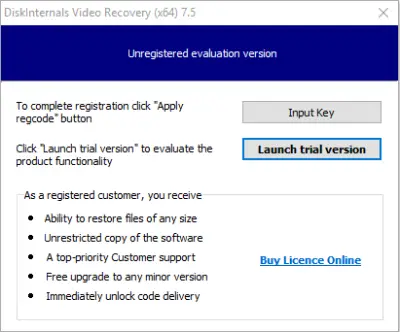
Step 2. Next, the installation program will start. You just need to press the Next button until the software is installed.
Step 3. The wizard will start automatically. Press Next.
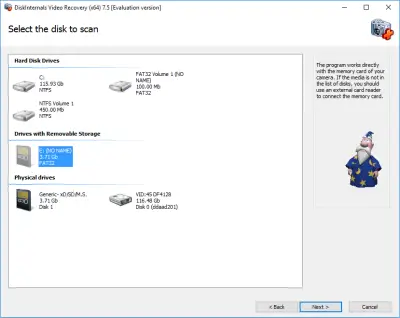
Step 4. In the new window, you will see all the storage devices that are connected to your laptop (hard drives, USB, SD card, etc.). Select the drive where your video was on.
Step 5. Next, the scanning process will begin. It will take some time. It all depends on the size of your disk.
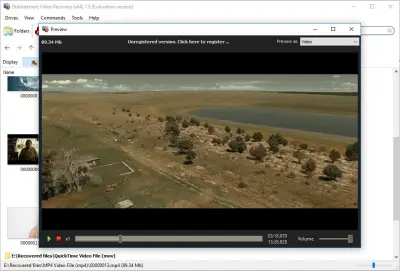
Step 6. Preview and restore. In the end, you should see files that can be recovered. Select the video you are interested in and right-click on it and select Preview. looking it over. You will be sure that you can restore it.
Note: learn how to retrieve deleted videos on Android.
Step 7. Saving. For the last step, you just need to purchase a license and enter the license key. Save the recovered video elsewhere to be sure it's safe.
That's all! DiskInternals Photo & Video Recovery will return your videos to you. All you need to do is to try it.
Good luck!
Frequently Asked Questions
- Connect the storage drive where the video was previously saved and run DiskInternals Photo & Video Recovery to get back the recorded video.
- Download and install DiskInternals Photo & Video Recovery; launch the app and follow the “Wizard” to restore your deleted media files.
- Recently deleted videos are temporarily saved in the recycle bin; simply open the recycle bin folder and get them back from there.
- There are many ways to restore a video; however, the most effective way is to use a professional Photo & Video Recovery software.
Related articles
- 4 Ways to Recover Deleted or Lost PS4 Video Games
- Adult Content Detection
- AVI Recovery: Recover AVI Files Right Now!
- How to Recover Deleted or Lost Movies
- How to recover deleted videos from Windows 7
- Mp4 Recovery: All that you need to repair Mp4 file
- Recover Deleted Videos from SD card
- Recover deleted videos YouTube
- [Solved] 4K Photo & Video Recovery and All You Need for It
- Recover .3gp Video Files Effortless!
- Video error 0xc00d36c4? Fix it today!
- The best methods on how to recover webcam videos!
- Recover FLV video files effortless and fast!
- How to perform MPG recovery? Find out it here!
- MOV vs MP4: what is more practical?
- WMV file recovery - all you need to know
- Deleted GoPro video? Recover GoPro Files Today!
- Recover MKV files: everything you need to know
- WebM file recovery - make it today!
- What is H.264 video files and how to restore it
- Recover Deleted MTS Video Files on Windows
- MXF Photo & Video Recovery: all you need to know
- If Your PS4 Won't Turn On
- How to recover files from DJI Drone
- What is an .swf file?
- What is the missing codec error 0xc00d5212?
- If you have video lagging
- How to Fix Music Video Error 0xc00d36b4 on Windows 10
- If you get Video memory management internal error
- If Audio and video going out of sync on Windows 10
- Mp4 repair: restore your favorite videos
- If you get 0xc10100be error
- How to edit your MP4 and prevent dealing harm to it?
- Workable guide on how to convert MKV to MP4?
- 0xc00d36e5 error occurs: your actions
- Windows Media Player encountered a problem while playing the file
- 0xc10100bf error occurs: your actions?
- How to extract audio from video. Top-3 services
- Convert MP3 to MP4
- Convert WebM to MP4
- Best iMovie Alternatives For Windows
- Editing MP3 files with the trimmers for Windows
- Deal with the Most Common Windows Movie Maker Problems
- Here is How to Remove Audio From Video
- How to rotate a video in Windows 10
- Here is How to Compress MOV File
- Here is How to Convert MKV Files
- Here is how to convert AVI to MP4 safely
- How to Recover TikTok Draft Videos or Deleted Videos?
- How to Recover Deleted Videos on your device [2026]
- How to Recover Deleted Videos - Best Ways [2026]