
Video error 0xc00d36c4 can be fixed today!
The error 0xc00d36c4 can happen with mp4 and avi videos. Here you will find out:
- why the 0xc00d36c4 error happens
- methods how to fix the error
- how DiskInternals Photo & Video Recovery can help you
Are you ready? Let's read!
What leads to the 0xc00d36c4 error?
An 0xc00d36c4 error is associated with the use of files in mp4 format. The user tries to open the mp4 video, but instead he sees “error code 0xc00d36c4” on the screen.
Why is this happening?
- Maybe the player is working with other video formats
- The file itself may be corrupted for some reason
- There is a problem with codecs
- The wrong file extension is being used
The reasons are clear ... But, how do you fix a 0xc00d36c4 error?
This article describes the best methods of fixing a 0xc00d36c4 error for mp4 files in Windows 10.
Method 1. Another player
Your media player may be outdated or may not support this video format. Therefore, try to play the video in another player. If possible, choose a more universal media player that is more likely to play the video.
If this method did not help fix the error code 0xc00d36c4, proceed to the next method.
Method 2. Install the missing codec
As mentioned above, the 0xc00d36c4 error may appear due to problems with codecs. But do not worry; this is an easily solvable problem. You just need to add the missing codec in any way available to you.
If you have the codec and the video file is compatible, then unfortunately this method will not be effective. But you can, fix the error code 0xc00d36c4 in other ways.
Method 3. Run the Windows Troubleshooter
The Windows Troubleshooter is a built-in feature and resolves errors like code 0xc00d36c4 quite well.
To use this function, follow these instructions: right-click the Start button and search for the “Troubleshooting” section. Under the main right panel, find and left-click "Run troubleshooter". Then just follow the instructions to complete the process.
After that, restart the computer and check if the code 0xc00d36c4 while playing the video is gone or not. If not, proceed to a more versatile and reliable method.
Method 4. Use DiskInternals Photo & Video Recovery

If you have lost the video, or it is damaged and displays a 0xc00d36c4 error, you can use DiskInternals Photo & Video Recovery to get it back.
This software is the best of its kind and has been used for many years to restore video files. The application can easily restore the following video formats: MP4, MOV, WMV, 3GP, AVI, MPEG, DIVX, etc. The place where files were lost can be anywhere: hard disks, external hard disks, SSDs, flash drivers and memory cards.
The volume of recoverable files reaches up to 1 PB; i.e., almost endless. You can use DiskInternals Photo & Video Recovery in a completely free trial version and be assured you can to recover the video. You can easily view the recovered video in the new window. The Recovery Wizard will help you at every step and in all difficult situations. Therefore, there is nothing to worry about, even for beginners! The entire recovery process is fully automated and takes little time.
Use this step-by-step guide for DiskInternals Photo & Video Recovery and very soon you will forget about the 0xc00d36c4 error for mp4 files in Windows 10 and calmly watch your videos.
Step 1. Download and install DiskInternals Photo & Video Recovery.
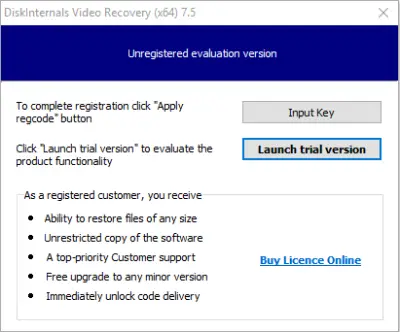
Step 2. The Recovery Wizard will load automatically; click the Next button.
Step 3. You will be prompted to select the storage device that had the video and file format that you want to restore. After that, click Next.
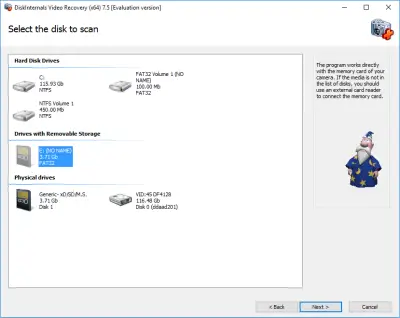
Step 4. The scan will start. Do not hurry; it will take some time.
Step 5. You will see the files that can be recovered (they are marked with a red cross in the upper left-hand corner). Select the desired file, right-click on it and select "Preview in New Window".
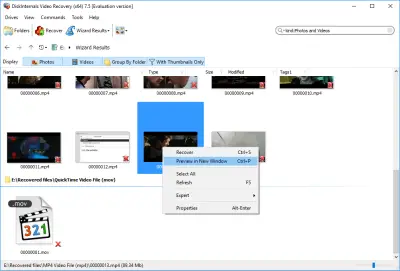
If you can view the video, you can restore it.
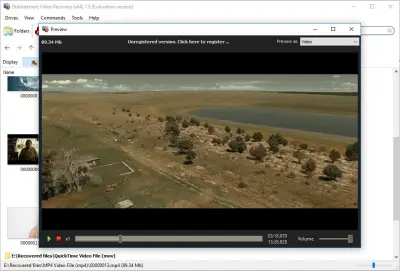
Step 6. If everything suits you, you can save the file by purchasing a license for this product and entering the license key in the appropriate window. Choose a place to save; it is desirable that it should be different from the original. This will prevent your data from being overwritten.
We hope this article was helpful to you!
Related articles
- 4 Ways to Recover Deleted or Lost PS4 Video Games
- Adult Content Detection
- AVI Recovery: Recover AVI Files Right Now!
- How to Recover Deleted or Lost Movies
- How to Recover Deleted Videos from a Laptop
- How to recover deleted videos from Windows 7
- Mp4 Recovery: All that you need to repair Mp4 file
- Recover Deleted Videos from SD card
- Recover deleted videos YouTube
- [Solved] 4K Photo & Video Recovery and All You Need for It
- Recover .3gp Video Files Effortless!
- The best methods on how to recover webcam videos!
- Recover FLV video files effortless and fast!
- How to perform MPG recovery? Find out it here!
- MOV vs MP4: what is more practical?
- WMV file recovery - all you need to know
- Deleted GoPro video? Recover GoPro Files Today!
- Recover MKV files: everything you need to know
- WebM file recovery - make it today!
- What is H.264 video files and how to restore it
- Recover Deleted MTS Video Files on Windows
- MXF Photo & Video Recovery: all you need to know
- If Your PS4 Won't Turn On
- How to recover files from DJI Drone
- What is an .swf file?
- What is the missing codec error 0xc00d5212?
- If you have video lagging
- How to Fix Music Video Error 0xc00d36b4 on Windows 10
- If you get Video memory management internal error
- If Audio and video going out of sync on Windows 10
- Mp4 repair: restore your favorite videos
- If you get 0xc10100be error
- How to edit your MP4 and prevent dealing harm to it?
- Workable guide on how to convert MKV to MP4?
- 0xc00d36e5 error occurs: your actions
- Windows Media Player encountered a problem while playing the file
- 0xc10100bf error occurs: your actions?
- How to extract audio from video. Top-3 services
- Convert MP3 to MP4
- Convert WebM to MP4
- Best iMovie Alternatives For Windows
- Editing MP3 files with the trimmers for Windows
- Deal with the Most Common Windows Movie Maker Problems
- Here is How to Remove Audio From Video
- How to rotate a video in Windows 10
- Here is How to Compress MOV File
- Here is How to Convert MKV Files
- Here is how to convert AVI to MP4 safely
- How to Recover TikTok Draft Videos or Deleted Videos?
- How to Recover Deleted Videos on your device [2026]
- How to Recover Deleted Videos - Best Ways [2026]