
What should you do in case of 0xc00d36e5 error?
Here you will find out:
- what are the causes of 0xc00d36e5 error
- how to fix this error
- how DiskInternals can help you
Are you ready? Let's read!
Causes of the 0xc00d36e5 error
Although Windows is somewhat prone to displaying several error messages, those errors don't happen without a cause. If you're faced with a 0xc00d36e5 error, below are the possible causes of the error and you can fix things up.
Causes:
- Custom settings,
- Insufficient power supply,
- Corrupt registry entries,
- Third-party app conflicts,
- Missing codecs.
How to fix 0xc00d36e5 error
Here are few methods that can be helpful and any of them can be your solution.
Method 1: Use VLC Media Player
The VLC media player is a renowned software app for playing back audio and video files of any format. If your video failed to play on Windows default media player, try using VLC to play the video. Interestingly VLC is entirely free to use and it supports a lot of codecs; plus, the interface is simple and friendly.
Method 2: Play the video in Safe Mode
Another way to troubleshoot the 0xc00d36e5 error is to playback the troublesome video in "Safe Mode." follow the steps below to quickly boot to safe mode on Windows 10.
- Press Windows key + I to launch the Windows Settings page,
- Click on Update & Security and then “Recovery”,
- Now, click on the “Restart Now” button under "Advanced Startup”,
- You will presented by a “Choose an Option” screen, go to Troubleshoot >>> Advanced options >>> Startup Settings >>> Restart,
- Select the option to “Save Repaired Files”,
- Now your PC will start the rebooting process; however, be fast enough to press 4 or F4 key to boot into Safe Mode.
When in safe mode, try playing the video again; if it played while you're in safe mode, then the issue is with your drivers - you need to update them.
Method 3: Run DISM command and SFC scan
The SFC and DISM commands have helped quite many Windows PC users to fix issues with their computers. Both commands are built into Windows OS, and they run through the command line.
Steps:
- Right-click on the “Start/Windows” icon on the taskbar and open “Command Prompt (Admin)”,
- Type the following command when the command interface comes on: SFC /scannow,
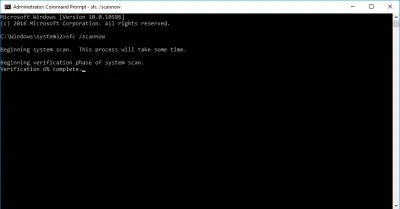
- Wait for the command to run completely,
- Close the command prompt and open it,
- Run this second command: DISM /Online /Cleanup-Image /RestoreHealth,
- Wait for the command to run completely,
- Close the command prompt and restart the PC normally.
Method 4: Use Photo & Video Recovery software tool
When you've tried and none of the methods above worked for you, then you should try using Photo & Video Recovery software. Interestingly, the DiskInternals Photo & Video Recovery software is a powerful tool that helps to recover corrupt or deleted video files. This software is efficient, easy to use, and supports a bunch of handy features.
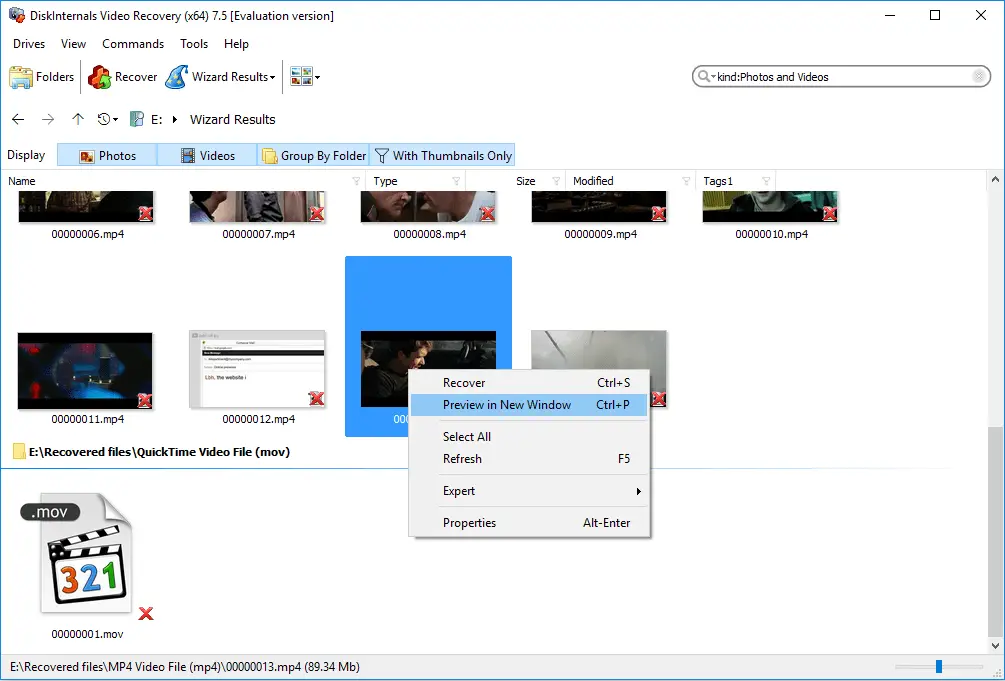
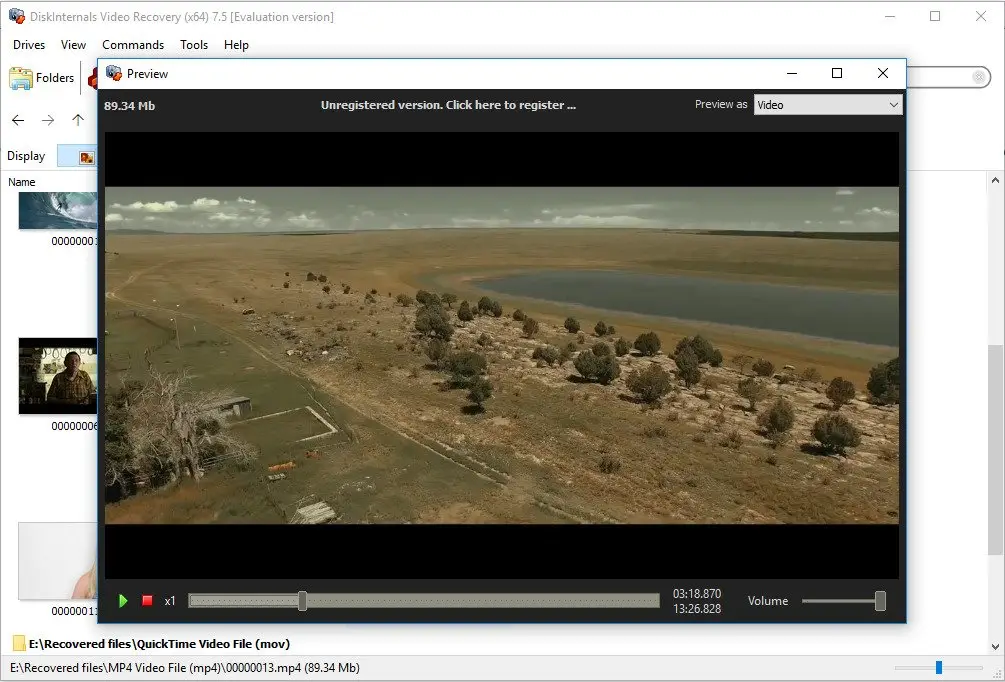
It goes on to support cameras such as Sony, Canon, Nikon, GoPro, etc., and file systems such as NTFS, FAT, exFAT, ReFS, Ext2/3/4, etc. Also, DiskInternals Photo & Video Recovery supports video codecs for different video types, including 3GP, MPEG, AVI, MOV, MP4, WMV, etc. This software is versatile and can recover virtually any video file, irrespective of how the file was lost.
Related articles
- 4 Ways to Recover Deleted or Lost PS4 Video Games
- Adult Content Detection
- AVI Recovery: Recover AVI Files Right Now!
- How to Recover Deleted or Lost Movies
- How to Recover Deleted Videos from a Laptop
- How to recover deleted videos from Windows 7
- Mp4 Recovery: All that you need to repair Mp4 file
- Recover Deleted Videos from SD card
- Recover deleted videos YouTube
- [Solved] 4K Photo & Video Recovery and All You Need for It
- Recover .3gp Video Files Effortless!
- Video error 0xc00d36c4? Fix it today!
- The best methods on how to recover webcam videos!
- Recover FLV video files effortless and fast!
- How to perform MPG recovery? Find out it here!
- MOV vs MP4: what is more practical?
- WMV file recovery - all you need to know
- Deleted GoPro video? Recover GoPro Files Today!
- Recover MKV files: everything you need to know
- WebM file recovery - make it today!
- What is H.264 video files and how to restore it
- Recover Deleted MTS Video Files on Windows
- MXF Photo & Video Recovery: all you need to know
- If Your PS4 Won't Turn On
- How to recover files from DJI Drone
- What is an .swf file?
- What is the missing codec error 0xc00d5212?
- If you have video lagging
- How to Fix Music Video Error 0xc00d36b4 on Windows 10
- If you get Video memory management internal error
- If Audio and video going out of sync on Windows 10
- Mp4 repair: restore your favorite videos
- If you get 0xc10100be error
- How to edit your MP4 and prevent dealing harm to it?
- Workable guide on how to convert MKV to MP4?
- Windows Media Player encountered a problem while playing the file
- 0xc10100bf error occurs: your actions?
- How to extract audio from video. Top-3 services
- Convert MP3 to MP4
- Convert WebM to MP4
- Best iMovie Alternatives For Windows
- Editing MP3 files with the trimmers for Windows
- Deal with the Most Common Windows Movie Maker Problems
- Here is How to Remove Audio From Video
- How to rotate a video in Windows 10
- Here is How to Compress MOV File
- Here is How to Convert MKV Files
- Here is how to convert AVI to MP4 safely
- How to Recover TikTok Draft Videos or Deleted Videos?
- How to Recover Deleted Videos on your device [2026]
- How to Recover Deleted Videos - Best Ways [2026]