
How to Convert WebM to MP4
Here you will find out:
- how to convert WebM to MP4
- how DiskInternals can help you
Are you ready? Let's read!
The best way to recover MP3 and any other video format is to use dedicated software like DiskInternals Video Recovery. Video and audio loss can occur not only during WebM to MP4 conversion, it can also happen as a result of system errors, virus attacks, hardware problems, etc.
This professional software tool will help you recover video files quickly and automatically, even if you are new to the business. Use a free trial of DiskInternals Video Recovery before purchasing a license for this software. Thus, before purchasing, you will see all the benefits of this application and be sure that it is exactly what you need in this situation. You can use the preview function and see the video file before recovery; you will also notice the amazing sound quality.
For clarity, use the instructions below to make the application easier and more intuitive to work with.
Step 1. Download and run DiskInternals Video Recovery (you can use the free version).
Step 2. In a new window, you will see all storage devices that are present and connected to your computer. Select the drive containing your lost or deleted MP3 / MP4 and other files and click Next.
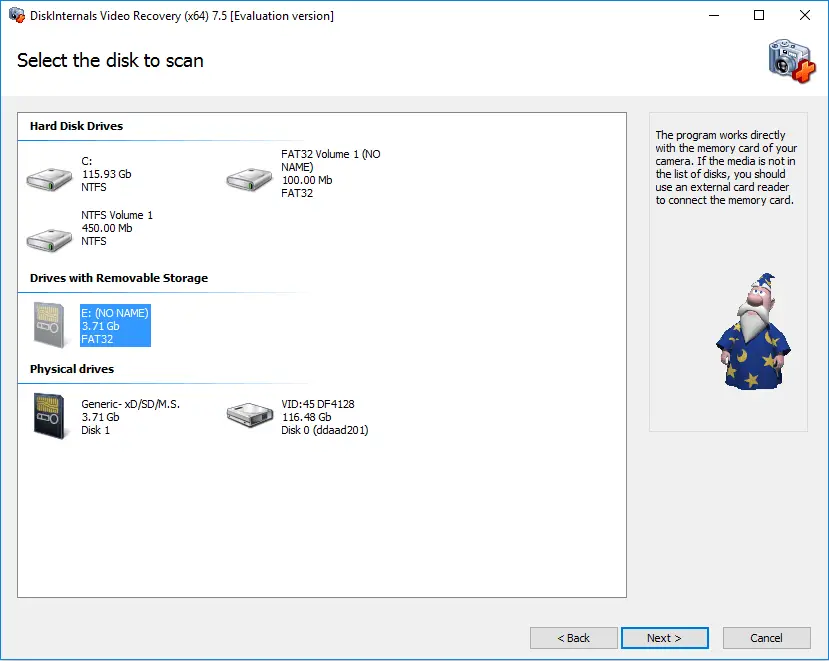
Step 2.1. Select the type of files you want to recover and click Next.
Step 3. Scan. Select the scanning method: Fast or Full (recommended) and wait for the process to complete.
Step 4. Preview and recover lost video files. Right-click on the file and select Preview in New Window or press the hotkey combination Ctrl + P. After viewing the files, you can recover them automatically.
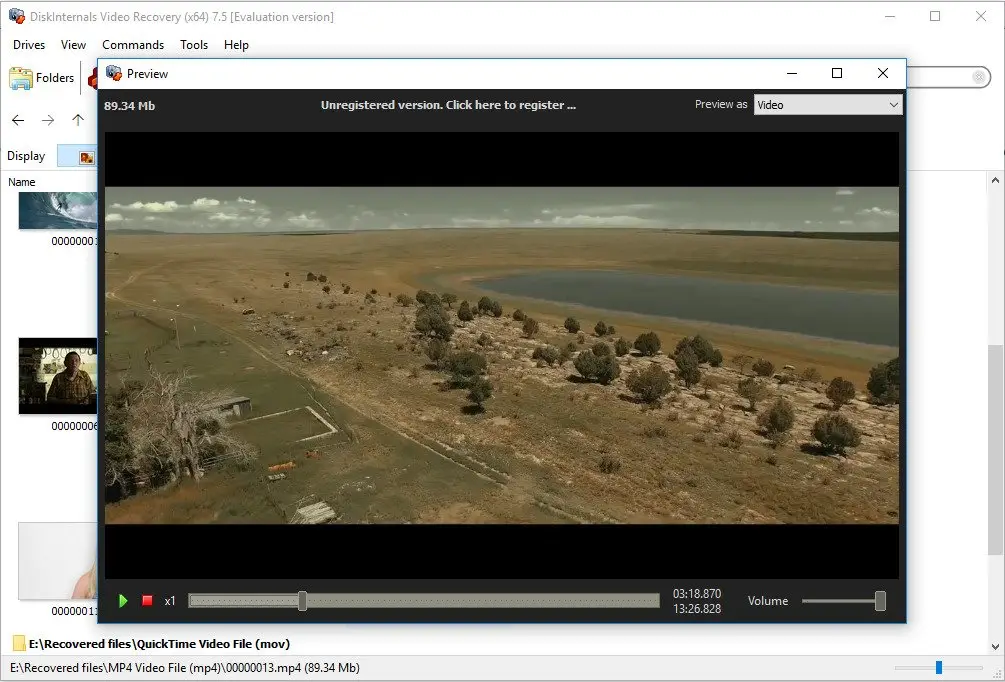
Step 5. Saving. You just need to purchase a license and choose a location to save the recovered files. It is best to store the video somewhere safe to prevent data overwriting.
Top 5 Recommended Apps:
1. WinX HD Video Converter
WinX HD Video Converter Deluxe is software that provides conversion of Web to MP4. In addition, the program also works with other formats. In addition, the converter also offers video editing functions:
- Crop/combine videos,
- Add subtitles in .srt, .ssa format to your videos.
In addition, you can take advantage of other useful features:
- Optimization video for mobile devices and online sharing,
- Compatible with 4K video from different sources,
- Available on Mac and PC.
2. Wondershare UniConverter
Wondershare UniConverter is a WebM to MP4 converter with lossless video conversion technology.
You can also do video editing here, namely, add subtitles, crop videos, add additional effects and adjust sound, compress your videos, and change compression settings. Wondershare UniConverter uses converting and burning DVDs and offers the ability to download videos from over 10,000 sites.
3. Converter365
Converter365 is a converter available online on the Internet. Therefore, you do not need to download and install anything on your computer. Just drag the video file into the selected area and click on the Start Conversion button. After a few minutes, you can get the MP4 file, then you can download the file to your computer.
4. Use CloudConverter
CloudConverter is also an online convert WebM application. It's easy to use and requires only a few clicks from you. That is, you need to select the file WebM you want to convert, change the conversion options (it is recommended to set it by default), and just wait for the conversion process to complete. Downloading the converted file to your computer is no longer difficult.
5. Online Convert
This online application is available for Mac and Windows 10. You need to click Select Files or enter the URL of the WebM file.
After changing the settings of the video (this is not necessary, you can leave everything as it is), click Start converting and wait for the conversion to complete.