How to fix Video memory management internal error
Here you will find out:
- what “Video memory management internal error” is
- how to fix this problem
- how DiskInternals can help you
Are you ready? Let's read!
What is “Video memory management internal error” and why does it occur?
It’s common to see many different kinds of errors on a Windows 10 computer. The video memory management internal error, with error code 0x0000010E, is a “Blue Screen of Death” error that implies your video memory manager isn’t responding or functioning as it’s supposed to.
Quite a lot of things are liable to cause this error. Some possible reasons you may see this error include missing DLL files, which might be as a result of a malware attack on your PC, or conflicting drivers/programs. However, irrespective of the cause, there are ways to troubleshoot and fix this error.
How to fix this error
Method 1: Run an automatic or manual driver update
Outdated drivers often can lead to this error; in fact, outdated drivers can cause several Windows errors. Thus, an automatic or manual driver update might fix the video memory management internal error on Windows 10.
- Press Windows Key + R and type “devmgmt.msc” in the RUN box.
- On the Device Manager page, look out for drivers that are showing a “Caution” exclamation sign or go to your video driver(s).
- Right-click on the drivers and select “Update Driver Software” or “Disable” or “Uninstall”.
When you uninstall a driver, it will be automatically reinstalled when you restart the computer.
To set your drivers to automatically update, follow the steps below:
- Go to Control Panel >> Hardware and Sound >> Devices and Printers./li>
- Right-click on your computer.
- Select “Device Installation Settings” from the context menu.
- Activate the “Automatic driver download” option.
- Save your changes.
Method 2: Use Compatibility Mode to run the application
Compatibility Mode sometimes helps out with this error. Using it is quite easy.
- Right-click on the software you wanted to open before getting the video memory management internal error./li>
- Select “Properties” from the context menu.
- Navigate to the “Compatibility” tab.
- Click the checkbox next to “Run this program in compatibility mode for”.
- Select “Windows 10” and then click “Apply/OK” to save your settings.
Rerun the software again and check if you still get the error.
Method 3: Use the system file checker
When some of your PC’s system files are missing, corrupted, or deleted, it could lead to the video memory management internal error (0x0000010E). Thus, you should try running Windows built-in system file checker utility to troubleshoot and fix this error.
- Right-click on “Start” and select “Command Prompt (Admin)”./li>
- In the terminal, type “SFC / scannow” and press the Enter key.
- This scan can take up to 15 minutes or more; wait until it is completed.
- If the scan detects some errors with your system files, the errors will be automatically fixed.
- Restart the computer afterward.
Method 4: Recover video drivers
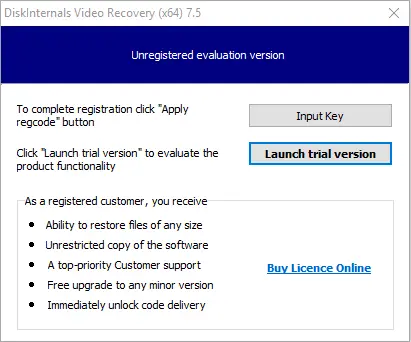
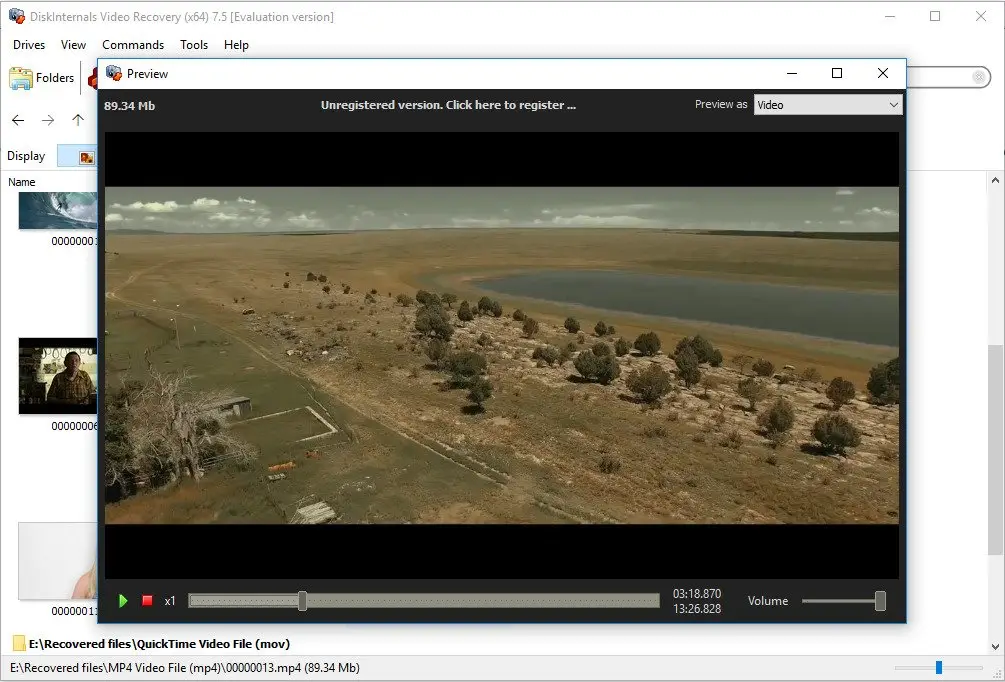
Error 0x0000010E can occur due to corrupted video drivers, and this can be fixed using reliable video recovery software. DiskInternals Video Recovery is a formidable video file recovery solution, with extensive features and a clean interface.
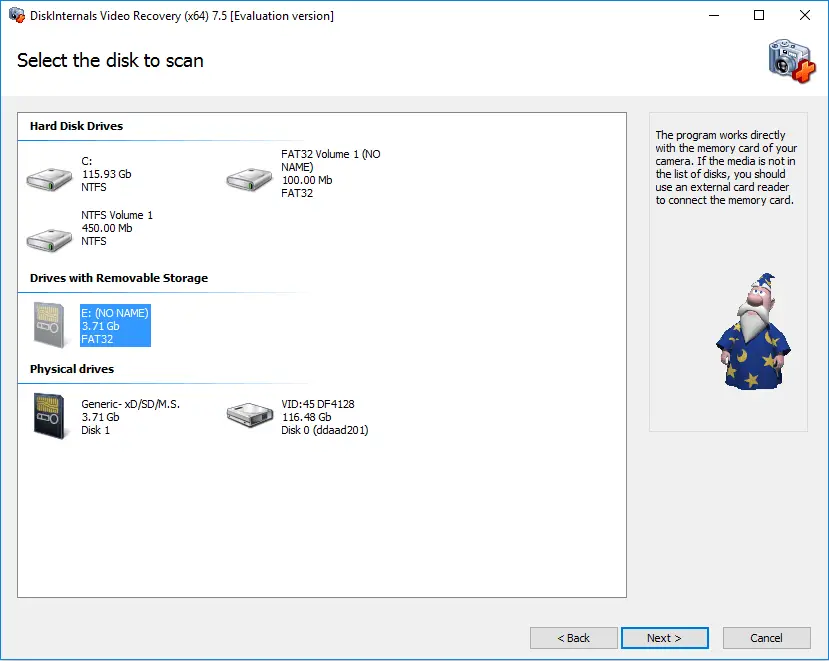
With support for virtually all Windows file systems, various storage devices, different video codecs, and many more features, DiskInternals Video Recovery is the one-stop solution for fixing the video memory management internal error in Windows 10. It has a built-in recovery wizard, making the app easy to use.
Also, DiskInternals Video Recovery works at a very fast speed and recovers your video driver/files in four (4) simple steps.