
Best MP3 Trimmers For Windows
Here you will find out:
- best MP3 trimmers for Windows
- how DiskInternals can help you
Are you ready? Let's read!
Make Sure Your MP3 Files Are Safe
The best way to recover MP3s is to use special software like DiskInternals Video Recovery. This professional software tool can help you quickly and automatically recover MP3 files and other audio and video files even if you are new to the business
Use a free trial version of this product before purchasing a license for this software. Thus, before purchasing, you will see all the benefits of DiskInternals Video Recovery and be sure that it is exactly what you need in your situation. You can also use the preview function and listen to the track before restoring; you will also have amazing sound quality.
For clarity, use the instructions below:
Step 1. Download and run DiskInternals Video Recovery (you can use the free version).
Step 2. In a new window, you will see all the storage devices on your computer. Select the drive that contains your lost or deleted MP3 files. Then click the Next button.
Step 2.1. Select the type of files you want to recover. (in this case, MP3 files). Click Next.
Step 3. Scan. Select the scanning method: fast or full (recommended). Wait for the process to complete.
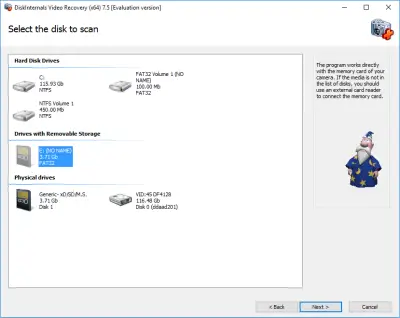
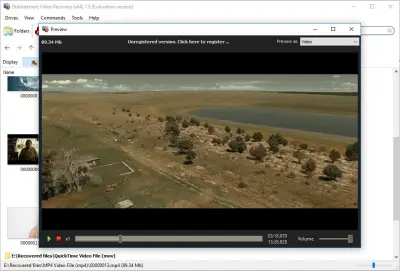
Step 4. Preview and recover lost MP3 files. Right-click on the file and select "Preview in new window" (you can also just press the hotkey combination "Ctrl + P"). After viewing the files, you can restore them. This process is automatic.
Step 5. Save. You just need to purchase a license and enter the license key in the corresponding window. Next, select a location to save the recovered files. It is best to store your data somewhere safe to prevent data overwriting.
Best MP3 trimmers for Windows
Audacity
Trim MP3 files using the free software Audacity, which is available for Windows. Plus, you can trim audio files from video and edit multitrack audio files with ease. This tool also has a built-in audio recorder, so there is no point in spending money on professional software. Audacity suggests using a noise removal tool. You just need to aim the instrument at the noise present in the audio file, then remove the background noise from the video and audio files.
You can trim video files using Audacity in a few steps:
- 1. Import audio files into Audacity.
- 2. Select the part of the audio file that you want to cut and use the keyboard shortcut Ctrl + K to cut or Ctrl + D to delete part of the audio files.
Then you can play the trimmed audio file and save it to your computer.
MP3Cut
MP3Cut is an online trimmer suitable for both Windows and Mac.
A simple and user-friendly interface will help you seamlessly trim MP3 files, add fade effects, change length, edit online files and convert to another file format, etc. It also provides the option to download a video file and extract audio from video. However, MP3Cut does not allow you to remove part of the image, which in some cases may be extremely necessary.
You just need to load the uploaded audio file, then you will be offered a preview of the audio file with waveforms. Use special sliders to mark the exact timestamps and select the export format (MP3, M4A, M4R, FLAC and WAV). That's all you need to do to cut MP3s with MP3Cut.
Related articles
- The best methods on how to recover webcam videos!
- How to recover files from DJI Drone
- How to Fix Music Video Error 0xc00d36b4 on Windows 10
- [Solved] 4K Video Recovery and All You Need for It
- Recover .3gp Video Files Effortless!
- How to Recover Deleted Videos on your device [2026]
- How to Recover Deleted Videos - Best Ways [2026]
- How to Recover Deleted Videos from a Laptop
- Deleted GoPro video? Recover GoPro Files Today!
- Recover deleted videos YouTube
- How to recover deleted videos from Windows 7
- Mp4 repair: restore your favorite videos
- What is H.264 video files and how to restore it
- If Audio and video going out of sync on Windows 10
- Recover Deleted Videos from SD card
- MXF video recovery: all you need to know
- How to Recover TikTok Draft Videos or Deleted Videos?
- Adult Content Detection
- Recover MKV files: everything you need to know
- WebM file recovery - make it today!
- How to Recover Deleted or Lost Movies
- Recover FLV video files effortless and fast!
- Recover Deleted MTS Video Files on Windows
- 4 Ways to Recover Deleted or Lost PS4 Video Games
- What is an .swf file?
- If you have video lagging
- Here is How to Remove Audio From Video
- Deal with the Most Common Windows Movie Maker Problems
- What is the missing codec error 0xc00d5212?
- Workable guide on how to convert MKV to MP4?
- How to extract audio from video. Top-3 services
- Here is How to Compress MOV File
- Here is How to Convert MKV Files
- How to edit your MP4 and prevent dealing harm to it?
- Convert MP3 to MP4
- Here is how to convert AVI to MP4 safely
- 0xc10100bf error occurs: your actions?
- If you get 0xc10100be error
- WMV file recovery - all you need to know
- If you get Video memory management internal error
- Windows Media Player encountered a problem while playing the file
- Convert WebM to MP4
- How to rotate a video in Windows 10
- Video error 0xc00d36c4? Fix it today!
- How to perform MPG recovery? Find out it here!
- MOV vs MP4: what is more practical?
- If Your PS4 Won't Turn On
- 0xc00d36e5 error occurs: your actions
- Best iMovie Alternatives For Windows
- AVI Recovery: Recover AVI Files Right Now!
- Mp4 Recovery: All that you need to repair Mp4 file