
Recover Deleted Videos from SD card
Nowadays, people shoot events in their daily life more and more often. It is pretty easy to do having a smartphone, tablet, digital camera, or camcorder at hand. But what do they have in common?
An SD card.
What if you accidentally have deleted the video from the SD card, format it or a virus damages the video?
Maybe a sudden system shutdown may occur during video transmission. But the video is gone...
Are wondering: How do I recover deleted videos from an SD card?
Here are your answers!
SD card “tips” you want to know
Before you start to recover deleted videos on an SD card, make sure that your card is not write-protected.
If you can read video files on an SD card, but cannot view or save them, then probably your SD card is write-protected. In this case, on the left side of the SD card, slide the switch up to unlock it. That’s it! This action will disable write protection.
Now you don’t need to recover deleted videos from a memory card, because your video isn’t lost or deleted. And you can play videos from an SD card or copy and move it to your computer — anything you want.
Doesn’t help?
Check the card reader. A faulty card reader may be the reason why you can’t get access to your video on an SD card. Change the card reader or computer (if there is a chance to do it) and try using another SD card in order to check if the card reader is working.
The video still doesn’t load? Try reinstalling the driver. You can do it in the Control Panel of your computer. Select “Device Manager” ->“Disk Drives” and right-click on the name of your memory card.
In the end, disconnect the SD card, reboot the system and reconnect the card. The computer must recognize it. Open the SD card and try to retrieve videos from the SD card.
P.S.: After accidentally deleting the video, stop using the memory card. Otherwise, new data will overwrite old data and Photo & Video Recovery will be impossible.
SD card Photo & Video Recovery is possible!
However, sometimes even after the above actions, it is not possible retrieve videos from an SD card. And again you are wondering: how to recover videos from an SD card?

Don’t worry, it is still possible! To do this, you need to use special software for Photo & Video Recovery from an SD card.
DiskInternals Photo & Video Recovery™ will be the best choice for you. These programs are powerful enough to recover deleted videos from an SD card, regardless of whether they are deleted, formatted, damaged, lost or just inaccessible. This software tool provides recovery of videos and photos from different types of memory cards: SD cards, SDHC, SDXC, Mini SD cards, and also Micro SD cards.
For SD card Photo & Video Recovery, DiskInternals Photo & Video Recovery™ has almost all known video codecs; that is why it is the preferred choice for you.
Simply connect the SD card to your PC. Download DiskInternals Photo & Video Recovery™ in a trial version. Launch to begin SD card Photo & Video Recovery on your computer and follow the built-in Wizard step-by-step. And you will see that recovering deleted videos from an SD card is not so difficult.
Guide: How to recover videos from an SD card using DiskInternals Photo & Video Recovery™
Step 1. Launch DiskInternals software.
For that, you can use a trial version of DiskInternals Photo & Video Recovery™.
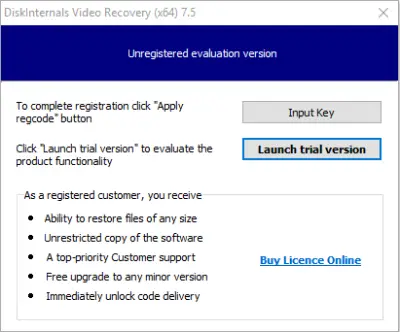
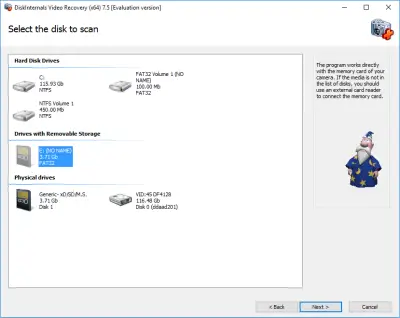
Step 2. Select drive or folder.
Automatically, the Wizard will start and ask you to select the disk or folder where your data was lost.
Step 3. Scanning
The scanning process may take a while. It depends on the driver size, so be patient. Have a cup of coffee and wait till the Wizard completes the search for deleted and lost files, like videos and others.
Step 4. Preview and select files for SD card Photo & Video Recovery.
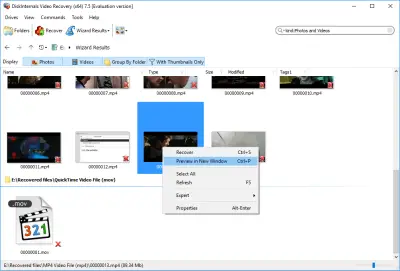
Select the video files you want to recover. Right-click on that video and choose “Preview”.
Now, when you know that your video can be restored, you need to purchase a license and enter the license key to save the video on your computer. Click on the red cross named “Recover” and save the found videos in a new place (not in the drive/folder where you were scanning) on your PC or other secure external storage device.
Good luck!
Frequently Asked Questions
- Connect the SD card to your computer and launch DiskInternals Photo & Video Recovery. Select the SD card when the Recovery Wizard comes on and scan for the lost videos.
- Some Android devices have a "Trash" or "Bin" folder where it stores deleted media. You can simply open these apps and restore your videos.
- If the videos were saved in your SD card storage, connect the SD card to a computer and launch DiskInternals Photo & Video Recovery to get back your videos.
- Open DiskInternals Photo & Video Recovery, select the SD card, and scan for the deleted/corrupted video files. You can preview the files before restoring them.
Related articles
- 4 Ways to Recover Deleted or Lost PS4 Video Games
- Adult Content Detection
- AVI Recovery: Recover AVI Files Right Now!
- How to Recover Deleted or Lost Movies
- How to Recover Deleted Videos from a Laptop
- How to recover deleted videos from Windows 7
- Mp4 Recovery: All that you need to repair Mp4 file
- Recover deleted videos YouTube
- [Solved] 4K Photo & Video Recovery and All You Need for It
- Recover .3gp Video Files Effortless!
- Video error 0xc00d36c4? Fix it today!
- The best methods on how to recover webcam videos!
- Recover FLV video files effortless and fast!
- How to perform MPG recovery? Find out it here!
- MOV vs MP4: what is more practical?
- WMV file recovery - all you need to know
- Deleted GoPro video? Recover GoPro Files Today!
- Recover MKV files: everything you need to know
- WebM file recovery - make it today!
- What is H.264 video files and how to restore it
- Recover Deleted MTS Video Files on Windows
- MXF Photo & Video Recovery: all you need to know
- If Your PS4 Won't Turn On
- How to recover files from DJI Drone
- What is an .swf file?
- What is the missing codec error 0xc00d5212?
- If you have video lagging
- How to Fix Music Video Error 0xc00d36b4 on Windows 10
- If you get Video memory management internal error
- If Audio and video going out of sync on Windows 10
- Mp4 repair: restore your favorite videos
- If you get 0xc10100be error
- How to edit your MP4 and prevent dealing harm to it?
- Workable guide on how to convert MKV to MP4?
- 0xc00d36e5 error occurs: your actions
- Windows Media Player encountered a problem while playing the file
- 0xc10100bf error occurs: your actions?
- How to extract audio from video. Top-3 services
- Convert MP3 to MP4
- Convert WebM to MP4
- Best iMovie Alternatives For Windows
- Editing MP3 files with the trimmers for Windows
- Deal with the Most Common Windows Movie Maker Problems
- Here is How to Remove Audio From Video
- How to rotate a video in Windows 10
- Here is How to Compress MOV File
- Here is How to Convert MKV Files
- Here is how to convert AVI to MP4 safely
- How to Recover TikTok Draft Videos or Deleted Videos?
- How to Recover Deleted Videos on your device [2026]
- How to Recover Deleted Videos - Best Ways [2026]