
4k Photo & Video Recovery
This article is dedicated to 4k video and its recovery. Here you will find out:
- why 4k video becomes so popular
- the best advice for 4k Photo & Video Recovery
- the best recovery software for 4k and other video types
Are you ready to restore lost 4k video? Let's read!
4k video files introduction:

Nowadays, the 4K video format is quite popular because of its high picture quality. There are two standard resolutions: 4096 x 2160 pixels (most often used to create movies and YouTube videos) and 3840 x 2160 pixels (used on television and monitors). The 4K video format, in other words, is high-definition video and four times better than 1080p HD.
But still it is a video and it is saved on storage media like a computer’s hard drive or external SSD like any other file. So if you suddenly lose a 4k video due to accidental deletion, formatting, virus attacks, etc., you will be very upset.
But do not worry; this article describes the best way for 4k Photo & Video Recovery without any loss in quality.
The best advice for 4k Photo & Video Recovery:
Loss of 4k video can happen on absolutely any type of media: SD memory cards, internal hard drives, external SSDs, USB drives, etc. Therefore, pay attention to the following tips that will help you for 4k Photo & Video Recovery in the future.
- 1. Never install software to recover deleted 4k videos in the same place as the deleted file (for example, if the video was lost on logical drive D, install the recovery program on partition E).
- 2. Never restore 4k video (or any others) in the place where it was lost (in the example above, save the restored video file on partition E).
- 3. 4k Photo & Video Recovery should happen as soon as possible.
If you continue to use the storage where the video was lost, you have a very high chance of overwriting it. It is not always possible to avoid using a storage device: it is easy when the video is small and kept on an SD card or an external hard drive. But it is harder to not use your work computer with only one partition (as is popular on eMMC drives).
If you neglect even one of these tips, then most likely the new data will overwrite the old and it will be almost impossible to recover 4k video even in the most reliable ways.
Now that you know all the details in this matter, you need to choose good software to recover lost 4k videos.
The best software for 4k Photo & Video Recovery

If you have lost a 4k video, use DiskInternals Photo & Video Recovery. This software restores video files without loss of image quality, even for 4k videos. You might ask, what is in this software that is worth paying money for?
Well, you don’t need to pay anything right away. You can easily use a completely free, full-featured trial version of DiskInternals Photo & Video Recovery. In this case, with the Preview feature, you will be assured that your video will be restored with the original level of quality. Another bonus is the presence of a built-in recovery wizard, which is good if you have never done restoration before.
In any case, you can contact our support and figure out any difficulties you are facing.
This software features:
- Support for all file systems: FAT12, NTFS, NTFS5, UFS, XFS, FAT16, ExFAT, FAT32, VFAT, ReFS, etc.
- No limit to the amount of recoverable data.
- Works with Windows 7, 8, 10 and newer versions.
- Recovers videos regardless of file type. There is no need to select the video format; after recovery is done, you can browse for all desired video files.
Use these step-by-step instructions for DiskInternals Photo & Video Recovery, and very soon you will see your deleted 4k video.
Guide on how to recover deleted/lost 4k video
Step 1. Download and install DiskInternals Photo & Video Recovery.
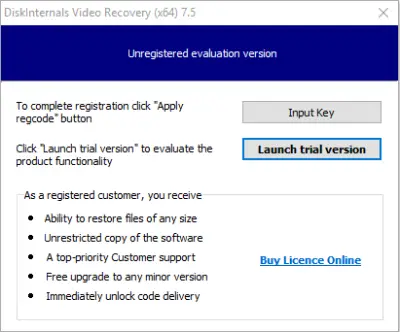
Step 2. The recovery wizard will start automatically.
Step 3. Select the storage where you want to restore video file.
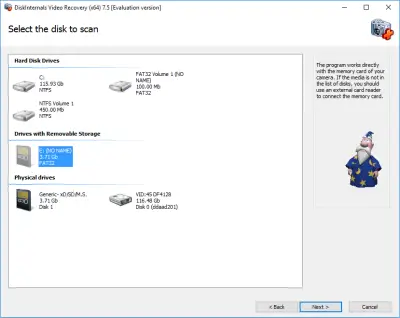
Step 4. Scan the disk. Select scan mode: fast or full. It is recommended to choose the last option, although it will take more time, but you will have more of a chance to find what you need. Then wait for the process to be completed.
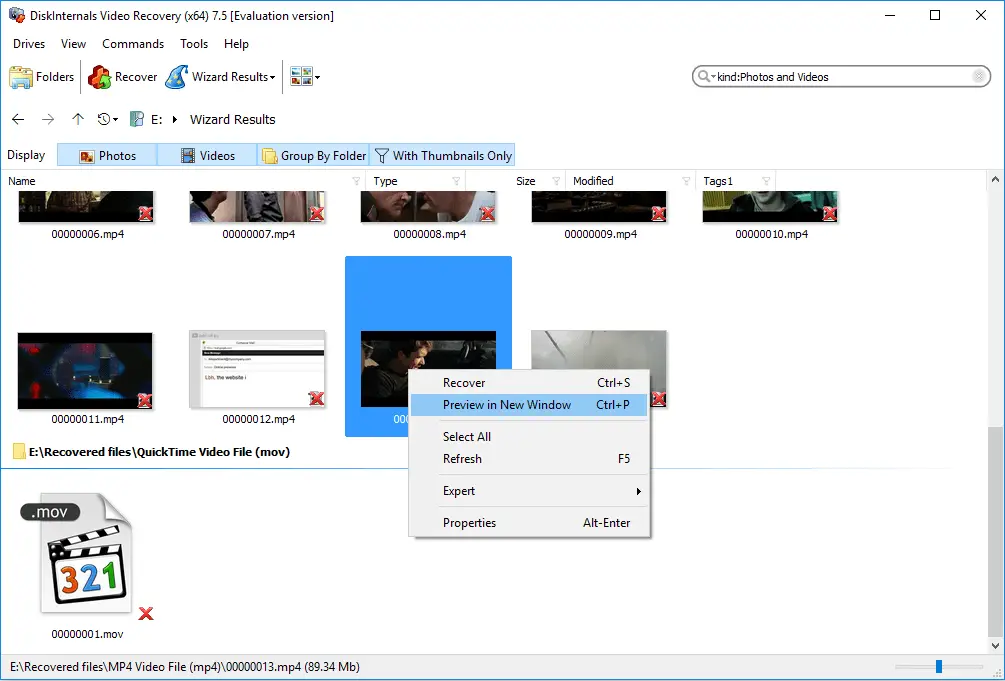
Step 5. Preview and restore. After scanning, you will see files that can be recovered. (They will be indicated by a red cross in the lower right-hand corner.) Right-click on your video and select "Preview in a new window." Recovery will occur automatically.
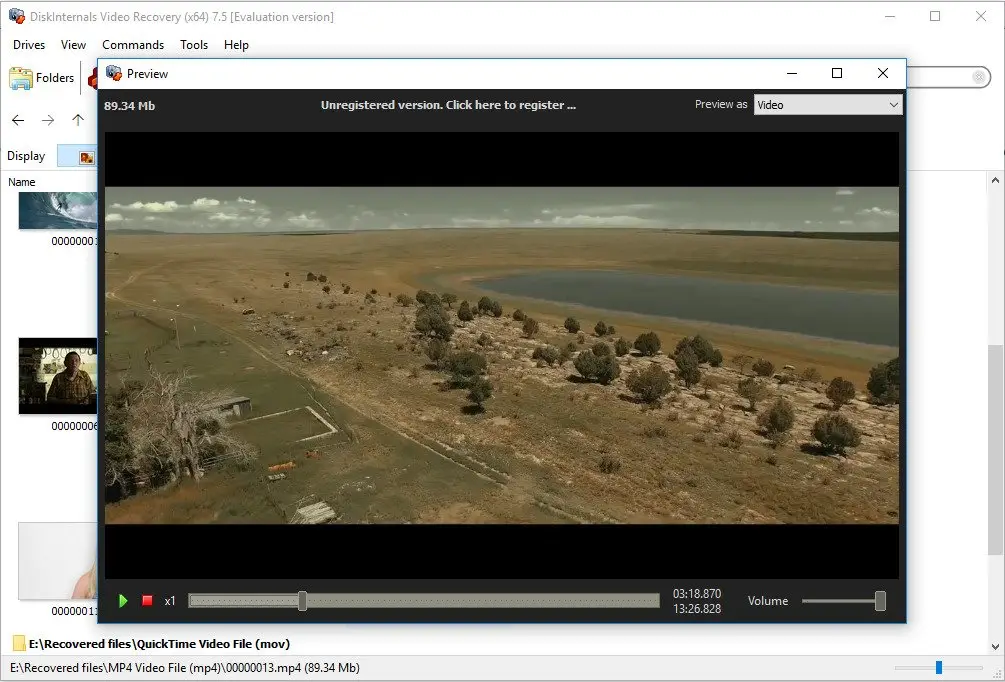
Step 6. Saving. To do this, you just need to purchase a license and enter the license key in the appropriate window.
Remember: do not save recovered videos in the same place where they were lost.
Good luck!
Related articles
- 4 Ways to Recover Deleted or Lost PS4 Video Games
- Adult Content Detection
- AVI Recovery: Recover AVI Files Right Now!
- How to Recover Deleted or Lost Movies
- How to Recover Deleted Videos from a Laptop
- How to recover deleted videos from Windows 7
- Mp4 Recovery: All that you need to repair Mp4 file
- Recover Deleted Videos from SD card
- Recover deleted videos YouTube
- Recover .3gp Video Files Effortless!
- Video error 0xc00d36c4? Fix it today!
- The best methods on how to recover webcam videos!
- Recover FLV video files effortless and fast!
- How to perform MPG recovery? Find out it here!
- MOV vs MP4: what is more practical?
- WMV file recovery - all you need to know
- Deleted GoPro video? Recover GoPro Files Today!
- Recover MKV files: everything you need to know
- WebM file recovery - make it today!
- What is H.264 video files and how to restore it
- Recover Deleted MTS Video Files on Windows
- MXF Photo & Video Recovery: all you need to know
- If Your PS4 Won't Turn On
- How to recover files from DJI Drone
- What is an .swf file?
- What is the missing codec error 0xc00d5212?
- If you have video lagging
- How to Fix Music Video Error 0xc00d36b4 on Windows 10
- If you get Video memory management internal error
- If Audio and video going out of sync on Windows 10
- Mp4 repair: restore your favorite videos
- If you get 0xc10100be error
- How to edit your MP4 and prevent dealing harm to it?
- Workable guide on how to convert MKV to MP4?
- 0xc00d36e5 error occurs: your actions
- Windows Media Player encountered a problem while playing the file
- 0xc10100bf error occurs: your actions?
- How to extract audio from video. Top-3 services
- Convert MP3 to MP4
- Convert WebM to MP4
- Best iMovie Alternatives For Windows
- Editing MP3 files with the trimmers for Windows
- Deal with the Most Common Windows Movie Maker Problems
- Here is How to Remove Audio From Video
- How to rotate a video in Windows 10
- Here is How to Compress MOV File
- Here is How to Convert MKV Files
- Here is how to convert AVI to MP4 safely
- How to Recover TikTok Draft Videos or Deleted Videos?
- How to Recover Deleted Videos on your device [2026]
- How to Recover Deleted Videos - Best Ways [2026]