
Need to rotate a video in Windows 10? Here is how to do it

Here you will find out:
- how to rotate a video in Windows 10
- when DiskInternals can help you
Are you ready? Let's read!
Are you looking for a way to rotate a video in Windows 10 or any other Windows version? You don't need premium video player software to do that. The free VLC Media Player can do that; you only need to know "how."
How To Permanently Rotate Videos in Windows Using VLC
The VLC Media Player software is a freeware you’d never have to pay for, and it comes with a ton of features. You may not know this, but VLC supports video conversions, too. Well, the focus here is how to rotate a video using this app, and it’s pretty easy.
First Step:
Download and install the player on your Windows computer. The official VLC website is www.videolan.org. If you already have the player installed on your PC, you don’t need to download it again.
Second Step:
Launch the app and go to Media >>> Open to import the video file you want to rotate.
Third Step:
To rotate your imported video, go to Tools >>> Effects and Filters >>> Video Effects >>> Geometry. In the Geometry box, check the Transform box, click on the dropdown box and choose how to rotate your video.
After choosing the rotating angle, click on Save and close the Geometry box. That's it! Your video would be permanently rotated as you selected.
Important Note
Rotating a video using VLC would permanently keep the video in that perspective that you rotated it to. If you were actually looking for a temporary work-around with a video file, it is important that you make a copy of the original video file before making the edit.
But, if you've already done the edit before recognizing that you didn't save a copy of the video's original version, there's nothing to worry about; you can still get back the video's original version.
DiskInternals Photo & Video Recovery
With the DiskInternals Photo & Video Recovery software app, you can get back your videos' original versions easily. This software features a built-in "Wizard" that puts you through the entire process of recovering your original videos files. It works for all kinds of video formats, including 3GP, MPEG, AVI, MOV, MP4, DIVX, WMV, and more.
In addition, this app is all known file systems including NTFS, exFAT, FAT, ReFS, Ext2/3/4, HFS, and many more. It can recover lost video files from various storage drives, as well as support Sony, Nikon, Canon, GoPro, and many other cameras.
Regardless of all the tools and features available with this app, it maintains a lightweight structure and works at a fast speed.
How To Use DiskInternals Photo & Video Recovery
- First things first, you have to download and install the software on your computer.
- Launch the application after installation and follow the Wizard to recover your video files from where you previously saved them.
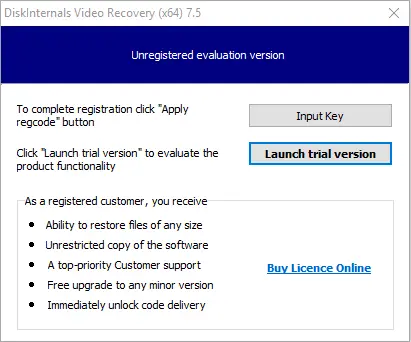
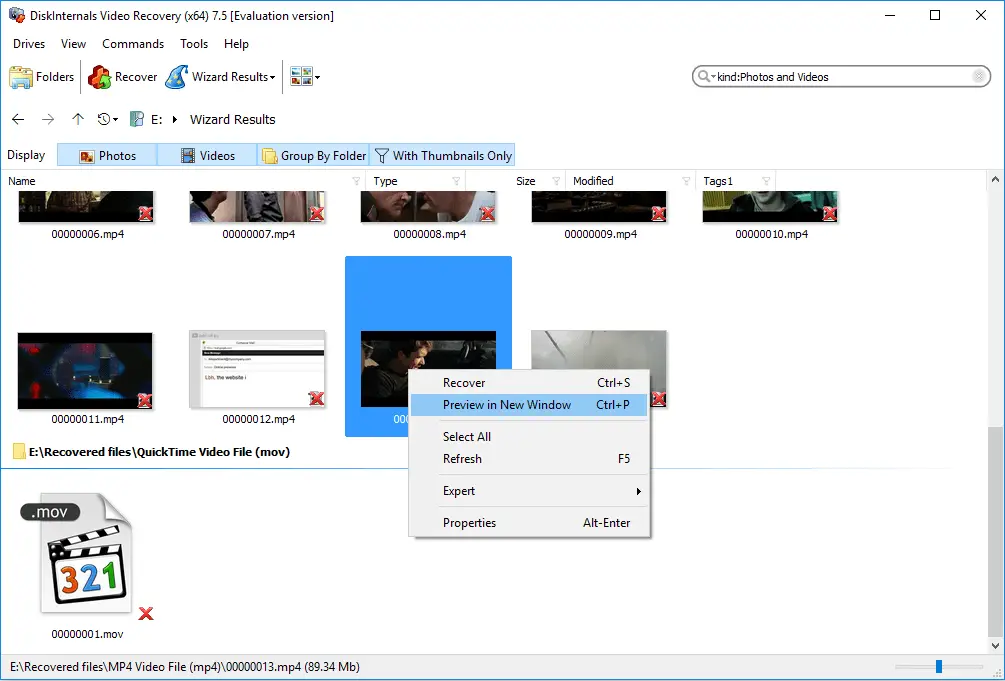
- DiskInternals Photo & Video Recovery will scan for video files in the selected drive and display all of them, with the lost ones indicated with a red asterisk.
- To recover the lost/deleted video files you need to upgrade to the Pro version, however, the scanning is free.
You can also preview the video files to confirm them before the actual recovery.
Related articles
- 4 Ways to Recover Deleted or Lost PS4 Video Games
- Adult Content Detection
- AVI Recovery: Recover AVI Files Right Now!
- How to Recover Deleted or Lost Movies
- How to Recover Deleted Videos from a Laptop
- How to recover deleted videos from Windows 7
- Mp4 Recovery: All that you need to repair Mp4 file
- Recover Deleted Videos from SD card
- Recover deleted videos YouTube
- [Solved] 4K Photo & Video Recovery and All You Need for It
- Recover .3gp Video Files Effortless!
- Video error 0xc00d36c4? Fix it today!
- The best methods on how to recover webcam videos!
- Recover FLV video files effortless and fast!
- How to perform MPG recovery? Find out it here!
- MOV vs MP4: what is more practical?
- WMV file recovery - all you need to know
- Deleted GoPro video? Recover GoPro Files Today!
- Recover MKV files: everything you need to know
- WebM file recovery - make it today!
- What is H.264 video files and how to restore it
- Recover Deleted MTS Video Files on Windows
- MXF Photo & Video Recovery: all you need to know
- If Your PS4 Won't Turn On
- How to recover files from DJI Drone
- What is an .swf file?
- What is the missing codec error 0xc00d5212?
- If you have video lagging
- How to Fix Music Video Error 0xc00d36b4 on Windows 10
- If you get Video memory management internal error
- If Audio and video going out of sync on Windows 10
- Mp4 repair: restore your favorite videos
- If you get 0xc10100be error
- How to edit your MP4 and prevent dealing harm to it?
- Workable guide on how to convert MKV to MP4?
- 0xc00d36e5 error occurs: your actions
- Windows Media Player encountered a problem while playing the file
- 0xc10100bf error occurs: your actions?
- How to extract audio from video. Top-3 services
- Convert MP3 to MP4
- Convert WebM to MP4
- Best iMovie Alternatives For Windows
- Editing MP3 files with the trimmers for Windows
- Deal with the Most Common Windows Movie Maker Problems
- Here is How to Remove Audio From Video
- Here is How to Compress MOV File
- Here is How to Convert MKV Files
- Here is how to convert AVI to MP4 safely
- How to Recover TikTok Draft Videos or Deleted Videos?
- How to Recover Deleted Videos on your device [2026]
- How to Recover Deleted Videos - Best Ways [2026]