
Convert AVI to MP4 safely with no harm to your data

Here you will find out:
- how to convert AVI to MP4 safely
- when DiskInternals can help you
Are you ready? Let's read!
Can you convert AVI to MP4 without losing the video quality? Yes, there are video converter software apps that allow you to do this; more interestingly, there are free AVI to MP4 converters.
Top 3 AVI to MP4 Converters
1. Online-Convert
URL: https://video.online-convert.com/convert-to-mp4
This online converter tool helps you to convert AVI files to MP4 formats quickly and easily. It is accessible across devices (simply load the URL on any web browser), and it is entirely free to use. Interestingly, there are many ways to upload your AVI files, and you can convert several video files consecutively.
2. Video Converter Online
URL: https://convert-video-online.com
Here is another free online tool that allows you to convert different video formats. It supports AVI to MP4 conversion and works quickly. You can use this tool on any device, including PCs, MacBooks, and mobile phones. It's simple to use - just import your video file and convert it to MP4 format.
3. Cloud Convert
URL: https://cloudconvert.com/avi-to-mp4
With support for popular video formats, this tool lets you convert your AVI videos to MP4 files. It works similarly to the other ones above and it's easy to use. The website loads fast across devices and there are various ways to import your video file. More so, Cloud Convert lets you tweak certain video settings before converting the file.
How to Make Sure Your Video Files Are Safe!
Apparently, there are certain instances that could lead to losing your video files. It could be a hard disk failure, OS crash, or malware attack. When your video files are deleted from your PC, the two ways to recover them include checking the recycle bin (if the file was deleted by a user) or use a video recovery solution (if the file was lost due to other causes).
DiskInternals Video Recovery can help you to recover all your lost and deleted files. It is a comprehensive video recovery solution for Windows PC users. This software comes with several useful features, as well as a built-in Wizard to guide you through the process. It works in just three steps - Select the drive >>> Scan >>> Recover. DiskInternals Video Recovery doubles as a tool for backing up your video files. You can use this software to backup all your video files, so you won't have to worry about losing them.
DiskInternals Video Recovery helps you to create disk images, which act as backup copies for your important files. A disk image is a cloned version of your hard disk drive or solid-state drive in an image format. It contains comprehensive information about your drive and contents saved inside. Below are the steps to backup your video files using this software app.
Steps:
- Download and install the software on your computer
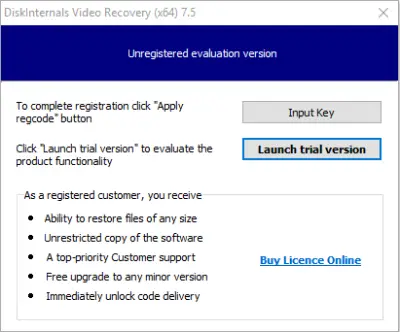
- Launch it and close the Wizard that launches automatically
- Select the disk/drive where your video files are saved
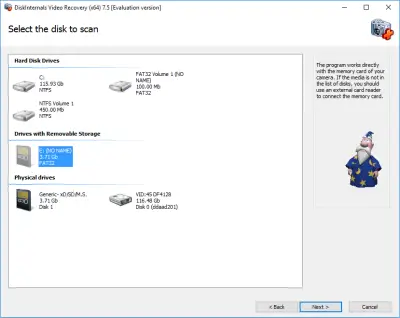
- Right-click and select “Create Image”
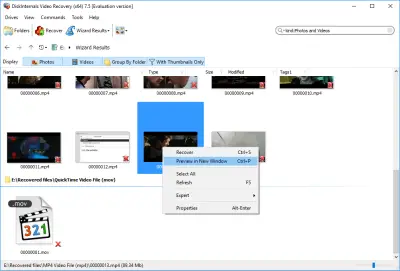
- Follow the prompts and choose where to save the disk image. (Note: you have to save the disk image copy on an external storage, not your primary local storage).
In contrast, if you want to recover lost video files, when you launch DiskInternals Video Recovery, don't close the Wizard. Instead, follow the Wizard's instructions to recover your video files.
Related articles
- 4 Ways to Recover Deleted or Lost PS4 Video Games
- Adult Content Detection
- AVI Recovery: Recover AVI Files Right Now!
- How to Recover Deleted or Lost Movies
- How to Recover Deleted Videos from a Laptop
- How to recover deleted videos from Windows 7
- Mp4 Recovery: All that you need to repair Mp4 file
- Recover Deleted Videos from SD card
- Recover deleted videos YouTube
- [Solved] 4K Video Recovery and All You Need for It
- Recover .3gp Video Files Effortless!
- Video error 0xc00d36c4? Fix it today!
- The best methods on how to recover webcam videos!
- Recover FLV video files effortless and fast!
- How to perform MPG recovery? Find out it here!
- MOV vs MP4: what is more practical?
- WMV file recovery - all you need to know
- Deleted GoPro video? Recover GoPro Files Today!
- Recover MKV files: everything you need to know
- WebM file recovery - make it today!
- What is H.264 video files and how to restore it
- Recover Deleted MTS Video Files on Windows
- MXF video recovery: all you need to know
- If Your PS4 Won't Turn On
- How to recover files from DJI Drone
- What is an .swf file?
- What is the missing codec error 0xc00d5212?
- If you have video lagging
- How to Fix Music Video Error 0xc00d36b4 on Windows 10
- If you get Video memory management internal error
- If Audio and video going out of sync on Windows 10
- Mp4 repair: restore your favorite videos
- If you get 0xc10100be error
- How to edit your MP4 and prevent dealing harm to it?
- Workable guide on how to convert MKV to MP4?
- 0xc00d36e5 error occurs: your actions
- Windows Media Player encountered a problem while playing the file
- 0xc10100bf error occurs: your actions?
- How to extract audio from video. Top-3 services
- Convert MP3 to MP4
- Convert WebM to MP4
- Best iMovie Alternatives For Windows
- Editing MP3 files with the trimmers for Windows
- Deal with the Most Common Windows Movie Maker Problems
- Here is How to Remove Audio From Video
- How to rotate a video in Windows 10
- Here is How to Compress MOV File
- Here is How to Convert MKV Files
- How to Recover TikTok Draft Videos or Deleted Videos?
- How to Recover Deleted Videos on your device [2026]
- How to Recover Deleted Videos - Best Ways [2026]