
How to Convert MP3 to MP4

Here you will find out:
- how to convert MP3 to MP4
- how DiskInternals can help you
Are you ready? Let's read!
To convert one type of audio file (for example, MP3 to MP4), special programs are used called media converters. That is, if the format of your audio file is not supported by any of your computer programs, you will not be able to play the file. To remedy this situation, you should convert the file to a format supported by your computer.
In such a case, to enjoy music, you need to install certain audio conversion software.
After all, there are various audio formats: some of them support excellent sound quality, others are played only on certain devices, and still others are so rare that you might not know which programs can play the file.
To convert audio correctly and successfully, you need to know the best applications for this purpose. In this article you will find and decide on the application that is best suited for converting files and maintaining high sound quality.
Protect Your Files with DiskInternals Photo & Video Recovery.
Rest easy without worrying about possible data loss while converting MP3 to MP4. The amazingly successful results are backed by more than 15 years of successful data recovery. So, when you are ready to recover deleted or corrupted videos, download DiskInternals Photo & Video Recovery program to your computer.
DiskInternals Photo & Video Recovery supports the following common file systems: UFS, FAT12, ReFS, Reiser4, HFS, NTFS, XFS, Ext2 / 3/4, and ReiserFS. You can also use the free trial of the app and make sure the recommended Photo & Video Recovery software is easy to use and will also recover deleted or lost videos quickly and correctly while converting audio to MP4.
The amount of data recoverable is unlimited, so your possibilities are almost endless.
Preview of recoverable audio and video files is also provided free of charge. Use step-by-step instructions to help you get videos without any problems:
Step 1. Install and run DiskInternals Photo & Video Recovery on your device.
Step 2. The Recovery Wizard will start automatically and ask you to select the type of video files you want to recover and their location.
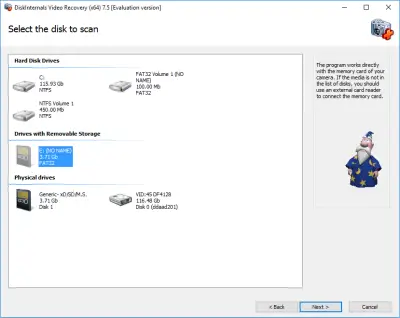
Step 3. Scan. This may take some time, as the video files are usually large.
Step 4. Preview. Preview deleted files for integrity by right-clicking them and choosing Preview in New Window.
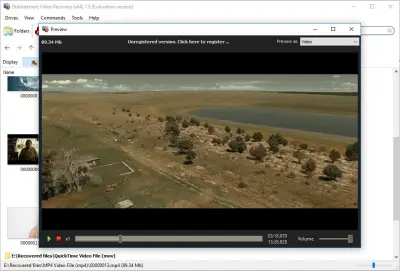
Step 5. Recovery. This process is fully automated.
Step 6. Saving video files. You just need to buy a license for this application and enter the received code into the corresponding window. To avoid data overwriting, save the recovered video to another safe place, or make a backup copy of the data to avoid such situations.
Top 4 Recommended Apps:
1. Aiseesoft Total Media Converter
This utility can easily convert between various video formats: MP4, WMV, MKV, H.264 / MP4 AVC, H.265 / HEVC, MTS, MXF, MOV, AVI, DivX, FLV , WTV, VOB. With its simple and intuitive interface, you can also use this application to play videos on your TV or mobile device. The program offers a free trial, but after the trial period, you will have to pay to use it later.
2. Xilisoft Audio Converter
Xilisoft helps you convert audio from multiple file formats (MP4, MOV, M4V, MKV, AVC, AVI, WMV and others). Also, this application allows you to rip audio from CD with just a few clicks. It also has an intuitive and very user-friendly user interface, so converting files will be a breeze.
3. GiliSoft Audio Converter Ripper
This application allows you to convert over 40 audio formats (MP3, WMA, WAV, M4A, AMR, OGG, FLAC, MP2, etc.) and encode them to any key audio format. Here you can also use the function to convert only a specific segment.
4. Switch
Switch has an easy-to-use interface and exceptional audio compatibility. In addition, there is the possibility of recording sound over the Internet. This free converter can convert multiple audio formats and convert audio quickly. The Ultimate audio conversion feature lets you stream and record music from the Internet, breaks down the process into 3 steps, and walks you through the steps with a built-in wizard. The application is versatile and converts formats to any of the 26 file formats it offers (including MP4, WMV, MPG, MOV and M4V). Another feature is the ability to extract audio data from videos of a wide variety of video formats.
Related articles
- 4 Ways to Recover Deleted or Lost PS4 Video Games
- Adult Content Detection
- AVI Recovery: Recover AVI Files Right Now!
- How to Recover Deleted or Lost Movies
- How to Recover Deleted Videos from a Laptop
- How to recover deleted videos from Windows 7
- Mp4 Recovery: All that you need to repair Mp4 file
- Recover Deleted Videos from SD card
- Recover deleted videos YouTube
- [Solved] 4K Photo & Video Recovery and All You Need for It
- Recover .3gp Video Files Effortless!
- Video error 0xc00d36c4? Fix it today!
- The best methods on how to recover webcam videos!
- Recover FLV video files effortless and fast!
- How to perform MPG recovery? Find out it here!
- MOV vs MP4: what is more practical?
- WMV file recovery - all you need to know
- Deleted GoPro video? Recover GoPro Files Today!
- Recover MKV files: everything you need to know
- WebM file recovery - make it today!
- What is H.264 video files and how to restore it
- Recover Deleted MTS Video Files on Windows
- MXF Photo & Video Recovery: all you need to know
- If Your PS4 Won't Turn On
- How to recover files from DJI Drone
- What is an .swf file?
- What is the missing codec error 0xc00d5212?
- If you have video lagging
- How to Fix Music Video Error 0xc00d36b4 on Windows 10
- If you get Video memory management internal error
- If Audio and video going out of sync on Windows 10
- Mp4 repair: restore your favorite videos
- If you get 0xc10100be error
- How to edit your MP4 and prevent dealing harm to it?
- Workable guide on how to convert MKV to MP4?
- 0xc00d36e5 error occurs: your actions
- Windows Media Player encountered a problem while playing the file
- 0xc10100bf error occurs: your actions?
- How to extract audio from video. Top-3 services
- Convert WebM to MP4
- Best iMovie Alternatives For Windows
- Editing MP3 files with the trimmers for Windows
- Deal with the Most Common Windows Movie Maker Problems
- Here is How to Remove Audio From Video
- How to rotate a video in Windows 10
- Here is How to Compress MOV File
- Here is How to Convert MKV Files
- Here is how to convert AVI to MP4 safely
- How to Recover TikTok Draft Videos or Deleted Videos?
- How to Recover Deleted Videos on your device [2026]
- How to Recover Deleted Videos - Best Ways [2026]