
What is H.264 video files and how to restore it? Find out that today!
Here you will find out:
- what is an H.264 video file
- how to restore that kind of videos
- how DiskInternals can help you
Are you ready? Let's read!
What is an H.264 video file?
Most likely, you also use H.264 video files, as this is perhaps the most common video format. So what is its uniqueness?
It's all about having the highest image quality with small file size. In addition, it can be used by most video players (for example, Windows Media Player). And it is compatible not only with high-resolution devices but also with many other platforms (PSP, iPod, iPhone, Android, iPad, etc.).
What could happen to lead to H.264 video loss
H.264 video files may disappear from your computer, phone, etc. This can happen as a result of many things:
- formatting the drive (forced or accidental)
- deleting files and emptying trash
- damage to the hard disk, file system, or registry
- system failure
- virus attack
- damage to drive where h264 video files were stored
How to increase chances for recovery
You can recover deleted H.264 files. But, this can be done before the disk is overwritten with new information. So, to avoid this, you need to start video recovery as soon as possible and quickly. Also, stop using the device on which the H.264 video file or other video files were lost.
This is fundamentally important!
Recover H.264 videos with DiskInternals Video Recovery
In order not to lose time, right in this article, there is a guide for using excellent software to recover lost or deleted H.264 files: DiskInternals Video Recovery. Many formats that can be restored thanks to the application, including MPEG, HD/Full HD, MPEG-4, MP4, MOV, AVI, DIVX MKV, etc.
You can retrieve the file from any information source (hard drive, flash drives, SD cards, etc.).
Your lost video file can be of any size; its recovery is possible with this application. There are convenient free options, including preview (with one click of the right mouse button), full and fast recovery, etc. You can familiarize yourself with the application in more detail by downloading by “try it free” button. The wizard guides you and helps you recover files without hesitation.
Guide:
After installing the application, the Recovery Wizard will welcome you.
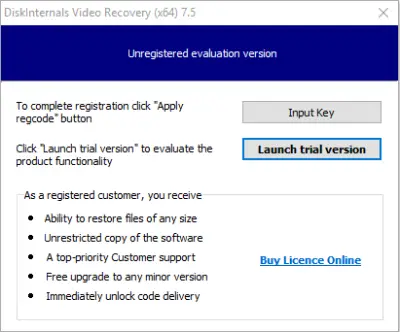
It will prompt you to choose the following
- The place where the file was lost (hard disk or removable media)
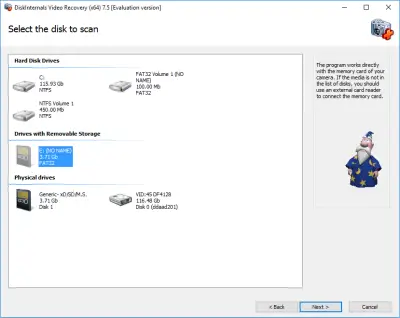
- The type of files to recover (videos)
Click Next.
When the scan is complete, proceed to Preview. It is extremely simple: select the file, right-click on it and then click on the Preview line. Now enjoy the video! If you view the file, it means it can be restored and saved. In this case, recovery will occur automatically.
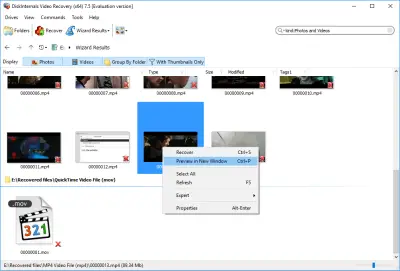
The last step is to save. You need to buy a license and enter the license key in the window that the Wizard will open for you. Now you just have to choose a new repository for the recovered files.
Good luck!
Frequently Asked Questions
- The best to recover files from your iPod device is to use an iOS data recovery software on your MacBook or laptop.
- Open the trash folder, click on the video name and select “Restore” or “Recover” from the menu bar.
- iPads don't have recycle bins or trash folders; hence, the only way to recover files from them is to connect them to a computer and use iTunes.
- Connect the iPhone to a computer (where you installed iTunes) and run the recovery function to get back your videos.
- The most effective way to restore an iPod video is to use iTunes. However, DiskInternals Video Recovery can recover H.263 iPod videos.
Related articles
- 4 Ways to Recover Deleted or Lost PS4 Video Games
- AVI Recovery: Recover AVI Files Right Now!
- How to Recover Deleted or Lost Movies
- How to Recover Deleted Videos from a Laptop
- How to recover deleted videos from Windows 7
- Mp4 Recovery: All that you need to repair Mp4 file
- Recover Deleted Videos from SD card
- [Solved] 4K Video Recovery and All You Need for It
- Recover .3gp Video Files Effortless!
- Video error 0xc00d36c4? Fix it today!
- The best methods on how to recover webcam videos!
- Recover FLV video files effortless and fast!
- How to perform MPG recovery? Find out it here!
- MOV vs MP4: what is more practical?
- WMV file recovery - all you need to know
- Deleted GoPro video? Recover GoPro Files Today!
- Recover MKV files: everything you need to know
- WebM file recovery - make it today!
- MXF video recovery: all you need to know
- If Your PS4 Won't Turn On
- How to recover files from DJI Drone
- What is an .swf file?
- What is the missing codec error 0xc00d5212?
- If you have video lagging
- How to Fix Music Video Error 0xc00d36b4 on Windows 10
- If you get Video memory management internal error
- If Audio and video going out of sync on Windows 10
- Mp4 repair: restore your favorite videos
- If you get 0xc10100be error
- How to edit your MP4 and prevent dealing harm to it?
- Workable guide on how to convert MKV to MP4?
- 0xc00d36e5 error occurs: your actions
- Windows Media Player encountered a problem while playing the file
- 0xc10100bf error occurs: your actions?
- How to extract audio from video. Top-3 services
- Convert MP3 to MP4
- Convert WebM to MP4
- Best iMovie Alternatives For Windows
- Editing MP3 files with the trimmers for Windows
- Deal with the Most Common Windows Movie Maker Problems
- Here is How to Remove Audio From Video
- How to rotate a video in Windows 10
- Here is How to Compress MOV File
- Here is How to Convert MKV Files
- Here is how to convert AVI to MP4 safely
- How to Recover TikTok Draft Videos or Deleted Videos?
- How to Recover Deleted Videos on your device [2026]
- How to Recover Deleted Videos - Best Ways [2026]
- Recover Deleted MTS Video Files on Windows
- Adult Content Detection
- Recover deleted videos YouTube