
Video recovery from any storage including digital camera or flash memory card!
So you lost some important video files and you are panicking because they were really important and now you are left clueless about what should be done?
Was your video corrupted? Or unwittingly deleted?
Don’t worry, video recovery is possible and there are lot of different methods and video recovery software tools you can use to recover lost video files.
Are you ready? Let's read!
Video Loss Reasons
Many people lose a lot of data every year and video files aren’t an exception. The most common cause of data deletion is by mistake and a lot of people don’t know that their files can be recovered. But when it comes to video, a lot of people think video recovery is not possible because of the complex nature of video files and large sizes.
Also, some video files get corrupted and users have no choice but to delete them. When, later, they find out that those corrupted files can be restored, they don’t have the video files anymore.
Some of the main causes of losing video files are:
- Accidental deletion
- Corruption of video files due to virus attacks
- Storage error
- Hardware malfunction (which is used to record videos)
- Connectivity error when files are being moved from one device to another
What to do to recover video?
If you haven’t recovered any lost data, recovering video might sound to you like rocket science, but in fact, video recovery isn’t that difficult at all. To do it, you need to get a good video recovery software tool and try to restore lost video files. To undelete videos, you can use one of the best data and video recovery software tools, such as DiskInternals Video Recovery. You can try it in a trial version as free video recovery software, and once you are fully satisfied with it, pay for a license.
Recovering Video with DiskInternals Video Recovery
DiskInternals Video Recovery is not just a video recovery tool, but also the ultimate solution to all your data recovery problems. Lost pictures, corrupted videos, music, documents and deleted files — DiskInternals software can recover it all.
DiskInternals Video Recovery supports:
- Cameras such as Sony, Canon, Nikon, GoPro, and many others.
- File systems as NTFS, FAT, exFAT, ReFS, Ext2/3/4, UFS, HFS, ReiserFS, Reiser4, XFS, ZFS, RomFS(reader).
- Video codecs for many different video types, including 3GP, AVI, MPEG, MP4, MOV, WMV, DIVX and many others.
- Storage media such as HDDs, SSDs, Flash drivers and memory cards (including SD cards, SDHC, SDXC, etc.).
Lightweight

DiskInternals software is lightweight. The best thing about them is the resource allocation, which is not like other free video recovery software tools that use all of your hardware resources and you are not able to use your PC.
Fast Recovery Speed

Being lightweight doesn’t stop it from being fast. DiskInternals’ advanced algorithms help you recover all videos and other type of big files without compromising on quality.
Built-in Wizard

If you doubt that you are unable to recover video files, don’t worry. DiskInternals Video Recovery has a built-in Wizard that guides you through all steps of the recovery process and you will perform file recovery like a professional.
Free on Trial

DiskInternals Video Recovery has a free trial version and you can buy license afterwards, if you are satisfied.
Guide: how to Recover Video files
Using DiskInternals Video Recovery isn’t difficult at all. The software has a friendly interface and a built-in Wizard, so people who are not IT professionals can use it.
Step-by-Step Guide:
- 1. Download DiskInternals Video Recovery.
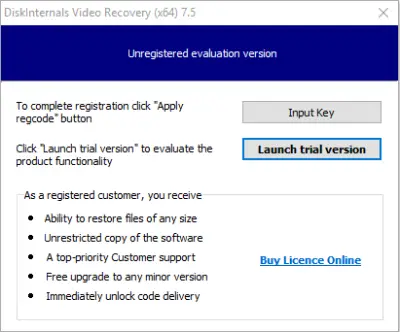
- 2. Once downloaded, run the Setup and just click the NEXT button until the software is installed.
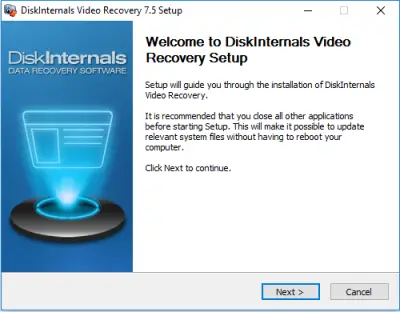
- 3. The software will start with the welcome window with the Wizard; click NEXT.
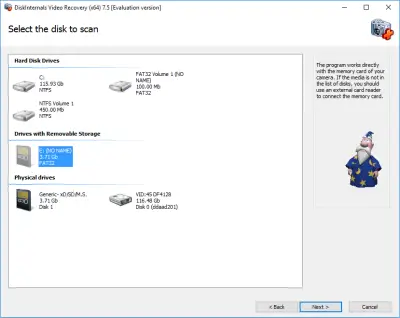
- 4. Now on the second window, you will be shown all the storage devices that are connected to or exist on your PC. It can be anything: your hard disk drives, USB, SD card, etc. Select the drive where you want to recover lost videos.
- 5. The scan will start and it may take a while, so sit back and relax.
- 6. When the scanning is done, you will see the files that are able to recover. You can select any video you want, right-click on it and select “Preview”.
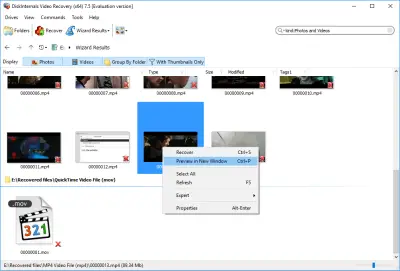
- If you are able to preview the video, you are able to recover it.
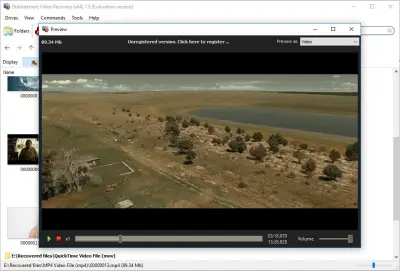
- 7. To save found videos and other files on your computer, you need to purchase a license and enter the license key.
Good luck!
Frequently Asked Questions
- That depends greatly on what kind of formatting. If it was full formatting, then no software in the world can restore it. If it was a quick formatting, then your chances are really good.
- There is no need. After you've purchased a license, enter the license key, and you will be able to save the found videos.
- No. Using Video Recovery™, you can restore any kind of video format.
- In the free version, you can scan your storage and preview found videos. Also, you can create a disk image to save all the important information from your storage.
- Using DiskInternals Video Recovery: simply launch the software and follow the wizard to scan and recover the good version of your corrupted video file.
- Connect the Canon to your PC and launch DiskInternals Video Recovery. Click on the canon and select “Scan” to recover all deleted videos.
- To recover a corrupted video, you need a video recovery software. Interestingly, the DiskInternals Video Recovery is an ideal option with lots of useful features.
Related articles
- The best methods on how to recover webcam videos!
- How to recover files from DJI Drone
- How to Fix Music Video Error 0xc00d36b4 on Windows 10
- [Solved] 4K Video Recovery and All You Need for It
- Recover .3gp Video Files Effortless!
- How to Recover Deleted Videos on your device [2026]
- How to Recover Deleted Videos - Best Ways [2026]
- How to Recover Deleted Videos from a Laptop
- Deleted GoPro video? Recover GoPro Files Today!
- Recover deleted videos YouTube
- How to recover deleted videos from Windows 7
- Mp4 repair: restore your favorite videos
- What is H.264 video files and how to restore it
- If Audio and video going out of sync on Windows 10
- Recover Deleted Videos from SD card
- MXF video recovery: all you need to know
- How to Recover TikTok Draft Videos or Deleted Videos?
- Adult Content Detection
- Recover MKV files: everything you need to know
- WebM file recovery - make it today!
- How to Recover Deleted or Lost Movies
- Recover FLV video files effortless and fast!
- Recover Deleted MTS Video Files on Windows
- 4 Ways to Recover Deleted or Lost PS4 Video Games
- Editing MP3 files with the trimmers for Windows
- What is an .swf file?
- If you have video lagging
- Here is How to Remove Audio From Video
- Deal with the Most Common Windows Movie Maker Problems
- What is the missing codec error 0xc00d5212?
- Workable guide on how to convert MKV to MP4?
- How to extract audio from video. Top-3 services
- Here is How to Compress MOV File
- Here is How to Convert MKV Files
- How to edit your MP4 and prevent dealing harm to it?
- Convert MP3 to MP4
- Here is how to convert AVI to MP4 safely
- 0xc10100bf error occurs: your actions?
- If you get 0xc10100be error
- WMV file recovery - all you need to know
- If you get Video memory management internal error
- Windows Media Player encountered a problem while playing the file
- Convert WebM to MP4
- How to rotate a video in Windows 10
- Video error 0xc00d36c4? Fix it today!
- How to perform MPG recovery? Find out it here!
- MOV vs MP4: what is more practical?
- If Your PS4 Won't Turn On
- 0xc00d36e5 error occurs: your actions
- Best iMovie Alternatives For Windows
- AVI Recovery: Recover AVI Files Right Now!
- Mp4 Recovery: All that you need to repair Mp4 file