
How to fix video lagging on a laptop?

Here you will find out:
- what the cause of video lagging is
- how to fix this problem
- how DiskInternals can help you
Are you ready? Let's read!
What causes video lagging on a laptop?
To some people, nothing is as annoying as a lagging video. This can be caused by quite a lot of things. However, it is not that big of an issue, and this article explains how to fix video lagging on Windows computers. Piled up caches and outdated drivers can cause video glitching, and an unsteady internet connection can also cause video lagging when streaming online.
How to fix it
Method 1: Reinstall options in “Sound, video, and game controllers” section
Reinstall your video drivers or update them, as outdated drivers can cause video lag on Windows computers. This can be done from the Windows Device Manager.
Control panel:
- Right-click on Start and select "Device Manager".
- Scroll down and expand the “Sound, video, and game controllers” option.
- Right-click on the drivers you see here and select "Update Driver Software"
- Choose to automatically search for and update the drivers.
Method 2: Close the programs you don't need
When you allow many active programs on your PC, the possibility of experiencing poor PC performance is very high, and this can result in video lagging or glitches. This is especially so for computers with low RAM capacity. A proven way to improve your PC performance, and possibly fix video lagging issues, is by closing all unnecessary programs, games, and apps. With fewer apps running on your PC, you can enjoy seamless video streaming.
Method 3: Scan for hardware changes with Device Manager
You may be experiencing the glitches due to some hardware changes that you do not know about. Thus, it is advisable to check for hardware changes and see if it can help you fix this problem.
- Right-click on Start and select "Device Manager".
- Scroll down and expand the “Sound, video, and game controllers” option.
- Right-click on the drivers you see here and select “Scan for hardware changes".
If there have been recent changes to your hardware, you will be able to see it in the report.
Method 4: How to repair your video
With an open-source media player such as VLC, you can fix and repair your video files. Unlike Windows Media Player, it can play back any video or audio file. VLC can also help to fix corrupted video files:
- Download and install VLC, then launch it on the computer.
- From the VLC menu options, go to Tools >> Preferences >> Input & Codecs.
- Open the dropdown menu and select “Always Fix”, then click Save.
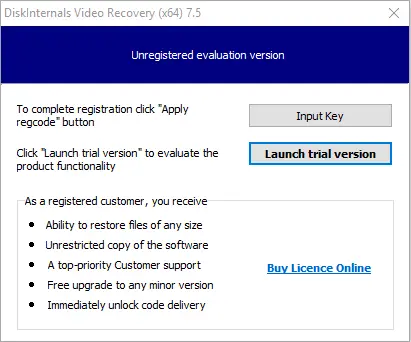
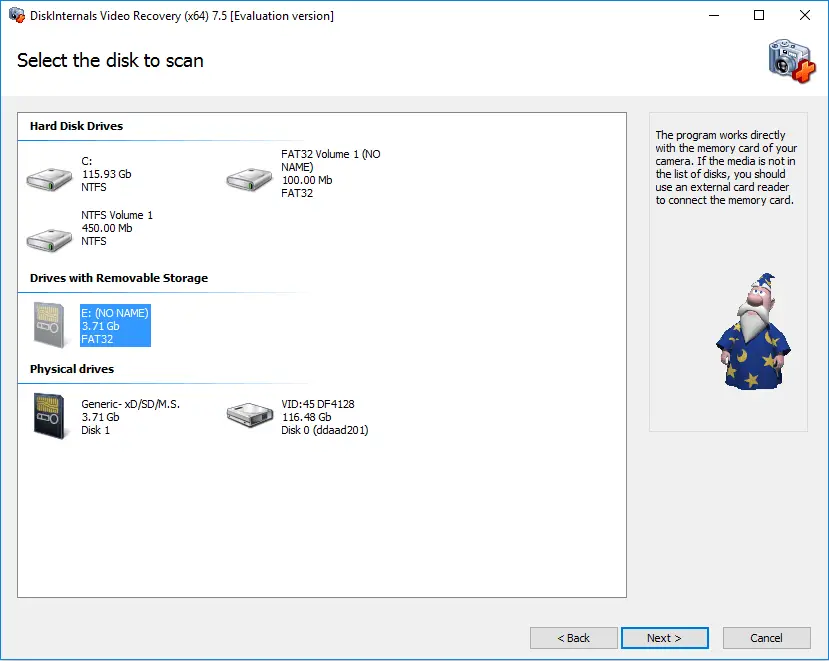
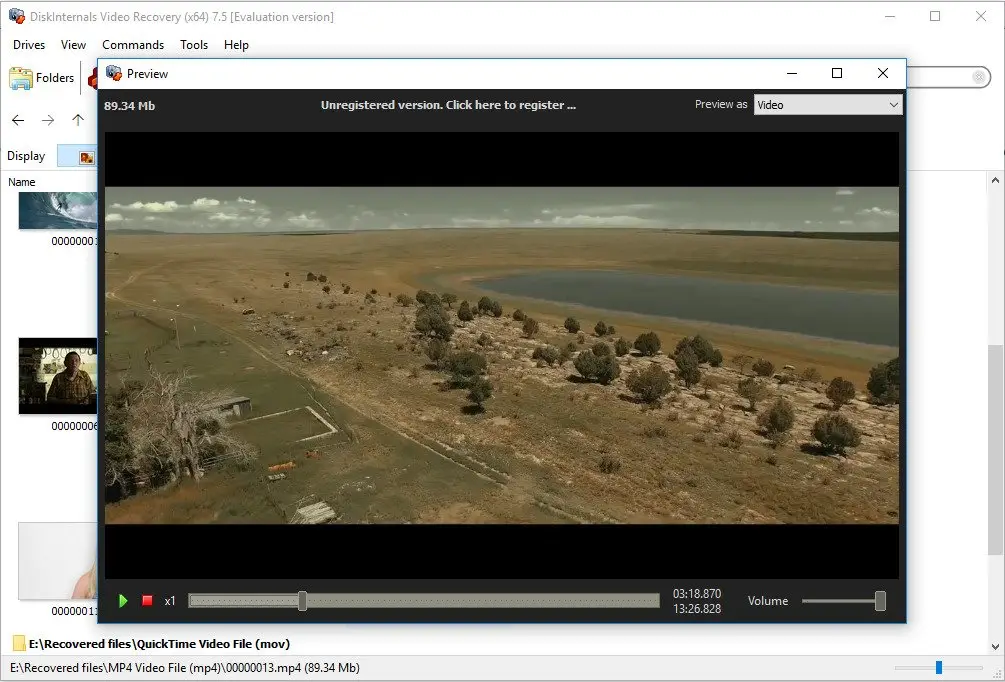
However, if the video files have been deleted from your PC or you accidentally lost them, with DiskInternals Video Recovery, you can easily get back all deleted/lost video files. Also, this software helps to recover previous versions of your video(s). It is a professional video recovery tool that is capable of retrieving lost media files from external storage. DiskInternals Video Recover is fast and easy to use. Plus, it features an intuitive, built-in wizard to simplify the recovery process.
Related articles
- 4 Ways to Recover Deleted or Lost PS4 Video Games
- AVI Recovery: Recover AVI Files Right Now!
- How to Recover Deleted or Lost Movies
- How to Recover Deleted Videos from a Laptop
- How to recover deleted videos from Windows 7
- Mp4 Recovery: All that you need to repair Mp4 file
- Recover Deleted Videos from SD card
- [Solved] 4K Video Recovery and All You Need for It
- Recover .3gp Video Files Effortless!
- Video error 0xc00d36c4? Fix it today!
- The best methods on how to recover webcam videos!
- Recover FLV video files effortless and fast!
- How to perform MPG recovery? Find out it here!
- MOV vs MP4: what is more practical?
- WMV file recovery - all you need to know
- Deleted GoPro video? Recover GoPro Files Today!
- Recover MKV files: everything you need to know
- WebM file recovery - make it today!
- What is H.264 video files and how to restore it
- MXF video recovery: all you need to know
- If Your PS4 Won't Turn On
- How to recover files from DJI Drone
- What is an .swf file?
- What is the missing codec error 0xc00d5212?
- How to Fix Music Video Error 0xc00d36b4 on Windows 10
- If you get Video memory management internal error
- If Audio and video going out of sync on Windows 10
- Mp4 repair: restore your favorite videos
- If you get 0xc10100be error
- How to edit your MP4 and prevent dealing harm to it?
- Workable guide on how to convert MKV to MP4?
- 0xc00d36e5 error occurs: your actions
- Windows Media Player encountered a problem while playing the file
- 0xc10100bf error occurs: your actions?
- How to extract audio from video. Top-3 services
- Convert MP3 to MP4
- Convert WebM to MP4
- Best iMovie Alternatives For Windows
- Editing MP3 files with the trimmers for Windows
- Deal with the Most Common Windows Movie Maker Problems
- Here is How to Remove Audio From Video
- How to rotate a video in Windows 10
- Here is How to Compress MOV File
- Here is How to Convert MKV Files
- Here is how to convert AVI to MP4 safely
- How to Recover TikTok Draft Videos or Deleted Videos?
- How to Recover Deleted Videos on your device [2026]
- How to Recover Deleted Videos - Best Ways [2026]
- Recover Deleted MTS Video Files on Windows
- Adult Content Detection
- Recover deleted videos YouTube