
How to Use Bash to Write to a File?
Here you will find out:
- how to use bash to write to a file
- how to write to a file with right angle bracket sign and double right angle sign
- how to use a tee command and sudo
- when DiskInternals can help you
Are you ready? Let's read!
Why should you use bash to write to a file?
Most users of the bash shell use it to output a command to the terminal. However, if necessary, any command can be output to the log file. This makes it possible to use the output as a text file and view its contents if necessary. Of course, for such purposes appropriate permission and administrator rights are required.
How to write to a file with the right angle bracket sign (>)
This sign translates the output into a log file. When the file with the specified name does not exist, it creates a new file with the same name. If there is such a file, then the file will be overwritten.
How to write to a bash file with the double right angle sign (>>)
This sign has the same meaning as (>), but the output is added to the existing file, rather than overwriting it. Naturally, if there is no such file, a new one will be created.
Most often, the echo and printf commands are used to output to the log file, although you can use any other command.
Here is an example of the echo command:

Using the tee command
This command, just like (>) and (>>), outputs to a file, but has a significant advantage over them:
- tee allows you to add output to several files at the same time;
- it allows you to write files belonging not only to the administrator, but also to other users, along with sudo
Usually, the default is to overwrite the specified file.
-a (--append) is a function that allows you to add output to the log file.
For example:

You can redirect to /dev/null if you do not want to write to standard output.
Example:

Append text to a file with sudo
Adding sudo to the command will be appropriate if you are not the administrator of these entries and do not have sufficient rights.

This way, the data will be written to the file.
There is another option for these purposes:

Here, -c gives the right run a command using sudo.
Is it possible to open Linux files in Windows?
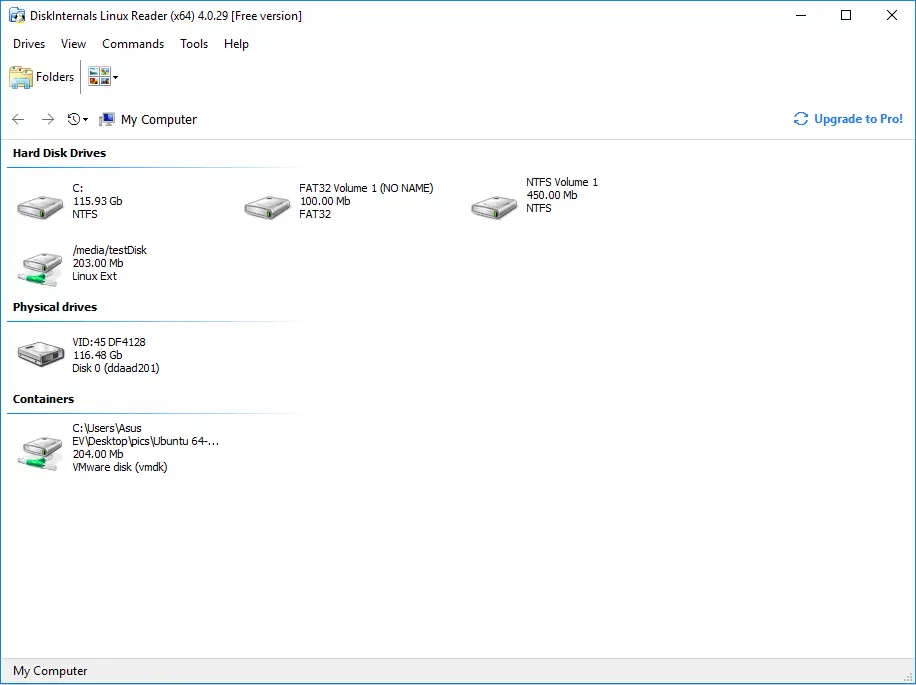
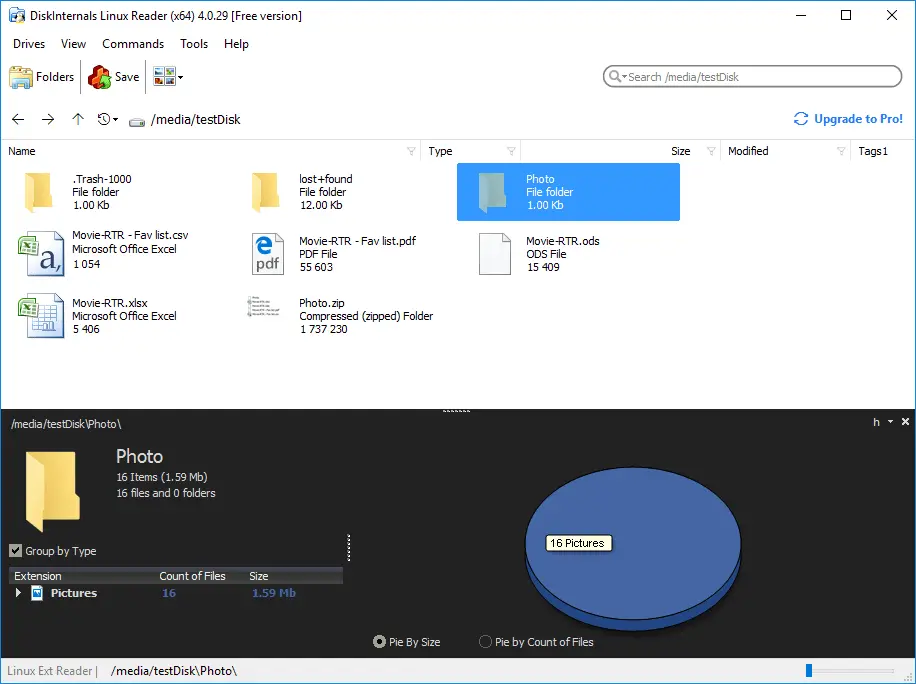
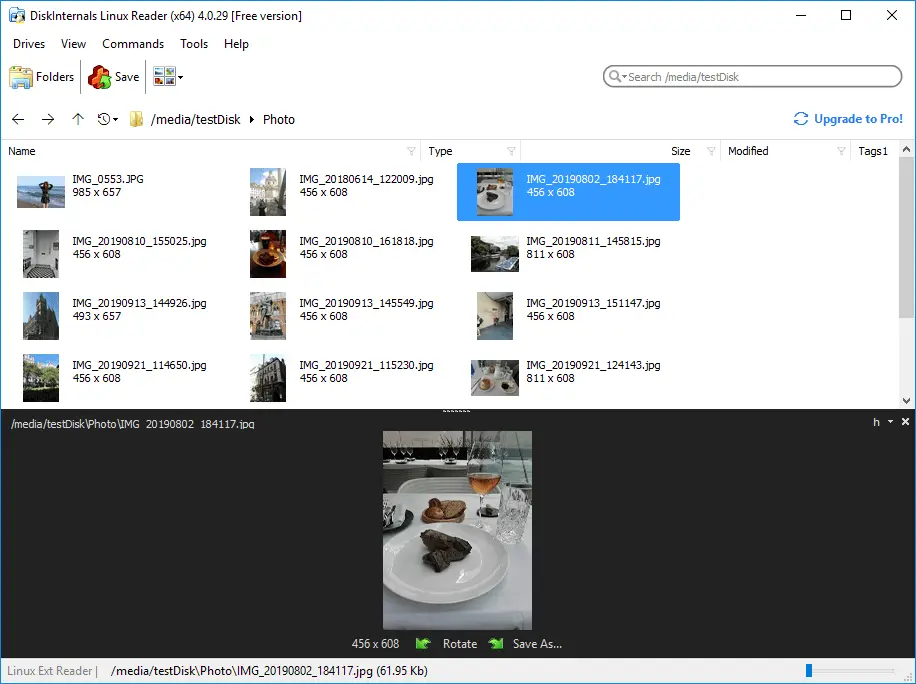
If you own DiskInternals Linux Reader, then there will be no problems with this. This application is specially designed for owners of a virtual machine or dual-boot setup who need to get files from Linux to Windows. In this application, you can read documents, photos, pictures, and other files from all types of hard drives, including HDDs, SSDs, flash drives, SD cards, memory cards, and other portable information storage devices. It also has access to any files on the Linux system, bypassing security policies. Free viewing of found files to determine the quality of the application is also available at no cost. And of course, the most popular function of creating a disk image is available right now for free!
Related articles
- About a bash date command
- How to Access Linux Ext2 or Ext3 on Windows
- How to Access Ext4 from Windows
- How to Mount Ext4 on Windows for Free
- Mount Linux Drive on Windows for Free
- Bash Script: All You Need to Know
- An Algorithm: How to Create Bash While Loop
- Linux Shell: What You Need to Know at First
- 5 Basic Shell Script Examples for Your First Script
- Bash: How to Check if the File Does Not Exist
- Bash Time Command on Linux
- How to use bash get script directory in Linux
- How to Check Bash String Equality
- How to Use Linux Wait Command
- Bash: How to Loop Through Files in Directory
- 20 Examples of Bash Find Command
- Bash Cat Command in Examples
- Bash Script SSH: How to Use It
- Bash: A Script For User Input
- Linux ZSH: the basic you need to know
- Basic of Grep in Linux Shell Script
- Shell Script Cut: Basic You Need to Know
- Bash: How to Check if String Not Empty in Linux
- Bash: how to split strings in Linux
- Linux: Sudo in Bash Scripts
- Hello World Script in Bash
- A Linux bin/bash Shell
- Linux: New Line in Shell Script
- Linux: Bash String Ends With
- Linux: Bash Printf Examples
- Linux: Bash First Line
- Linux: $0 in a Shell Script
- Linux: A Bash Startup Script
- Linux: Write a Shell Script
- Shell Script: Replace String in File
- A crontab service shell script
- Bash and sh: is there any difference
- A Bash Dirname Command
- Linux: A Bash Source Command
- A Bash to Loop through Lines in File
- Linux: A Bash Linter
- A Bash Nested Loop
- A Bash Test Command
- Use a Shell Script to Send an Email
- A Bash Status of Last Command
- Linux: A Bash Basename Command
- About Bash Language
- Bash for Loop in One Line
- AWK in a Bash Script
- Learn about useful bash scripts
- Learn about systemd startup script
- About chaining bash commands
- Learn about a bash error code
- Using a bash tee command
- About a bash export command
- Learn about a bash wait command
- Arch Linux install script
- About advanced bash scripting
- To run a shell script in Dockerfile
- About a bash UNTIL loop
- Learn about C shell script
- Learn about Korn shell scripting
- Using /usr/bin/env command
- Whether bash waits for command to finish
- Using bash if 0
- Using && in an IF statement in bash
- If you want to run shell script in background
- The disk you inserted was not readable by this computer error
- Learn about SFTP in bash scripting
- Learn to run Perl script in Linux
- Examples of using the Expect
- Copy command in shell scripts
- Shell script usage
- Install Oracle Database
- Here is everything you need to know about Bash for Windows
- Guide in Pictures
- How to Use Shell Script Sleep Command
- A Bash Multiline Command