
What is a Bash Linter and How to Use it
A lint, or linter, is a utility tool used to check for errors in programming scripts. Also, lint helps to analyze code and check for bugs and stylistic errors. That said, a bash linter is a tool used by Linux programmers to check for bugs, errors, and suspicious constructs in bash shell scripts.
Here you will find out:
- what a ShellCheck is
- how you can use a ShellCheck
- how to install shell script syntax checker
- when DiskInternals can help you
Are you ready? Let's read!
ShellCheck is a bash linter
For Linux system operators, ShellCheck is a GPLv3 tool that helps to check for errors in bash/sh shell scripts. ShellCheck is a bash linter, a static analysis tool for bash and sh shell scripts. If you want to know if there’s a bug in a script, you can make use of this tool. Using the ShellCheck tool will definitely increase your productivity. This bash linter can identify syntax issues, semantic problems, subtle caveats, corner cases, and pitfalls that may lead to errors when running your scripts.
How ShellCheck can be used
There are quite a number of ways to use ShellCheck, the bash linter.
On your terminal
Simply run “shellcheckyourscript” for instant output.
On the web
Paste the shell script you want to check into https://www.shellcheck.net
Using an editor
ShellCheck is available on the following editors:
- Vim: use ALE, Neomake, or Syntastic
- Emacs: use Flycheck or Flymake
- Sublime Edit: use SublimeLinter
- Atom: use AtomLinter
- VSCode: use vscode-shellcheck
In your build or test suites
ShellCheck can be added to builds or test suites, even though it is actually meant for interactive use. You can add a ShellCheck command as part of the process, since it uses the exit codes.
Install this bash script checker
On a local system, the easiest way to install this tool is by using a package manager. It is advisable to manually install a specific ShellCheck version.
Installing on systems with Cabal

This will install ShellCheck to ~/.cabal/bin.
On Debian/Ubuntu Linux

Or

Gentoo-based distros:

Installing on stack systems

Installs to ~/.local/bin.
Arch Linux distros

EPEL-based distros:

Installing on OS X with homebrew

Not only for interactive use
ShellCheck is not only for interactive use; thus, it can be integrated with test suites and builds. Also, some platforms and services have ShellCheck pre-installed on them. The platforms and services include Travis CI, Code Climate, Github (Linux), Codacy, Code Factor, and GitLab. SonarQube also supports ShellCheck; however, it requires sonar-shellcheck-plugin. If you work on any of these platforms, then you may not need to install ShellCheck on your system.
Use Linux Reader in Windows
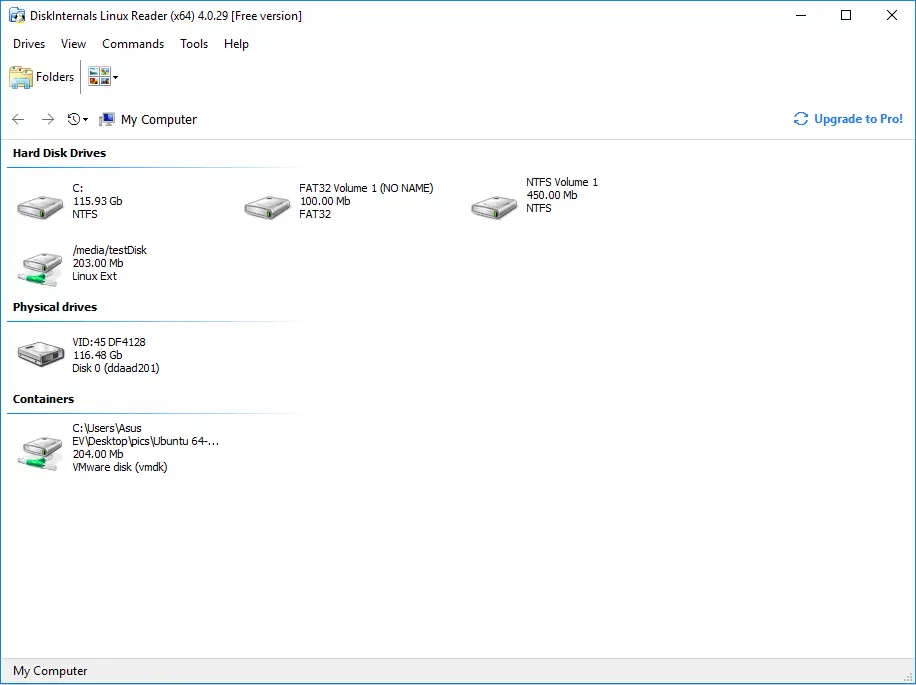
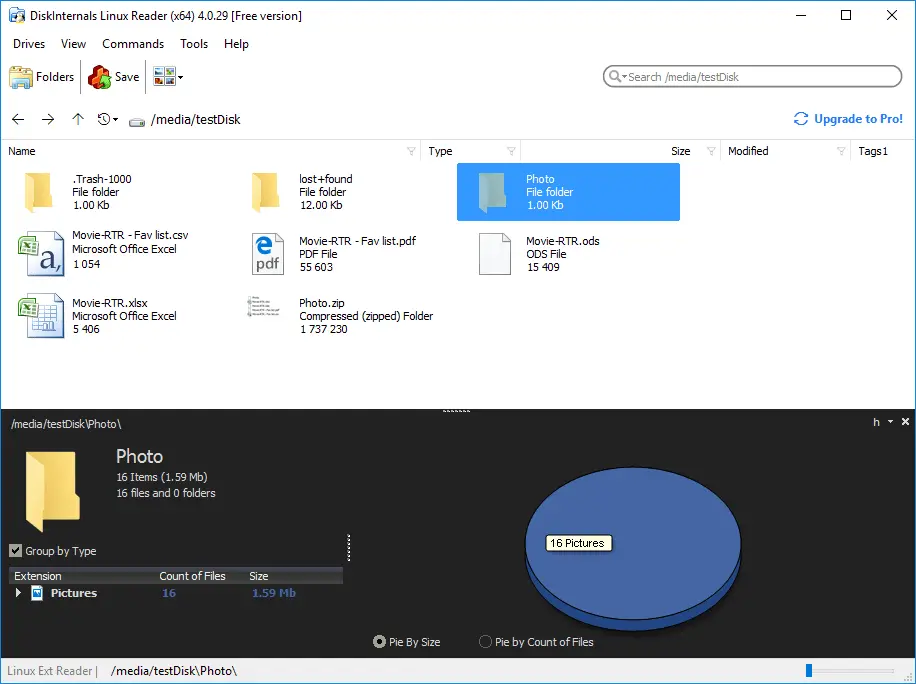
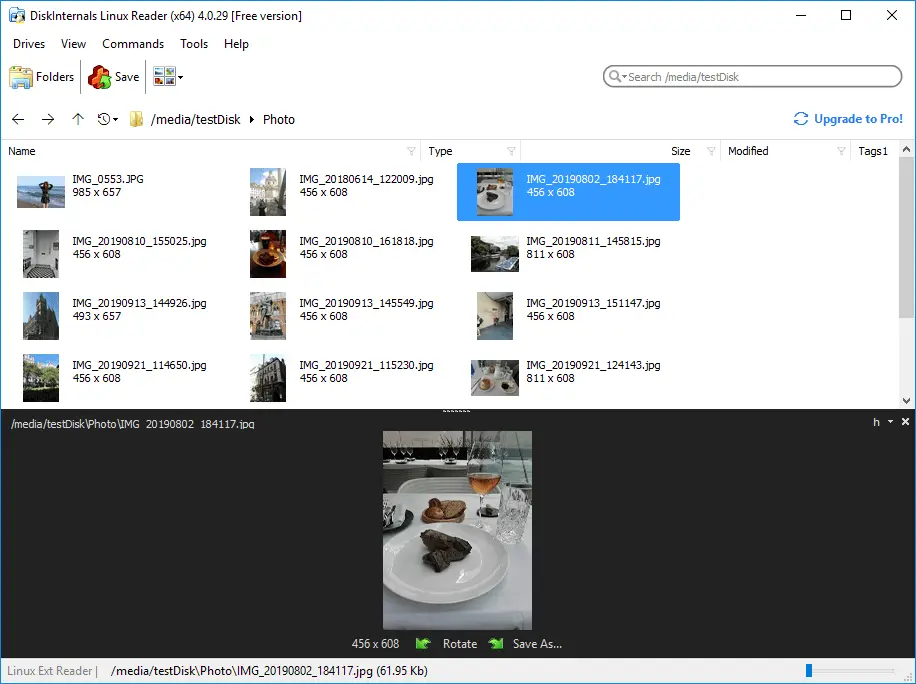
Quite a lot of people are already using DiskInternals Linux Reader to open Linux files on Windows. DiskInternals Linux Reader is an intuitive freeware software tool with an easy-to-read and navigable interface. It appears to be the best utility tool for dual-boot setup users and virtual machine users. This software scans Windows PCs to fetch all the Linux partitions and then allow you to access the important files inside. Linux Reader provides access to the following file systems: Ext2/3/4, ReiserFS, Reiser4, HFS, HFS+, FAT, exFAT, NTFS, ReFS, UFS2, RomFS(reader), ZFS (preview only*), XFS (preview only*), Hikvision NAS and DVR (preview only*). It is a handy tool for every programmer.
Related articles
- How to Access Linux Ext2 or Ext3 on Windows
- How to Access Ext4 from Windows
- How to Mount Ext4 on Windows for Free
- Mount Linux Drive on Windows for Free
- Bash Script: All You Need to Know
- An Algorithm: How to Create Bash While Loop
- Linux Shell: What You Need to Know at First
- How to Use Shell Script Sleep Command
- Bash: How to Check if the File Does Not Exist
- How to use bash get script directory in Linux
- 20 Examples of Bash Find Command
- Shell Script Cut: Basic You Need to Know
- Bash: How to Check if String Not Empty in Linux
- Linux: Sudo in Bash Scripts
- Linux: Bash Printf Examples
- Linux: Bash First Line
- Linux: A Bash Startup Script
- Linux: Write a Shell Script
- Shell Script: Replace String in File
- Bash and sh: is there any difference
- A Bash Dirname Command
- Linux: A Bash Source Command
- A Bash to Loop through Lines in File
- A Bash Nested Loop
- Use a Shell Script to Send an Email
- Using Bash to Write to a File
- About Bash Language
- Bash for Loop in One Line
- Learn about useful bash scripts
- About chaining bash commands
- About a bash export command
- Learn about a bash wait command
- Arch Linux install script
- About advanced bash scripting
- Learn about C shell script
- Learn about Korn shell scripting
- Using && in an IF statement in bash
- If you want to run shell script in background
- The disk you inserted was not readable by this computer error
- Learn about SFTP in bash scripting
- Copy command in shell scripts
- Install Oracle Database
- About a bash date command
- Guide in Pictures
- 5 Basic Shell Script Examples for Your First Script
- Bash Time Command on Linux
- How to Check Bash String Equality
- How to Use Linux Wait Command
- Bash: How to Loop Through Files in Directory
- Bash Cat Command in Examples
- Bash Script SSH: How to Use It
- Bash: A Script For User Input
- Linux ZSH: the basic you need to know
- Basic of Grep in Linux Shell Script
- Bash: how to split strings in Linux
- Hello World Script in Bash
- A Linux bin/bash Shell
- Linux: New Line in Shell Script
- Linux: Bash String Ends With
- Linux: $0 in a Shell Script
- A crontab service shell script
- A Bash Multiline Command
- A Bash Test Command
- A Bash Status of Last Command
- Linux: A Bash Basename Command
- AWK in a Bash Script
- Learn about systemd startup script
- Learn about a bash error code
- Using a bash tee command
- To run a shell script in Dockerfile
- About a bash UNTIL loop
- Using /usr/bin/env command
- Whether bash waits for command to finish
- Using bash if 0
- Learn to run Perl script in Linux
- Examples of using the Expect
- Shell script usage
- Here is everything you need to know about Bash for Windows