
How to Mount Linux Drive on Windows
Here you will find out:
- how to mount Linux drive on Windows
- how DiskInternals can help you
Are you ready? Let's read!
Mount Linux drive on Windows
If the Linux distribution on your PC coexists with Windows, then accessing the Windows partition will be no problem. NTFS is the default Windows file system and is well supported. Most Linux distributions can easily mount NTFS drives.
However, Windows users cannot do this. Common Linux file systems such as Ext4 are not supported. If you want to access a Linux partition in Windows, you need to install some additional software in order to mount a Linux drive on Windows.
For some people, it can be difficult to mount a Linux drive on Windows. However, there is a most convenient and user-friendly software tool that will help make the process a whole lot easier.
In order to mount a Linux drive in Windows, you need software help, and we’ll help you with that.
What file systems can be on Linux?
There are a lot of file systems on Linux that can be accessed by Windows indirectly; the first step in doing so is to mount the Linux drive on Windows 10.
The following file systems are available and are easy to access on Windows. There are a bunch of file systems on Linux; here is a list:
- Ext2/3/4
- ReiserFS, Reiser4
- HFS, HFS+
- FAT, exFAT
- NTFS, ReFS
- UFS2
- ZFS
- XFS
- Hikvision NAS and DVR
In order to mount a Linux partition on Windows, the software is available to help you out.
How to mount a Linux partition in Windows
DiskInternals Linux Reader™ is a state-of-the-art software tool that allows file systems to be easily mounted in Windows. This software is easy to follow, easy to install and download, and most importantly, supports a wide array of Linux file systems.
With free and premium options available, you will get tons of features, get your drive mounted and read easily, regardless of the option you choose.
It is effective and easy. Using this software, you will be in control. You'll be able to follow the steps of the process and not get lost because of its powerful UI.
Step-by-step guide to mounting a Linux partition on Windows
DiskInternals Linux Reader™ is one of the most groundbreaking pieces of software to be released to the public. If you’re someone that wants to get your Linux partition mounted on Windows, this is a step-by-step guide to the whole process:
- 1. Download DiskInternals Linux Reader™.
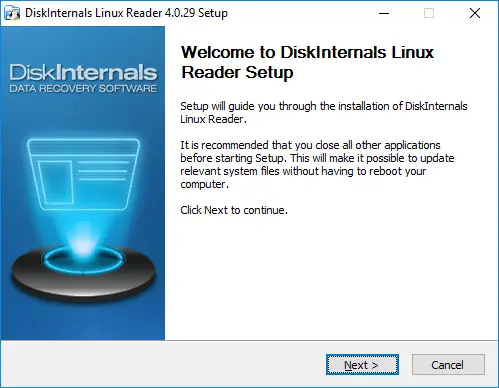
- 2. Install the software on any drive you see fit.
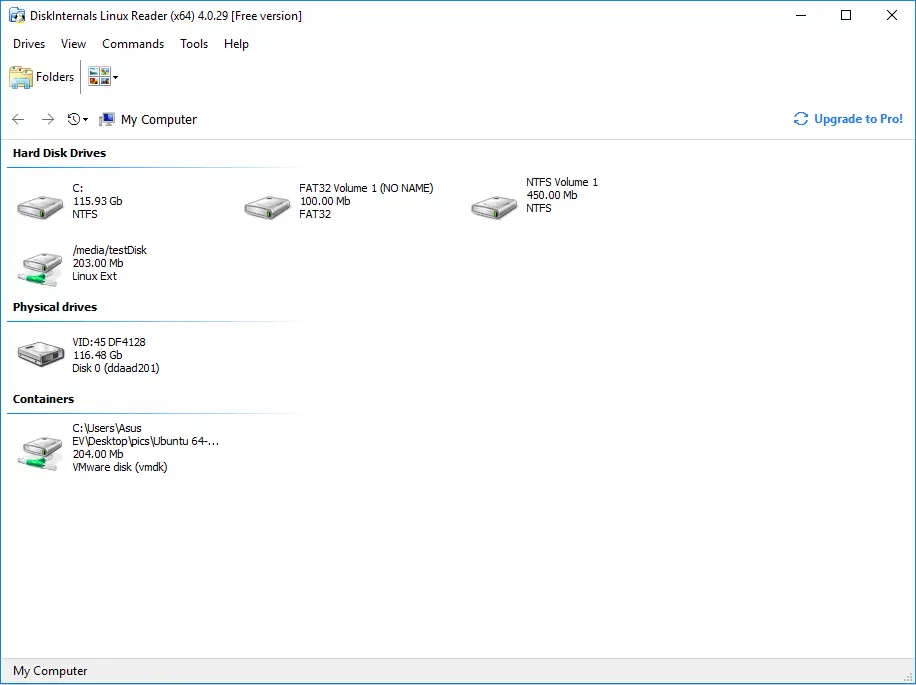
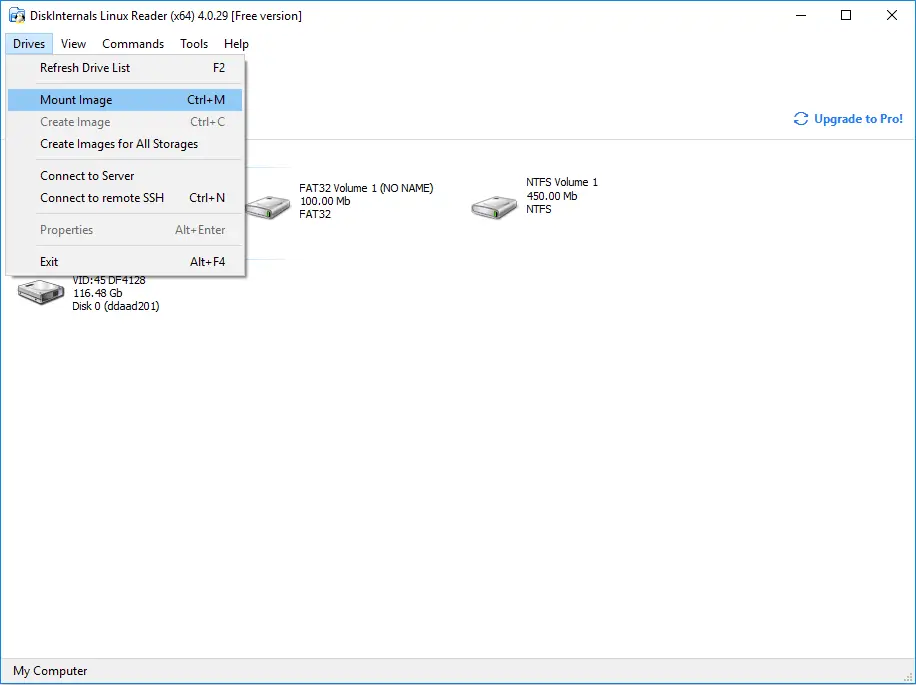
- 3. After installation, click Drives.
- 4. Then go to Mount Image.
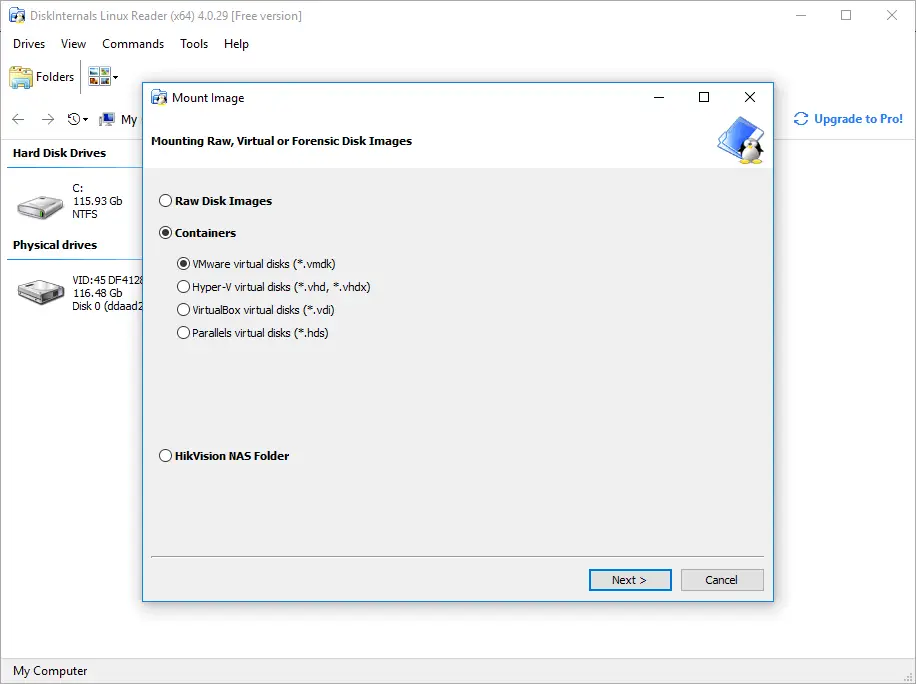
- 5. Select Containers and click Next.
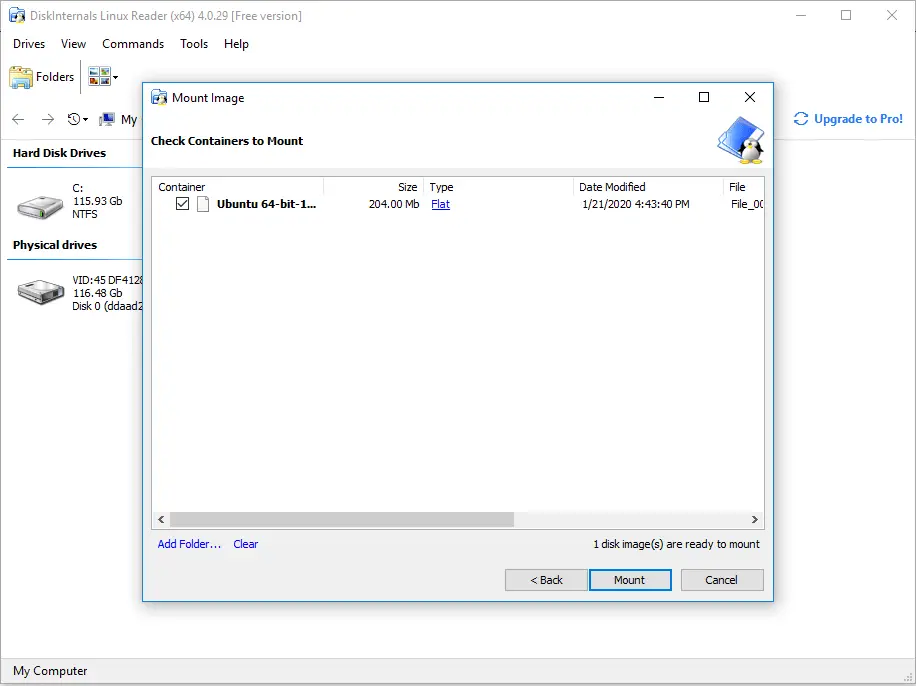
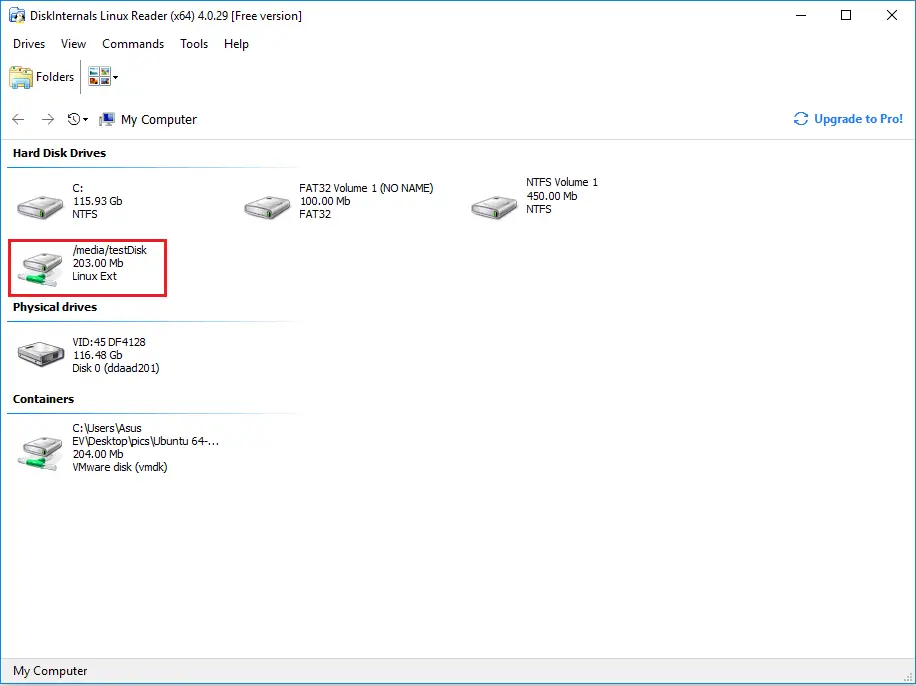
- 6. Select the drive and continue; the process will run automatically from here.
There is a slew of reasons why you should use DiskInternals Linux Reader™ for your Linux mounting and reading needs.
In conclusion, this article talked about the best software for your mounting and reading needs with all the relevant information regarding the available file systems and a lot more. If you want the best software for this kind of task, DiskInternals Linux Reader™ is the way to go.