
How to use && in an IF statement in bash
Here you will find out:
- what IF statements and their syntax are
- how to use && in an IF statement
- what the behavior of && in a shell script is
- when DiskInternals can help you
Are you ready? Let's read!
IF statements and their syntax
IF statements are used in making decisions in bash scripting. When an IF statement is introduced in a bash script, it is intended to check for certain conditions before running different commands in the script. Also, with IF statements and loops, it is much easier to write intricate scripts that run smoothly.
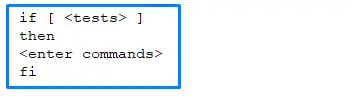
The syntax of an IF statement is easy to understand: it triggers specific commands after a previous test/command has returned a “return code”.
Example
Explanation
Any command written between “then” and “fi” will only run/execute if the “tests” identified above (in the first line) return as “True”.
Using && in an IF statement in bash
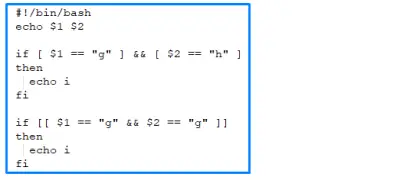
When creating complex or multi-conditional tests, that's when to use these Boolean operators. That is to say, if you're writing a bash script where two or more tests will have to return "True", then you have to use &&. Using && in an IF statement when writing a bash script will mean that all conditions/tests must return "True" before your command runs.
Example
Explanation
The above script will print "I" two times if the first condition is "g" or the second "h"
The behavior of && in a shell script
It is important to note that && is used not only for checking for tests/conditions, but also to run two or more commands. Thus, the commands after && will only run if the commands before && return as "True".
Example

Explanation:
The script above contains two commands; the second command is written after &&. Hence, it will only run if the first command returns as “True”.
Example of using && in shell script with an IF command
You can use the && operator in ann IF statement, as in the examples below:
Example 1:

Example 2:

Example 3:

How to get files from Linux
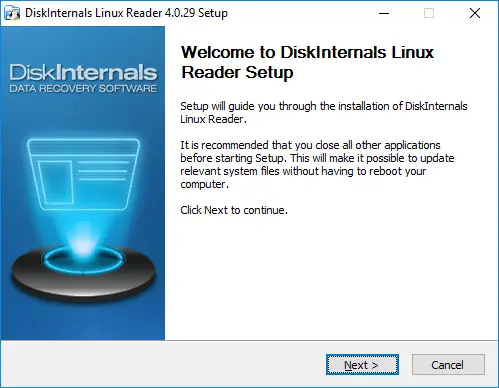
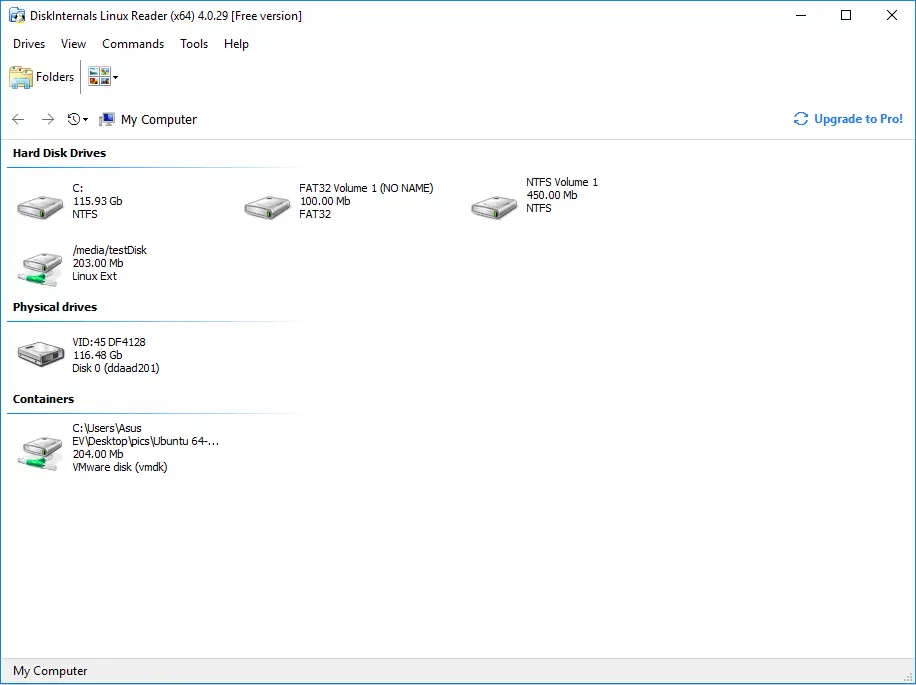
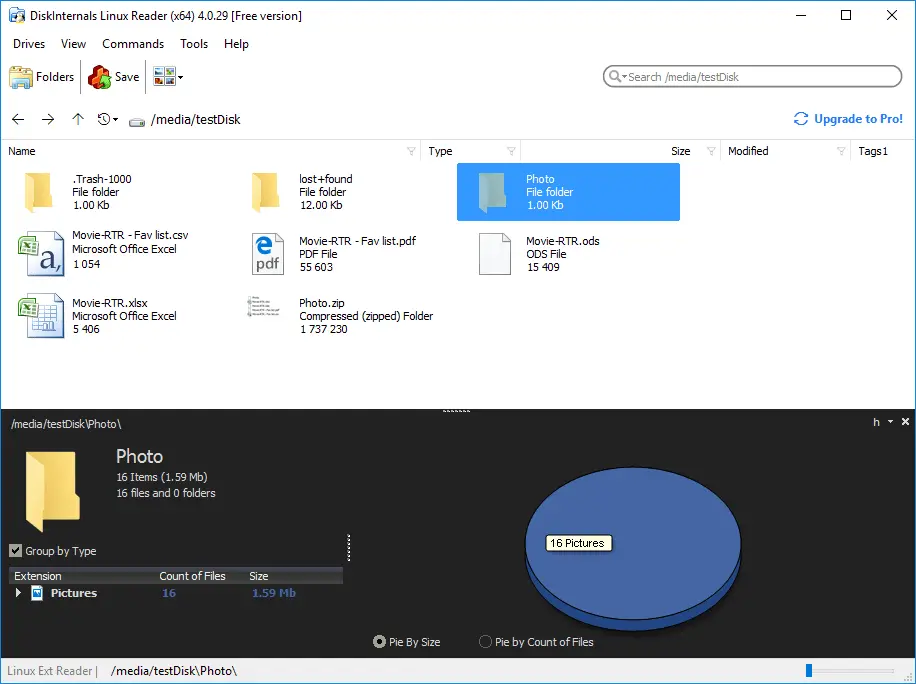
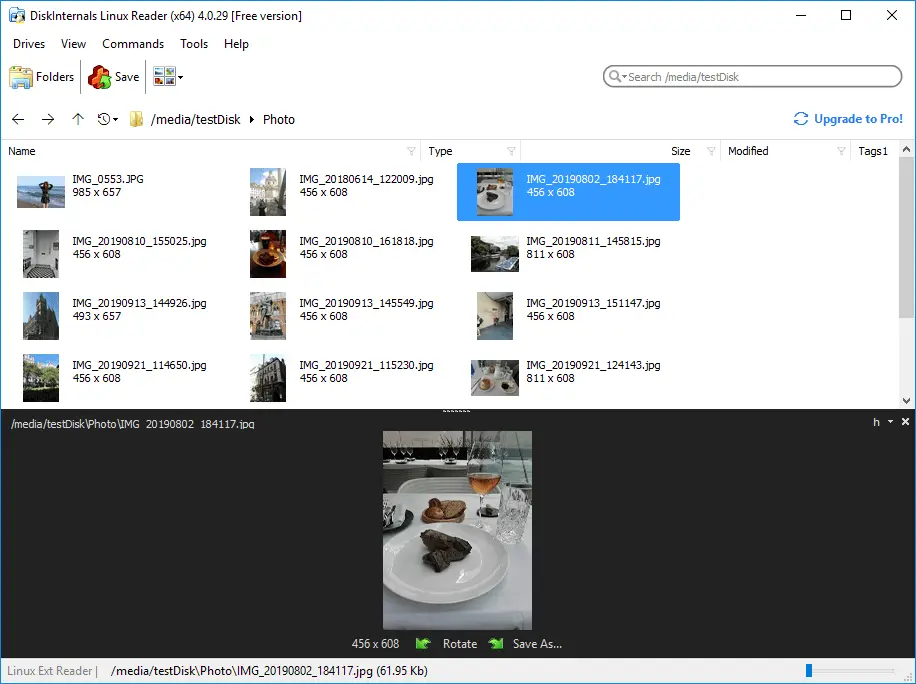
It is practically impossible to access Linux files on a Windows computer, because Windows does not support Linux file systems. However, when you use DiskInternals Linux Reader, you can access your Linux partitions on a Windows PC. This software is best for virtual machine users or dual-boot PC users. DiskInternals Linux Reader comes with a distinctive, easy-to-navigate interface and packs a couple of features that are very handy.
DiskInternals Linux Reader supports all file systems, as well as remote access via SSH and FTP file export. It remains the best tool to use for accessing your Linux files on Windows.
Related articles
- How to Access Linux Ext2 or Ext3 on Windows
- How to Access Ext4 from Windows
- How to Mount Ext4 on Windows for Free
- Mount Linux Drive on Windows for Free
- Bash Script: All You Need to Know
- An Algorithm: How to Create Bash While Loop
- Linux Shell: What You Need to Know at First
- How to Use Shell Script Sleep Command
- Bash: How to Check if the File Does Not Exist
- How to use bash get script directory in Linux
- 20 Examples of Bash Find Command
- Shell Script Cut: Basic You Need to Know
- Bash: How to Check if String Not Empty in Linux
- Linux: Sudo in Bash Scripts
- Linux: Bash Printf Examples
- Linux: Bash First Line
- Linux: A Bash Startup Script
- Linux: Write a Shell Script
- Shell Script: Replace String in File
- Bash and sh: is there any difference
- A Bash Dirname Command
- Linux: A Bash Source Command
- A Bash to Loop through Lines in File
- A Bash Nested Loop
- Use a Shell Script to Send an Email
- Using Bash to Write to a File
- About Bash Language
- Bash for Loop in One Line
- Learn about useful bash scripts
- About chaining bash commands
- About a bash export command
- Learn about a bash wait command
- Arch Linux install script
- About advanced bash scripting
- Learn about C shell script
- Learn about Korn shell scripting
- If you want to run shell script in background
- The disk you inserted was not readable by this computer error
- Learn about SFTP in bash scripting
- Copy command in shell scripts
- Install Oracle Database
- About a bash date command
- Guide in Pictures
- 5 Basic Shell Script Examples for Your First Script
- Bash Time Command on Linux
- How to Check Bash String Equality
- How to Use Linux Wait Command
- Bash: How to Loop Through Files in Directory
- Bash Cat Command in Examples
- Bash Script SSH: How to Use It
- Bash: A Script For User Input
- Linux ZSH: the basic you need to know
- Basic of Grep in Linux Shell Script
- Bash: how to split strings in Linux
- Hello World Script in Bash
- A Linux bin/bash Shell
- Linux: New Line in Shell Script
- Linux: Bash String Ends With
- Linux: $0 in a Shell Script
- A crontab service shell script
- A Bash Multiline Command
- Linux: A Bash Linter
- A Bash Test Command
- A Bash Status of Last Command
- Linux: A Bash Basename Command
- AWK in a Bash Script
- Learn about systemd startup script
- Learn about a bash error code
- Using a bash tee command
- To run a shell script in Dockerfile
- About a bash UNTIL loop
- Using /usr/bin/env command
- Whether bash waits for command to finish
- Using bash if 0
- Learn to run Perl script in Linux
- Examples of using the Expect
- Shell script usage
- Here is everything you need to know about Bash for Windows