Ext4 Formatter for Windows
DiskInternals Ext4 Formatter for Windows is a simple, standalone x64 program that lets you create an Ext4 filesystem directly from Windows. With it, you can format both physical drives and disk image files into Ext4 without leaving your Windows environment.
The tool is built for convenience: it doesn’t require extra components, works on Windows 8 through Windows 11, and supports Windows Server editions up to 2025. Whether you’re preparing an internal drive, an external HDD or SSD, a USB stick, or another removable disk, the Ext4 Formatter gives you a direct way to make Linux‑ready storage from Windows.
🖱️ Format a Drive to Ext4 Without Installing Linux
With DiskInternals Ext4 Formatter for Windows, you can prepare Linux‑ready storage directly from Windows without the usual complications. Traditionally, formatting a disk to Ext4 required booting into Linux, setting up a virtual machine, or manually configuring tools like WSL and Cygwin. This utility eliminates all of that.
Here’s what makes it different:
- No Linux Live USB → You don’t need to reboot into a separate operating system just to format a drive.
- No virtual machine → Skip the overhead of installing and running a VM just to access Linux tools.
- No manual WSL setup → There’s no need to configure Windows Subsystem for Linux or install additional packages.
- No separate Cygwin or e2fsprogs installation → The program already includes everything it needs, so you can run it out of the box.
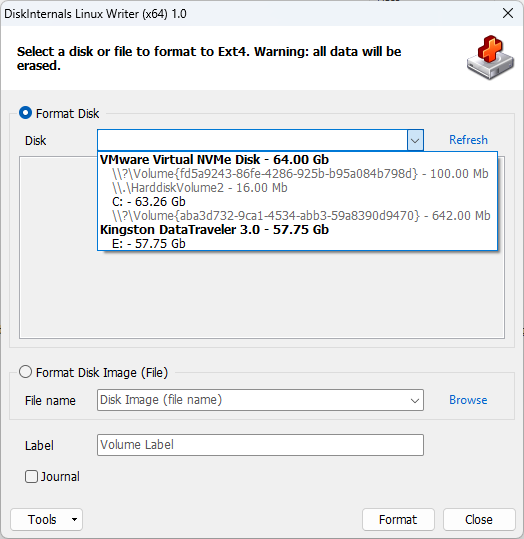
- Graphical interface instead of command line → Instead of typing complex commands, you get a clean GUI where you simply select the disk, set options like volume label or journaling, and click Format.
👉 In practice, this means you can take any internal drive, external HDD/SSD, USB stick, or removable disk, and format it to Ext4 in just a few clicks — all from within Windows. It’s a streamlined solution that saves time, avoids technical hurdles, and ensures reliable Ext4 creation without touching Linux at all.
💽 What You Can Format
DiskInternals Ext4 Formatter for Windows is built specifically for disk formatting tasks. It supports a wide range of storage types, so you can prepare almost any device for Linux use directly from Windows:
- Internal drives → Format system or secondary drives into Ext4 without leaving Windows.
- External HDDs and SSDs → Prepare portable storage devices for Linux environments.
- USB storage devices → Quickly format flash drives into Ext4 for dual‑boot or transfer purposes.
- Removable disks → Any detachable media can be formatted to Ext4 in just a few clicks.
👉 Whether you’re working with a desktop, server, or portable device, the Ext4 Formatter ensures consistent, reliable filesystem creation across all supported storage types.
⚙️ Key Features
DiskInternals Ext4 Formatter for Windows is designed to give you full control over creating Ext4 filesystems directly from Windows. Here’s what it offers:
- Format to Ext4 → Create a native Ext4 filesystem on physical drives or disk images.
- Supports both disks and images → Works with internal/external drives as well as file‑based images.
- Volume Label assignment → Set a custom label during formatting.
- Journaling on/off → Enable or disable the Ext4 journal depending on performance or recovery needs.
- Automatic disk and partition detection → The program scans and lists available storage devices.
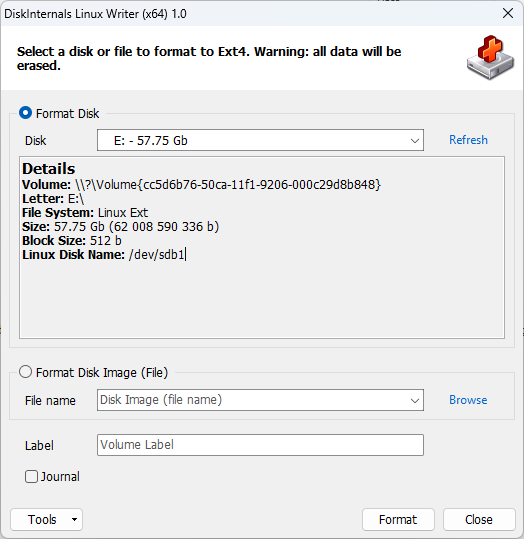
- Detailed device info → Displays size, model, serial number, and Linux device name for clarity.
- Integrated Disk Management shortcut → Quick access to Windows Disk Management directly from the interface.
- Operation log → Keeps a record of formatting actions for transparency.
- Update check → Built‑in mechanism to verify if a newer version is available.
- Single installer package → Everything included, no extra components required.
👉 Together, these features make the Ext4 Formatter a practical, reliable tool for preparing Linux‑compatible storage in Windows with minimal effort.
💡 How to Format a Disk to Ext4 in Windows
Using DiskInternals Ext4 Formatter for Windows is straightforward and doesn’t require any Linux setup. Here’s the step‑by‑step process:
- 1. Run the program as Administrator → This ensures it has the necessary permissions to access and format disks.
- 2. Select the physical disk → Choose the drive you want to format from the list of detected devices.
- 3. Verify details → Double‑check the model, size, and serial number to confirm you’ve selected the correct disk.
- 4. Set a Volume Label → Assign a name to the new Ext4 filesystem for easier identification.
- 5. Choose journaling options → Decide whether to enable or disable the Ext4 journal depending on your needs.
- 6. Click Format → Start the formatting process.
- 7. Confirm data deletion → The program will warn you that all data on the selected disk will be erased. Confirm to proceed.
👉 After these steps, the disk will be freshly formatted with an Ext4 filesystem, ready for use in Linux environments — all done directly from Windows.
📂 How to Format a Disk Image File to Ext4
One of the standout features of DiskInternals Ext4 Formatter for Windows is its ability to format not only physical drives but also disk image files. This is something standard Windows partition managers cannot do, making it especially useful for virtualization, testing, and recovery workflows.
Here’s how it works:
- 1. Run the program as Administrator → Required for full access to storage devices and image files.
- 2. Select the disk image file → Instead of choosing a physical drive, browse to the
.imgor.vhdfile you want to format. - 3. Review details → The program will display the size and basic information about the image file.
- 4. Set a Volume Label → Assign a name to the filesystem inside the image.
- 5. Choose journaling options → Decide whether to enable or disable the Ext4 journal.
- 6. Click Format → The image file will be initialized with a fresh Ext4 filesystem.
- 7. Confirm data deletion → All existing data inside the image will be erased during formatting.
👉 This capability makes the Ext4 Formatter unique: you can prepare virtual disks, test environments, or recovery images directly from Windows, without needing Linux tools or additional software layers. It’s a direct, GUI‑based solution for creating Ext4 filesystems in both real and virtual storage.
📑 Ext4 Journaling
Ext4 includes a journal — a special mechanism that records pending changes before they are written to disk. This feature improves reliability but also affects performance and write cycles.
When to keep journaling enabled
Journaling is best left on for most scenarios. It protects against data loss in case of sudden power failures, crashes, or unsafe removals. For production systems, servers, or critical storage, journaling ensures filesystem consistency.
When journaling is disabled
Some users turn it off when working with flash drives, SSDs, or recovery images where minimizing write operations is more important than resilience. Disabling the journal can slightly improve performance and reduce wear on flash‑based media.
Impact on stability and writes
With journaling enabled, the filesystem is more robust and self‑healing, but every write operation generates additional journal entries. Without journaling, the disk performs fewer writes, but the risk of corruption after unexpected shutdowns increases.
👉 In short: enable journaling for safety, disable it only when performance or reduced write cycles outweigh the need for resilience.
🔧 Powered by e2fsprogs and mke2fs
DiskInternals Ext4 Formatter for Windows relies on the same trusted toolset used in Linux environments — e2fsprogs and its mke2fs utility. This ensures that every Ext4 filesystem created is fully standards‑compliant and reliable.
- Standard Linux toolkit inside → The program uses the proven e2fsprogs package, the same tools Linux administrators rely on.
- All components included → Everything comes bundled in the installer, so you don’t need to download or configure anything separately.
- No manual Cygwin setup → The required Cygwin libraries are already integrated; there’s no extra installation step.
- Transparent licensing → Information about open‑source components and their licenses is available in the About section of the program.
👉 This technical foundation provides confidence that the Ext4 Formatter delivers the same quality and consistency as native Linux formatting tools, but with the convenience of a Windows GUI.
🖥️ System Requirements
To run DiskInternals Ext4 Formatter for Windows, make sure your environment meets the following conditions:
- Windows versions → Windows 8, 8.1, 10, and 11
- Windows Server editions → 2012, 2016, 2019, 2022, and 2025
- Architecture → x64 only (no 32‑bit support)
- Administrator rights → Required to access and format disks
- Supported storage → Any local or connected physical drive or removable disk
⚖️ Ext4 Formatter vs Linux Writer
| Ext4 Formatter | Linux Writer |
|---|---|
| Creates Ext4 filesystems | Reads and modifies files on Ext4 |
| Formats physical disks and disk image files | Manages files and directories |
| Lightweight standalone program | Full‑featured Ext4 file manager |
| Best for preparing storage media | Best for working with existing data |
👉 While Ext4 Formatter is focused purely on creating Ext4 filesystems, it’s worth noting that the formatting function is also included inside Linux Writer as Drive → Format Disk to Ext4. This means users who already work with Linux Writer can access the same formatting capability, but Ext4 Formatter provides a dedicated, streamlined tool for those who only need disk or image preparation.
⚠️ Important Data Loss Warning
Formatting permanently erases all data on the selected disk or image file. Before you proceed, carefully check the disk model, size, serial number, and volume to ensure you are working with the correct device.
👉 This step is critical: once the format begins, the existing data cannot be recovered. Always verify your target drive or image file before confirming the operation.
FAQ
-
No. Windows cannot natively format a drive to Ext4. That’s why DiskInternals Ext4 Formatter exists — it adds this capability directly into Windows.
-
No. Disk Management only works with NTFS, FAT, exFAT, and ReFS. Ext4 is not supported.
-
Yes. The Ext4 Formatter supports USB flash drives and other removable storage.
-
Yes. Unlike standard partition managers, this program can format disk image files (e.g., .img, .vhd) to Ext4.
-
Yes. Formatting erases all data on the selected disk or image file. Always double‑check the device before proceeding.
-
It’s a safety feature that logs changes before they’re written to disk. Journaling improves resilience against crashes but adds extra write operations.
-
Yes. It supports Windows 8, 8.1, 10, and 11.
-
Yes. Versions from 2012 through 2025 are supported.
-
No. The program is x64 only.
-
- Ext4 Formatter → Dedicated, lightweight tool for creating Ext4 filesystems on disks and images.
- Linux Writer → Full Ext4 file manager that lets you read, write, and manage files.
👉 Note: The formatting function is also available inside Linux Writer under Drive → Format Disk to Ext4.