
Bash: How to Check if String is Not Empty
You may not have experienced it, but it does happen.
One of these days, you may experience it. Sometimes, a bash script may contain empty variables. Here, we have provided every detail on how to check for empty variables in a bash script, as well as introduce a handy freeware for managing Linux partitions on Windows PC.
Here you will find out:
- bash command if a string is not empty
- examples of the check
- when DiskInternals can help you
Are you ready? Let's read!
Variables that are set and not empty
A variable is either defined or not defined. However, when a variable is defined but has no value, then the variable is “Not Set.” Similarly, when a variable is defined and has a value, then it is “Set.” Thus, declared variable but no value equals to “Not Set,” and declared variable with value equals to “Set.”
In programming, it is essential to check if a variable is “set” or “not set,” which means you have to check if a bash script variable has a value or not. This check helps for effective data validation. However, there’s no built-in function for checking empty variables in bash scripts, but bash supports a feature that can help out.
-n operator
-n is one of the supported bash string comparison operators used for checking null strings in a bash script. When -n operator is used, it returns true for every case, but that’s if the string contains characters. On the other hand, if the string is empty, it won’t return true.
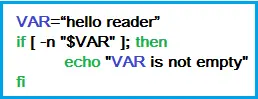
-z operator
-z is the second supported bash string comparison operator used to check if a string is empty or not. The -z operator functions similarly like -n operator. Below is an example:
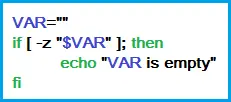
Most importantly, you should add spaces around the square brackets. If there are no spaces, bash will complain about that. Also, since any bash test without an argument will always return true, it is advisable to quote the variables so that the test will have at least an (empty) argument, irrespective of whether the variable is set or not.
Check to see if a variable is empty or not
Create a new bash file, named, and enter the script below.
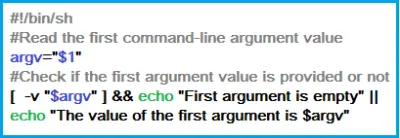
The script above stores the first command-line argument in a variable and then tests the argument in the next statement.
This script will print the first argument because it is not empty. However, the output would be “First argument is empty” if nothing is contained in the argument.
How to access Linux files from Windows?
This issue has been a problem for most dual-boot users. Some may have to shut down or reboot to Linux before accessing their files in EXT4,3,2, XFS and ZFS partitions. Well, you shouldn’t stress yourself that much any longer. Using this freeware, DiskInternals Linux Reader, you can easily access Linux partitions on Windows PC. DiskInternals Linux Reader comes with a succinct interface and works straightforwardly without any algorithm.
The program is available for free, and it supports quite a couple of handy features.
Related articles
- About a bash date command
- How to Access Linux Ext2 or Ext3 on Windows
- How to Access Ext4 from Windows
- How to Mount Ext4 on Windows for Free
- Mount Linux Drive on Windows for Free
- Bash Script: All You Need to Know
- An Algorithm: How to Create Bash While Loop
- Linux Shell: What You Need to Know at First
- 5 Basic Shell Script Examples for Your First Script
- Bash: How to Check if the File Does Not Exist
- Bash Time Command on Linux
- How to use bash get script directory in Linux
- How to Check Bash String Equality
- How to Use Linux Wait Command
- Bash: How to Loop Through Files in Directory
- 20 Examples of Bash Find Command
- Bash Cat Command in Examples
- Bash Script SSH: How to Use It
- Bash: A Script For User Input
- Linux ZSH: the basic you need to know
- Basic of Grep in Linux Shell Script
- Shell Script Cut: Basic You Need to Know
- Bash: how to split strings in Linux
- Linux: Sudo in Bash Scripts
- Hello World Script in Bash
- A Linux bin/bash Shell
- Linux: New Line in Shell Script
- Linux: Bash String Ends With
- Linux: Bash Printf Examples
- Linux: Bash First Line
- Linux: $0 in a Shell Script
- Linux: A Bash Startup Script
- Linux: Write a Shell Script
- Shell Script: Replace String in File
- A crontab service shell script
- Bash and sh: is there any difference
- A Bash Dirname Command
- Linux: A Bash Source Command
- A Bash to Loop through Lines in File
- Linux: A Bash Linter
- A Bash Nested Loop
- A Bash Test Command
- Use a Shell Script to Send an Email
- A Bash Status of Last Command
- Linux: A Bash Basename Command
- Using Bash to Write to a File
- About Bash Language
- Bash for Loop in One Line
- AWK in a Bash Script
- Learn about useful bash scripts
- Learn about systemd startup script
- About chaining bash commands
- Learn about a bash error code
- Using a bash tee command
- About a bash export command
- Learn about a bash wait command
- Arch Linux install script
- About advanced bash scripting
- To run a shell script in Dockerfile
- About a bash UNTIL loop
- Learn about C shell script
- Learn about Korn shell scripting
- Using /usr/bin/env command
- Whether bash waits for command to finish
- Using bash if 0
- Using && in an IF statement in bash
- If you want to run shell script in background
- The disk you inserted was not readable by this computer error
- Learn about SFTP in bash scripting
- Learn to run Perl script in Linux
- Examples of using the Expect
- Copy command in shell scripts
- Shell script usage
- Install Oracle Database
- Here is everything you need to know about Bash for Windows
- Guide in Pictures
- How to Use Shell Script Sleep Command
- A Bash Multiline Command