
Bash: get script directory in Linux
Here you will find out:
- about bash script directory
- how to use it
- when DiskInternals can help
Are you ready? Let's read!
About bash script directory
Any programmer knows how important directories are. Well, Linux operators also have to take directories very seriously. So let’s explain how to handle and manage your Bash script directories. Different computer users have their own ways of getting around with code; however, when writing Bash scripts, here are some possible ways to get your script directory.
$0 value and the first attempt
For the first attempt, use the $0 value. Bash scripts store executed command lines as $1, $2, $3 and so on. Thus, the $0 value is the prior element of the command. Also, when trying to get the Bash script current directory, you need to know about the dirname command.
What is the dirname command?
Simply put, when you run the dirname command, it echoes the last part of the name of the directory for a filename. For example, the command "dirname /5/7/9" will echo "/5/7", and "dirname ../5/7/9" will echo "../5/7".
Combine $0 and dirname
You can combine the dirname and $0 commands to retrieve the directory where a Bash script is saved. However, it may not be an absolute path, but a relative one; it all depends on how the script is called.
Here you’ll have something like this:

The example given above will save the script’s directory name as a variable for later use, after which it will then echo it and you’ll get:

Now, if the bash file is saved at /home/sam/bin/sample1.sh, the permissions will be altered to execute chmod 0700 ~/bin/sample1.sh) from /home/sam.
Example one: absolute path

Remember the dirname command? The command above will echo:

Example two: relative path
Run:
bin/test1.sh
It will echo:
bin
In the second example, "dirname $0" echoed bin because a relative path was used to run the script. This is not really advisable.
Why you need to return the absolute path
There is a need to return the absolute path because that’s where the bash script is located. Change the script’s directory and get the directory name:

When you save the above script as /home/sam/bin/sample2.sh, irrespective of how it is called, it will always echo:
However, you should know that, although the “change directory” command (cd) can be used, your Bash script won’t change its directory. Plus, further calls within the script will be relative to the current directory.
When you run the script above in /home/sam and call “PWD" in the next line, it will yet echo "/home/sam."
Do you have a dual-boot: Linux and Windows?
It is obviously difficult to access Linux files on Windows if you’re dual-booting on a PC. However, with the aid of DiskInternals Linux Reader, you can easily access Linux partitions on Windows.
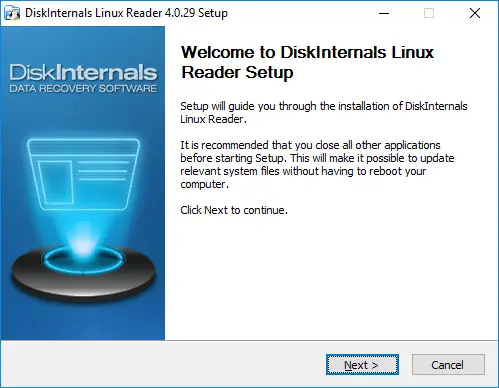
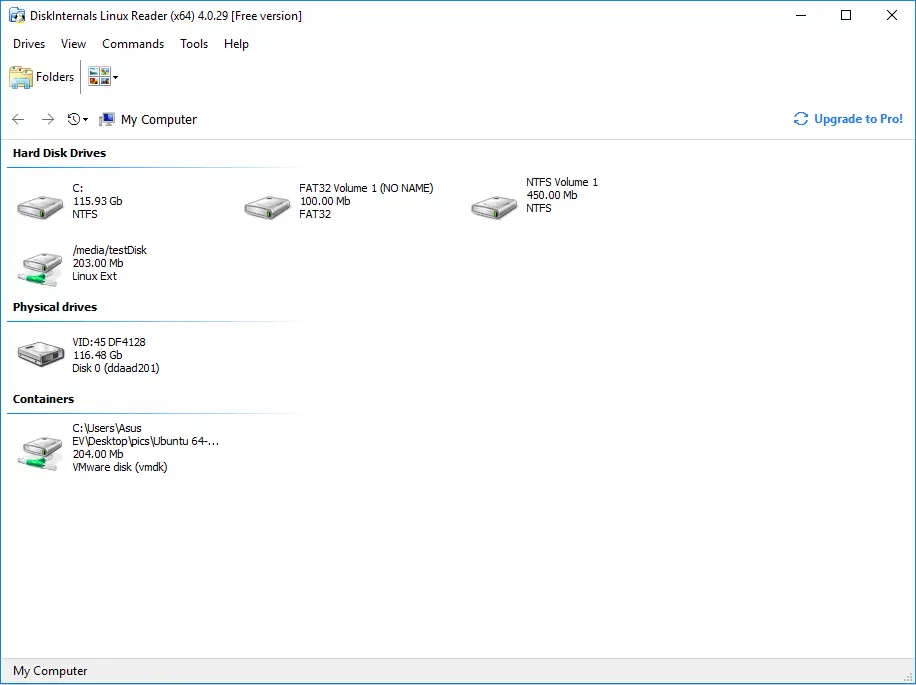
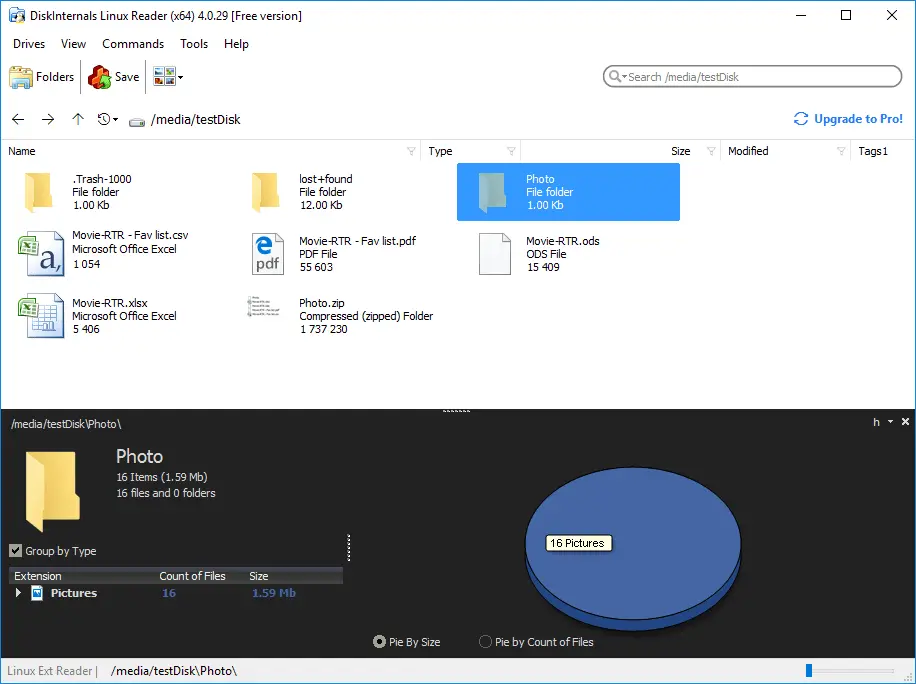
This software is totally free and simple to use. Also, the interface looks almost the same as the Windows Explorer interface.
DiskInternals Linux Reader makes it possible to view files in your Ext4/3/2, UFS2, ReiserFS or Reiser4 partitions when you boot to Windows on your dual-boot PC.
Related articles
- About a bash date command
- How to Access Linux Ext2 or Ext3 on Windows
- How to Access Ext4 from Windows
- How to Mount Ext4 on Windows for Free
- Mount Linux Drive on Windows for Free
- Bash Script: All You Need to Know
- An Algorithm: How to Create Bash While Loop
- Linux Shell: What You Need to Know at First
- 5 Basic Shell Script Examples for Your First Script
- Bash: How to Check if the File Does Not Exist
- Bash Time Command on Linux
- How to Check Bash String Equality
- How to Use Linux Wait Command
- Bash: How to Loop Through Files in Directory
- 20 Examples of Bash Find Command
- Bash Cat Command in Examples
- Bash Script SSH: How to Use It
- Bash: A Script For User Input
- Linux ZSH: the basic you need to know
- Basic of Grep in Linux Shell Script
- Shell Script Cut: Basic You Need to Know
- Bash: How to Check if String Not Empty in Linux
- Bash: how to split strings in Linux
- Linux: Sudo in Bash Scripts
- Hello World Script in Bash
- A Linux bin/bash Shell
- Linux: New Line in Shell Script
- Linux: Bash String Ends With
- Linux: Bash Printf Examples
- Linux: Bash First Line
- Linux: $0 in a Shell Script
- Linux: A Bash Startup Script
- Linux: Write a Shell Script
- Shell Script: Replace String in File
- A crontab service shell script
- Bash and sh: is there any difference
- A Bash Dirname Command
- Linux: A Bash Source Command
- A Bash to Loop through Lines in File
- Linux: A Bash Linter
- A Bash Nested Loop
- A Bash Test Command
- Use a Shell Script to Send an Email
- A Bash Status of Last Command
- Linux: A Bash Basename Command
- Using Bash to Write to a File
- About Bash Language
- Bash for Loop in One Line
- AWK in a Bash Script
- Learn about useful bash scripts
- Learn about systemd startup script
- About chaining bash commands
- Learn about a bash error code
- Using a bash tee command
- About a bash export command
- Learn about a bash wait command
- Arch Linux install script
- About advanced bash scripting
- To run a shell script in Dockerfile
- About a bash UNTIL loop
- Learn about C shell script
- Learn about Korn shell scripting
- Using /usr/bin/env command
- Whether bash waits for command to finish
- Using bash if 0
- Using && in an IF statement in bash
- If you want to run shell script in background
- The disk you inserted was not readable by this computer error
- Learn about SFTP in bash scripting
- Learn to run Perl script in Linux
- Examples of using the Expect
- Copy command in shell scripts
- Shell script usage
- Install Oracle Database
- Here is everything you need to know about Bash for Windows
- Guide in Pictures
- How to Use Shell Script Sleep Command
- A Bash Multiline Command