Restore deleted calendar in Outlook today!
Here you will find out:
- how to restore accidentally deleted Outlook calendar or items
- how DiskInternals can help you
Are you ready? Let's read!
About MS Outlook calendar
Microsoft Outlook contains many functions: contacts, task scheduler, notebook, email client, and a calendar, which will be discussed here.
In calendar mode, you can mark and schedule meetings, events, upcoming events, etc. In real-time, this is convenient, especially if the calendar is synchronized with your account. Most people are not always able to remember everything they have to do even in a week, and the calendar will not let them forget upcoming events.
However, due to many circumstances, the calendar in Outlook can malfunction and this can cause you trouble. Here’s how to prevent it!
Method 1. Check deleted items folder
This method is worth trying if you can not find either a calendar or an email. In this case, you need to look for both in the Remote folder.
Note: exiting Microsoft Outlook deletes the entire contents of this folder. To prevent this from happening, do this: click on the Options button and select the Advanced tab. In the “Start and Exit” section, deactivate the “Remove deleted items” option. Now press Enter and begin recovering your deleted Outlook calendar.
To do this, simultaneously click on the Calendar folder and the Ctrl button. From the menu, select Tools and then click Recover Deleted Items. Click OK and check your calendar.
Method 2. Check archived folder
Outlook is designed so that old and expired calendars, emails and other files are periodically deleted from folders during automatic archiving. But, if desired, they can be found in a special archive folder.
You need to follow these instructions in order: Go to Home > Create Item > Other Items > Outlook Data File. Here, to find the calendar, use the quick search function in Outlook. If you find and want to restore your Outlook calendar, you can do this simply by dragging the folder to the desired location.
Note: The data file is usually located at C:\Users\username\AppData\Local\Microsoft\Outlook\archive.pst
If there is nothing worthwhile in the archive and you still want to recover the deleted Outlook calendar, use the following method — it’s proven and 100% effective.
Method 3. Use Outlook Recovery
DiskInternals Outlook Recovery will help return any Microsoft Outlook file, and restoring a deleted Outlook calendar is no exception.
This application does not require anything supernatural from you, just a little of your time and patience. As soon as you download and open the program, the Recovery Wizard will follow and help you from start to finish. This feature is available in both the paid and free trial versions.
Viewing before export is recommended, as the company cares about its customers. Therefore, this feature is free.
Let's proceed to restore your Outlook calendar:
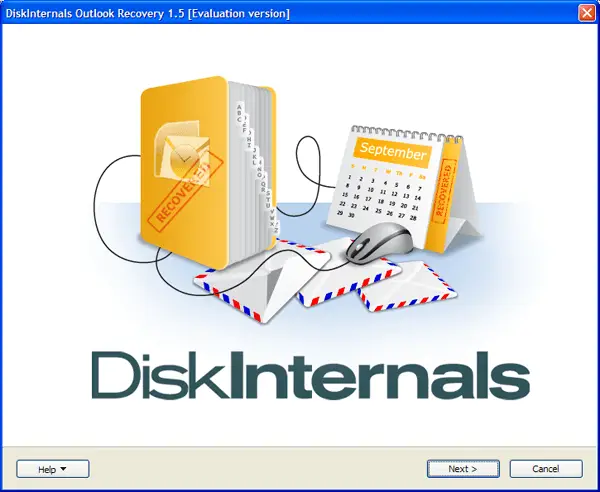
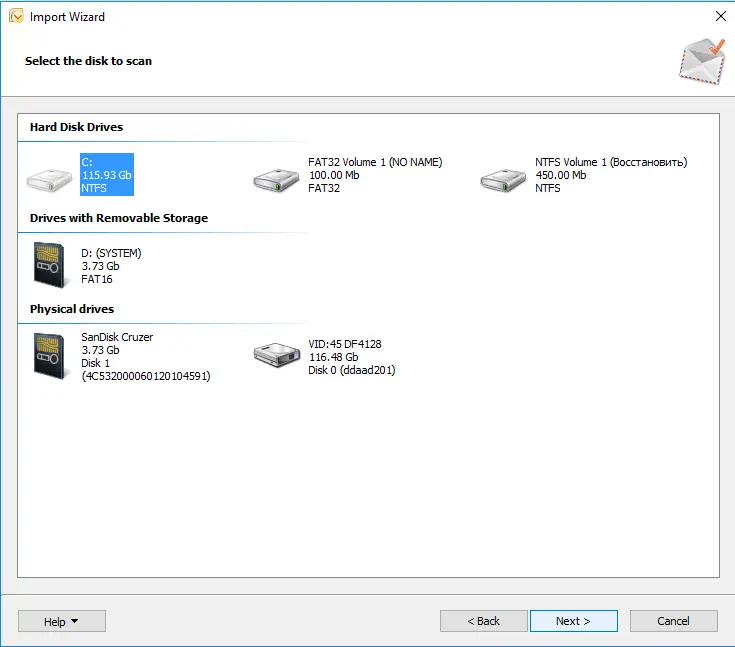
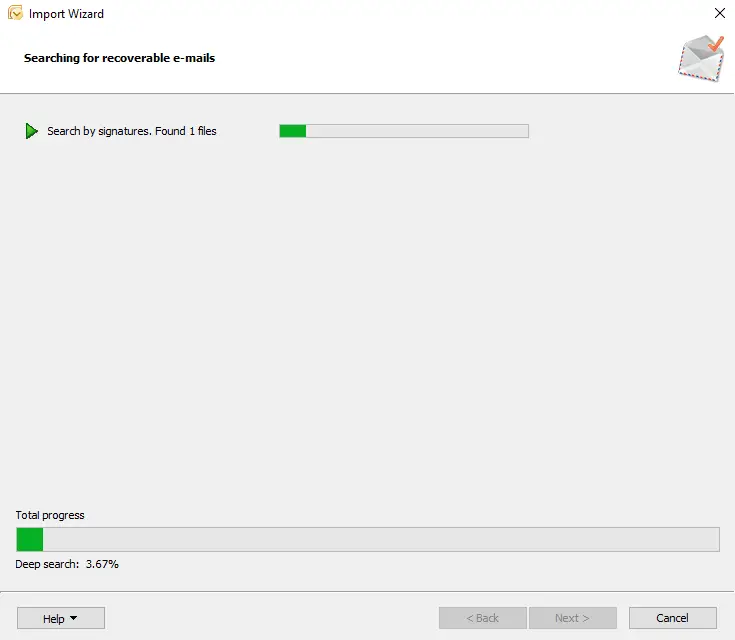
After opening DiskInternals Outlook Recovery, you will see a welcome window with a wizard icon. Click on it and choose between the three recovery modes:
- return mail after a disk failure
- return the mail database
- return the address book
Next, you will be offered the option of a full or quick disk scan. For your benefit, choose the full option.
After that, you will see unsurpassed results that you should definitely review before recovery. By the way, after viewing the data, it is automatically restored.
The last and exciting moment is export. But it is possible only after purchasing a license. Once this is done, you will receive a license key and the Export Wizard will help you keep the calendar in a safe place.
That's all; enjoy! Now a reliable assistant in the form of Outlook Recovery will always be there.