Outlook data file cannot be accessed? Recover your Outlook messages!
In this article you will find out:
- sings of the 0x8004010F Error
- why the "Outlook data file cannot be accessed" error happens
- 3 methods to fix the 0x8004010F error
Are you ready? Let's read!
Signs of Outlook 0x8004010F Error
Error 0x8004010F is quite common for Outlook 2010. Most often it can be found when sending or receiving messages in Outlook. The following message may appear on the screen:
- 0x8004010F: Outlook data file cannot be accessed.
- 0x8004010F: The operation failed. An object could not be found.
You must admit that this error can cause a lot of harm to you, as well as to those people who cannot receive email from you.
Reasons why Outlook data files cannot be accessed
You need to clearly know the causes of Error 0x8004010F, as knowing them can help you prevent any problems with Outlook.
- Damage by a virus or other malware
- Error in Outlook update that leads to the Outlook error 0x8004010F
- Issues with your Outlook profile
- Outlook data files are not located in the right place
- The size of the Outlook data file exceeds the current limits
Now, let’s proceed to methods for fixing error 0x8004010F.
Method 1. Change Outlook delivery location
Changing of the delivery location of Outlook can solve the 0x8004010F error.
Follow these steps:
Click the Start button, then enter the Control Panel and left-click on Mail. Then go to Mail Settings and click on Show Profiles.
You need to select the current profile and click the Properties -> Data Files tab.
Now you need to write the name and location of the data file for your profile; it will be used as default. Make sure you put a mark on it. Click Close.
If, after this method, the Outlook data file still cannot be accessed, proceed to the next method.
Method 2. Create & use a new Outlook profile
As a solution to the 0x8004010F error, you can create a new profile. That can be done either automatically or manually.
If you prefer the first option, follow these steps:
Enter the Mail setting as in the first method until you see the Show Profiles tab. Click on the Add button in the General tab. Make sure you check "Always use this profile". You will be prompted to fill fields in the Add New Account box. Then click OK. In the new window will display the email address. Click OK -> Done.
If you want to set up a profile manually, follow these instructions:
Open the Control Panel. In the new window “Mail Setup - Outlook”, click the left button of the mouse on “Show profiles”.
Select the current profile and click Add. You must enter a new name for the new profile.
Enter a name for the new Outlook profile. Click OK.
You will see a new window, "Add a new account", where you need to click on the tab "Manually configure server settings or additional server types." Now click Next. In the new window, "Choose Service", you need to enter your email address. Click Next.
In “Internet Email Settings”, enter your account information and click “Test Account Settings”. This will help you verify this account. Then select: “Existing Outlook Data File” -> “Browse” -> “Open Outlook Data File”. A list of data files will appear. Select the data file that was found earlier. Click OK, then Finish.
Hopefully the error “Outlook data file cannot be accessed” is no more.
Method 3. Use DiskInternals Outlook Recovery
But what do you do if some of your messages or applications are deleted? Use the best software, DiskInternals Outlook Recovery.
DiskInternals Outlook Recovery will help you recover any emails, Outlook and WAB contacts, attachments, tasks and calendars from serviceable and corrupted Outlook databases. This software can deal with the recovery of Outlook data files after formatting, accidental deletion, fragmented PST files from several parts randomly distributed on the disk, etc. The Recovery Wizard will show you what to do to complete the process. There is a preview function before recovery, which is completely free. Another good feature is that recoverable email can be exported to another format (Outlook, Vista Mail, Outlook Express, or EML).
All work in the application is automated. This significantly reduces the time spent on data recovery.
Recover Outlook files with DiskInternals Outlook Recovery!
Use this guide for DiskInternals Outlook Recovery.
Step 1. Download and install DiskInternals Outlook Recovery.
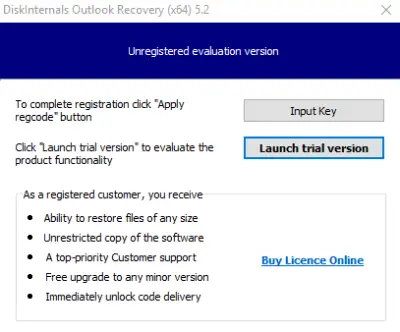
Step 2. The recovery wizard will start automatically and will offer you the following recovery modes:
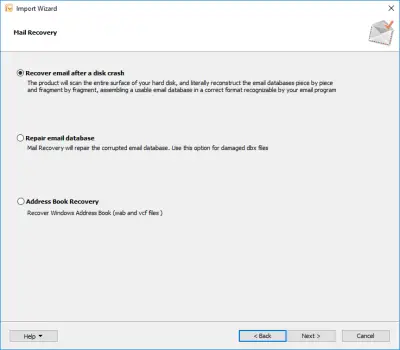
- 1. email recovery after a disk failure
- 2. address book recovery
- 3. email database recovery
The next steps depend on which recovery mode you have chosen.
Step 3. If you selected recover mail after disk failure or address book recovery:
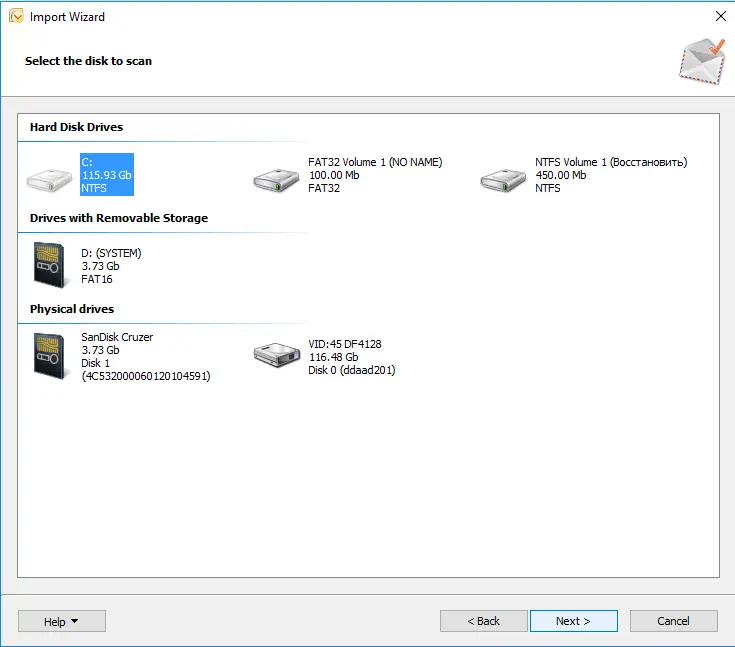
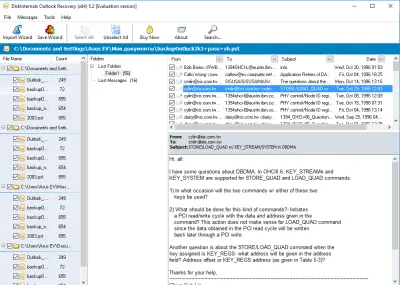
- First select the disk to scan, then click the Scan button. Wait for the process to complete.
- Preview. Right-click on the file and select Preview in a new window. Recovery is automatic.
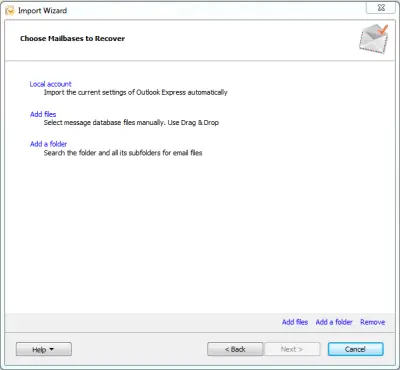
If you chose to restore the mail database:
- Select one of the following options for you: Local account, Add files or Add a folder. Click Next button.
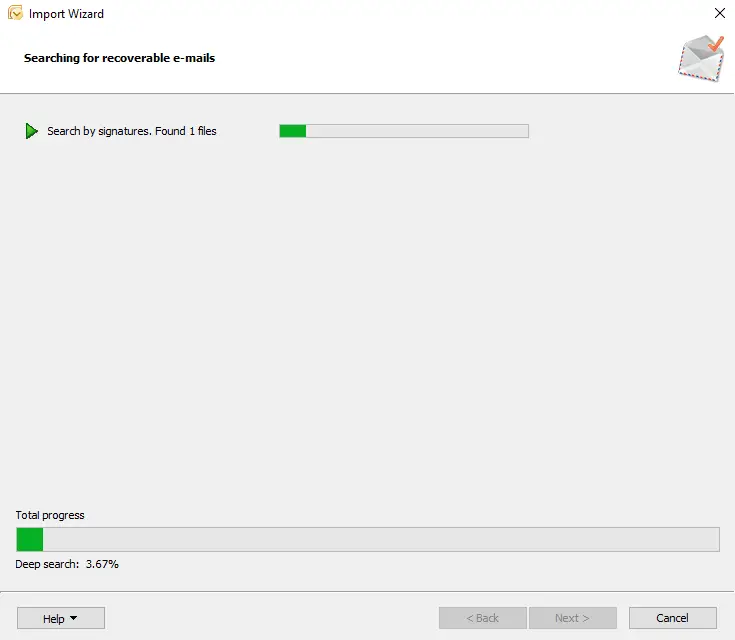
- Scanning. It will take some time; wait.
- Preview before recovery is completely free. It will help you make sure that the data can be recovered accurately.
- Recovery is automatic.
Good luck!
Related articles
- What to do if Microsoft Outlook has stopped working
- Unknown 0x80040119 Outlook error? Fix it!
- How to Recover Deleted Outlook Calendar on Windows
- Outlook Error Code 0x80040154
- Outlook not syncing your email
- Using the G Suite Admin Console
- Error 0x80070021 occurs: your actions
- Outlook won't open: your actions
- What if Outlook is not connecting to the server? Two solutions
- Ultimate Guide to Fix 'Microsoft Outlook Won’t Open or Start' Error
- Navigating the Rackspace Hosted Exchange Outage: A Guide to Restoring Services and Data
- The best solutions for Microsoft Outlook implementation issues
- MS Outlook not responding? Fix the issue today!
- Move Outlook files to a new computer safely!
- Fix sending / receiving 0x8004210a Outlook error
- Outlook error 0x800ccc0f has a solution!
- Fix 0x80040600 errors in Outlook today!
- Manual: remove duplicate emails in Outlook fast!
- How to create PST file in Outlook 2013
- Errors have been detected in Outlook file? Fix it!
- If your Outlook folders or subfolders are missing
- We couldn't create the Outlook data file
- How to recover a Gmail account
- Recover Deleted Emails in Office 365
- How to save your mailing in case of Outlook error 0x800ccc0e?
- Outlook cannot connect to SMTP server
- Outlook stuck on loading profile? Fix it now!
- How to Encrypt Email in Outlook
- Here is how to open Outlook in safe mode
- A Comprehensive Guide to Opening OST Files in Various Outlook Versions
- Unlock Your Data: Free PST Recovery Software Guide