Fix 0x80040600 errors in Outlook today. All you need is here!
Is your Outlook having 0x80040600 error? Fix it today! Here you will find out:
- what is the 0x80040600 error and what is the reasons for it
- how to fix that problem
- how DiskInternals Outlook can help you
Are you ready? Let's read!
About error 0x80040600 in Outlook
Outlook error 0x80040600 may unpleasantly surprise you when you try to open a message or send it. Or you may discover it when accessing some of your data in Outlook.
If you are encountering this issue for the first time, most likely you do not know what to do or how to fix Outlook error 0x80040600. This article will help you find the right solution.
Reasons for an 0x80040600 error
Error 0x80040600 is associated with PST files; more precisely, with their being overloaded. While PST files can be large, a limit still exists. And if you exceed that limit, you will definitely encounter problems, for example, a 0x80040600 error. As a result, the application will be paralyzed until you take action.
Another reason for Outlook error 0x80040600 is a virus attack or damage to PST files by malware.
Also, this error may occur due to damage in Outlook itself; for example, a damaged profile. Knowing now what's the matter, you can proceed to fix Outlook error 0x80040600.
Fix using Scanpst.exe
Try the following steps to fix the problem. It does not take much time.
Step 1. Make all files visible. To do this, right-click on Start and select the Control Panel. Next, click the folder settings, then click "View". In the new window, you need to check the box "Show hidden files, folders and drives." Confirm this action by clicking on OK.

Step 2. Locate the PST file for the Outlook profile. To do this, open the Control Panel, then open Mail. Click the Show Profiles tab and select your corrupted Outlook profile. Then right-click on it and select Properties -> Data Files. Now you need to find the PST file (it is indicated by a black circle with a checkmark).
Step 3. Run Scanpst.exe. To do this, the first log out of Outlook. Now you need to open Inbox Repair Tool, which in Outlook 2019 is located at the following file path:
C:\Program Files (x86)\Microsoft Office\root\Office 19
Then enter the location of the PST file that you found in step 2. Click the Start button. This process will be long and may not even help with Outlook error 0x80040600. But this utility is free, so it’s worth a try.
If you are not lucky and Outlook error 0x80040600 is still present, read the next paragraph.
Other methods don't work? There is an alternative!
If the above method does not help you, you can always use DiskInternals Outlook Recovery to restore your mail, contacts, attachments, and journal.
And after you retrieve your files, you can try to create a new Outlook profile and use it instead.
A few words about DiskInternals Outlook Recovery:
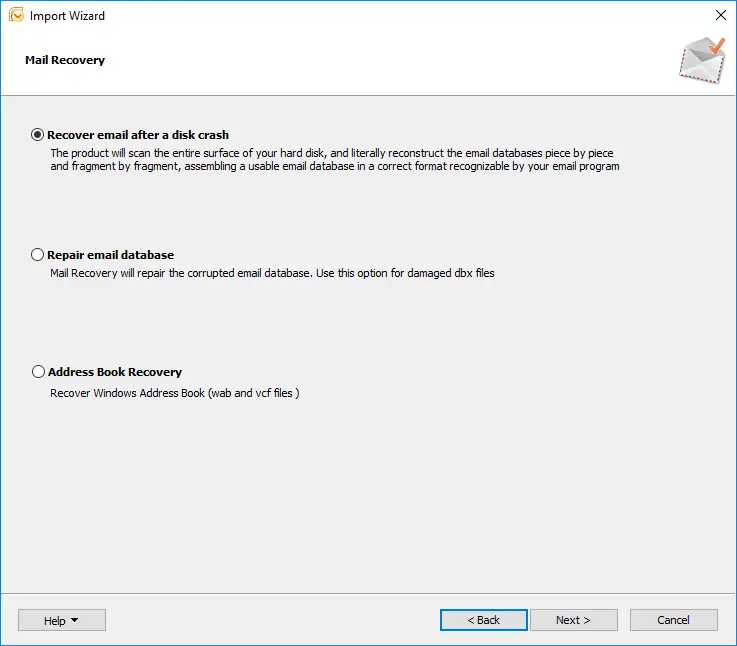

The Recovery Wizard is a very useful thing if you are new to recovering these kinds of file. It will help you recover data quickly and efficiently.
The recovery process itself is fully automated, and you do not need to do almost anything.
The free Preview function will help you to make sure that your files be restored accurately, and only necessary files you select are recovered. You can download the free trial version of DiskInternals Outlook Recovery and make sure that this application is the best there is.
How to prevent 0x80040600 errors in the future
- Be sure to have a good and effective antivirus program on your computer, which should always have the latest updates.
- You should backup your PST files at regular intervals, especially if you plan to upgrade the application.
- Having a storage threshold for PST files of up to 2 GB can extend the application’s life and avoid this kind of error entirely.
- Periodically clean your folders and PST files: delete unnecessary data, check emails, etc. This will prevent cluttering of the disk and help to avoid problems of this kind.
- When closing the application, always check if you accidentally deleted any information. In this case, it is easy to find a way to quickly return the file, since the application has not yet completed its work.
- Never shut down a program suddenly; this can lead to all kinds of malfunctions, including a 0x80040600 error. Also, avoid sudden shutdowns of the computer due to loss of power supply or power surges; this is always a threat not only for programs, but also for the hard drive as a whole.