What to do if you face Outlook error code 0x80040119
Here you will find out:
- what is the 0x80040119 Outlook error
- how to cope with it
- how Outlook Recovery can help
Are you ready? Let's read!
About unknown Outlook errors
Outlook is an email program from Microsoft that allows users around the world to safely exchange email and any other kind of personal information.
This service is used not only as a mailbox but also as a calendar or diary. Each Outlook user can create notes and fix them to dates or upcoming events. This program is not just a means of business or personal correspondence, but also a free personal organizer. But when the user forgets to properly use the program or reads unnecessary incoming messages in time, etc. there is a danger of errors such as error code 0x80040119.
Signs of a 0x80040119 error
The main sign of this problem is Outlook making it impossible to send or receive messages, the main functions of the application. At the same time, “outlook error 0x80040119” may appear. The user may also notice reduced computer performance. And, if everything is unchanged, there is a high probability that data may be lost.
Outlook error 0x80040119: find out the reasons
The most common problem is in the application itself.
This may be the ill-fated PST file; specifically, it's being damaged or its huge size. Also, a damaged account, overloaded storage and other problems with Outlook will completely lead to error 0x80040119. And do not forget about viruses and malicious programs, since they can also do bad things.
Method 1. Use the Inbox Repair tool
Fortunately, Microsoft Outlook contains a tool called Inbox Repair, which you can use to tidy up damaged personal and offline folder files.
When you open this application, a dialog box appears in which you must enter the access path and name for the damaged file, then click on the Start button. When the scanning process starts, Inbox Repair scans all the contents of the specified file and then displays what it found, sorting everything into folders.
Usually, messages that the program could not find (and without a backup copy these messages will be permanently lost) are moved to the Lost and found folder; keep this in mind.
Method 2. If you have a restore point
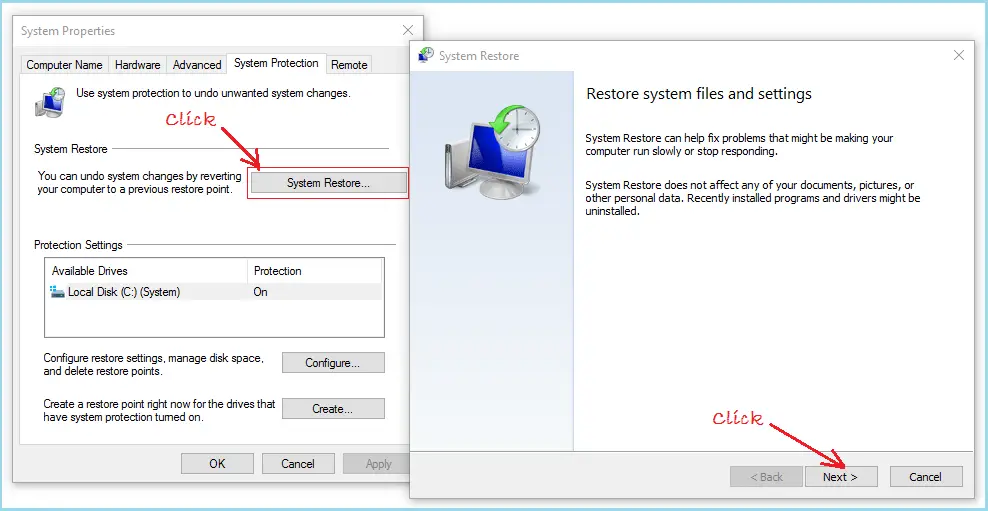
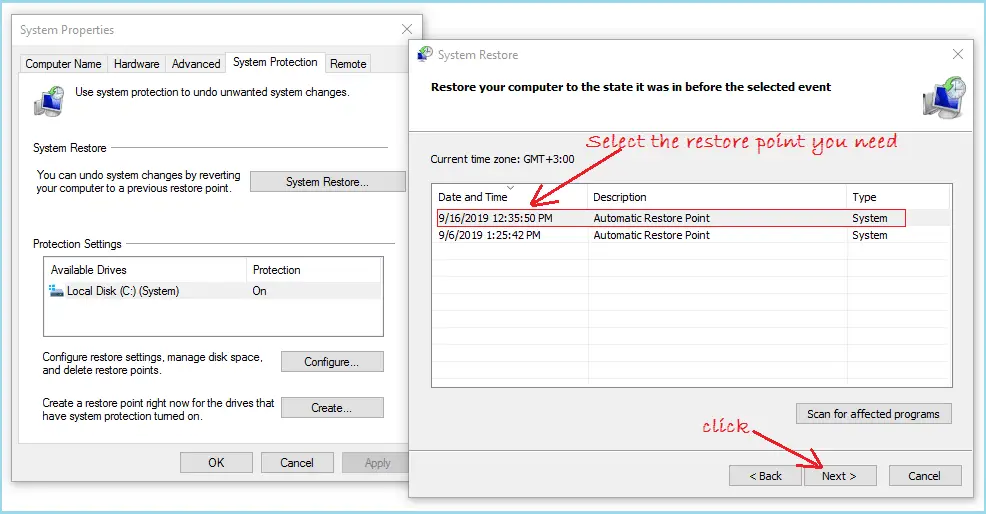
If you seized the opportunity to create recovery points, then everything is very clear. Restore your computer to a previous state when Outlook worked fine. Just in case, back up the data.
Before you go to radical solutions
Any radical way to get rid of unknown error 0x80040119 risks you losing all stored data (messages, events, etc.). Insurance, in this case, is needed more than ever.
Repair damaged files and back them up using DiskInternals Outlook Recovery. After that, any outcome will be satisfactory for you. Outlook Recovery will recover even a highly fragmented PST file, deeply scan the disk and restore sent and received email messages, tasks, attachments, address books, etc. All this is done automatically using the Recovery Wizard, so you don’t need any special know-how.
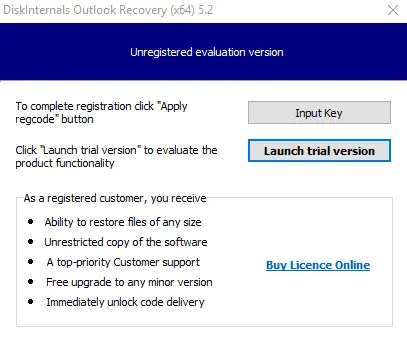

First, follow these instructions:
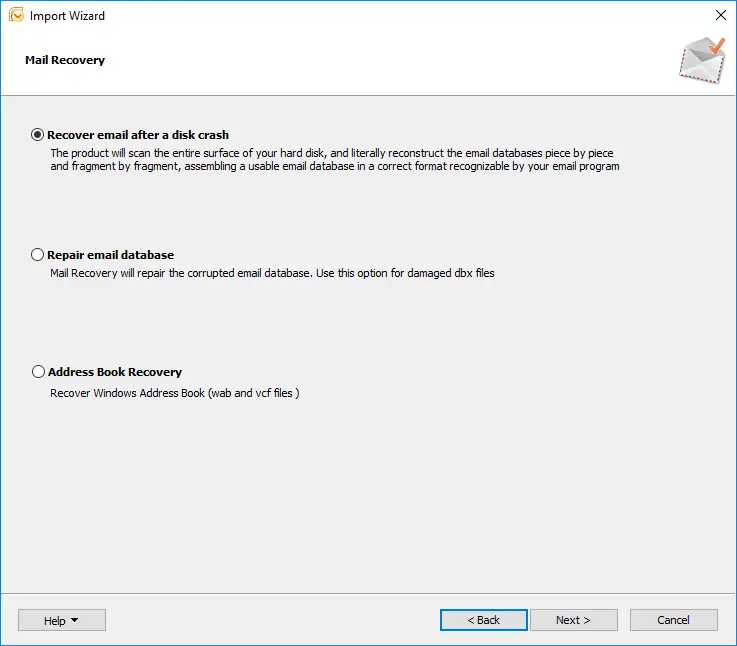
As soon as the software starts, you need to open the Recovery Wizard. It will suggest choosing a recovery plan:
- Repair email
- Database
- Address Book Recovery
This choice depends on your goals.
Next, follow the instructions of the Wizard and as soon as you see the results of the scan, you can view each file for free.
After that, acquire an online license and save the data to any medium.
Method 3. Reinstall MS Outlook
Since you have already restored Outlook data using the DiskInternals Outlook Recovery, or you had a backup copy, you can try reinstalling MS Outlook. That should work.
Related articles
- What to do if Microsoft Outlook has stopped working
- How to Recover Deleted Outlook Calendar on Windows
- Outlook Error Code 0x80040154
- Outlook not syncing your email
- Using the G Suite Admin Console
- Error 0x80070021 occurs: your actions
- Outlook won't open: your actions
- What if Outlook is not connecting to the server? Two solutions
- Ultimate Guide to Fix 'Microsoft Outlook Won’t Open or Start' Error
- Navigating the Rackspace Hosted Exchange Outage: A Guide to Restoring Services and Data
- Outlook data file cannot be accessed? Solve it!
- The best solutions for Microsoft Outlook implementation issues
- MS Outlook not responding? Fix the issue today!
- Move Outlook files to a new computer safely!
- Fix sending / receiving 0x8004210a Outlook error
- Outlook error 0x800ccc0f has a solution!
- Fix 0x80040600 errors in Outlook today!
- Manual: remove duplicate emails in Outlook fast!
- How to create PST file in Outlook 2013
- Errors have been detected in Outlook file? Fix it!
- If your Outlook folders or subfolders are missing
- We couldn't create the Outlook data file
- How to recover a Gmail account
- Recover Deleted Emails in Office 365
- How to save your mailing in case of Outlook error 0x800ccc0e?
- Outlook cannot connect to SMTP server
- Outlook stuck on loading profile? Fix it now!
- How to Encrypt Email in Outlook
- Here is how to open Outlook in safe mode
- A Comprehensive Guide to Opening OST Files in Various Outlook Versions
- Unlock Your Data: Free PST Recovery Software Guide