Errors have been detected in Outlook file? You can fix it!
Here you will find out:
- why the error has been detected in the .ost file in Outlook
- how you can fix it
- how DiskInternals Outlook Recovery can help you
Are you ready? Let's read!
About “errors have been detected in the Outlook file” issue
Despite the fact that the Outlook 2010 application and the OST files that it uses are quite reliable and trouble-free, you might yet see a message on the monitor like this:

Undoubtedly, this is an unpleasant situation, but you should definitely try to solve it.
After all, not everything is unreliable.
Reasons for the error
Most often, the message "error has been detected in the Outlook file" is because a virus has attacked the computer, or rather the application, and will damage important system files. It can also be due to a power failure while data is being synchronized.
Sometimes you may experience a system failure or damage to the file system, registry, etc. The reasons may be many, but this article should still show you the right way out of the situation.
And here are three popular approaches; any of them is a good one, but it all depends on various factors that have been taken into account here.
1. If errors have been detected in the Outlook 2007 file
If an error occurs in Outlook 2007, then you can use Scanost.exe. Later versions of Outlook, however, cannot be fixed this way.
If you are using a later version, skip this step and read the next paragraph.
2. Delete and recreate the problematic OST file
Go to the folder using the link %localappdata%\Microsoft\Outlook. Now find the problematic OST file here, right-click on it, and select Delete.
3. If you can't recreate the OST file, restore it.
DiskInternals Outlook Recovery will do this better than any other application. You can quickly and efficiently repair damaged OST or PST databases, including the Deleted Items folder, contacts, attachments, tasks, and calendars. If you have any doubts about this software, try the free full-featured version of the program and you will have no doubts about what data recovery software to choose.
Now follow these instructions:
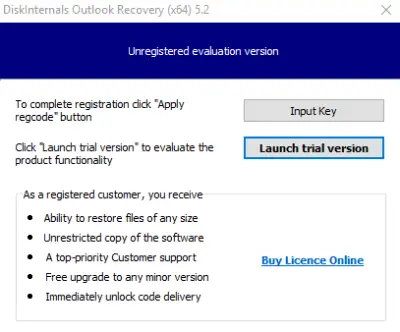
- 1. After the program is installed, click on the Wizard icon.
- 2. Next, select exactly what you want to restore:
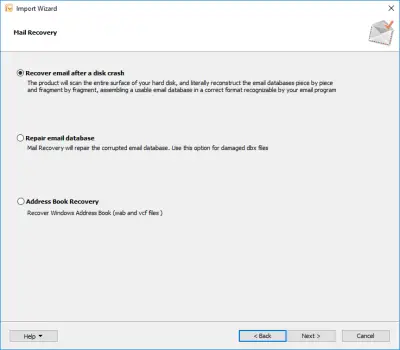
- database
- address book
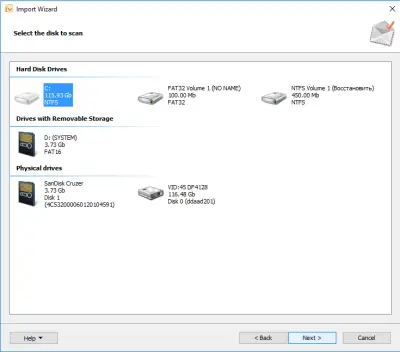
- 3. Next, select the drive that you want to scan (that is, the drive where all Outlook data was located). Then click the Scan button.
- 4. Next, do a free preview (via the right mouse button) of the data found. This feature is very relevant and useful. You look at the file and before paying any money, make sure that everything suits you and no one is trying to fool you.
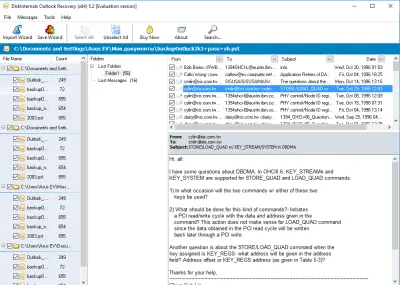
- 5. Saving. Just buy a license and click on the Save button. DiskInternals wishes you good luck in the future; be careful!
Related articles
- Outlook data file cannot be accessed? Solve it!
- The best solutions for Microsoft Outlook implementation issues
- What to do if Microsoft Outlook has stopped working
- MS Outlook not responding? Fix the issue today!
- Move Outlook files to a new computer safely!
- Fix sending / receiving 0x8004210a Outlook error
- Outlook error 0x800ccc0f has a solution!
- Fix 0x80040600 errors in Outlook today!
- Manual: remove duplicate emails in Outlook fast!
- How to create PST file in Outlook 2013
- Unknown 0x80040119 Outlook error? Fix it!
- If your Outlook folders or subfolders are missing
- How to Recover Deleted Outlook Calendar on Windows
- Outlook Error Code 0x80040154
- Outlook not syncing your email
- We couldn't create the Outlook data file
- How to recover a Gmail account
- Recover Deleted Emails in Office 365
- Using the G Suite Admin Console
- Error 0x80070021 occurs: your actions
- Outlook won't open: your actions
- How to save your mailing in case of Outlook error 0x800ccc0e?
- Outlook cannot connect to SMTP server
- Outlook stuck on loading profile? Fix it now!
- How to Encrypt Email in Outlook
- What if Outlook is not connecting to the server? Two solutions
- Here is how to open Outlook in safe mode
- Ultimate Guide to Fix 'Microsoft Outlook Won’t Open or Start' Error
- A Comprehensive Guide to Opening OST Files in Various Outlook Versions
- Navigating the Rackspace Hosted Exchange Outage: A Guide to Restoring Services and Data
- Unlock Your Data: Free PST Recovery Software Guide